


Overview
Embedding UnifyApps applications in Shopify allows seamless integration of UnifyApps features within your Shopify store.
Step-by-Step Instructions
Step 1: Add the Shopify Token to the Application
The application you want to embed needs a Shopify token before it can work in your store.
Contact support@unifyapps.com for the credentials and for help adding the token to your application.
Step 2: Search for UnifyApps in the Shopify App Store

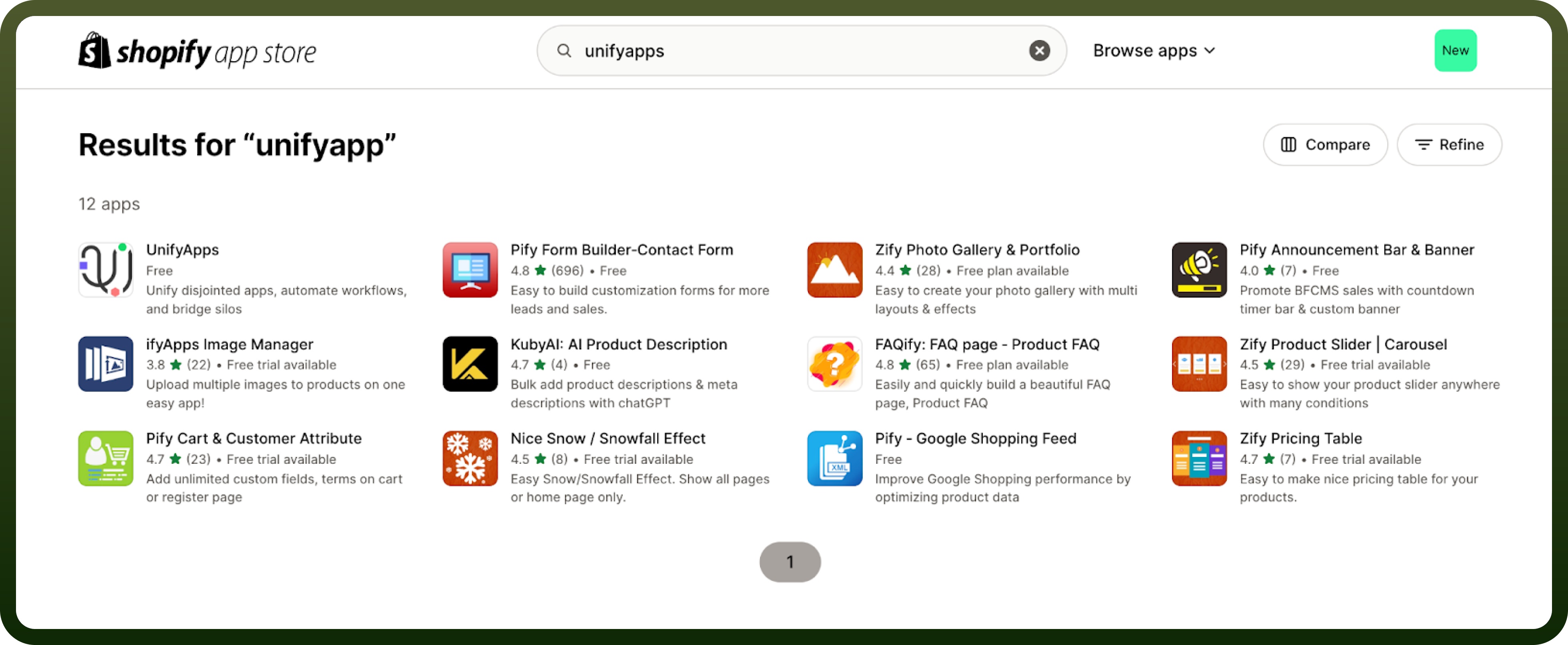
Navigate to the Shopify App Store and search for "
UnifyApps".
Step 3: Install the UnifyApps Application


Click on the UnifyApps application and install it in your Shopify store.
Step 4: Provide the Tenant Domain

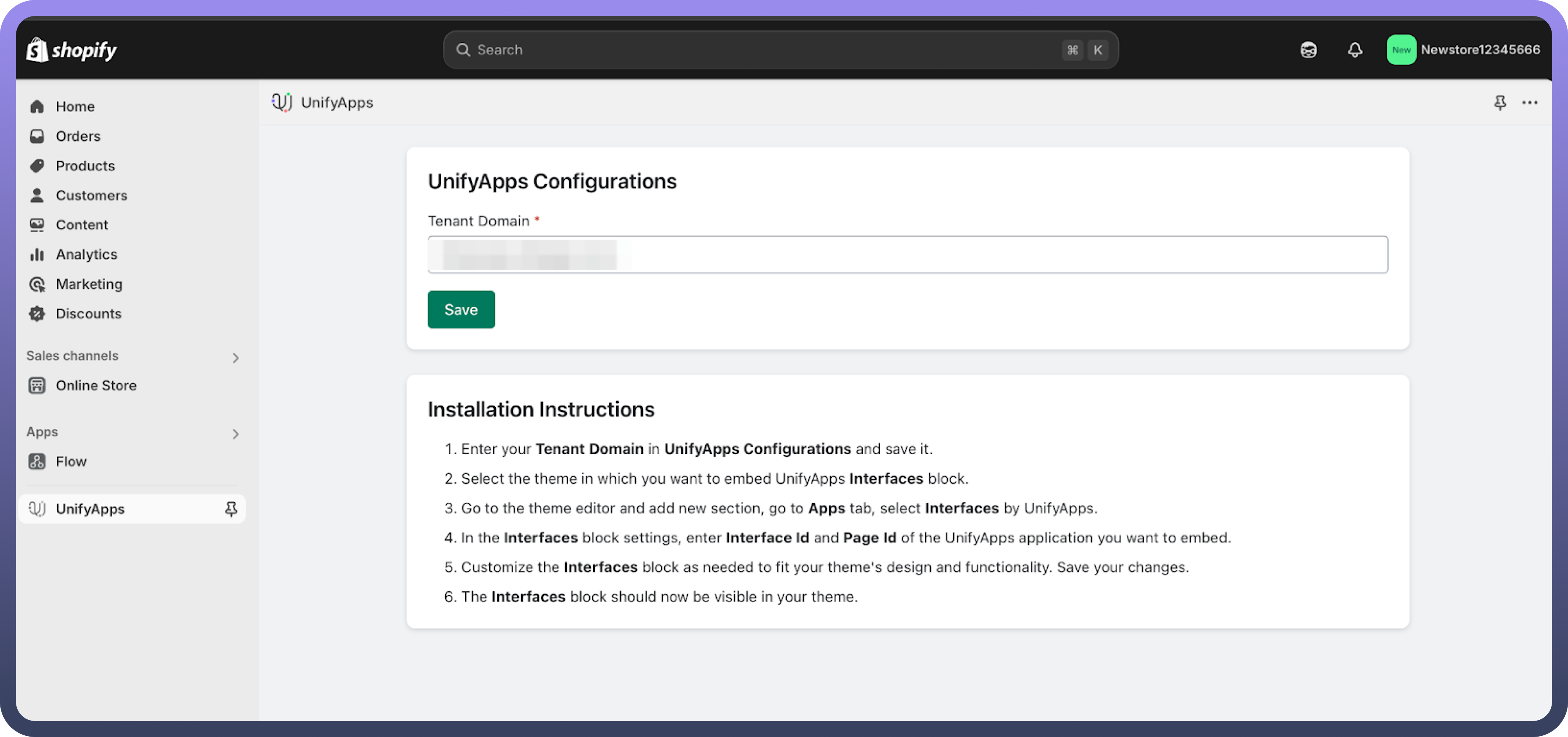
Inside the UnifyApps application, enter the main URL of the environment your application is hosted on in
Tenant Domain. For example: https://xyz.abc.unifyapps.com
Step 5: Navigate to the Online Store Customization Section

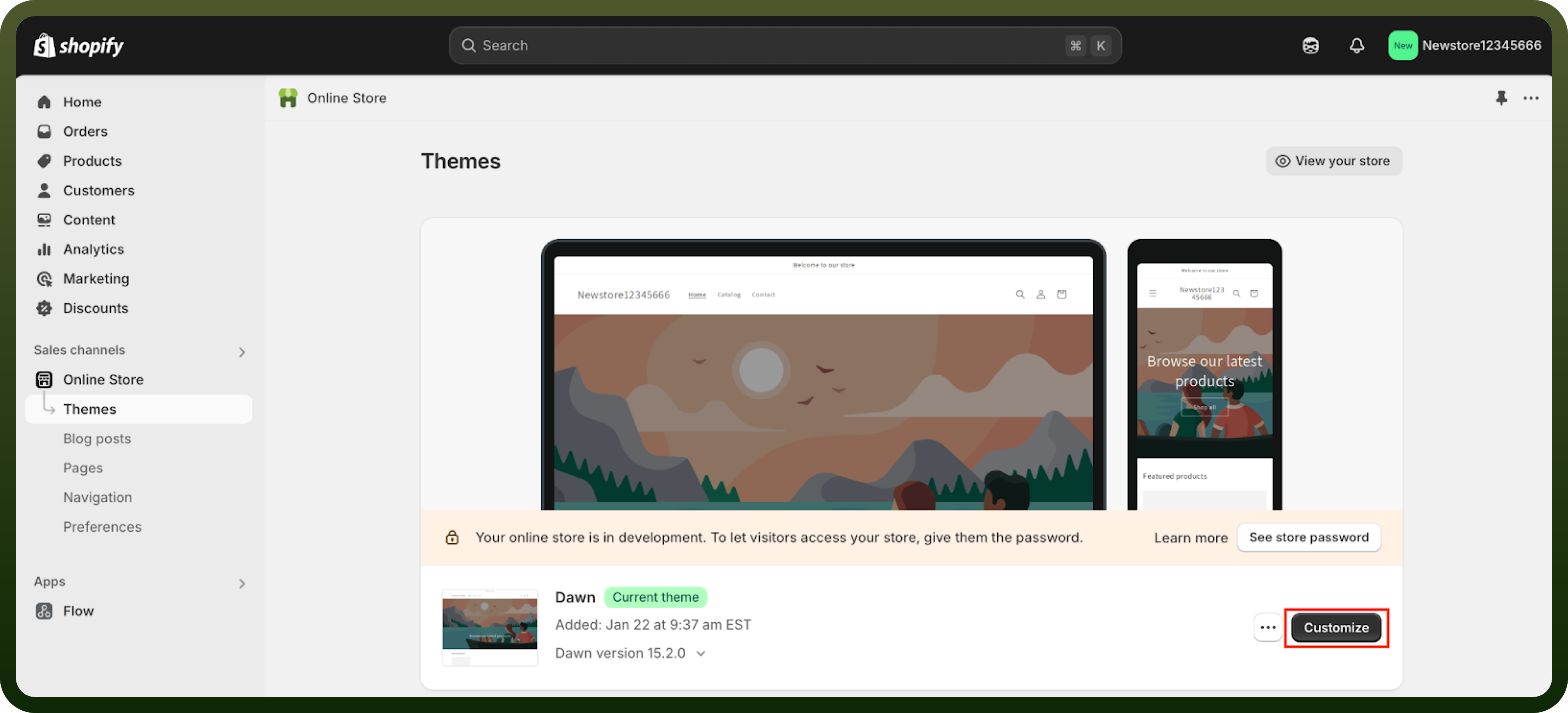
Go to the online store where you want to embed the UnifyApps application.
Click on
Customizeto modify the store layout.
Step 6: Add UnifyApps as a Section
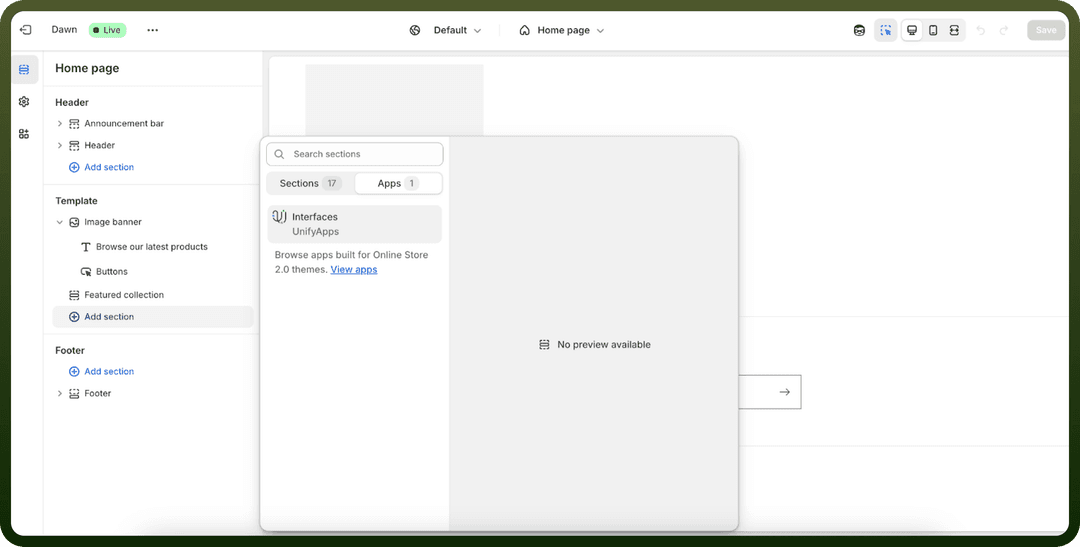
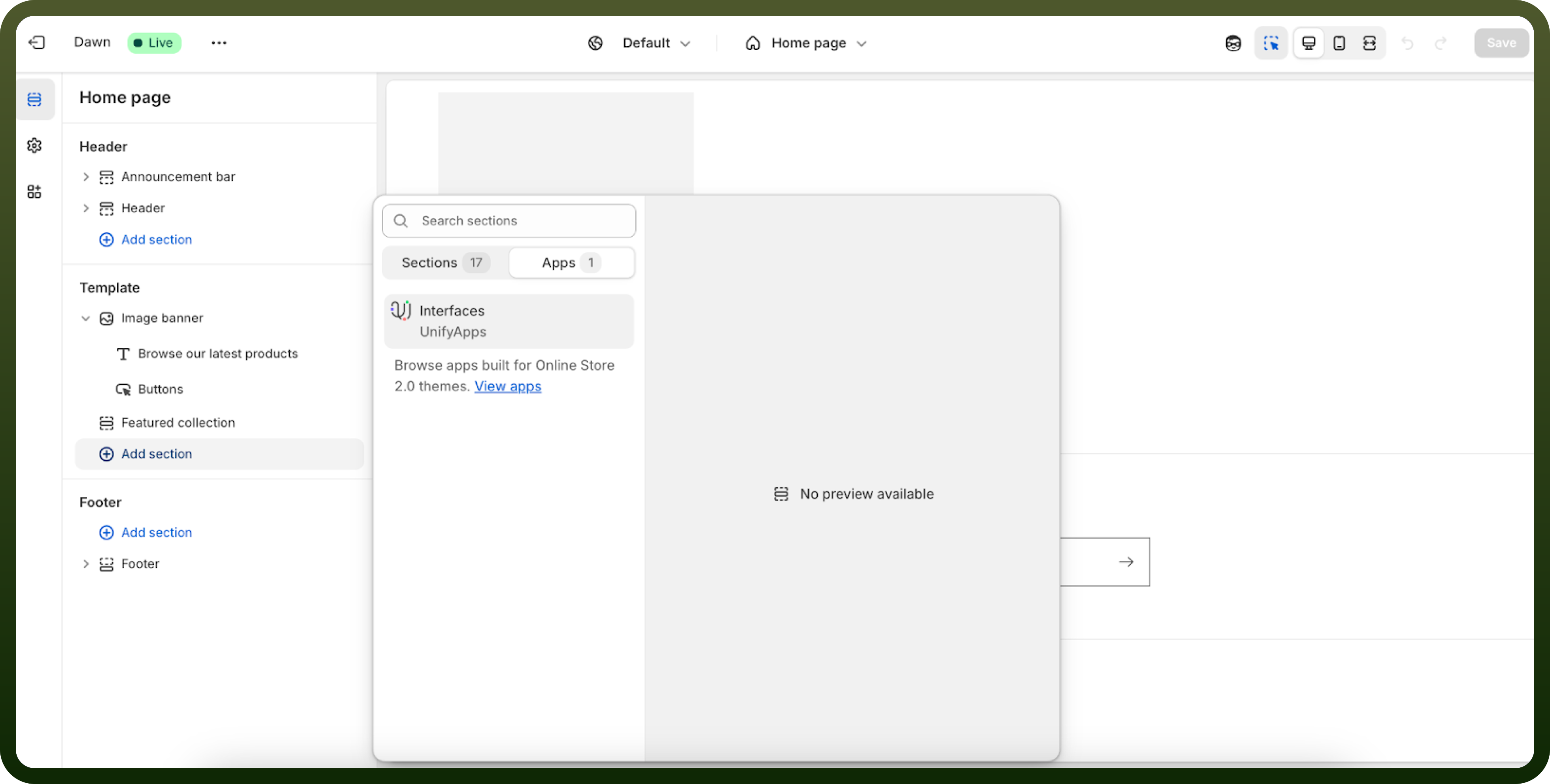
In the
Sectionstab, clickAdd Sectionat the desired location within the sequence of elements on your page.
Step 7: Configure UnifyApps Interface

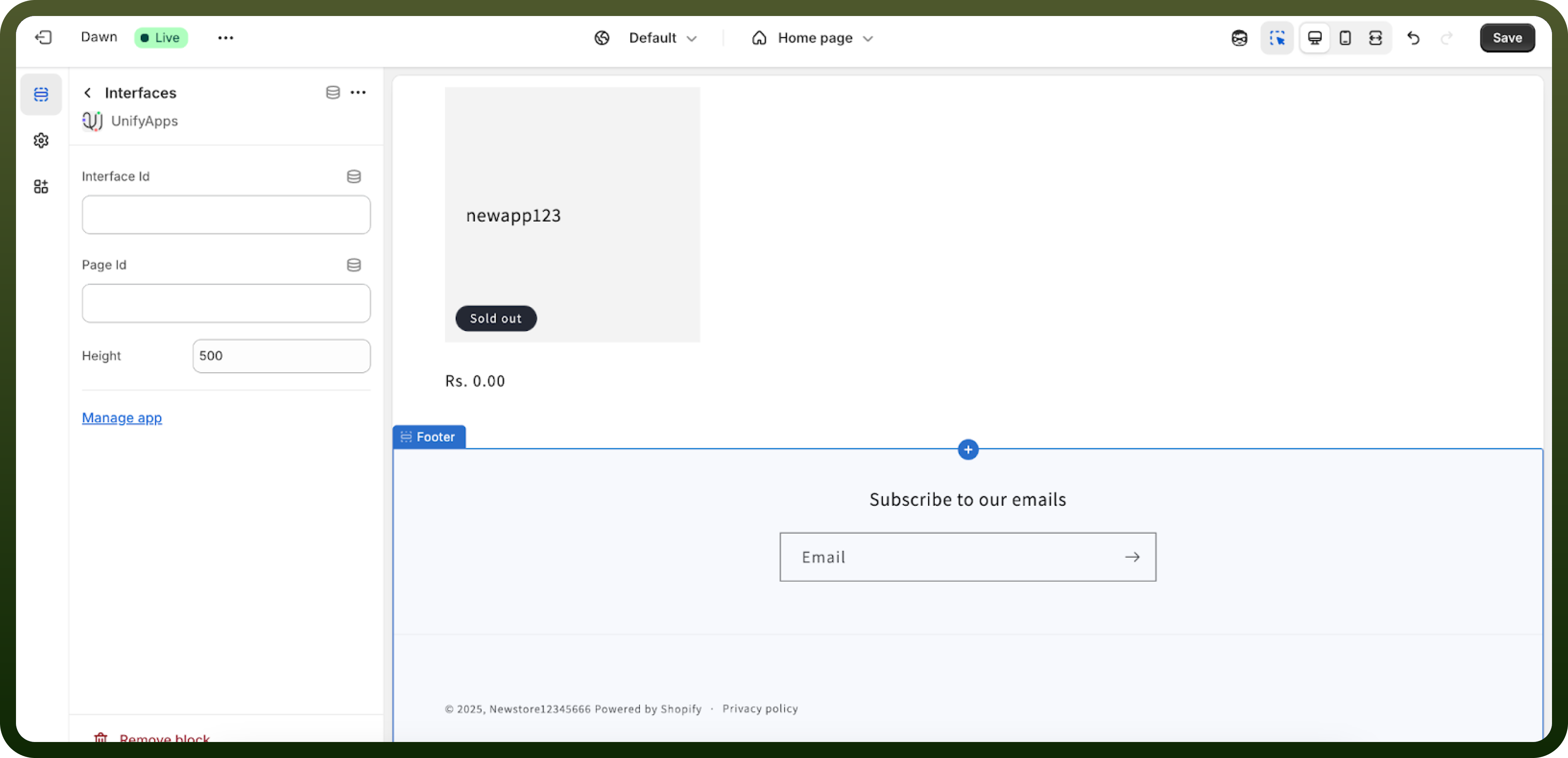
Select the Interfaces block by UnifyApps from the available sections.
Enter the Interface ID, which is your Application ID from the application's Overview page, and the Page ID, which is the page's Page Slug from its page settings.
Step 8: Adjust the Display Height
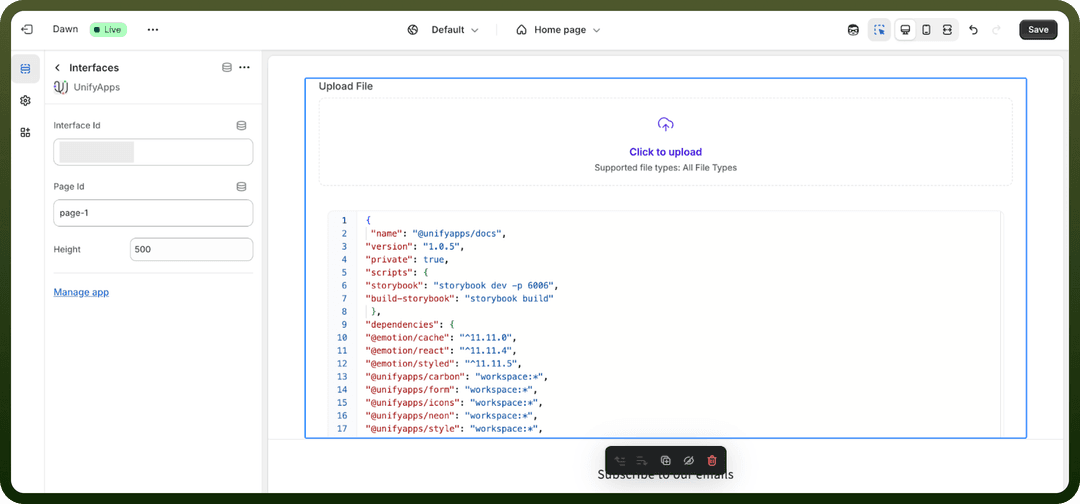
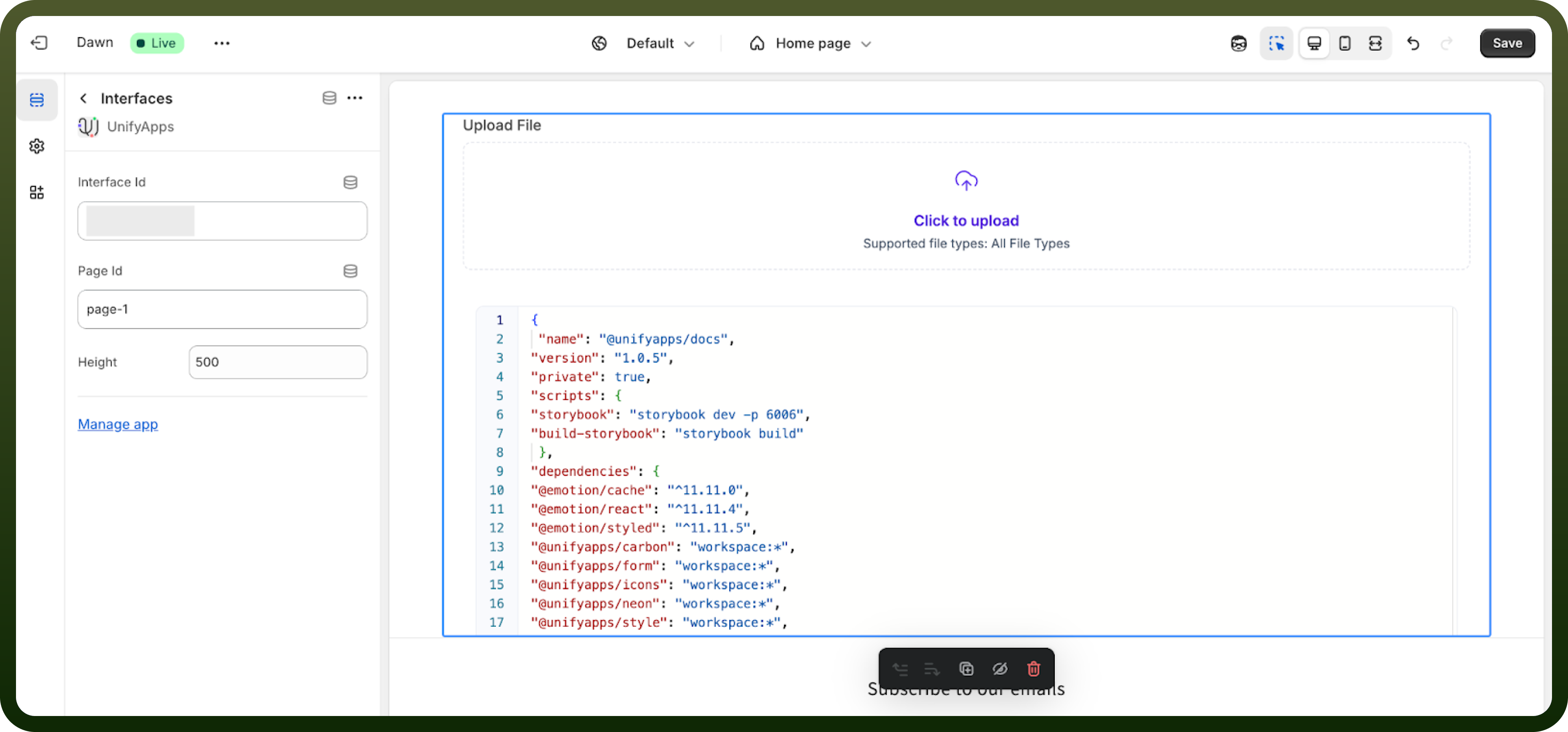
Set the Height of the UnifyApps interface to fit your store layout.