


Use the Granola connector to capture and summarize meeting notes with AI.
Integrating your application with Granola lets you use these operations in an automation. It exposes 3 actions, listed below. Add the connector from the Connections area, authenticate, then select its operations in the automation builder. Capabilities: actions, knowledge (RAG).
Authentication
Before you begin, make sure you have the following information:
Connection Name: Choose a meaningful name for your connection. This name helps you identify the connection within your application or integration settings.
API key: Granola uses API key authentication, so there's no authentication type to choose. Create a key in Granola (see Obtaining an API Key below) and paste it into the API key field.
Actions
Action Name | Description |
|---|---|
Get note | Retrieves a single Granola meeting note by ID. |
List folders | Lists accessible folders in Granola with pagination. |
List notes | Lists accessible meeting notes in Granola. |
Overview
The Granola API provides programmatic access to your workspace's meeting notes and related data through a RESTful interface, enabling integration with existing tools and custom workflows.
API Key Access Scopes
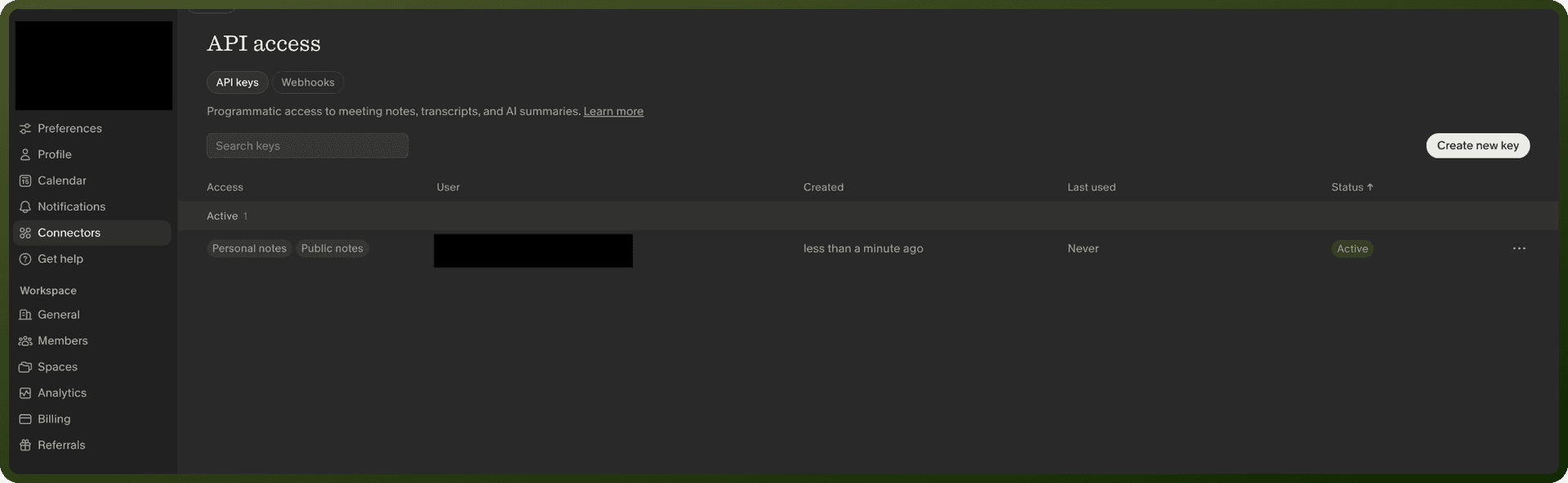
API keys support two access scopes:
Scope | Access |
|---|---|
Personal notes | Notes you own, notes directly shared with you, notes in private folders shared with you |
Public notes | Notes visible to everyone in the workspace, notes in the Team space |
Obtaining an API Key
Open the Granola desktop app
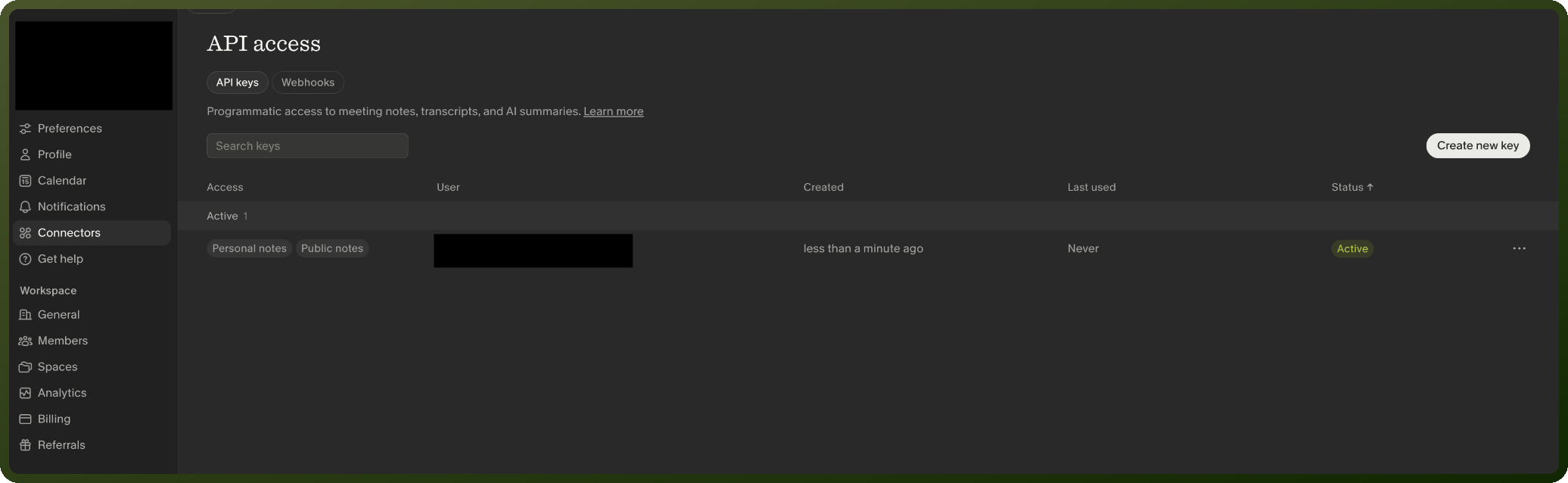
Navigate to Settings → Connectors → API keys
Click Create new key
Select the note access scopes for the key
Click Generate API Key
On Enterprise plans, workspace admins must enable API key access scopes in Settings → Workspace → General → API access for members.
Revoking an API Key
Go to Settings → Connectors → API keys
Find the key and click Revoke
Confirm in the dialog
Once revoked, the key is permanently disabled and cannot be restored.
Updating an API Key
Go to Settings → Connectors → API keys
Find the key and click Edit
Select the desired note access scopes
Click Save changes
Limits
Granola returns only notes that already have generated AI summaries and transcripts; notes that are still processing aren't returned. The Granola API allows about 5 requests per second, and requests above the limit fail with a 429 Too Many Requests error.