


Jira is Atlassian's work management tool for planning, tracking and releasing work, used by software, IT and business teams to manage issues, projects, boards and sprints. The UnifyApps Jira connector uses the Jira REST APIs (platform and Jira Software) on Jira Cloud and Jira Server / Data Center to create, update, search and transition issues, manage comments, attachments, watchers and worklogs, read projects, boards, sprints, fields, filters, users and groups, manage project roles, and react to issue, comment, worklog and project changes from workflows and agents.
This guide covers every authentication type available on the connection form, and the actions and triggers supported, along with the Jira scope each one needs.
Authentication
Before you begin, you should have the following information:
Connection name: a descriptive name such as MyAppJiraIntegration, so the connection is easy to identify later.
Authentication type: select the type of authentication for connecting to your Jira account: OAuth 2.0 OAuth with Custom credentials API Token / Basic Personal Access Token OAuth 2.0 Client Credentials
Every authentication type also uses these fields:
Host name (required): the domain of your Jira site, everything between
https://and the first/in the URL. For Jira Cloud it ends with.atlassian.net, for exampleacme-company.atlassian.net; for Jira Server / Data Center use your Jira host, for examplejira.acme-corp.com.Connection type: Cloud (the default) if your host name ends with
.atlassian.net, or Server for Jira Server / Data Center.Version (required): the Jira REST API version, Version 2 (the default) or Version 3. Select Version 2 for Jira Server or Jira Data Center.
For Jira Server / Data Center (Connection type Server), use OAuth with Custom credentials, API Token / Basic or Personal Access Token.
1. OAuth 2.0
Use this for Jira Cloud when you want to sign in with your Atlassian account and do not want to create an app. The connection uses a Jira app managed by UnifyApps.
Open Connections → New Connection → Jira and enter a Connection name.
Select OAuth 2.0 as the Authentication type.
Enter the Host name, keep Connection type as Cloud, and select the Version.
Optionally select Scopes. If you leave it empty, the connection requests
read:jira-user,read:jira-work,write:jira-work,manage:jira-project,manage:jira-configuration,manage:jira-webhook,read:project:jira,read:board-scope:jira-software,write:board-scope:jira-software,read:filter:jira,read:issue-details:jira,write:webhook:jiraandoffline_access.Click Authorize. You are redirected to the Atlassian sign-in page.
Sign in with your Atlassian account, review the requested permissions and click Accept.
You are redirected back to UnifyApps with a confirmation that the account is connected.
Note: whatever scopes the connection has, it can only do what the signed-in user is allowed to do in Jira. For example, a user without the Administer Jira permission cannot create users.
2. OAuth with Custom credentials
Use this to connect with your own OAuth app: an OAuth 2.0 (3LO) app for Jira Cloud, or an incoming application link for Jira Server / Data Center.
Step 1 (Jira Cloud): Create an OAuth 2.0 (3LO) app
On developer.atlassian.com, select your profile icon in the top-right corner and select Developer console.
Select the Create dropdown and choose OAuth 2.0 integration. Enter an app name and create it.
Select Permissions in the left menu, click Add next to Jira API, and configure the scopes the connection needs (see the Scopes Required column below). Atlassian limits an app to 50 scopes, so use classic scopes such as
read:jira-workandwrite:jira-workfor broad access.Select Authorization in the left menu and click Configure next to OAuth 2.0 (3LO).
Enter the Callback URL shown on the UnifyApps connection form (it is copyable and differs per environment), and click Save changes.
Select Settings in the left menu and copy the Client ID and Secret.
Step 1 (Jira Server / Data Center): Create an incoming application link
OAuth 2.0 on Jira Server / Data Center needs Jira Data Center 10.0 or later.
In Jira, go to Administration → Applications → Application links and select Create link.
Select External application, and choose Incoming as the direction.
Enter the Callback URL from the UnifyApps connection form as the Redirect URL.
Select the permissions (scopes) the application can have: READ, WRITE, ADMIN or SYSTEM_ADMIN.
Save the link, then copy the Client ID and Client secret that Jira generates.
Step 2: Connection setup in UnifyApps
Open Connections → New Connection → Jira and enter a Connection name.
Select OAuth with Custom credentials as the Authentication type.
Enter the Host name, select the Connection type (Cloud or Server) and the Version.
Enter the Client ID and Client secret of your app. Both are required.
Select the Scopes you configured for the app. For Server, if you select none, READ and WRITE are requested.
Click Authorize, sign in to Jira and accept the consent screen.
Confirm the success message after the redirect back to UnifyApps.
3. API Token / Basic
Use this to connect with your Jira Cloud email address and an API token, or with your Jira Server / Data Center username and password.
Step 1 (Jira Cloud): Create an API token
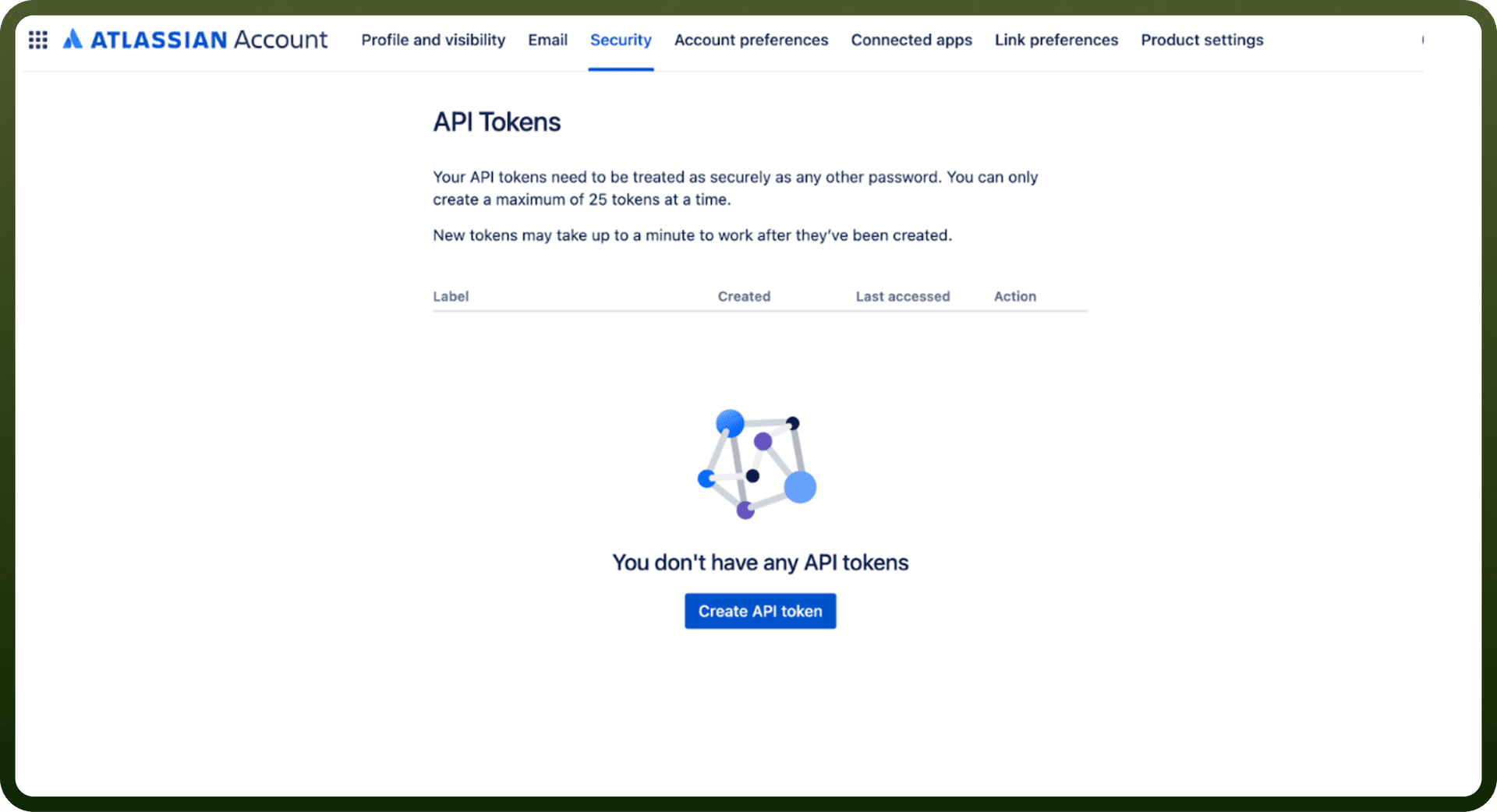
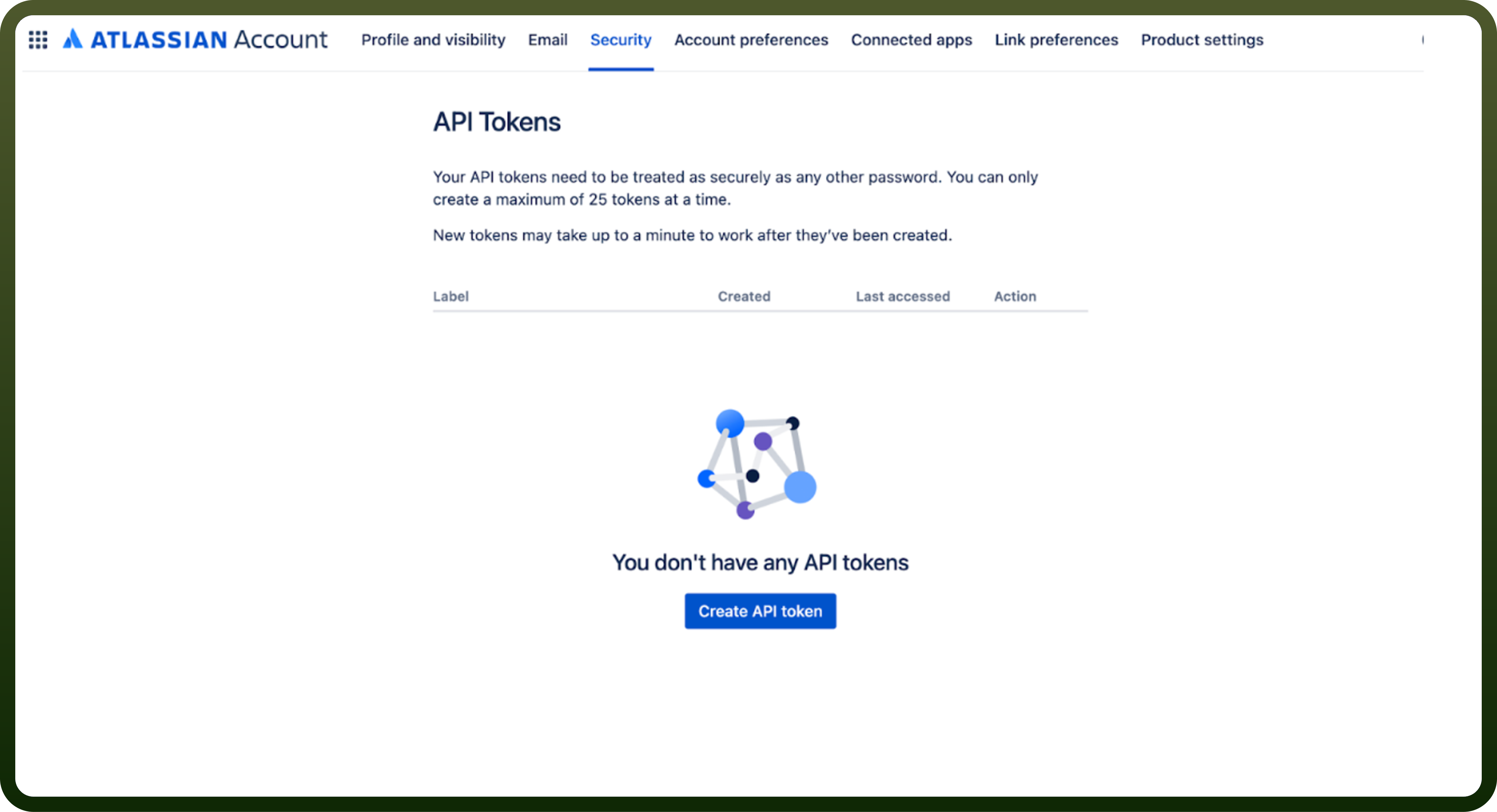
Log in to https://id.atlassian.com/manage-profile/security/api-tokens.
Select Create API token.
Give the token a name that describes its purpose, and select an expiration date (1 to 365 days).
Select Create, then Copy to clipboard. You can't see the token again after this step, so store it securely.
Step 2: Connection setup in UnifyApps
Open Connections → New Connection → Jira and enter a Connection name.
Select API Token / Basic as the Authentication type.
Enter the Host name, select the Connection type and the Version.
Enter the Email / Username and API token / Password: for Jira Cloud, the email address of the Atlassian account that created the token and the API token; for Jira Server / Data Center, your Jira username and password.
Click Test Connection to validate the credentials, then click Create.
4. Personal Access Token
Use this for Jira Server / Data Center, where a personal access token (PAT) replaces your password for integrations. The token has the same permissions as your Jira user.
Step 1: Create a personal access token in Jira
In Jira, select your avatar at the top right of the screen, then select Profile.
Select Personal access tokens in the left-hand menu, then Create token.
Give the token a name and, optionally, set it to expire after a number of days.
Select Create, then copy the token. You won't be able to see it again once you select Close.
Step 2: Connection setup in UnifyApps
Open Connections → New Connection → Jira and enter a Connection name.
Select Personal Access Token as the Authentication type.
Enter the Host name, select Server as the Connection type and Version 2 as the Version.
Paste the token into Personal Access Token.
Click Test Connection to validate the token, then click Create.
5. OAuth 2.0 Client Credentials
Use this for app-only access without a user signing in, with a client ID and client secret from an OAuth 2.0 provider, for example an OAuth 2.0 credential of an Atlassian service account.
Step 1: Create OAuth 2.0 credentials (Atlassian service account example)
Go to Atlassian Administration and select your organization.
Select Directory, then Service accounts, and select the service account.
Select Create credentials, select OAuth 2.0, then Next.
Select the scopes the credential can use in Jira, select Next, review the details and select Create.
Copy the client ID and client secret. You can't recover them after you create the credential.
Atlassian issues tokens for these credentials from https://auth.atlassian.com/oauth/token.
Step 2: Connection setup in UnifyApps
Open Connections → New Connection → Jira and enter a Connection name.
Select OAuth 2.0 Client Credentials as the Authentication type.
Enter the Host name, select the Connection type and the Version.
Enter the Client ID, Client secret and Token URL (the OAuth 2.0 token endpoint, for example
https://auth.atlassian.com/oauth/token). All three are required.Click Create.
Actions
Scopes are Jira Cloud OAuth 2.0 classic scopes; Jira Software board and sprint actions use granular scopes. A matching granular scope set also works. API Token / Basic and Personal Access Token connections are not limited by scopes and run with the Jira permissions of their user, and on Jira Server / Data Center OAuth uses the READ, WRITE, ADMIN and SYSTEM_ADMIN scopes. In every case, the user also needs the matching Jira permission, such as Browse projects or Administer Jira.
Actions | Description | Scopes Required |
|---|---|---|
Add users or groups to project role | Adds users or groups to a project role in Jira. | manage:jira-configuration |
Add watchers to ticket | Adds watchers to a Jira issue. | write:jira-work |
Assign user to issue | Assigns a user to an issue in Jira. | write:jira-work |
Create comment | Creates a comment on an issue in Jira. | write:jira-work |
Create issue | Creates an issue in Jira. | write:jira-work |
Create multiple subtasks | Creates multiple subtasks under a parent issue in Jira. | write:jira-work |
Create user | Creates a user in Jira. | manage:jira-configuration |
Download attachment | Downloads an attachment from an issue in Jira. | read:jira-work |
Find groups | Searches for groups by name in Jira. | read:jira-user |
Get all issue type schemes | Gets all issue type schemes from Jira. | manage:jira-configuration |
Get all issue worklogs | Gets all worklogs of an issue from Jira. | read:jira-work |
Get all projects | Gets all projects from Jira. | read:jira-work |
Get all users (Server / Data Center only) | Gets all users from a Jira Server or Data Center instance. | Server / Data Center only |
Get all watchers from ticket | Gets all watchers of a Jira issue. | read:jira-work |
Get attachment metadata | Gets the metadata of an attachment from Jira. | read:jira-work |
Get board configuration | Gets the configuration of a board from Jira. | read:board-scope.admin:jira-software and read:project:jira |
Get changelogs | Gets the changelogs of an issue from Jira. | read:jira-work |
Get comment by id | Gets a single comment on an issue from Jira. | read:jira-work |
Get comments | Gets the comments on an issue from Jira. | read:jira-work |
Get filter details | Returns the details of a filter by ID from Jira. | read:jira-work |
Get issue create metadata | Gets the available issue types and their required fields in Jira. | read:jira-work |
Get issue details | Gets the details of an issue from Jira. | read:jira-work |
Get issue schema | Gets the issue schema (fields) from Jira. | read:jira-work |
Get issue security schemes | Gets all issue security schemes from Jira. | manage:jira-project |
Get issue type field metadata | Gets the field metadata for an issue type in Jira. | read:jira-work |
Get my filters | Gets the filters owned by the connected user from Jira. | read:jira-work |
Get myself | Gets details of the connected user from Jira. | read:jira-user |
Get project details | Gets project details by ID from Jira. | read:jira-work |
Get project issue security scheme | Gets the issue security scheme associated with a project from Jira. | read:jira-work |
Get project permission scheme | Gets the permission scheme associated with a project from Jira. | read:jira-work |
Get project role | Gets the roles of a project from Jira. | read:jira-work |
Get project role details | Gets the details of a role in a project, with the users and groups that have it, from Jira. | read:jira-work |
Get project status | Gets the statuses of a project from Jira. | read:jira-work |
Get transitions | Gets the transitions available for an issue in Jira. | read:jira-work |
Get updated worklogs | Gets the worklogs updated since a given time from Jira. | read:jira-work |
Get user | Gets user details from Jira. | read:jira-user |
Get user groups | Returns the groups a user belongs to in Jira. | read:jira-user |
Get users for project | Gets the users who can access a project in Jira. | read:jira-user |
Get users in organization | Gets the users in the organization from Jira. | read:jira-user |
List all resolutions | Lists all resolutions from Jira. | read:jira-work |
List all worklogs | Lists worklogs by ID from Jira. | read:jira-work |
List board issues | Lists the issues on a board from Jira. | read:board-scope:jira-software and read:issue-details:jira |
List board sprints | Lists the sprints of a board from Jira. | read:sprint:jira-software |
List boards | Lists all boards from Jira. | read:board-scope:jira-software and read:project:jira |
List field context | Lists the contexts of a field from Jira. | manage:jira-project |
List fields | Lists all fields from Jira. | read:jira-work |
List group members | Lists the members of a group from Jira. | manage:jira-configuration |
List issue security level members | Lists the members of issue security levels from Jira. | manage:jira-configuration |
List issue types | Lists all issue types from Jira. | read:jira-work |
List issues assigned to user | Lists the issues assigned to a user in a project in Jira. | read:jira-work |
List JQL autocomplete data | Lists JQL autocomplete data from Jira. | read:jira-work |
List labels | Lists labels from Jira. | read:jira-work |
List my permissions | Lists the permissions of the connected user from Jira. | read:jira-work |
List priorities | Lists all priorities from Jira. | read:jira-work |
List team members | Lists the members of a team from Jira. | Not available with OAuth (use API Token / Basic) |
List teams | Lists all teams in an organization from Jira. | Not available with OAuth (use API Token / Basic) |
Parse JQL query | Parses a JQL query in Jira. | read:jira-work |
Remove watchers from ticket | Removes watchers from a Jira issue. | write:jira-work |
Run automation API | Triggers a Jira Automation incoming webhook with issue and watcher data. | None (uses the automation rule's webhook URL and secret) |
Search assignable users | Searches for users who can be assigned to an issue in Jira. | read:jira-user |
Search for filters | Searches for filters by name, owner, sharing context, project or filter ID in Jira. | read:jira-work |
Search issue fields | Searches all issue fields in Jira. | read:jira-work |
Search issues | Searches for issues in Jira. | read:jira-work |
Search issues by JQL | Searches for issues by JQL in Jira. | read:jira-work |
Search projects | Gets a paginated list of the projects visible to the user; with action set to browse, returns only projects the user can browse. | read:jira-work |
Search projects | Searches for projects in Jira. | read:jira-work |
Search users | Searches for users in Jira. | read:jira-user |
Update comment | Updates a comment on an issue in Jira. | write:jira-work |
Update issue | Updates an issue in Jira. | write:jira-work |
Update issue status | Updates the status of an issue in Jira. | write:jira-work |
Update users or groups to project role | Updates the users or groups in a project role in Jira. | manage:jira-project |
Upload attachment | Uploads an attachment to an issue in Jira. | write:jira-work |
Triggers
The New issue and Updated issue triggers check Jira for changes on a schedule. The New event trigger gives you a webhook URL to add in Jira yourself. The other triggers register a Jira webhook automatically when the workflow is deployed; registering it needs a Jira administrator (Administer Jira global permission).
Triggers | Description | Scopes Required |
|---|---|---|
Deleted attachment | Triggers when an attachment is deleted in Jira. | Administer Jira global permission |
Deleted comment | Triggers when a comment is deleted in Jira. | Administer Jira global permission |
Deleted issue | Triggers when an issue is deleted in Jira. | Administer Jira global permission |
Deleted object | Triggers immediately when an object (issue, project, comment or worklog) is deleted in Jira. | Administer Jira global permission |
New event | Triggers immediately when a new event occurs in Jira, through a webhook you set up in Jira. | None (you add the webhook URL in Jira) |
New issue | Triggers when new issues are created in Jira, delivered in batches. | read:jira-work |
New issue | Triggers when a new issue is created in Jira. | read:jira-work |
New or updated comment | Triggers when a comment is added or updated in Jira. | Administer Jira global permission |
New or updated issue | Triggers when an issue is created or updated in Jira. | Administer Jira global permission |
New or updated worklog | Triggers when a worklog is created or updated in Jira. | Administer Jira global permission |
New, updated, or deleted project | Triggers when a project is created, updated or deleted in Jira. | Administer Jira global permission |
Updated issue | Triggers when issues are updated in Jira, delivered in batches. | read:jira-work |
Updated issue | Triggers when an issue is updated in Jira. | read:jira-work |