


Dropbox provides cloud storage and collaboration tools for individuals and teams, supporting file syncing, sharing, and real-time updates. With integrations for popular apps and secure data protection, it enables seamless remote work and data accessibility.
Integrating Dropbox with your application allows for effortless file sharing, streamlined collaboration, and enhanced data management, ensuring a more efficient workflow.
Authentication
Before you begin, ensure you have the following information:
Connection Name: Choose a meaningful name for your connection. This name helps you identify the connection within your application or integration settings. It could be something descriptive like "MyAppDropboxIntegration".Authentication Type: Dropbox supports Oauth for authentication. This method ensures secure access to Dropbox's functionalities and data.
OAuth based Authentication
Client ID and Client Secret
:
Go on to the www.dropbox.com/developers and navigate to the App console section.
Within app console section, select “
create apps” to Create a new app on the DBX PlatformChoose the type of access you need:
Full Dropbox: You get full access to all the files and folders in the user's Dropbox.App folder: A dedicated folder named after your app is created within the Apps folder of a user's Dropbox. Your app gets read and write access to this folder only.
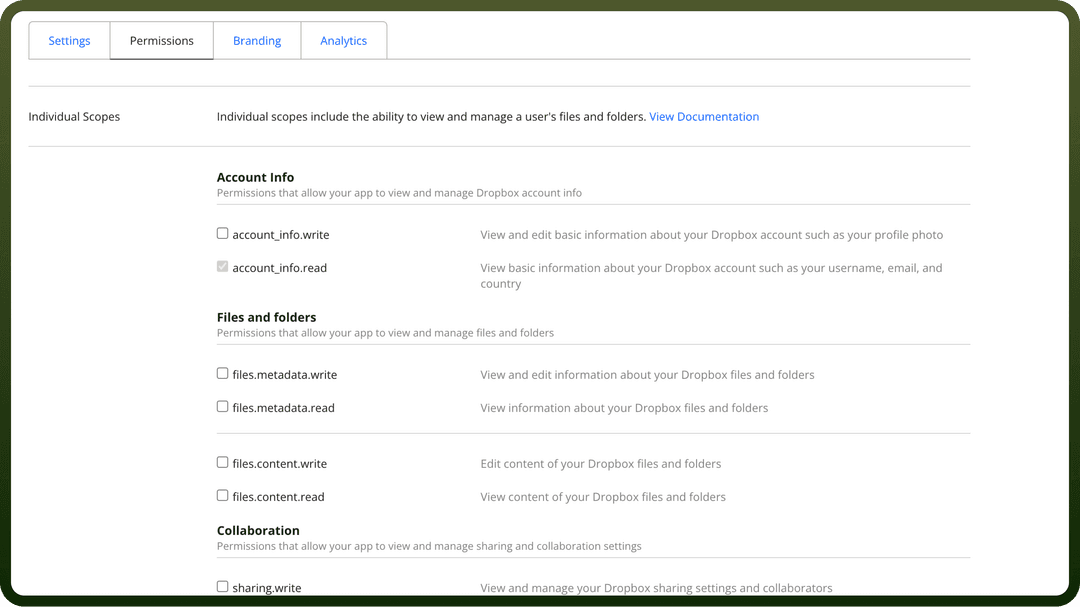
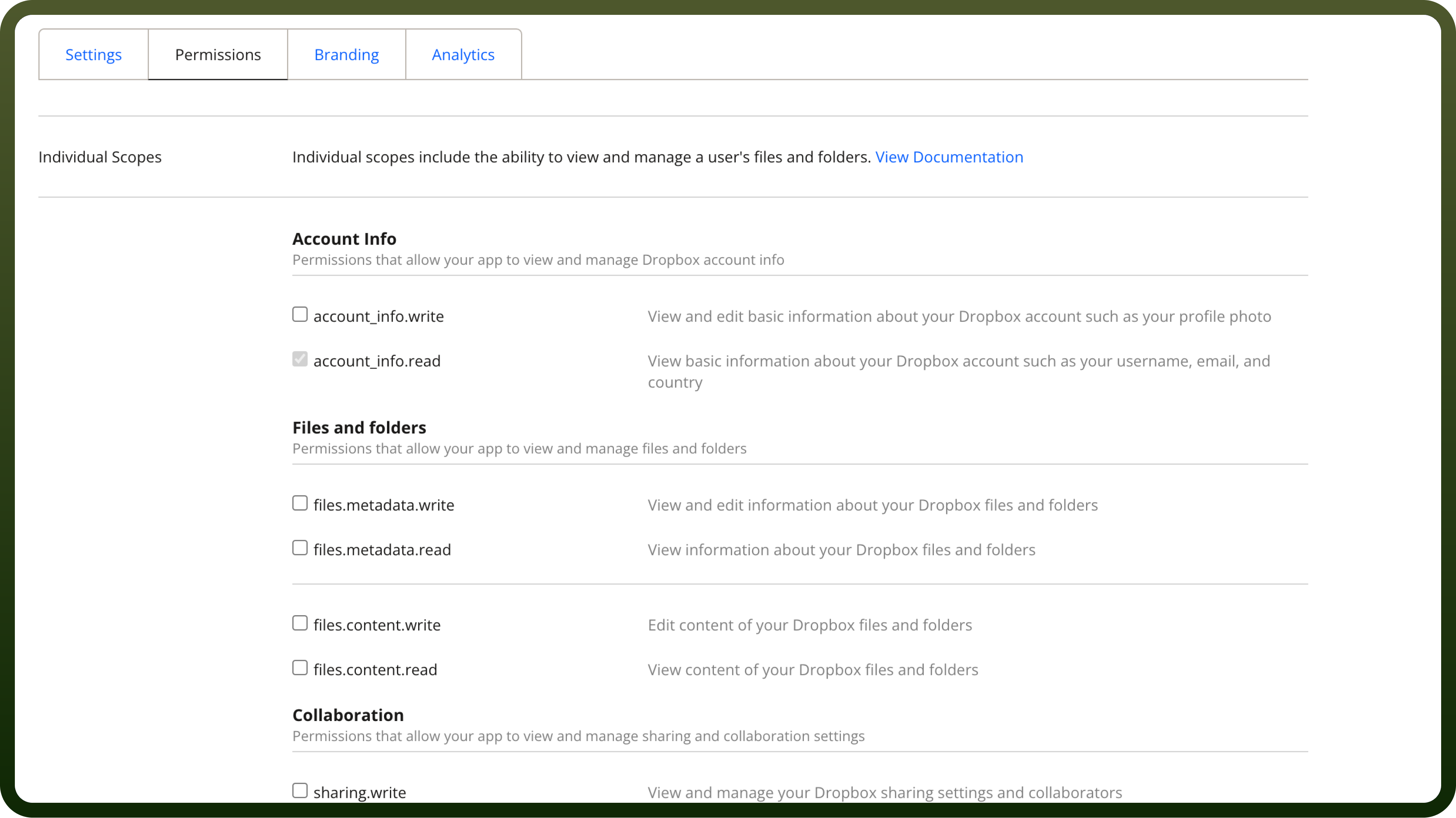
Within the created app, navigate to the permission section and provide the required scopes for your app. Choose the following as the basic scopes (files.metadata.write, files.content.write,files.content.read), choose the remaining ones based on your needs
In the settings section, under OAuth 2, click on “
Generate Access token” to generate the token.For OAuth, App key and App secret represent Client ID and Client Secret respectively.

Note
To complete the OAuth flow with UnifyApps, copy the Callback URL shown in the connection form and add it as a redirect URI in the OAuth 2 section of your Dropbox app settings.
Click on “
show” to generate the Client Secret.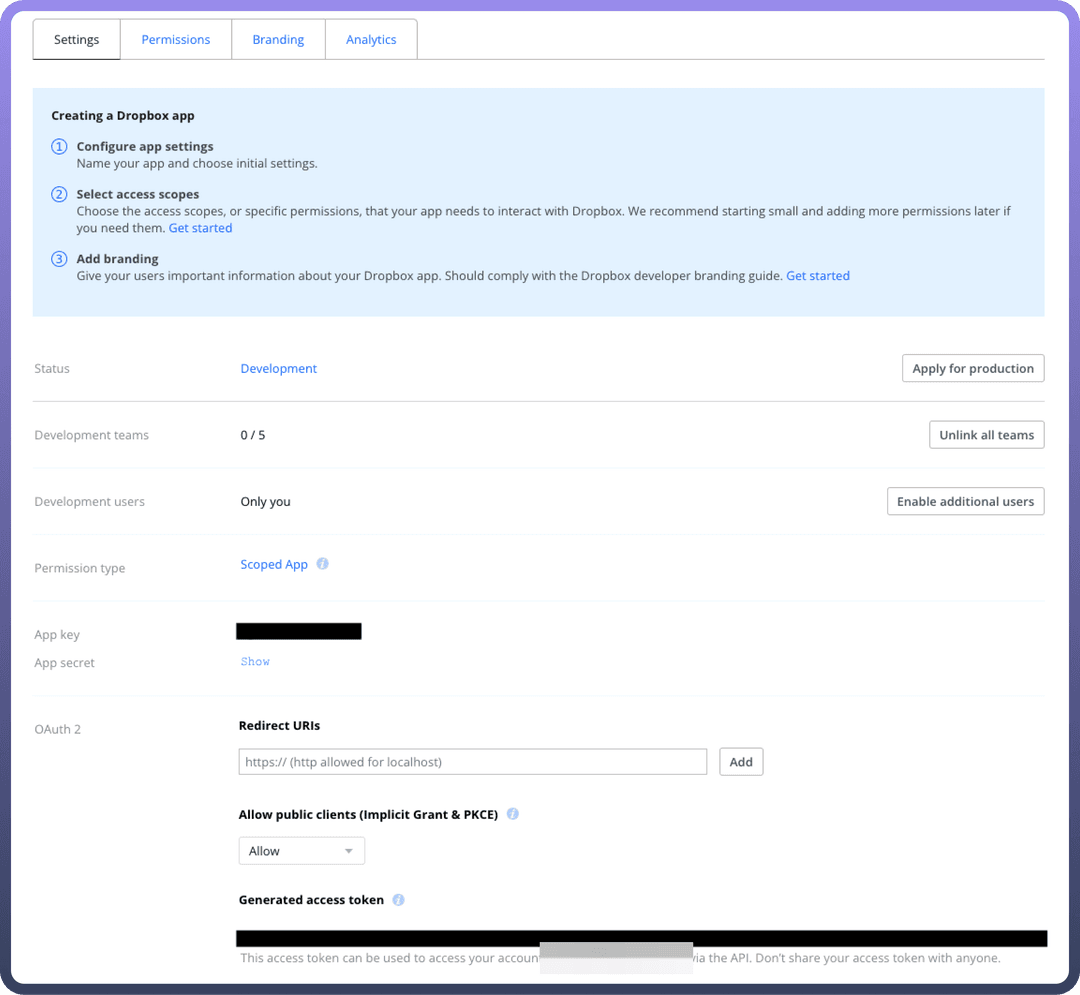
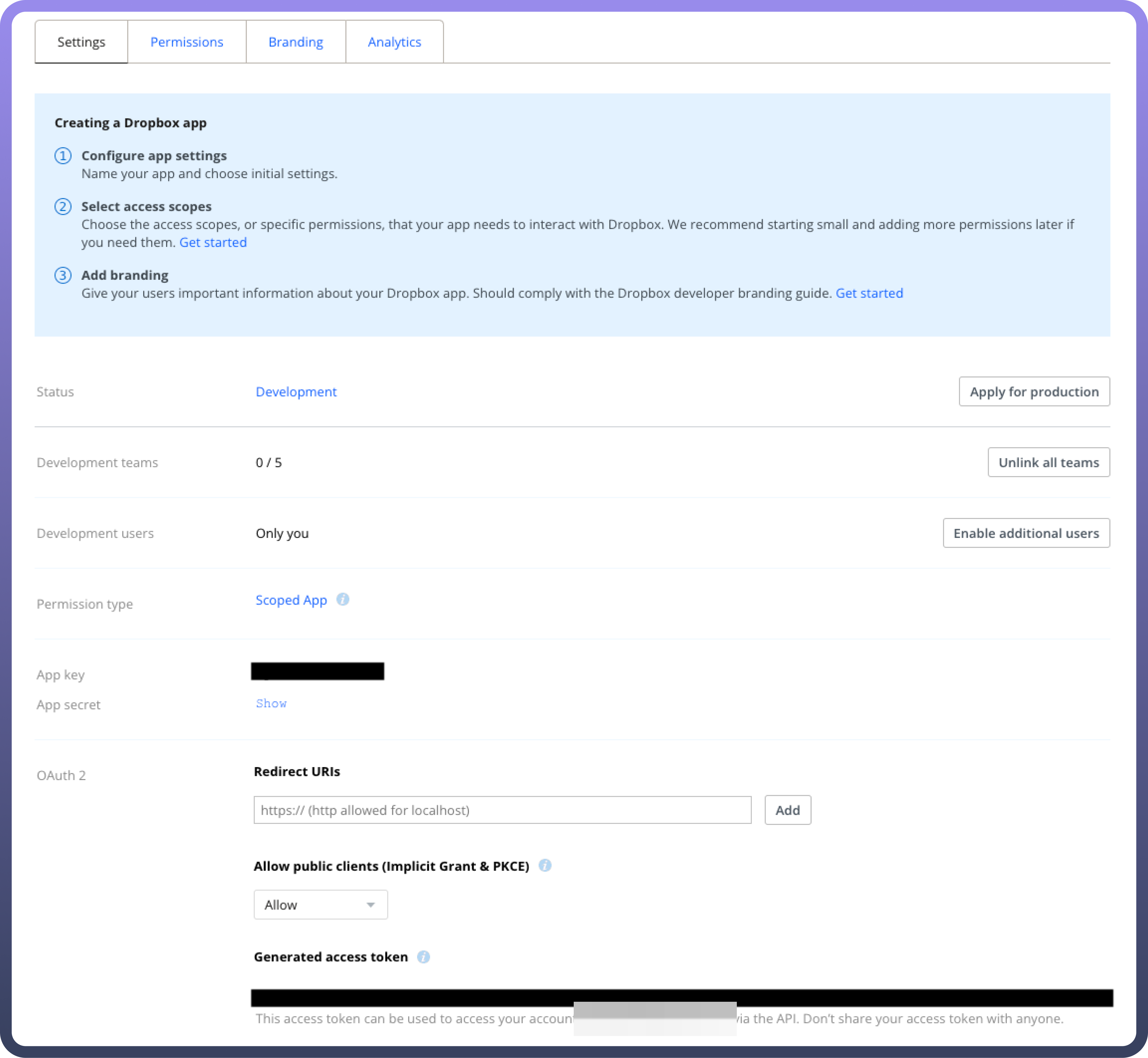
Click Generate to Generate an Access Token.
Now Add the Client ID and Client Secret to the Authorization page on UnifyApps, and click on
Authorize.
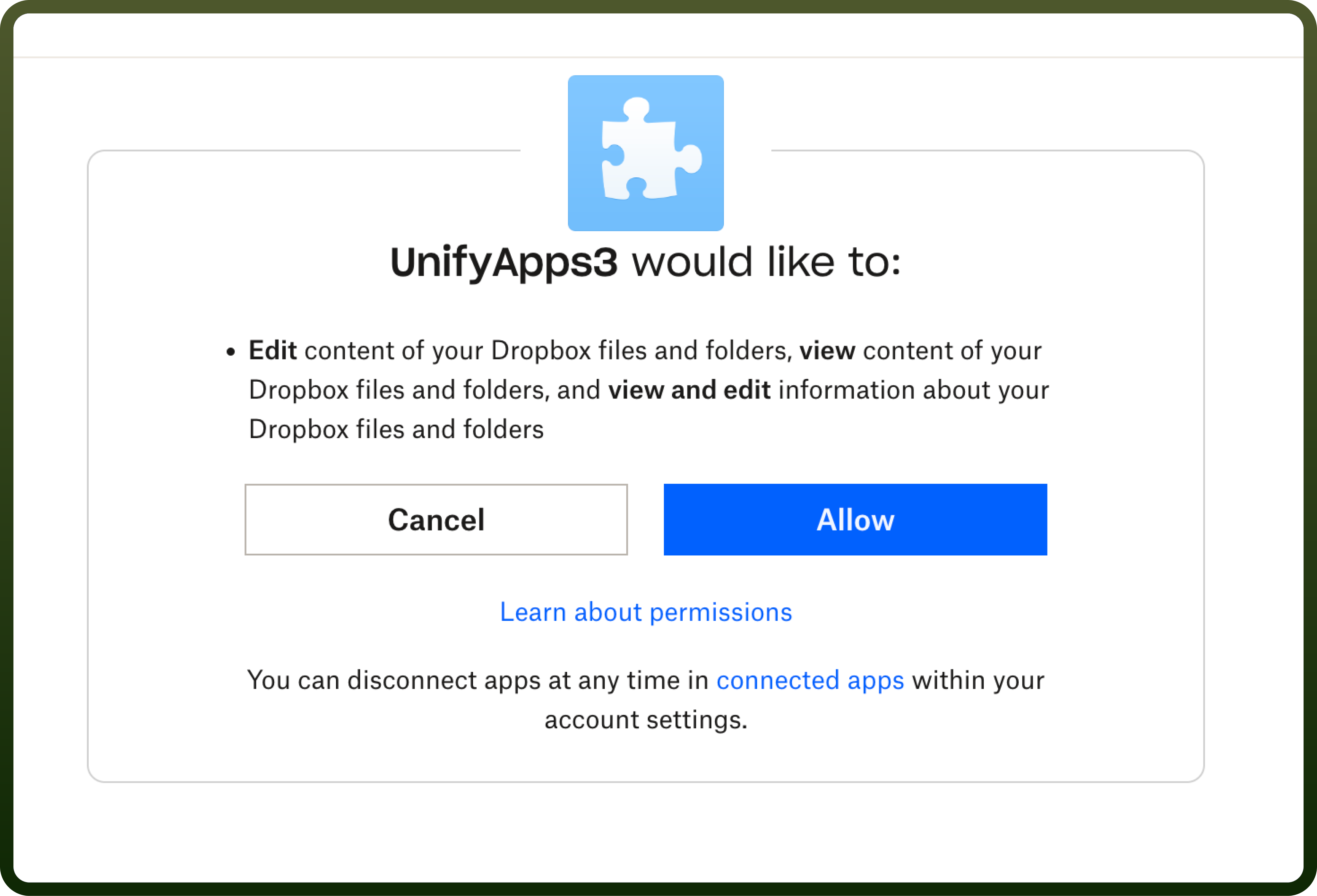
Click on
Allow, and your connection will be created successfully.
Actions
Action | Description |
|---|---|
| Duplicate a file or folder within Dropbox |
| Create a new folder in your Dropbox account |
| Remove a file or folder from Dropbox |
| Download the contents of a file from Dropbox |
| Fetches deleted files/folders from Dropbox |
| Searches for files stored in Dropbox |
| Access detailed information about a file or folder in Dropbox |
| Fetches members who have been invited to a file in Dropbox |
| Continue fetching members who have been invited to a file in Dropbox |
| Fetches File and Folder from Dropbox |
| Continue fetching file and folder from Dropbox |
| Move/rename a file/folder within Dropbox |
| Reads a CSV file from Dropbox |
| Search for folders within Dropbox |
| Updates a CSV file in Dropbox |
| Upload a file to Dropbox by providing it's public URL or by providing the contents directly |
| Upload a multi line file to Dropbox |
Triggers
Trigger | Description |
|---|---|
| Polls for new revision of a file in Dropbox. |
| Polls for new/updated files in Dropbox |