


Use the Coveo connector to provide AI-powered search experiences.
Integrating your application with Coveo lets you use these operations in an automation. It exposes 4 actions, listed below. Add the connector from the Connections area, authenticate, then select its operations in the automation builder. Capabilities: actions.
Authentication
Before you begin, make sure you have the following information:
Connection Name: Choose a meaningful name for your connection. This name helps you identify the connection within your application or integration settings.
Authentication Type: Coveo uses token authentication, so you don't select an authentication type. The connection form asks for a single field, Access key. Enter the Coveo API key you create below.
Obtaining Your API Key
Log in to your organization's Coveo Administration Console.
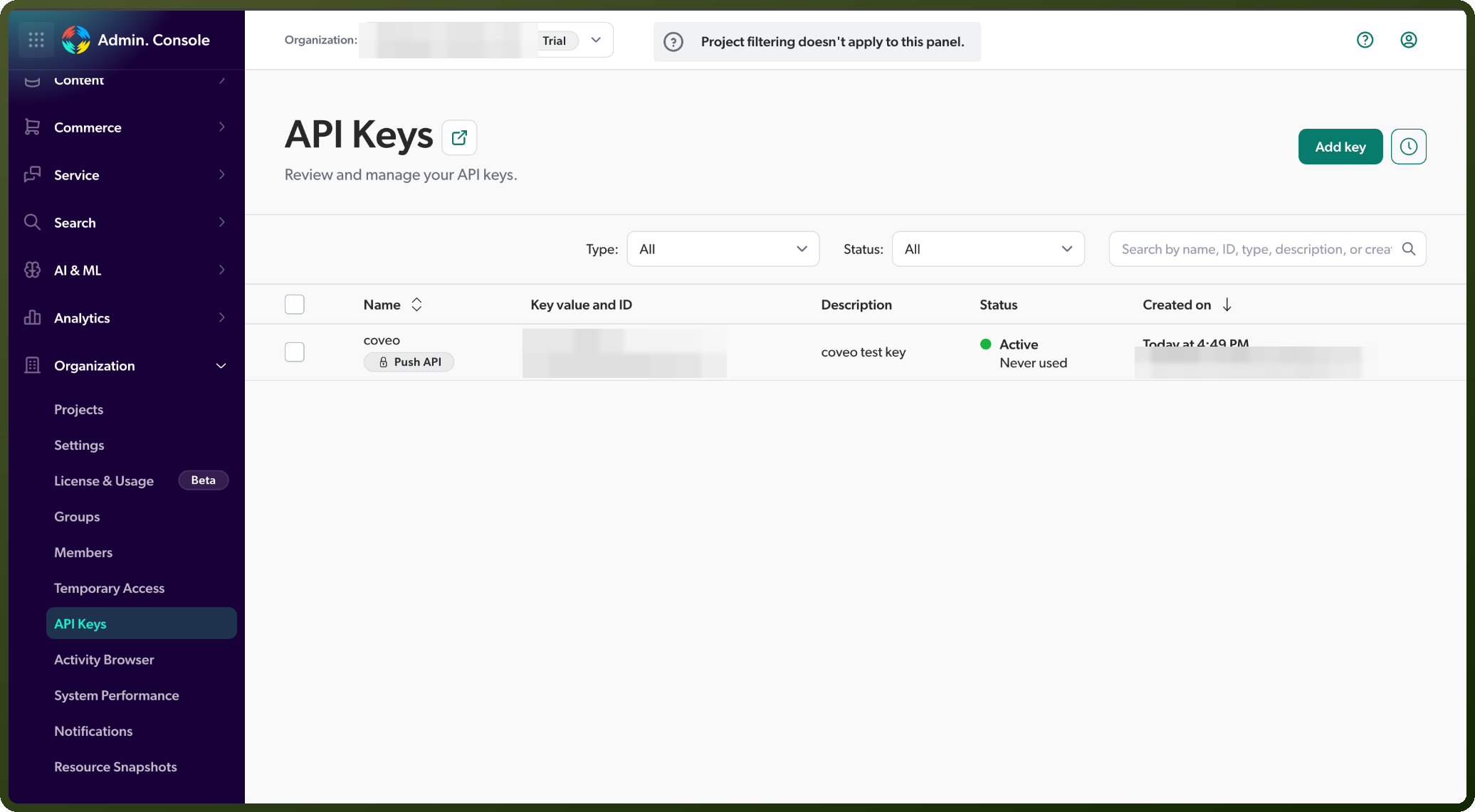
Go to Organization, then open API Keys.
Click Add key.
In the Key purpose step, choose the template that matches what the key will be used for (for example, Push API for indexing content, or Custom for broader access), then click Next.
In the Identification step, enter a name for the key and click Next.
Step through the remaining Configuration and Access sections, then click Add API key.
In the confirmation dialog, copy the generated key and store it securely — it is shown only once.

Authentication & setup
API Key Authentication
Most basic method for programmatic access
Obtain API keys from Coveo platform
Include in request headers or parameters
Suitable for development and internal tools
Actions
Action Name | Description |
|---|---|
Create or update content | Creates or updates content in Coveo |
Delete content | Deletes content in Coveo |
Search items | Searches items in Coveo |
Search items with specific filters | Searches items with specific filters in Coveo |
About the API
Coveo provides REST APIs for search, discovery, and content retrieval. The platform powers intelligent search experiences with machine learning-based relevance. The Search API is the core endpoint for query execution. Access your data through search experiences with analytics and usage tracking. API key management, token generation, and access control features available for different authentication scenarios.