


Use the Azure Service Bus connector to enable enterprise messaging and integration.
Integrating your application with Azure Service Bus lets you use these operations in an automation. It exposes 6 actions and 2 triggers, listed below. Add the connector from the Connections area, authenticate, then select its operations in the automation builder. Capabilities: actions, triggers.
Authentication
Before you begin, make sure you have the following information:
Connection Name: Choose a meaningful name for your connection. This name helps you identify the connection within your application or integration settings.
Authentication Type: Select one of these options in the Authentication type field:
Access key: needs Authorization policy and Access key.
Credentials with client config: needs Client ID, Client Secret and Tenant ID from your own Microsoft Entra app registration.
Credentials: needs only the Tenant ID.
Fields for every authentication type
Namespace: your Service Bus namespace.
Type: Queue or Topic.
Queue or Topic name: the name of the queue or topic, based on the Type you selected.
Connection test scope: how UnifyApps checks the connection. Keep Legacy (default) if your authorization policy has the Manage claim; it validates by listing the topics in the namespace. If your policy has only the Listen claim (for example, an entity-scoped policy on one queue or topic), select Entity scoped; it validates against the queue or topic subscription you configured.
Subscription name: shown when you select Entity scoped. Required when Type is Topic.
Credentials with client config
In the Azure Portal, register an app under Microsoft Entra ID > App registrations. If Azure asks for a redirect URI, copy the Callback URL shown in the UnifyApps connection form and use it.
Copy the Application (client) ID and Directory (tenant) ID, and create a client secret under Certificates & secrets.
Give the app a Service Bus data role on the namespace, such as Azure Service Bus Data Sender or Azure Service Bus Data Receiver.
In UnifyApps, select Credentials with client config and enter the Client ID, Client Secret and Tenant ID.
Credentials
Select Credentials and enter your Tenant ID (the Directory (tenant) ID of your Microsoft Entra tenant), then sign in with Microsoft when prompted.
Access Key
Log in to the Azure Portal.
Search for and select Service Bus from the search bar.
Click your target Namespace. This value fills the Namespace field in your form.
Under Entities in the left menu, select Queues or Topics. Set the Type field to match (Queue or Topic).
Copy the exact name of your queue or topic. This fills the Queue or Topic name field.
Open your Service Bus Namespace (or the specific queue or topic if you use an entity-scoped policy).
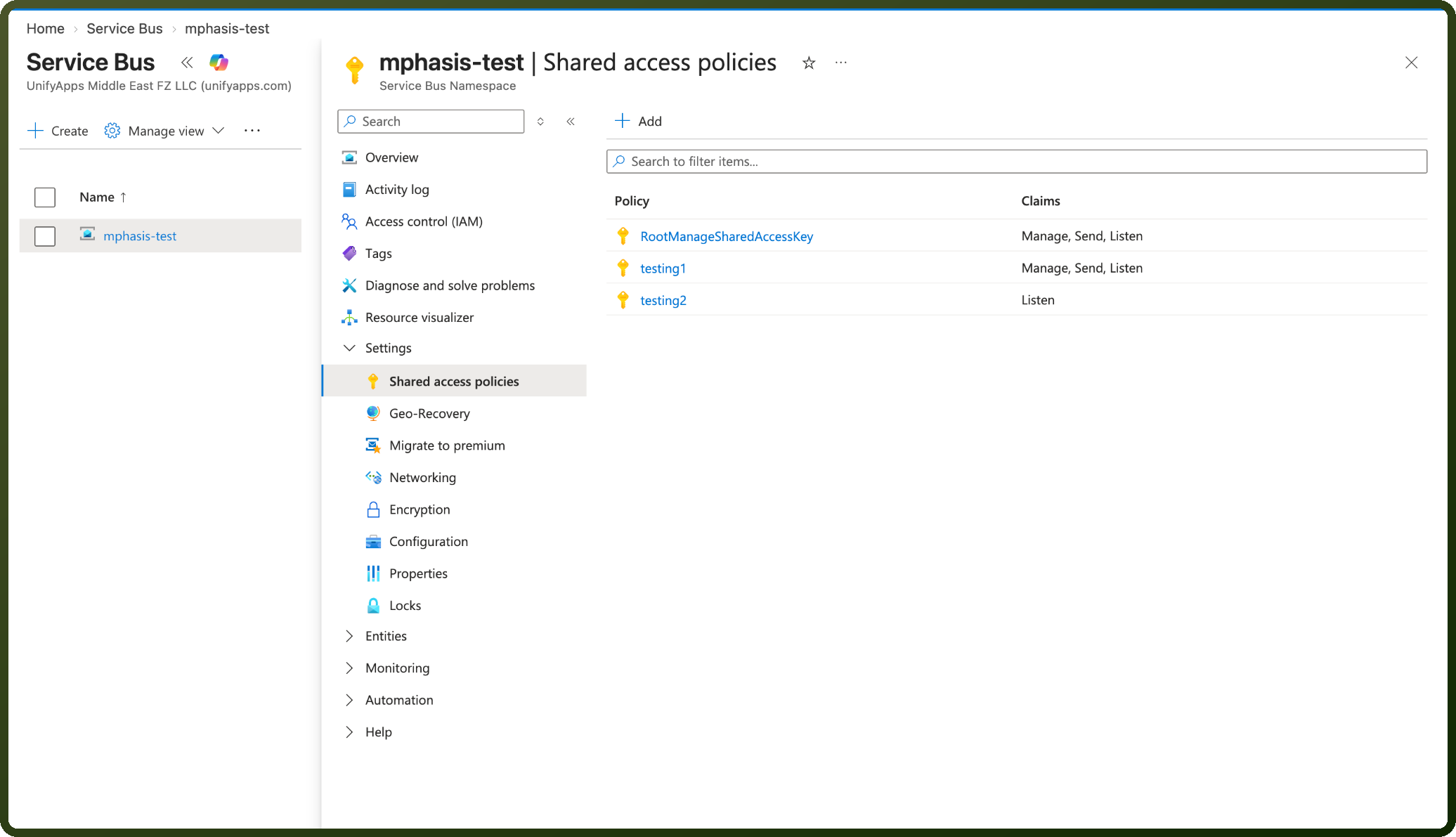
In the left menu, go to Settings > Shared access policies.
Select an existing policy or click + Add to create one with the permissions you need (Send, Listen, or Manage).
Copy the policy name. This fills the Authorization policy field.
Click the policy name and copy the Primary Key. This fills the Access key field.
Set Connection test scope: keep Legacy for a namespace policy with the Manage claim, or select Entity scoped for a queue or topic policy with only the Listen claim (and enter the Subscription name for a topic).

Actions
Action Name | Description |
|---|---|
Delete message | Deletes a message from a queue or topic in Azure Service Bus |
List topics | Retrieves topics in Azure Service Bus |
Peek-Lock message | Retrieves and locks a message from a queue or topic in Azure Service Bus |
Receive and delete message | Retrieves and deletes a message from a queue or topic in Azure Service Bus |
Send message | Sends a message to Azure Service Bus |
Send multiple messages | Sends multiple messages to Azure Service Bus |
Triggers
Trigger Name | Description |
|---|---|
New message | New message in Azure Service Bus |
New message (Streaming) | New message in Azure Service Bus (Streaming) |
About the API
Azure Service Bus is a cloud-based messaging service providing:
Message Queues: Asynchronous message communication
Topics and Subscriptions: Publish-subscribe messaging patterns
Dead Letter Queues: Handling failed messages
Sessions: Message ordering and grouping
Transactions: ACID-compliant message operations
Scheduled Messages: Deferred message delivery
Enterprise Integration: Large-scale message processing