


Google Cloud Storage is a scalable, secure, and highly available object storage service for storing and retrieving any amount of data at any time.
Integrating Google Cloud Storage lets your automations create and manage buckets, and upload, download and manage objects.
Authentication
Ensure you have the following information ready for a seamless integration process:
Connection Name: Select a descriptive name for your connection, like "MyAppGCSIntegration". This helps in easily identifying the connection within your application or integration settings.Authentication Type: Google Cloud Storage supports three authentication types: OAUTH (users grant access to their Google Cloud resources), Service Account (server-to-server access without user interaction) and Workload Identity Federation (access from an external identity provider without a service account key).Project identifier: Required for every authentication type. In the Google Cloud console, open the project dropdown at the top to see the project name and ID.Scope: Optional. The permissions to request for this connection. Defaults to full control if left blank.Restrict to bucket: Optional. A comma-separated list of buckets the user has access to, for examplebucket-1,bucket-2. Use it when the user has access to only some buckets.
Service account
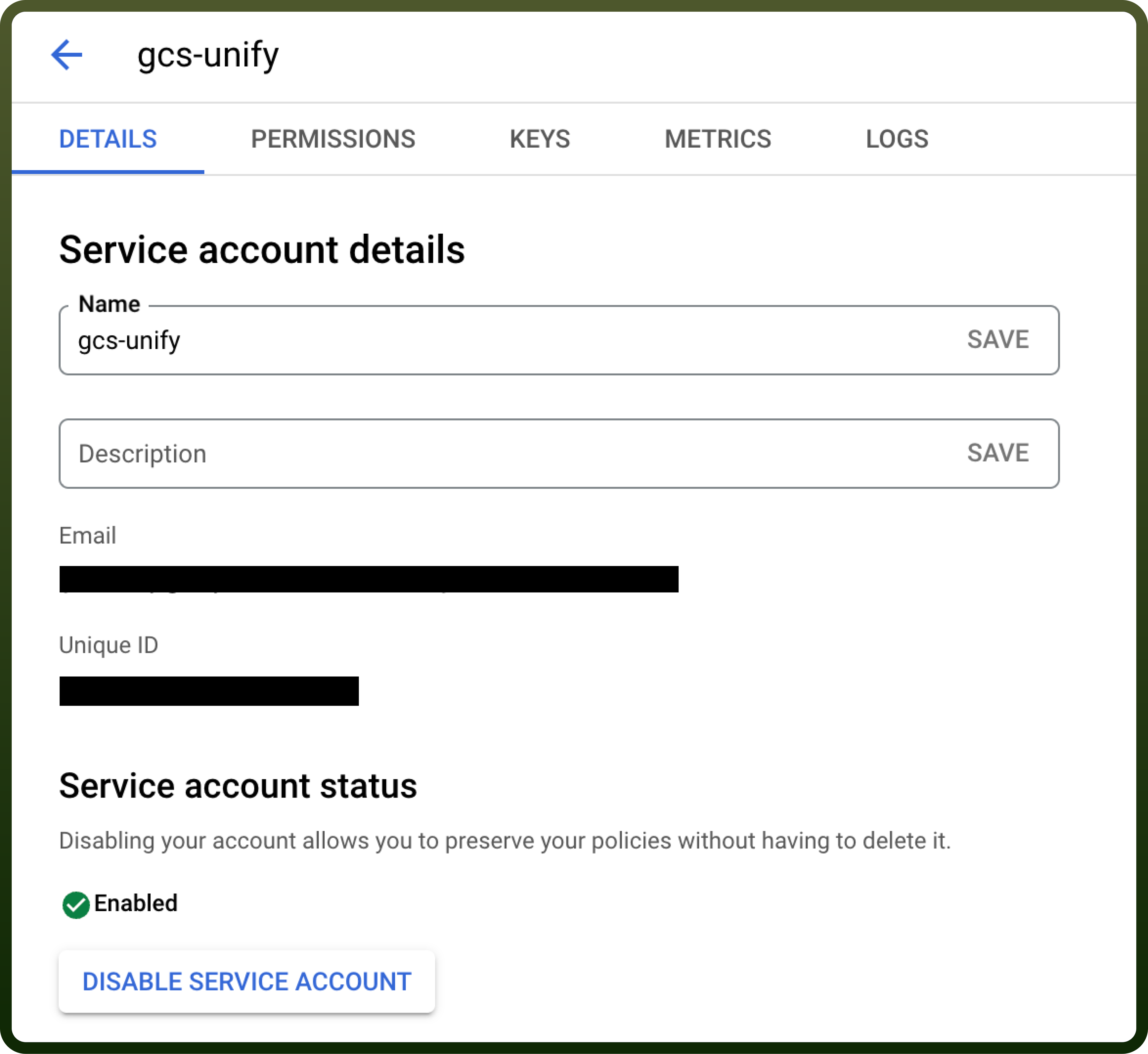
Create a service account by following these steps.
Add domain level access to the service account (basis client ID) by following these steps.
Ensure that below scopes are added within your service account and domain level access: https://www.googleapis.com/auth/devstorage.full_control https://www.googleapis.com/auth/devstorage.read_only https://www.googleapis.com/auth/devstorage.read_write
In the connection form, select Service Account and enter the GCS Project Service Account Email, the Private Key from the downloaded JSON key file, and a User Email. Use a Workspace user email if domain-wide delegation is set up; otherwise use the service account email.

OAuth 2.0
Set up OAuth 2.0 credentials in the Google Cloud Console:
Go to the Google Cloud Console.
Select your project and navigate to "
APIs & Services" > "Credentials".Click "
Create Credentials" and choose "OAuth client ID".Select the appropriate application type (e.g., Web application, Desktop app).
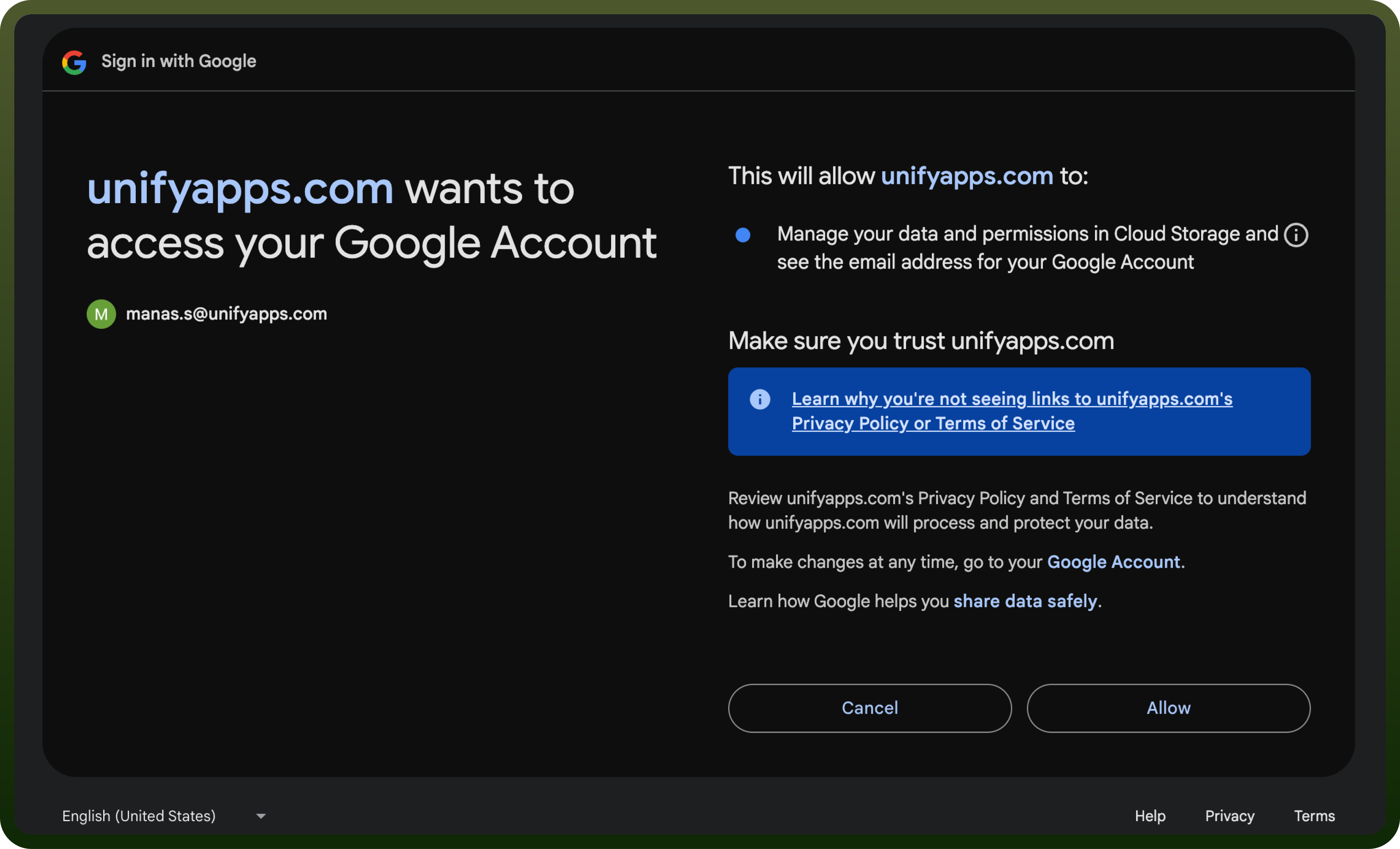
Configure the OAuth consent screen with necessary information.
Under Authorized redirect URIs, add the Callback URL shown in the UnifyApps connection form.
Once created, copy the Client ID and Client Secret into the connection form (authentication type OAUTH), then click Authorize and sign in with your Google account.

Workload Identity Federation
Use this option to let a workload outside Google Cloud access Cloud Storage through an external identity provider, without a service account key.
In Google Cloud, set up a workload identity pool and provider for your external identity provider.
Generate a credential configuration file with
gcloud iam workload-identity-pools create-cred-config.In the connection form, select Workload Identity Federation and paste the contents of the file into Credential Configuration JSON.
Actions
Action | Description |
|---|---|
| Creates a bucket in Google Cloud Storage |
| Deletes a bucket by its name in Google Cloud Storage |
| Deletes an object by its name in Google Cloud Storage |
| Downloads an object from a bucket in Google Cloud Storage |
| Gets a bucket by its name in Google Cloud Storage |
| Gets object metadata in Google Cloud Storage |
| Lists buckets by project ID in Google Cloud Storage |
| Lists objects within a bucket in Google Cloud Storage |
| Updates a bucket by its name in Google Cloud Storage |
| Updates object metadata by its name in Google Cloud Storage |
| Uploads an object to a bucket in Google Cloud Storage |
Triggers
Trigger | Description |
|---|---|
| Triggers when a new object is added to the specified bucket in Google Cloud Storage |