


Amazon CloudWatch is a monitoring and observability service that provides actionable insights into applications, infrastructure, and services on AWS and on-premises. It enables real-time metrics collection, log analysis, and automated alerts to optimize performance and resolve issues quickly.
Integrating Amazon CloudWatch enables real-time monitoring, automated alerts, and actionable insights to optimize system performance and reliability.
Authentication
Before you begin, make sure you have the following information:
Connection name: a name that identifies this connection in UnifyApps, such as "MyAppAmazonCloudwatchIntegration".
Region (required): the AWS region of your resources, such as us-east-1. If your AWS console URL starts with https://us-east-1.console.aws.amazon.com, enter us-east-1.
Authentication type: Access Key, IAM Role or Instance Role.
The fields you fill in depend on the authentication type:
Access Key: enter the Access key ID and Secret access key of an IAM user (both required).
IAM Role: enter the ARN of an IAM role in the IAM Role field (required), and in External Id the external ID set on the role's trust relationship.
Instance Role: no keys are entered; the connection uses the IAM role of the environment that UnifyApps runs in. Use it only when UnifyApps runs inside your own AWS account.
Access Key Based
Sign in to the AWS Management Console and search for "
Users" in the search bar present at the top of the console's home page.Click on "
Create user" at the top right corner.Enter a user name for the new user in the AWS Management Console (https://console.aws.amazon.com/).
Click Next. To return to the IAM (Identity and Access Management) dashboard later, search for "
IAM" in the search bar.Select permissions (AmazonCloudwatchFullAccess) policies by selecting "
Attach policies directly" and click on thecreate userbutton.Once the user is created, click on the username of the user created and under the summary section click on
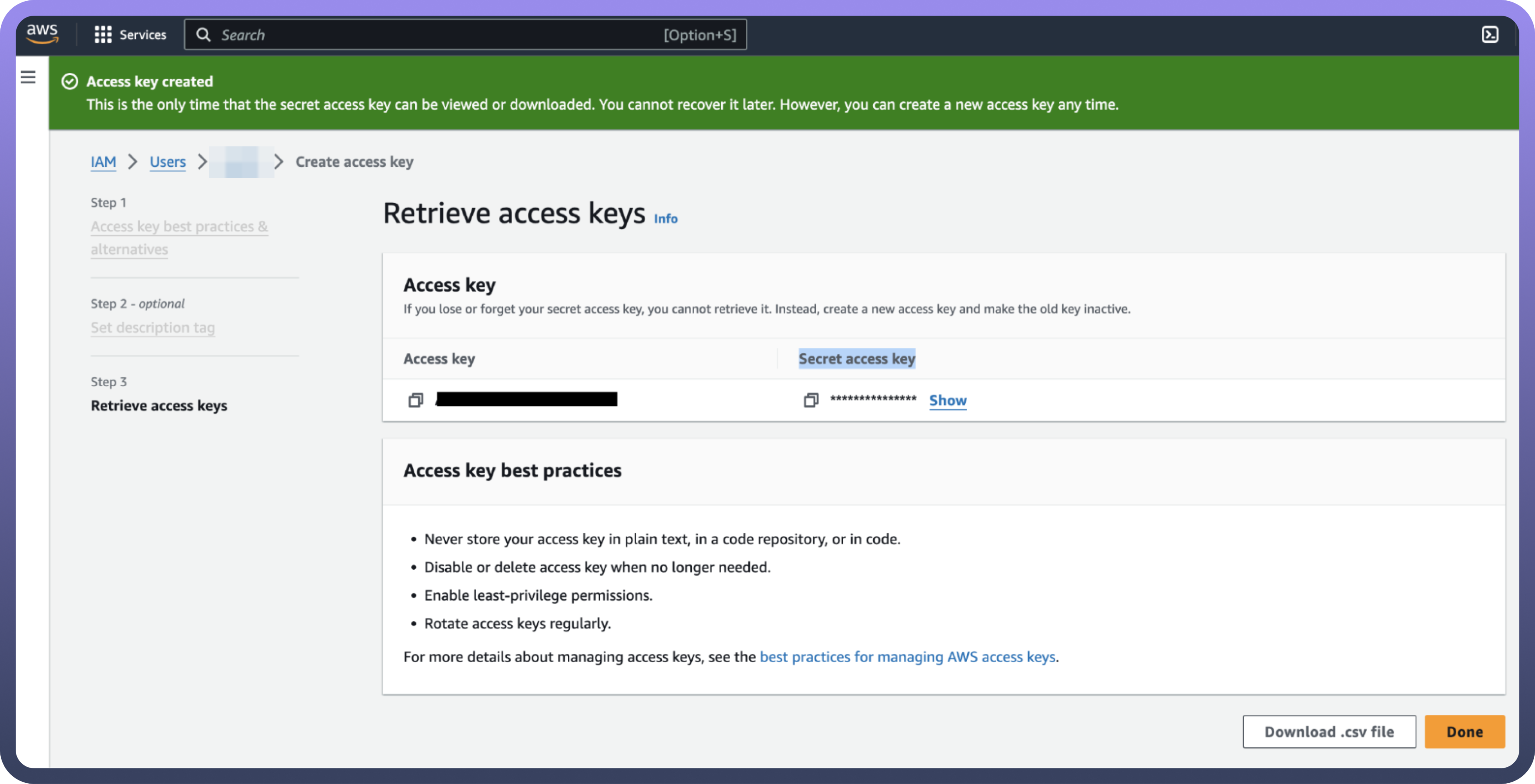
create access key.Select "
Command Line Interface" as the use case and provide the description tag to the key and click on "create access key".Treat the access key and secret access key with high confidentiality, as it allows access to your Amazon Cloudwatch account.

IAM Role Based
Sign in to AWS Management Console (https://console.aws.amazon.com/) and select security credentials.
Navigate to the IAM dashboard and click "
Roles" > "Create role". (https://docs.aws.amazon.com/IAM/latest/UserGuide/id_roles.html)Under "
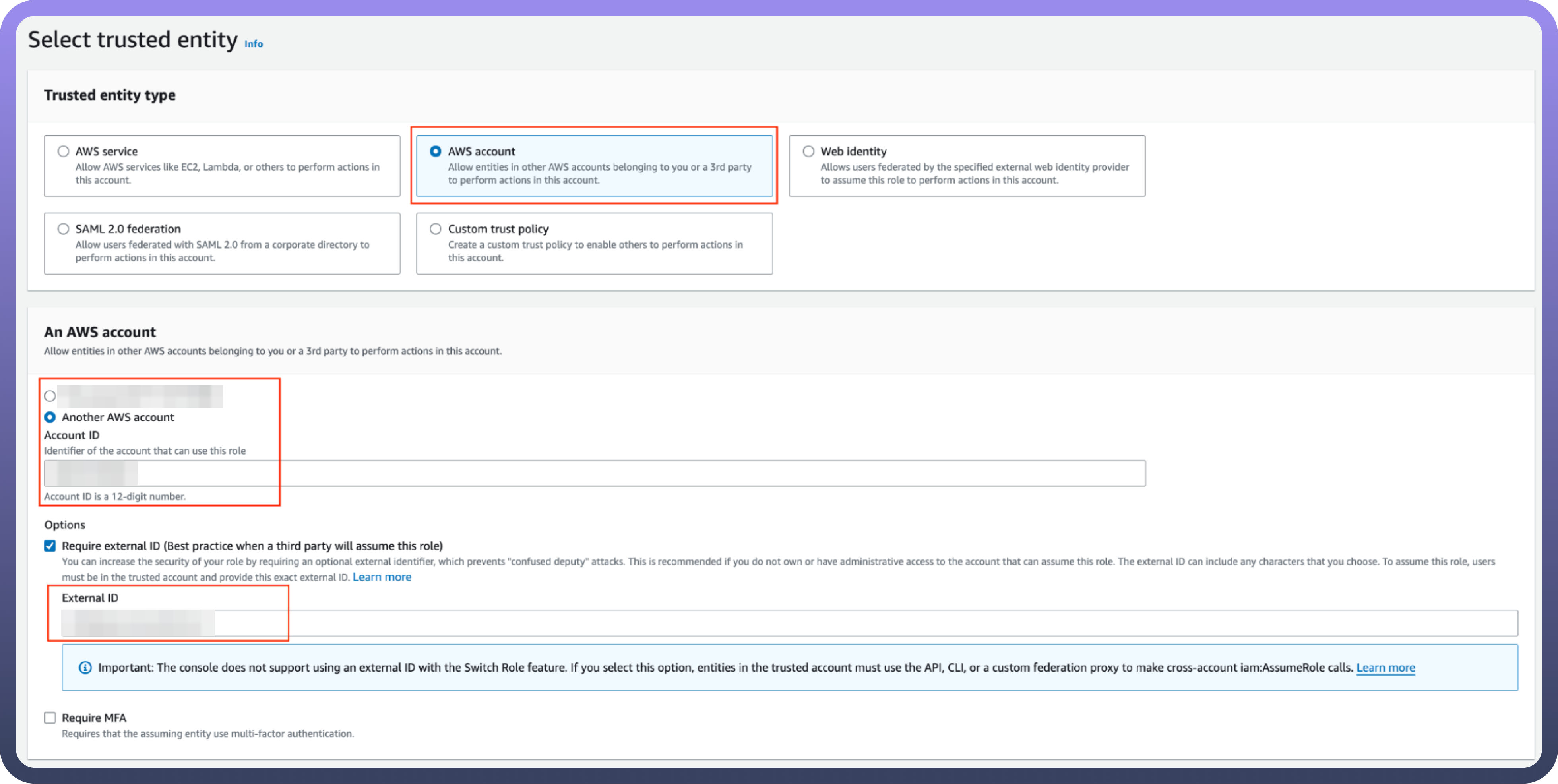
Trusted entity type," choose the AWS account option.Select "
Another AWS account" and input the UnifyApps AWS account ID (contact support to obtain this).Check the "
Require external ID" box and enter the External ID provided by UnifyApps.
Assign the necessary permissions for UnifyApps to operate automated workflows within your account.
Give the IAM role a name and description.
Click the "
Select trusted entities" Edit button to modify trusted entity policies if needed. (Optional)Click the "
Add permissions" Edit button to adjust permissions. (Optional)If using object tags, select an appropriate tag for the IAM role. (Optional)
Click on
Create Roleto finalize the process.
Create an IAM Permissions Policy
Go to the AWS Console and open the IAM console (https://console.aws.amazon.com/iam).
Navigate to
Access managementand selectPolicies.Choose
Create Policy.Locate and choose the AWS service that UnifyApps will access.
Select the required permissions under the
Actionsfield.Define the resources that the role will have access to.
Continue clicking Next until you reach the Review policy page.
Provide a Name for the policy.
Click
Create policyonce done.
Retrieve IAM Role ARN
Open the AWS Console and go to
My Security Credentials>Roles.Search for the IAM role you need for the connection.

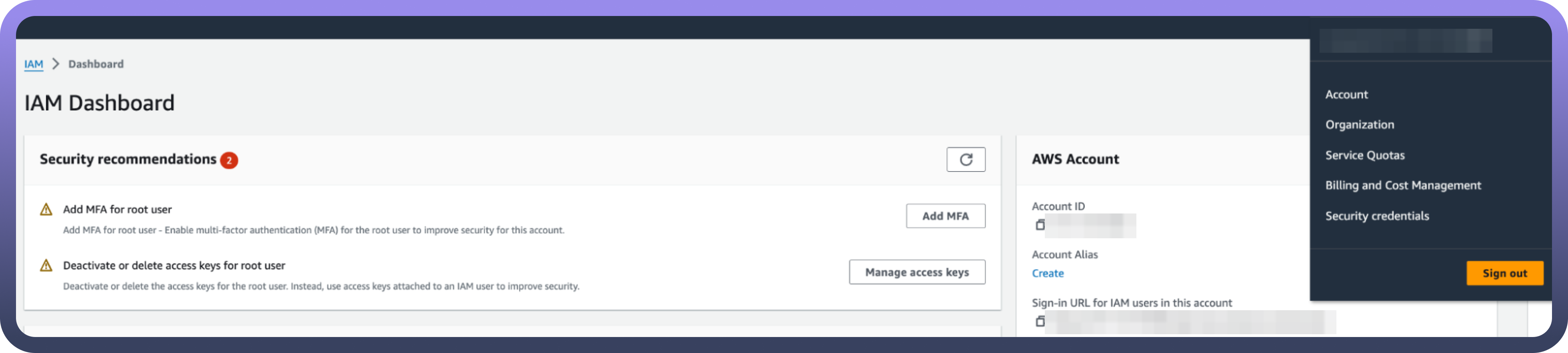
Select the role to view its details.
Copy the Role ARN for use in the UnifyApps connection setup.
Actions
Actions | Description |
|---|---|
| Creates a new log group in Amazon CloudWatch Logs. |
| Creates a log stream within an existing Amazon CloudWatch Logs log group. |
| Deletes specified alarms in Amazon CloudWatch. |
| Deletes an Amazon CloudWatch Logs log group and all of its archived log events. |
| Deletes a log stream and all of its archived log events in Amazon CloudWatch Logs. |
| Lists the log groups in Amazon CloudWatch Logs, optionally filtered by name prefix or pattern. |
| Lists and describes the log streams within an Amazon CloudWatch Logs log group. |
| Disables actions for the specified alarms in Amazon CloudWatch. |
| Enables actions for the specified alarms in Amazon CloudWatch. |
| Searches and filters log events across the log streams in an Amazon CloudWatch Logs log group. |
| Retrieves log events from a specific Amazon CloudWatch Logs log stream. |
| Retrieves metric values from Amazon CloudWatch for one or more metrics, with support for metric math and large-scale retrieval. |
| Returns the results of a CloudWatch Logs Insights query started with Start query. |
| Creates or updates a composite alarm in Amazon CloudWatch based on a rule that combines the states of multiple other alarms. |
| Uploads a batch of log events to an Amazon CloudWatch Logs log stream. |
| Creates or updates a metric-based alarm in Amazon CloudWatch, including its threshold, evaluation period and alarm actions (SNS, Lambda, Auto Scaling, EventBridge). |
| Publishes custom metric data points to Amazon CloudWatch for application metrics, business KPIs and operational telemetry. |
| Sets the retention period for an Amazon CloudWatch Logs log group. |
| Sets the state of an alarm in Amazon CloudWatch. |
| Starts a CloudWatch Logs Insights query against one or more log groups and returns a query ID. |