


Google Drive is Google's cloud storage service for uploading, storing, organizing and sharing files and folders, accessible from any device. The UnifyApps Google Drive connector uses the Google Drive API to upload, copy, move, export and download files, create folders, manage sharing permissions, read shared drives and react to new or changed files from workflows and agents.
This guide covers every authentication type available on the connection form, and the actions and triggers supported, along with the Google Drive scope each one needs.
Authentication
Before you begin, you should have the following information:
Connection name: a descriptive name such as MyAppGoogleDriveIntegration, so the connection is easy to identify later.
Authentication type: select the type of authentication for connecting to your Google Drive account:
OAuth
OAuth with Client credentials
Service Account
The connection form has no Scopes field. The OAuth types always request https://www.googleapis.com/auth/drive (full Drive access), and the service account requests https://www.googleapis.com/auth/drive and https://www.googleapis.com/auth/drive.file. Both cover every action and trigger below.
1. OAuth
Use this when you want to connect with your own Google account and do not need to create a Google Cloud app.
Enter a Connection name.
Select OAuth as the Authentication type.
Click Authorize. You are redirected to the Google sign-in page.
Sign in with the Google account whose Drive the connection should use.
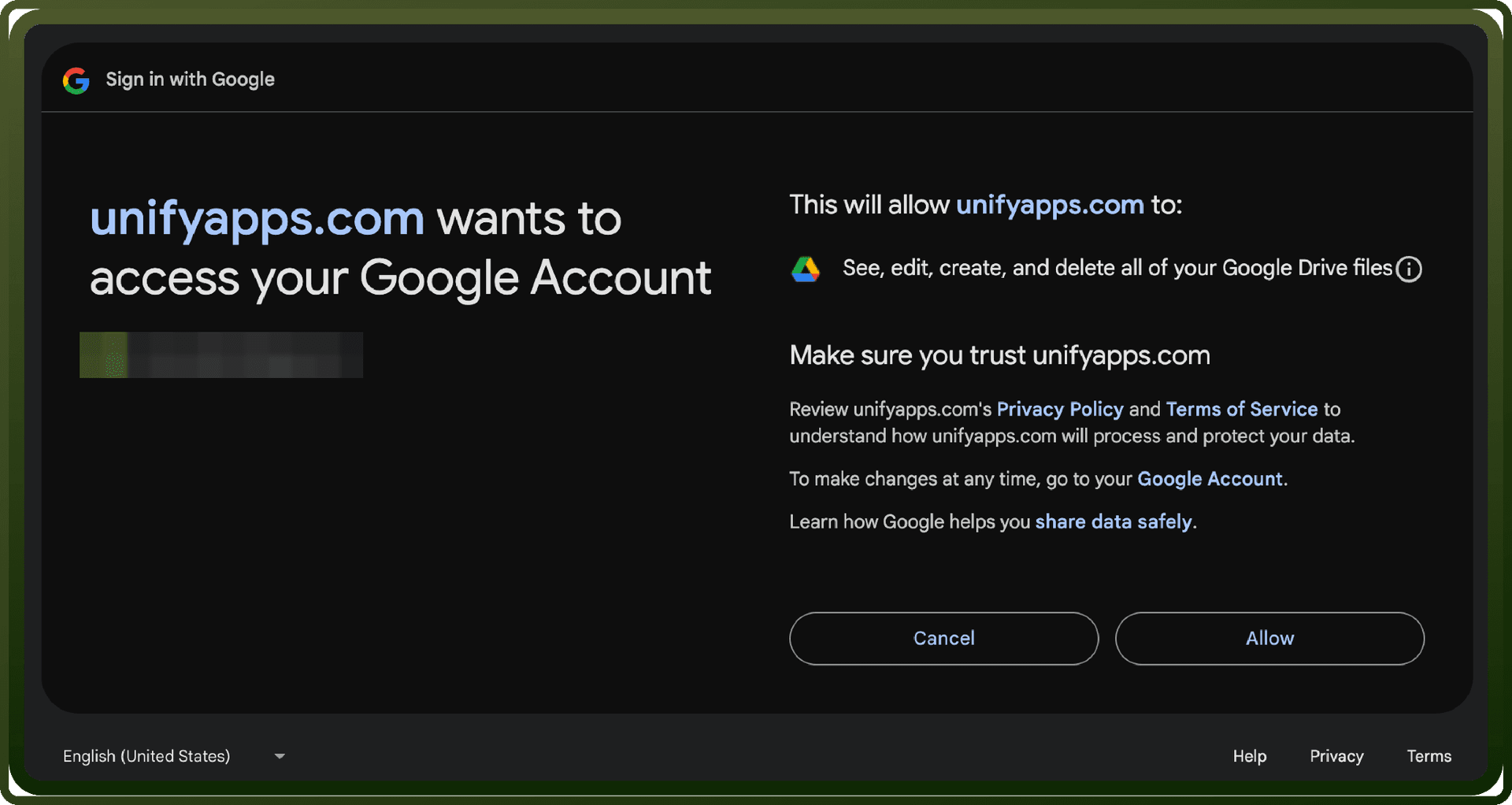
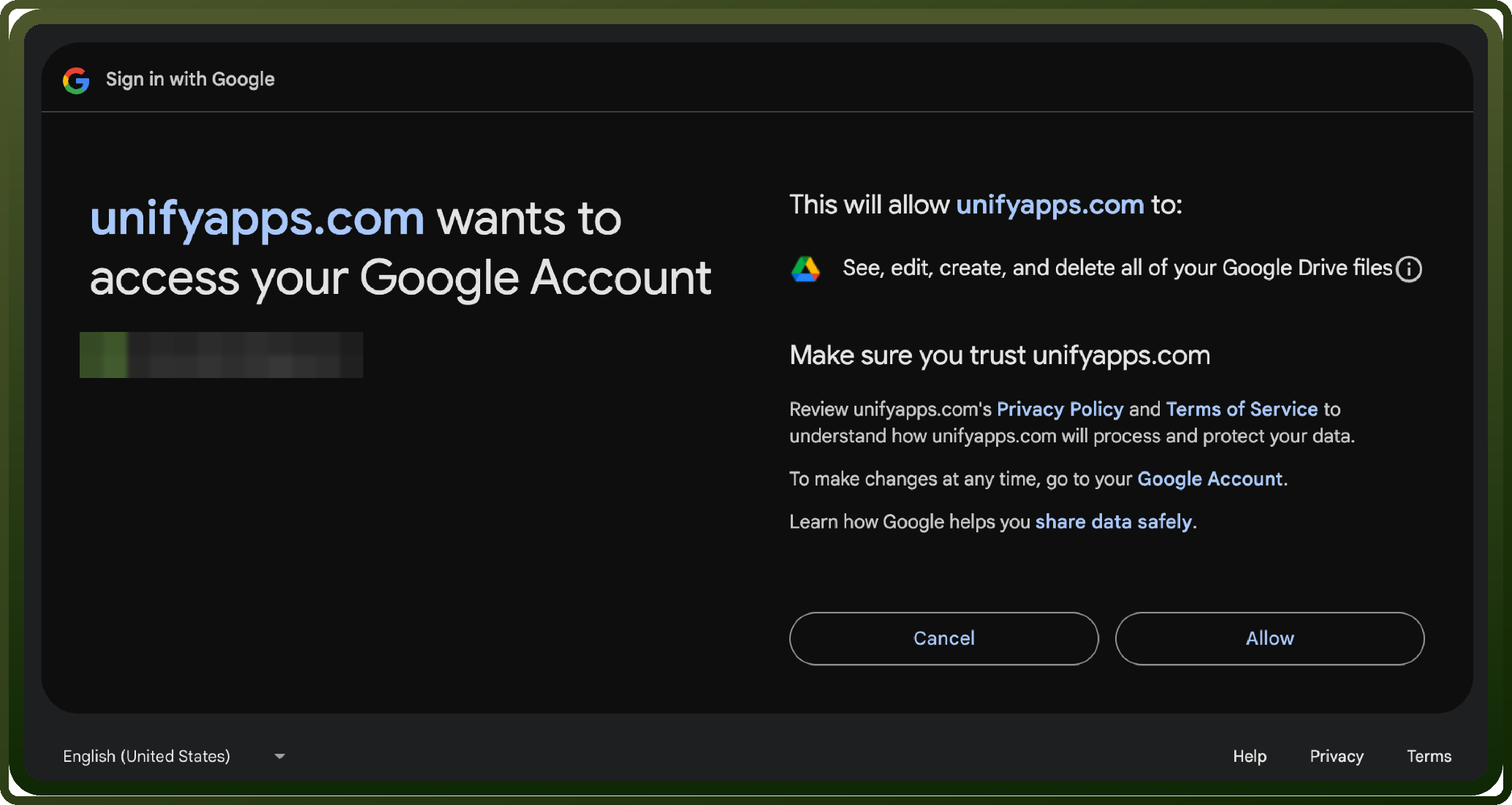
Review the permissions on the consent screen, See, edit, create, and delete all of your Google Drive files, and click Allow.
You are redirected back to UnifyApps with a confirmation that the account is connected.
2. OAuth with Client credentials
Use this when your organization wants the connection to use its own Google Cloud OAuth client, while actions still run as the Google user who signs in.
Step 1: Create an OAuth client in Google Cloud
In the Google Cloud Console, select or create a project, and enable the Google Drive API under APIs & Services → Library.
Go to Google Auth platform → Branding. If you see Google Auth platform not configured yet, click Get Started, enter an App name, User support email, Audience and contact email, and click Create.
Go to Data Access, click Add or Remove Scopes, add
https://www.googleapis.com/auth/drive(the scope the connection requests), and click Save. If the audience is External, add the users who will sign in under Audience → Test users.Go to Google Auth platform → Clients and click Create Client. Choose Web application as the Application type and enter a name.
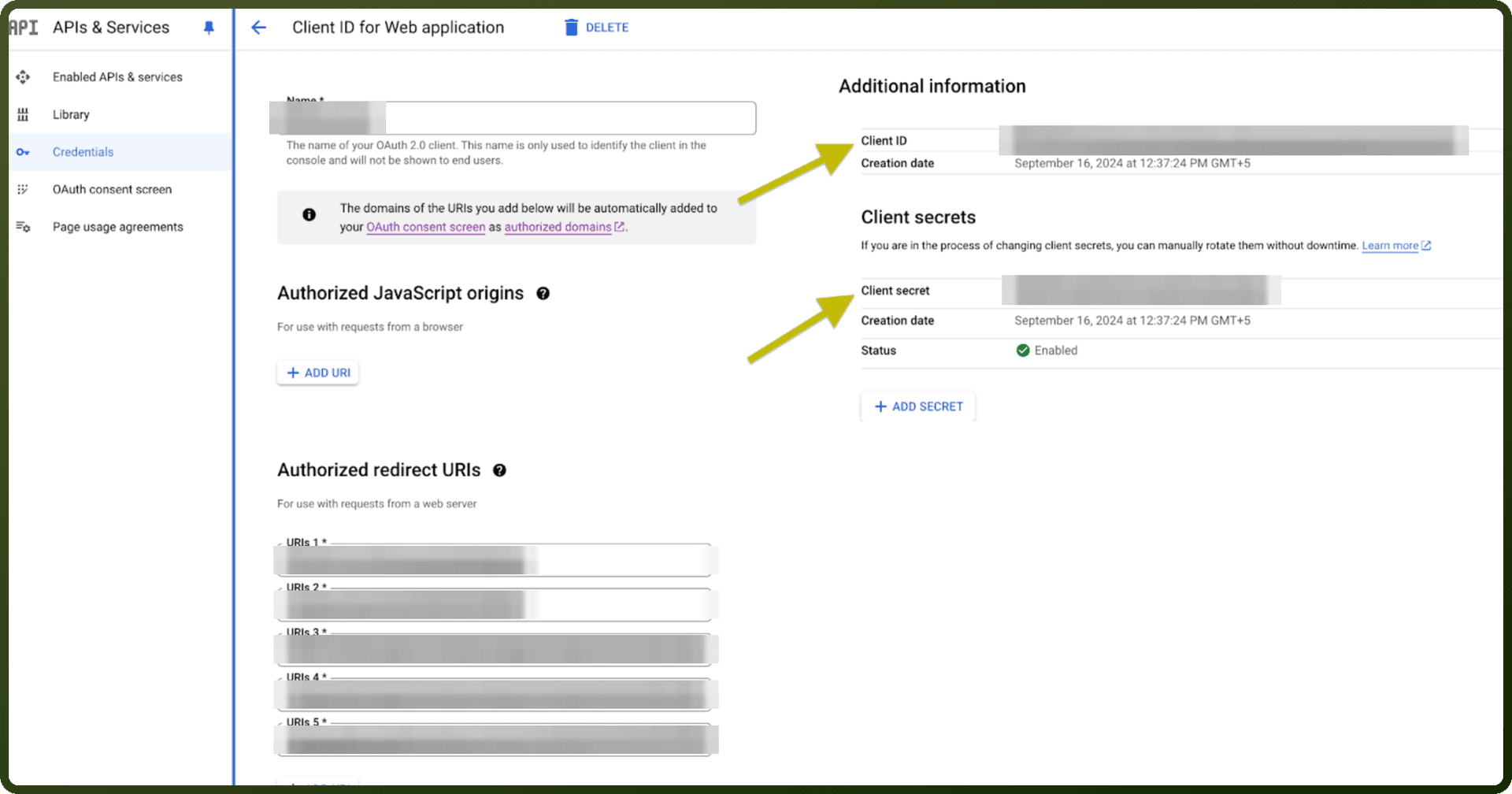
Under Authorized redirect URIs, click Add URI and paste the Callback URL shown on the UnifyApps connection form (it is copyable and differs per environment).
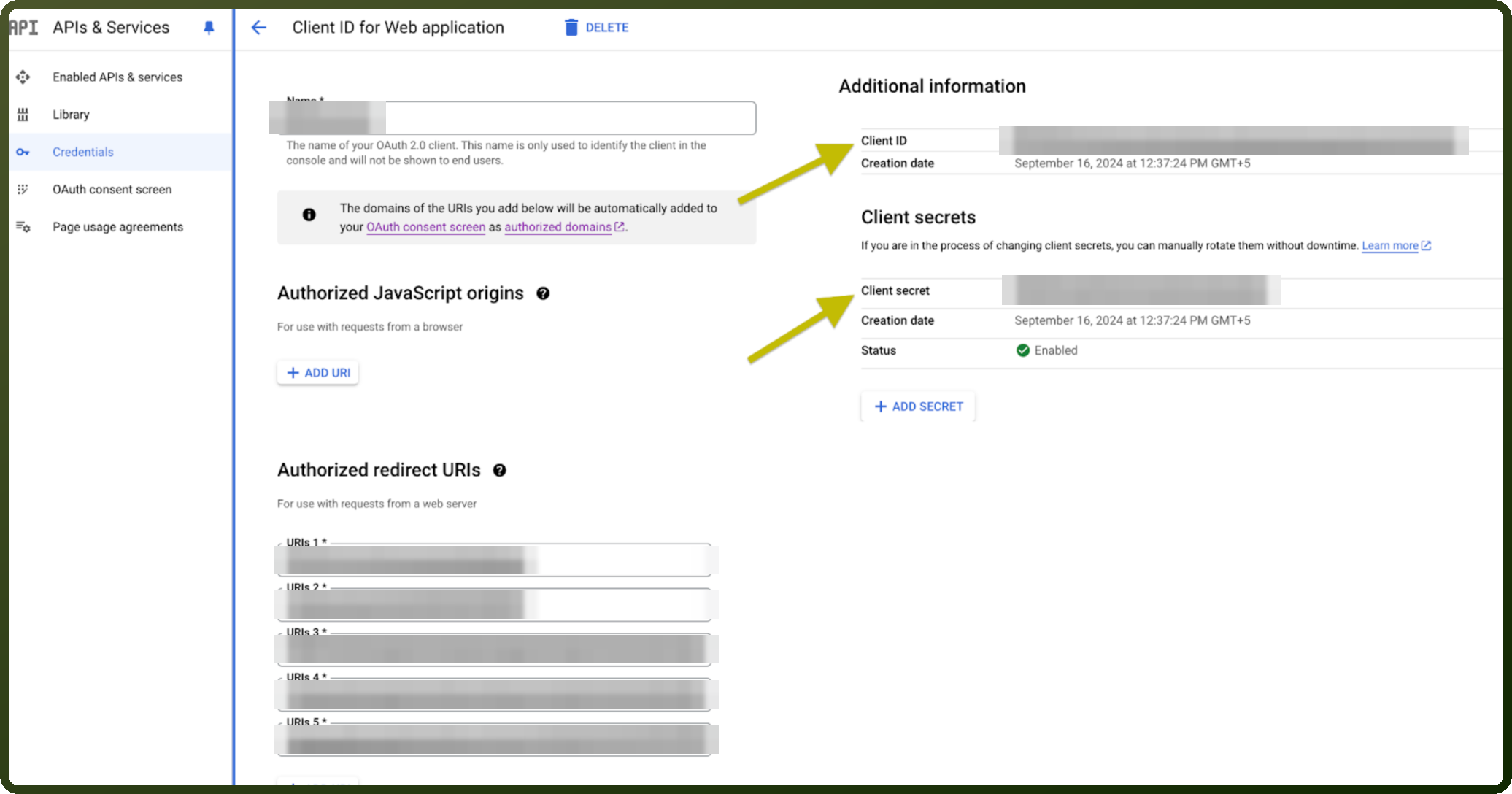
Click Create, then copy the Client ID and Client secret. Copy the secret immediately: Google shows it only once.
Step 2: Connection setup in UnifyApps
Open Connections → New Connection → Google Drive and enter a Connection name.
Select OAuth with Client credentials as the Authentication type.
Enter the Client ID and Client secret copied from Google Cloud.
Click Authorize, sign in with Google and click Allow on the consent screen.
Confirm the success message after the redirect back to UnifyApps.
3. Service Account
Use this for Google Workspace domains, where a service account acts on behalf of a user in the domain through domain-wide delegation. No user has to sign in.
Step 1: Create a service account in Google Cloud
In the Google Cloud Console, select or create a project, and enable the Google Drive API under APIs & Services → Library.
Go to IAM & Admin → Service Accounts and click Create service account. Enter a name and click Done.
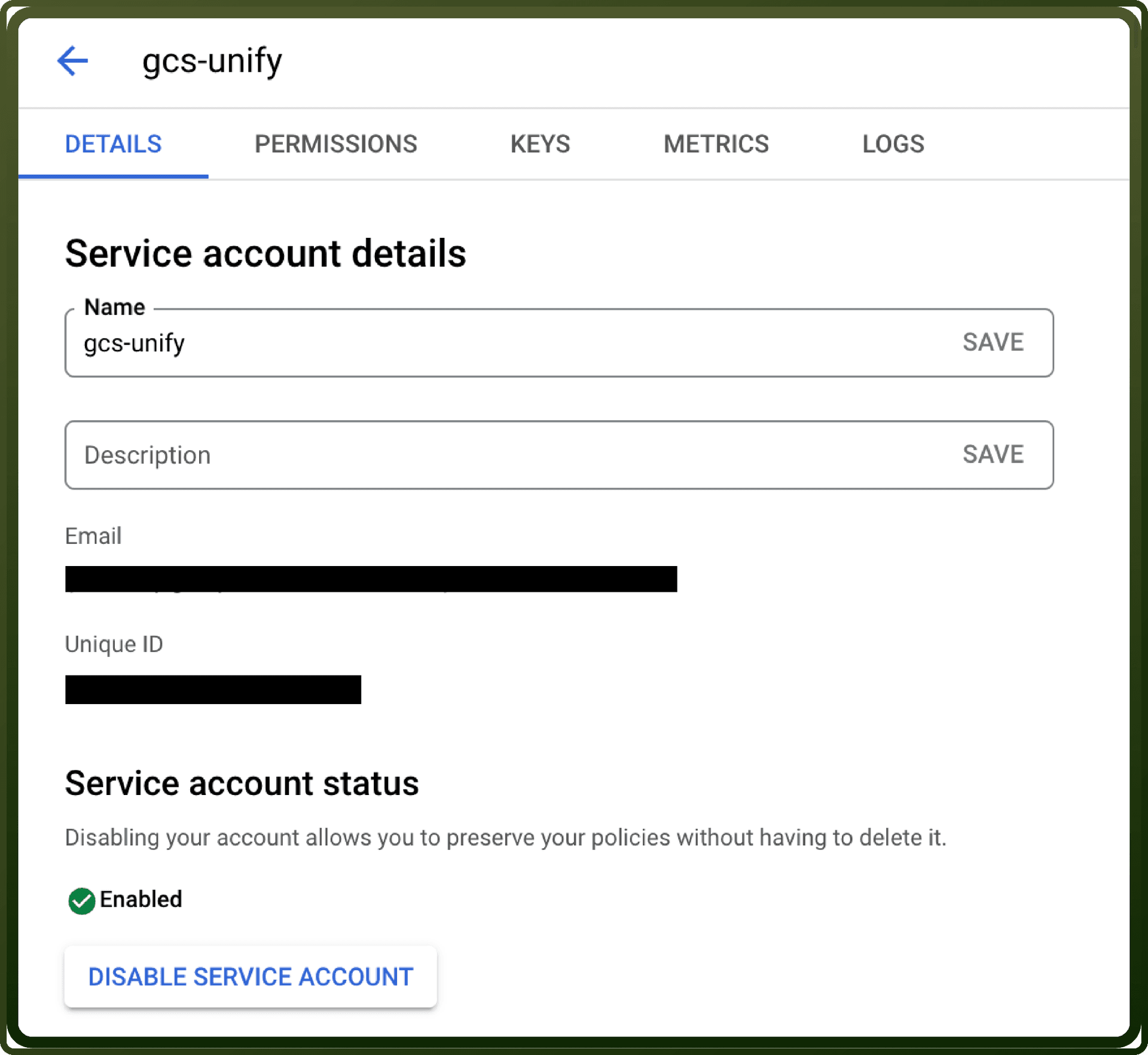
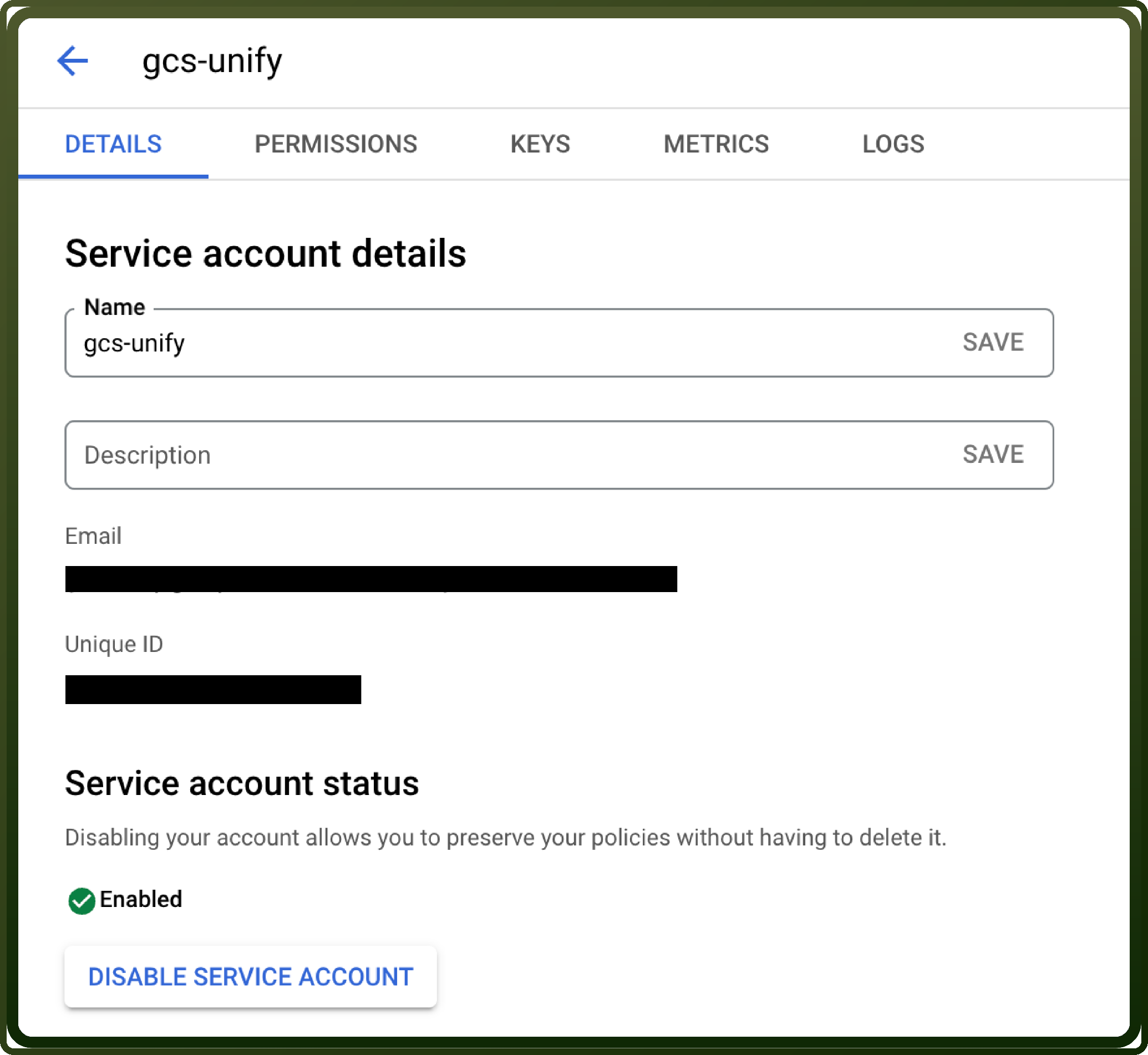
Open the service account and copy its Email. Click Show advanced settings and, under Domain-wide delegation, copy the Client ID used in the next step.
Go to the Keys tab → Add key → Create new key, choose JSON and click Create. The downloaded file holds the
client_emailandprivate_key. Store it securely.
Step 2: Give the service account domain-wide access
A Google Workspace super administrator opens the Admin console → Security → Access and data control → API controls.
Click Manage Domain Wide Delegation → Add new.
Enter the service account's client ID, add both
https://www.googleapis.com/auth/driveandhttps://www.googleapis.com/auth/drive.file, separated by a comma, and click Authorize. See Delegate domain-wide authority to your service account for details.
Note: the connection requests both scopes, so both must be granted here or the connection cannot get a token. It can only reach the Drive of users in the Workspace domain where domain-wide delegation was granted. Google says changes can take up to 24 hours to apply.
Step 3: Create the connection in UnifyApps
Select Service Account as the Authentication type.
Enter the Service account email and paste the Private key from the JSON key file.
Enter the User email of the Workspace user whose Drive the connection acts on.
Click Test Connection to validate the credentials, then click Create.
Actions
Scopes are shown in short form: drive.readonly means https://www.googleapis.com/auth/drive.readonly. The column shows the narrowest scope Google accepts for each call on files the connection did not create; drive covers every action. drive.file only reaches files and folders the connection created or was given access to by the user.
Actions | Description | Scopes Required |
|---|---|---|
| Adds a permission to a file in Google Drive. | drive |
| Copies a file in Google Drive. | drive |
| Creates a folder in Google Drive. | drive.file (or drive) |
| Permanently deletes a file from Google Drive, skipping the trash. | drive |
| Downloads a file's content as Base64 from its Google Drive export link. | drive.readonly (or drive) |
| Downloads the contents of a file from Google Drive. | drive.readonly (or drive) |
| Downloads a file from Google Drive using its export link. | drive.readonly (or drive) |
| Exports a Google Workspace file from Google Drive to another format. | drive.readonly (or drive) |
| Uploads HTML content as a Google Doc that anyone with the link can edit, optionally in a shared drive folder when using a service account. | drive.file (or drive) |
| Gets the starting page token for listing future changes in Google Drive. | drive.metadata.readonly (or drive.readonly) |
| Gets the details of a shared drive in Google Drive. | drive.readonly (or drive) |
| Gets the content of a file from Google Drive. | drive.readonly (or drive) |
| Gets a file from Google Drive and returns its content encoded in Base64. | drive.readonly (or drive) |
| Gets the details of a file in Google Drive. | drive.metadata.readonly (or drive.readonly) |
| Gets a permission of a particular file in Google Drive. | drive.metadata.readonly (or drive.readonly) |
| Lists changes for a user or shared drive, starting from a Google Drive changes page token. | drive.metadata.readonly (or drive.readonly) |
| Lists shared drives in Google Drive. | drive.readonly (or drive) |
| Lists the permissions for a file in Google Drive. | drive.metadata.readonly (or drive.readonly) |
| Lists files in Google Drive. | drive.metadata.readonly (or drive.readonly) |
| Removes a permission from a file in Google Drive. | drive |
| Renames a file in Google Drive. | drive.metadata (or drive) |
| Renames or moves a file in Google Drive. | drive.metadata (or drive) |
| Searches for files and folders in Google Drive. | drive.metadata.readonly (or drive.readonly) |
| Updates a file's details, such as its name or description, in Google Drive. | drive.metadata (or drive) |
| Updates a permission for a file in Google Drive. | drive |
| Uploads a file of any size to Google Drive. | drive.file (or drive) |
| Creates a new file in Google Drive. | drive.file ( or drive) |
| Lists the comments (with their replies) on a file in Google Drive, including Google Docs, Sheets and Slides. | drive.readonly (or drive) |
Triggers
Triggers | Description | Scopes Required |
|---|---|---|
| Triggers in real time when any file or folder changes in Google Drive. | drive.metadata.readonly (or drive.readonly) |
| Triggers in real time when a file is created in Google Drive. | drive.metadata.readonly (or drive.readonly) |
| Triggers when a file is uploaded to Google Drive. | drive.metadata.readonly (or drive.readonly) |
| Triggers when a file is uploaded or modified in Google Drive. | drive.metadata.readonly (or drive.readonly) |