


Use the AltText AI connector to generate image descriptions using AI.
Integrating your application with AltText AI lets you use these operations in an automation. It exposes 8 actions, listed below. Add the connector from the Connections area, authenticate, then select its operations in the automation builder. Capabilities: actions.
Authentication
Before you begin, make sure you have the following information:
Connection Name: Choose a meaningful name for your connection. This name helps you identify the connection within your application or integration settings.
Authentication type: AltText AI uses an API key. Enter it in the API key field.
Getting your API key
Log in to your AltText AI account at https://alttext.ai.
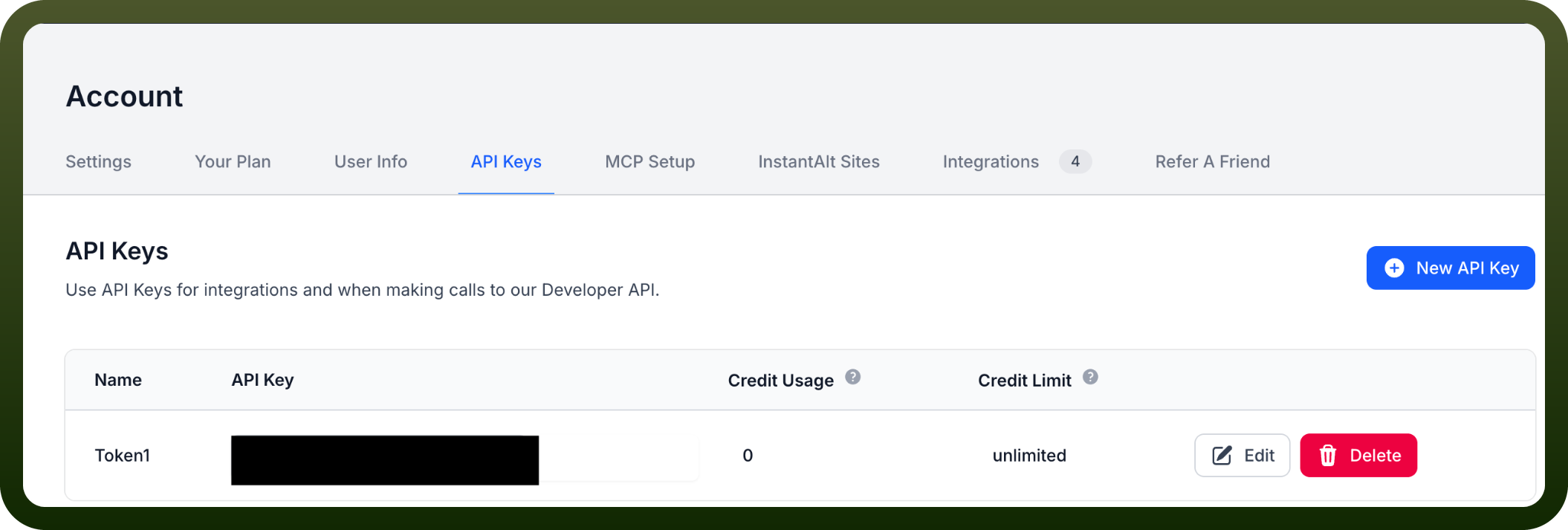
Navigate to Account → API Keys.
Click the + API Key button to create a new key.
Copy the key and store it securely.
Paste it into the API key field of the UnifyApps connection form.

Actions
Action Name | Description |
|---|---|
Bulk create images | Bulk creates images from a CSV file in AltText AI |
Create image | Creates an image and generates AI alt text in AltText AI |
Delete image by asset ID | Deletes an image by its asset ID from AltText AI |
Get account | Retrieves account details and usage information from AltText AI |
Get image by asset ID | Retrieves a specific image by its asset ID from AltText AI |
Get images | Retrieves all images from your AltText AI account |
Search images | Searches for images by query in AltText AI |
Update image by asset ID | Updates an existing image by its asset ID in AltText AI |
About the API
AltText AI provides AI-powered alternative text generation for images to enhance web accessibility and SEO:
AI Alt Text Generation: Automatically generate descriptive alt text for images
Accessibility Compliance: Generate WCAG-compliant alt text for accessibility standards
SEO Enhancement: Improve search engine optimization through proper image descriptions
Image Processing: Process individual images or batch operations
Integration Methods: Use the web UI or Developer API
Multiple Access Points: Official API docs available at https://alttext.ai/apidocs
Integrations: Available plugins for WordPress, Shopify, and other platforms
Perfect for automating accessibility workflows and maintaining WCAG/ADA compliance across digital properties.