


Airtable is a flexible platform that combines the simplicity of a spreadsheet with the power of a database for easy data organization and collaboration.
Integrating your application with Airtable empowers you to create custom databases, streamline data management, and collaborate seamlessly with your team.
Authentication
Ensure you have the following information ready for a seamless integration process:
Connection Name: Select a descriptive name for your connection, like "MyAppAirtableIntegration". This helps in easily identifying the connection within your application or integration settings.Authentication Type: Choose Personal Access Token (PAT) or OAuth.Base: Optionally, select the Airtable base (database) you want to connect to.Scopes(OAuth only): Optionally, select the scopes you want to grant to this connection.
Personal Access Token (PAT) Based Authentication
Login into Airtable account and click on the profile icon at the top right corner.
Navigate to the builder hub
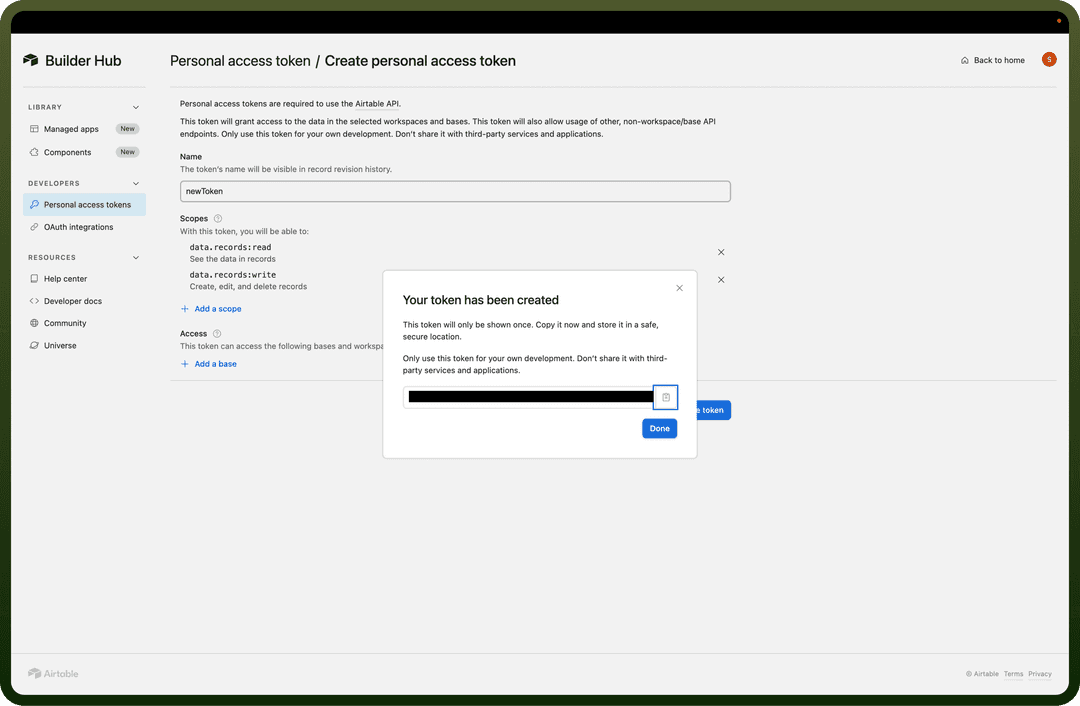
In Personal Access token section, click on the “
Create new token” buttonProvide the name and the required scopes for performing action based on your use case and click on “
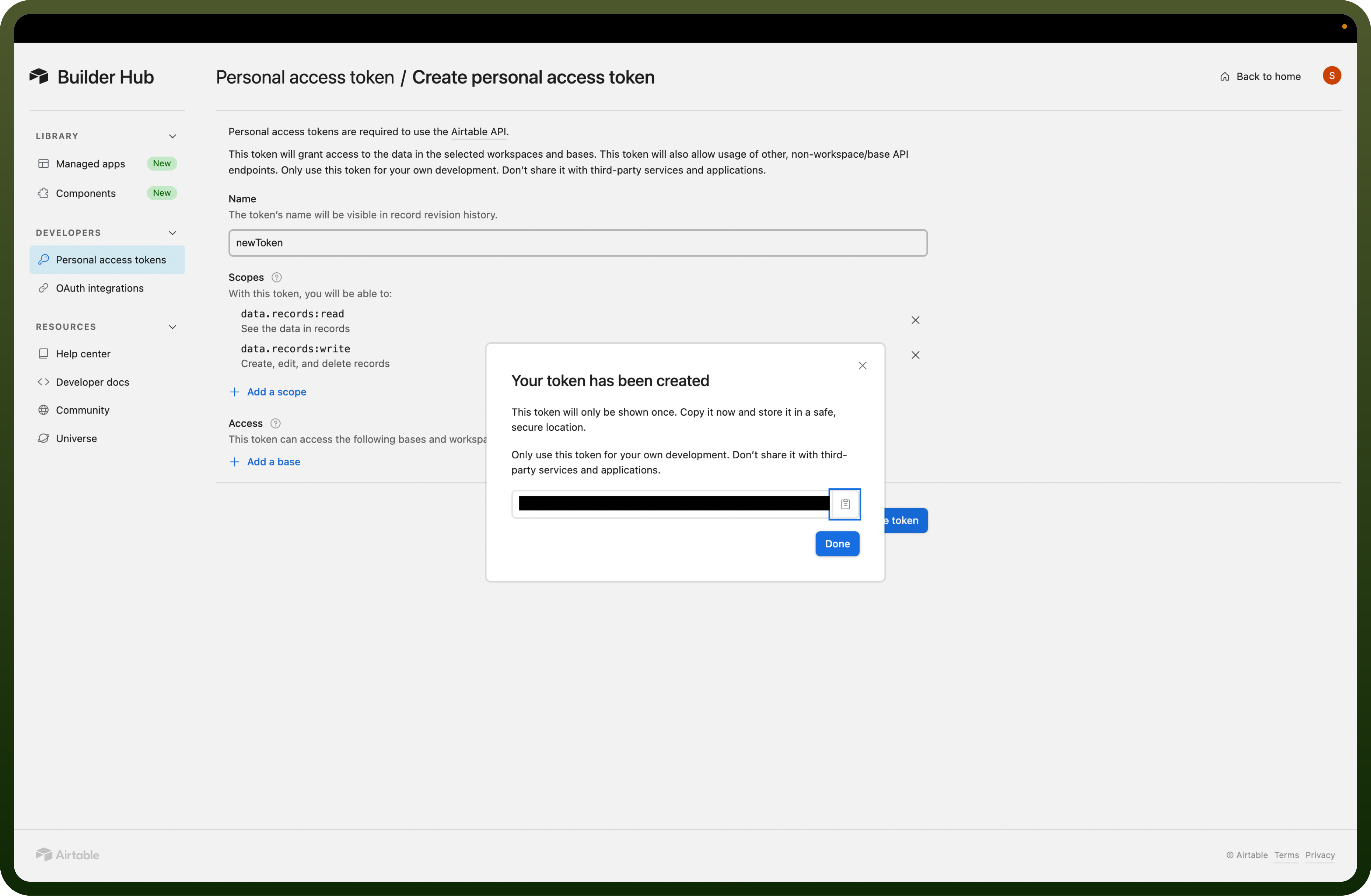
Create Token”Treat this token with high confidentiality, as it allows access to your Airtable account.
OAuth Based Authentication
Login into Airtable account and click on the profile icon at the top right corner.
Navigate to the developer hub
In Oauth Integrations section, click on the “
Register New OAuth integration” buttonProvide the “
Name” and the “OAuth Redirect URL” The OAuth Redirect URL is the destination to which users will be redirected after authorizing their integration.
Note
For the OAuth Redirect URL, copy the Callback URL shown in the UnifyApps connection form and paste it here.
Then click on the “
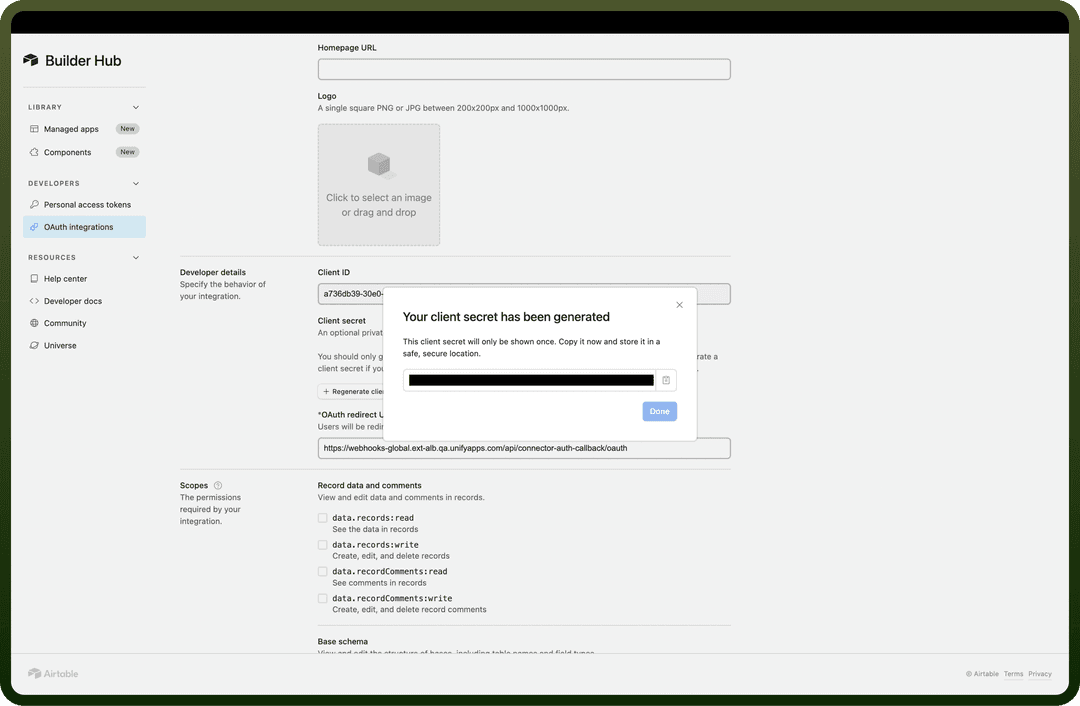
Register integration” buttonAfter registration fill out the details as mentioned, Note down the Client ID and also generate a client secret by clicking on the “
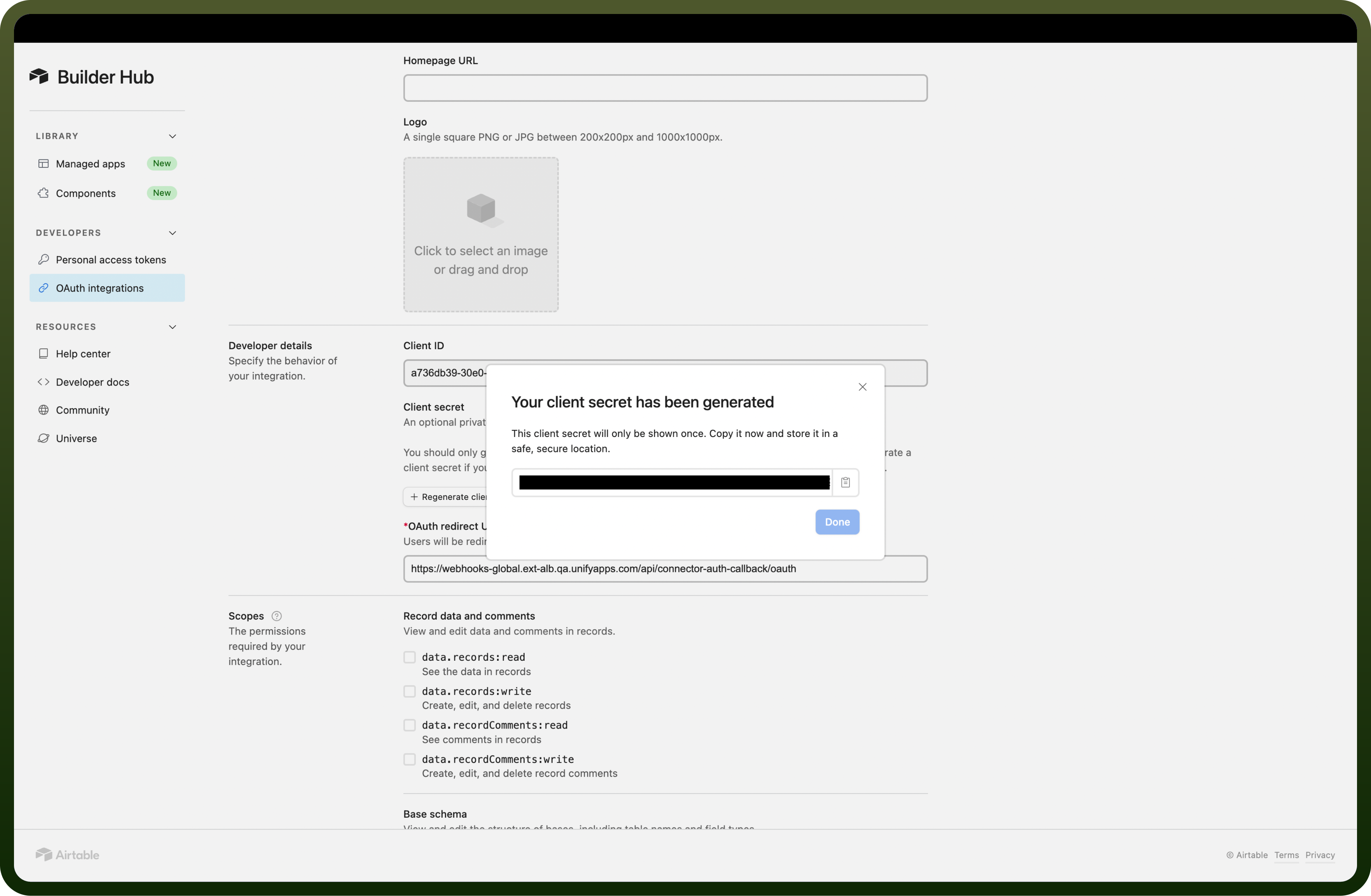
Generate client secret” and save it to form a connectionThen select the scopes you wish to expose through this connection
Actions
Actions | Description |
|---|---|
| Create a comment on a record in Airtable |
| Create field in Airtable |
| Creates record in Airtable |
| Delete a comment on a record in Airtable |
| Delete multiple records in Airtable |
| Deletes record in Airtable |
| Fetches base names from Airtable |
| Fetches table names from Airtable |
| Gets record from Airtable |
| Lists bases in Airtable |
| Lists comment in Airtable |
| Lists editable fields in Airtable |
| List records in Airtable |
| Lists tables in Airtable |
| Search for records in Airtable that exactly match all of the search values. Return a maximum of 1000 records. |
| Update a comment on a record in Airtable |
| Update field in Airtable |
| Updates a record in Airtable |
| Upsert a record in Airtable |
| Upsert multiple records in Airtable |
Triggers
| Triggers | Description |
New record | This trigger will be invoked when a new record is created in Airtable |
New/Updated Record | This trigger will be invoked when a record is created or updated in Airtable |
Record and cell value changes | This trigger will be invoked when a record and cell value changes in Airtable |
Field change | Triggers when a field changes in Airtable |