


Use the Billsby connector to manage subscription billing and payments.
Integrating your application with Billsby lets you use these operations in an automation. It exposes 13 actions, listed below. Add the connector from the Connections area, authenticate, then select its operations in the automation builder. Capabilities: actions.
Authentication
Before you begin, make sure you have the following information:
Connection Name: Choose a meaningful name for your connection. This name helps you identify the connection within your application or integration settings.
Authentication Type: Billsby uses API key authentication. The connection form asks for a Connection name, an API Key and a Company domain.
Obtaining Your API Key
Log in to your Billsby account.
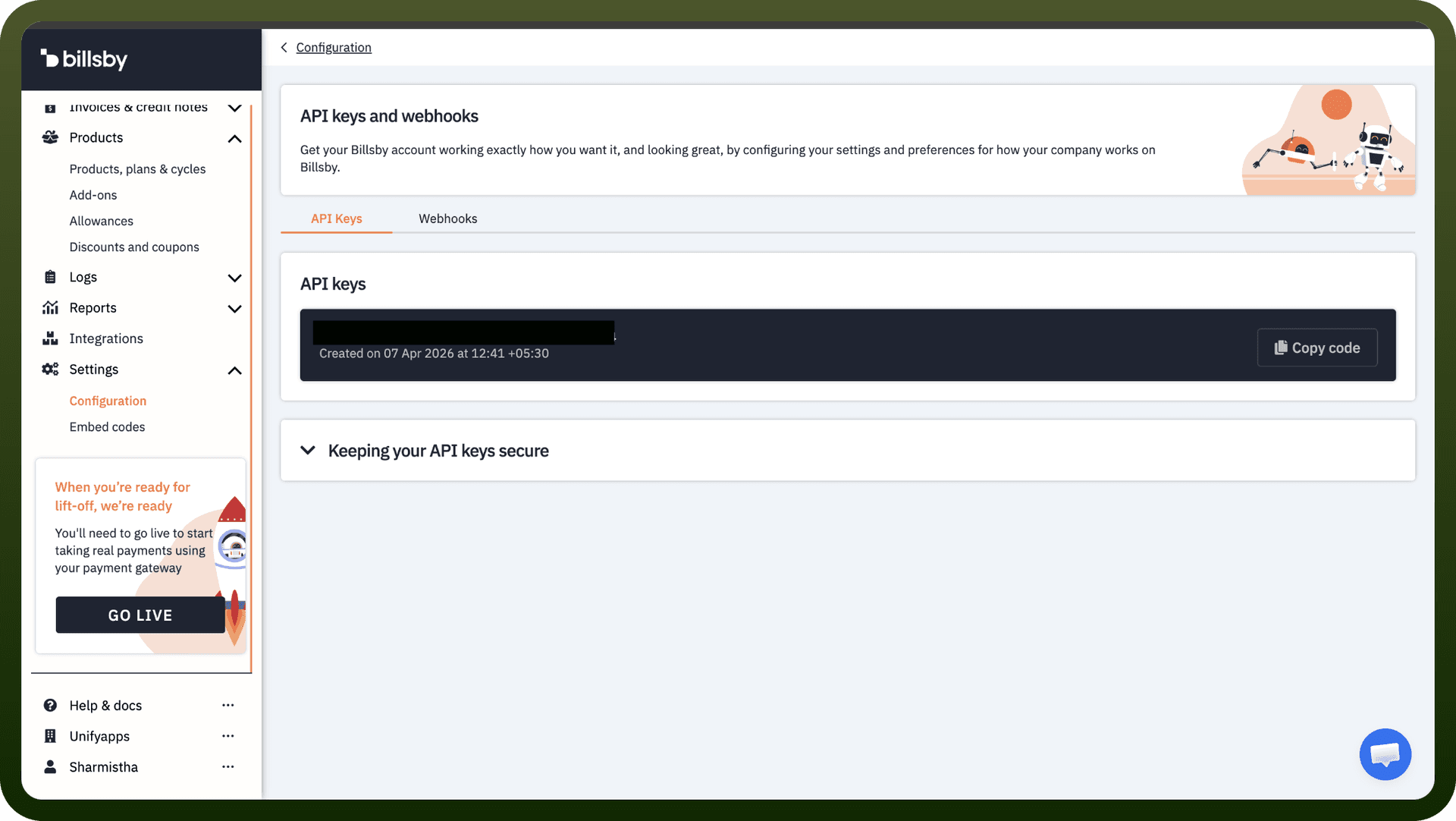
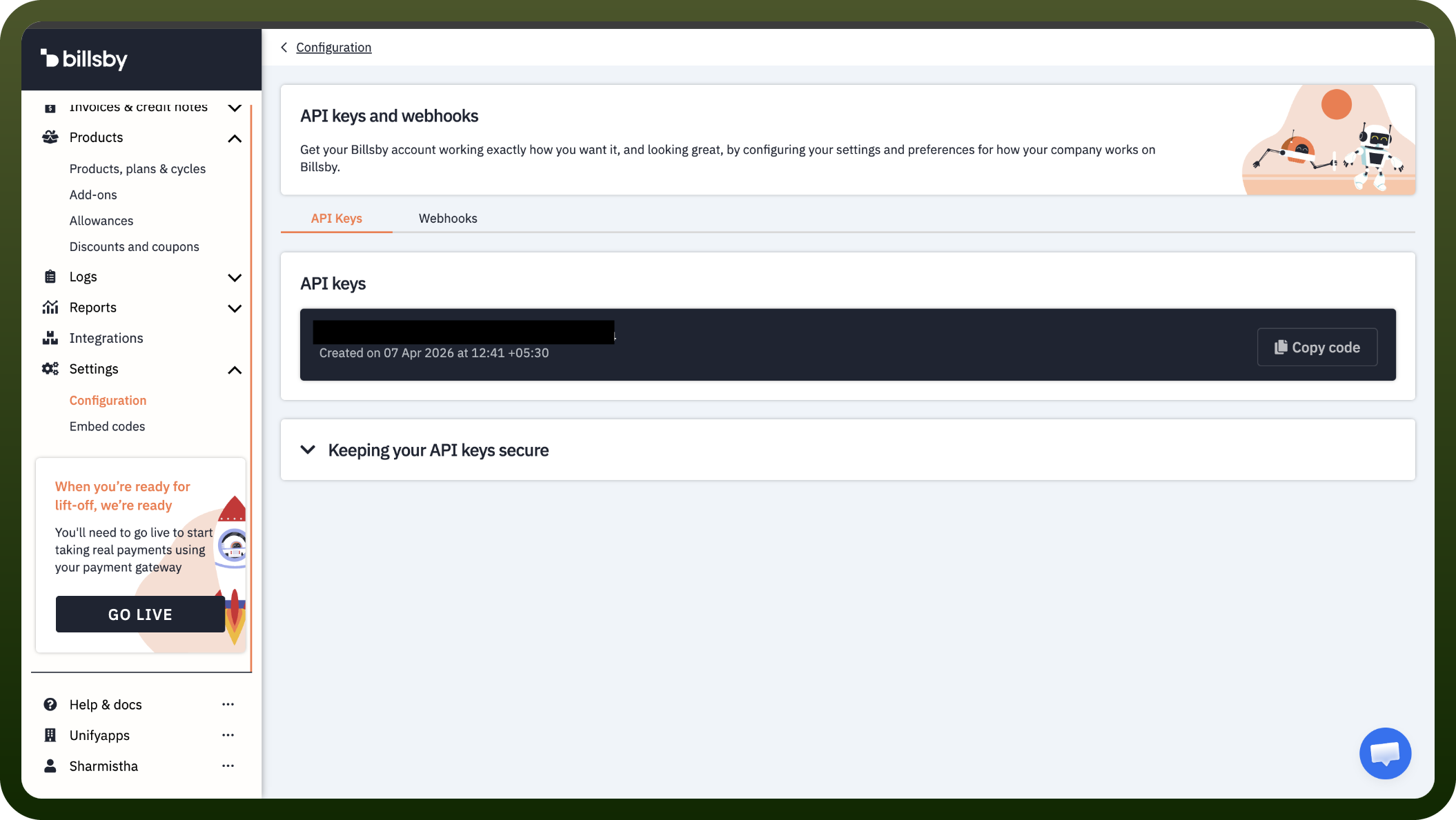
Click Settings, then select Configuration from the submenu.
Click API keys and webhooks.
Copy the API key shown on the page and paste it into the API Key field of the connection form.
In Company domain, enter your Billsby subdomain. For example, if your dashboard URL is https://acme.billsby.com, enter
acme.
Actions
Action Name | Description |
|---|---|
Create customer | Creates customer in Billsby |
Create cycle | Creates a cycle for a specific plan in Billsby |
Create plan | Creates a plan for a specific product in Billsby |
Create product | Creates product in Billsby |
Get customer details | Gets customer details in Billsby |
Get product details | Gets product details in Billsby |
List customers | Lists customers in Billsby |
List plans | Lists plans in Billsby |
List products | Lists products in Billsby |
Update customer | Updates customer in Billsby |
Update plan and cycle | Updates plan and cycle in Billsby |
Update plan order | Updates plan order in Billsby |
Update product | Updates product in Billsby |