


Google BigQuery is Google Cloud's serverless data warehouse for storing large datasets and analyzing them with SQL. The UnifyApps Google BigQuery connector uses the BigQuery API to run SQL queries, create, list and truncate tables, insert rows, load data from Google Cloud Storage and export table data to it from workflows.
This guide covers every authentication type available on the connection form, and the actions supported, along with the BigQuery scope each one needs.
Authentication
Before you begin, you should have the following information:
Connection name: a descriptive name such as MyAppGoogleBigQueryIntegration, so the connection is easy to identify later.
Authentication type: select the type of authentication for connecting to your Google BigQuery account:
Service Account
OAUTH
OAuth with Client Credentials
Project ID: the ID of the Google Cloud project that holds your BigQuery data, for example
my-project-123456. Required for every authentication type.Dataset ID: the ID of the BigQuery dataset the actions use by default. Required for every authentication type.
The OAUTH and OAuth with Client Credentials types have a required Scopes field with three options: https://www.googleapis.com/auth/cloud-platform, https://www.googleapis.com/auth/bigquery and https://www.googleapis.com/auth/bigquery.insertdata. Select bigquery (or cloud-platform) to run every action below; bigquery.insertdata alone only allows inserting rows. The Service Account type requests all three scopes automatically.
Whichever type you use, the Google account the connection acts as needs BigQuery IAM roles in the project: BigQuery Job User (roles/bigquery.jobUser) on the project to run queries and jobs, and BigQuery Data Editor (roles/bigquery.dataEditor) on the dataset to create, change and read tables. To grant them, open IAM & Admin → IAM, click Grant access, enter the account's email and select the roles.
1. Service Account
Use this for Google Workspace domains, where a service account acts on behalf of a user in the domain through domain-wide delegation. No user has to sign in.
Step 1: Create a service account in Google Cloud
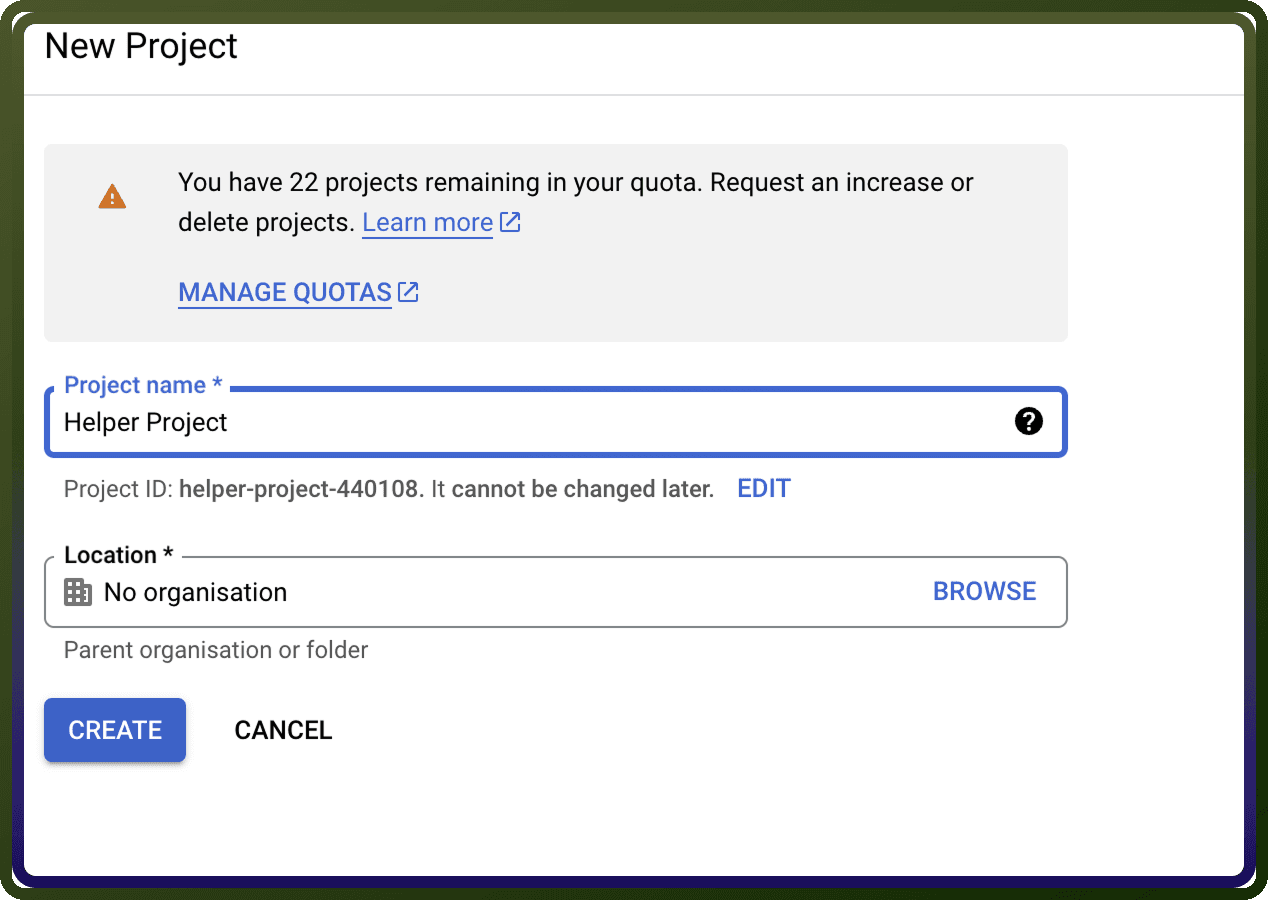
In the Google Cloud Console, select the project that holds your BigQuery data, or create one: open IAM & Admin → Manage resources, click Create project, enter a Project name and click Create.
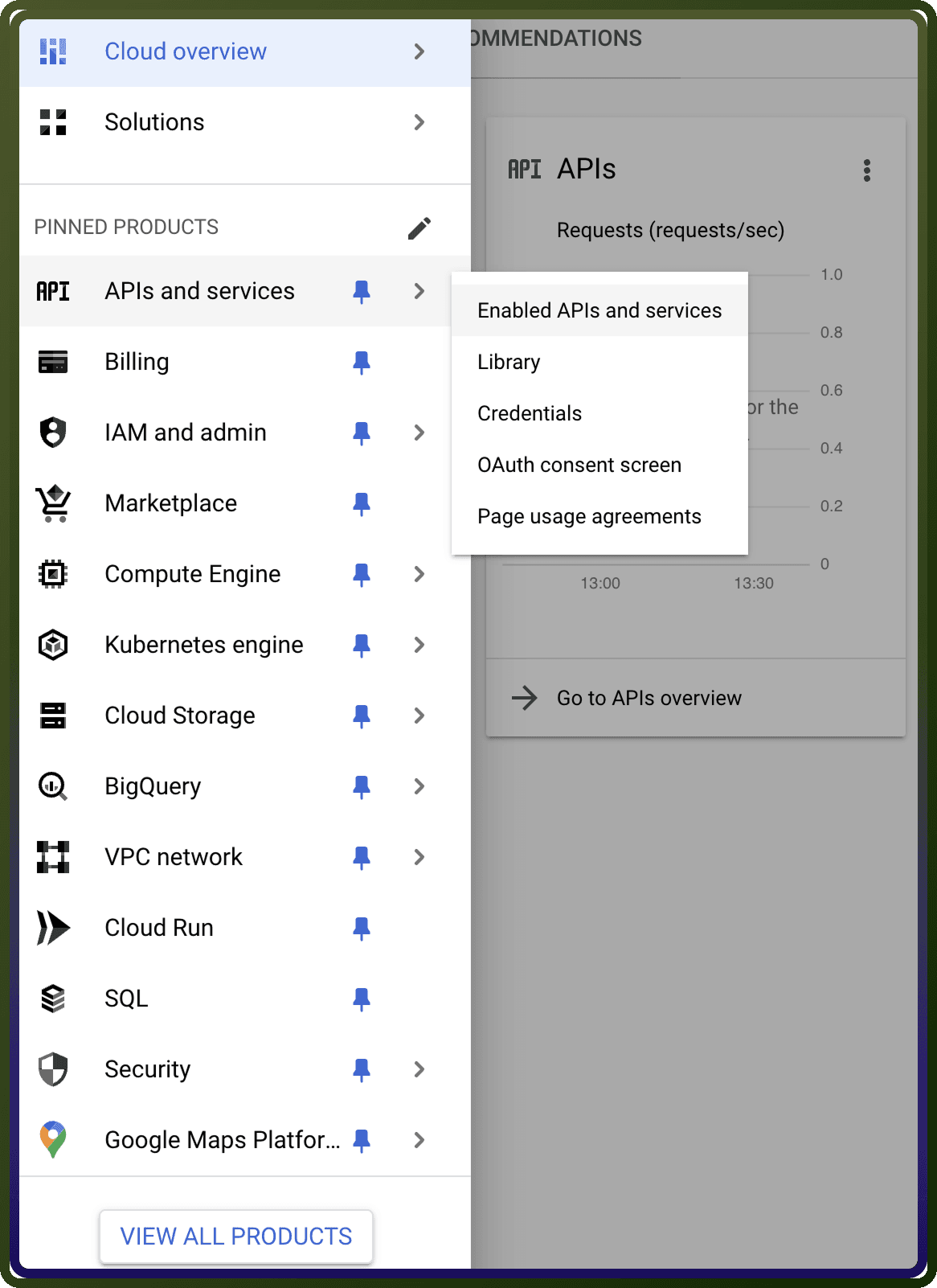
Go to APIs & Services → Library, search for BigQuery API and click Enable (it is on by default in most projects).
Go to IAM & Admin → Service Accounts and click Create service account. Enter a name and click Done.
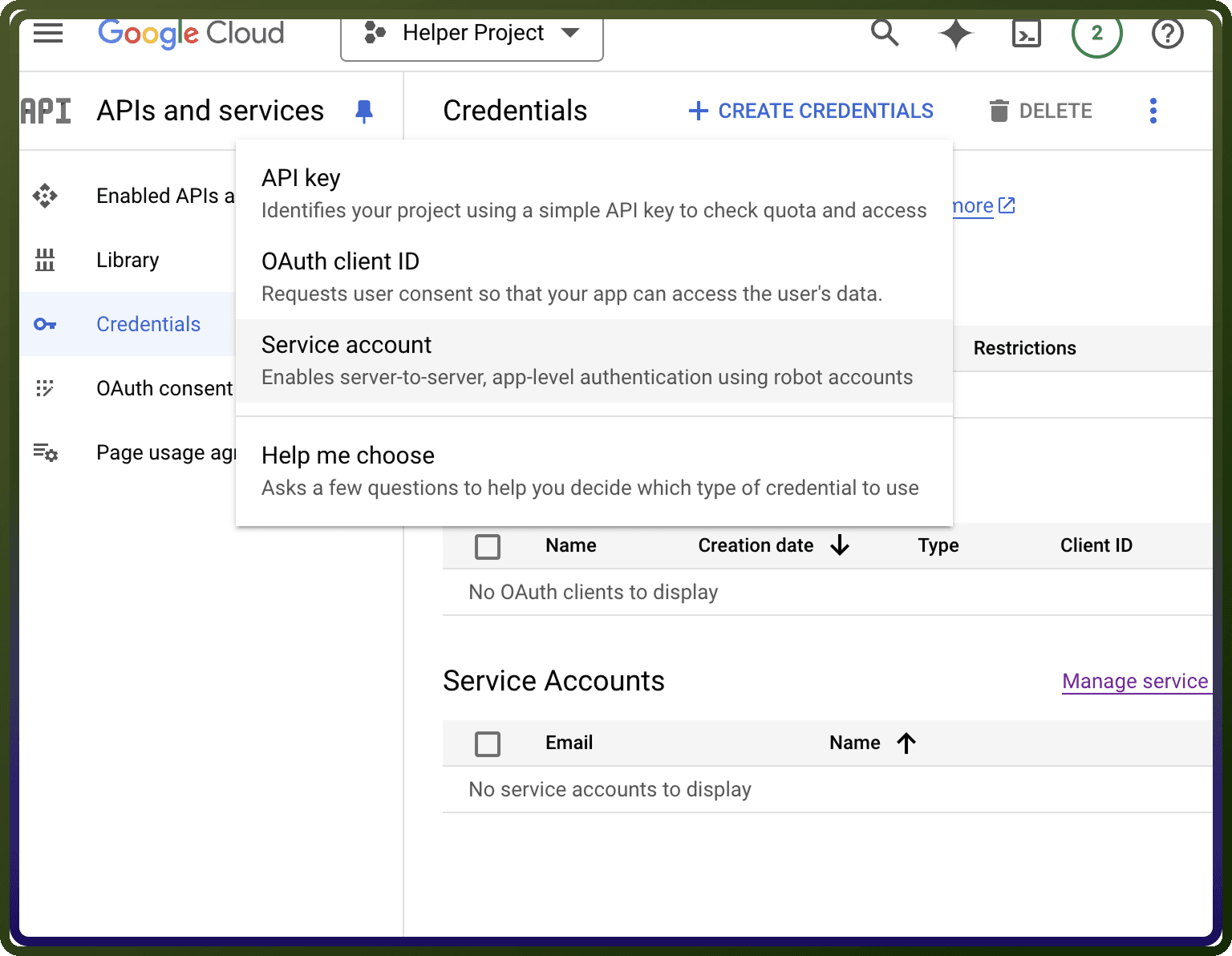
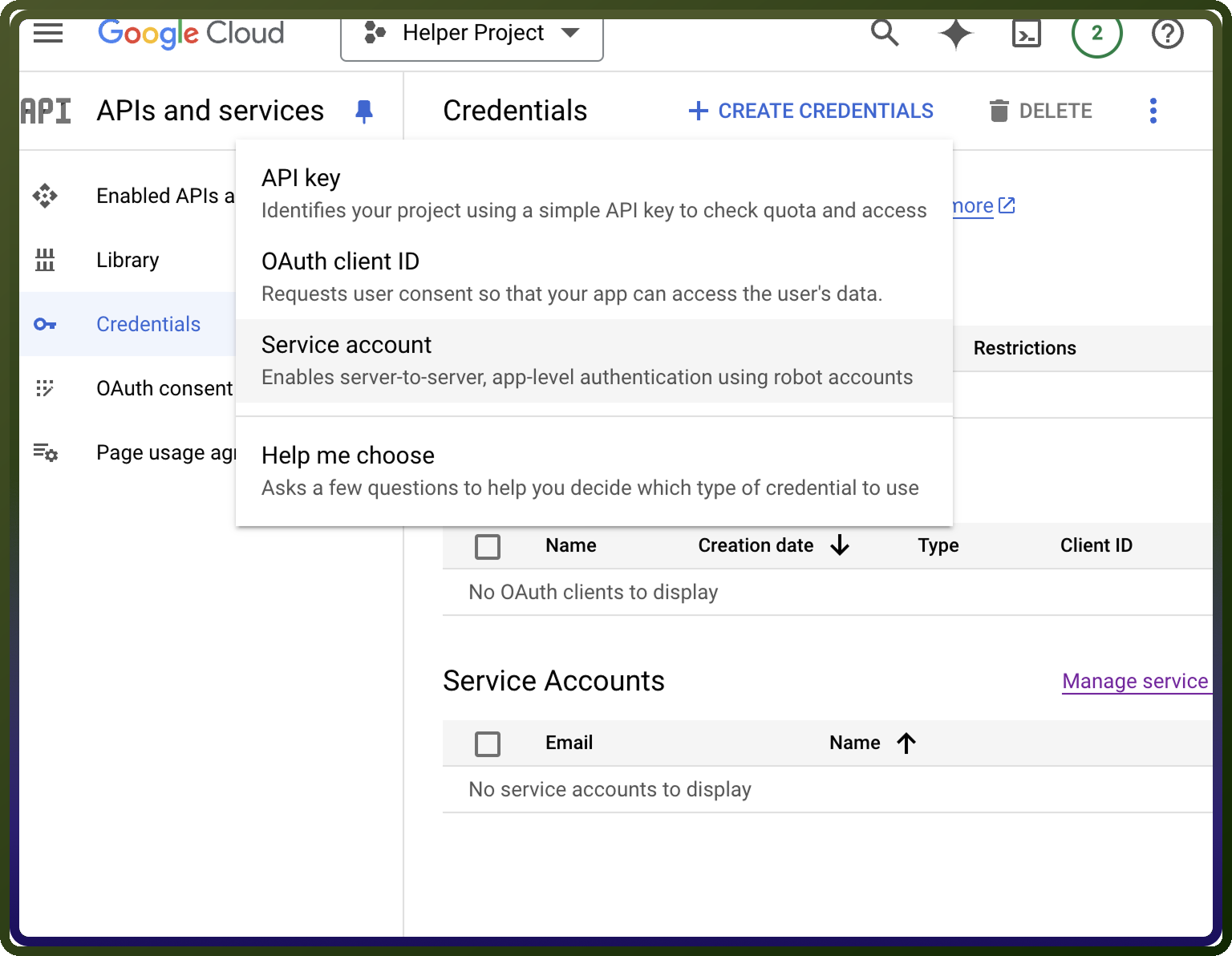
Open the service account and copy its Email. Click Show advanced settings and, under Domain-wide delegation, copy the Client ID used in the next step.
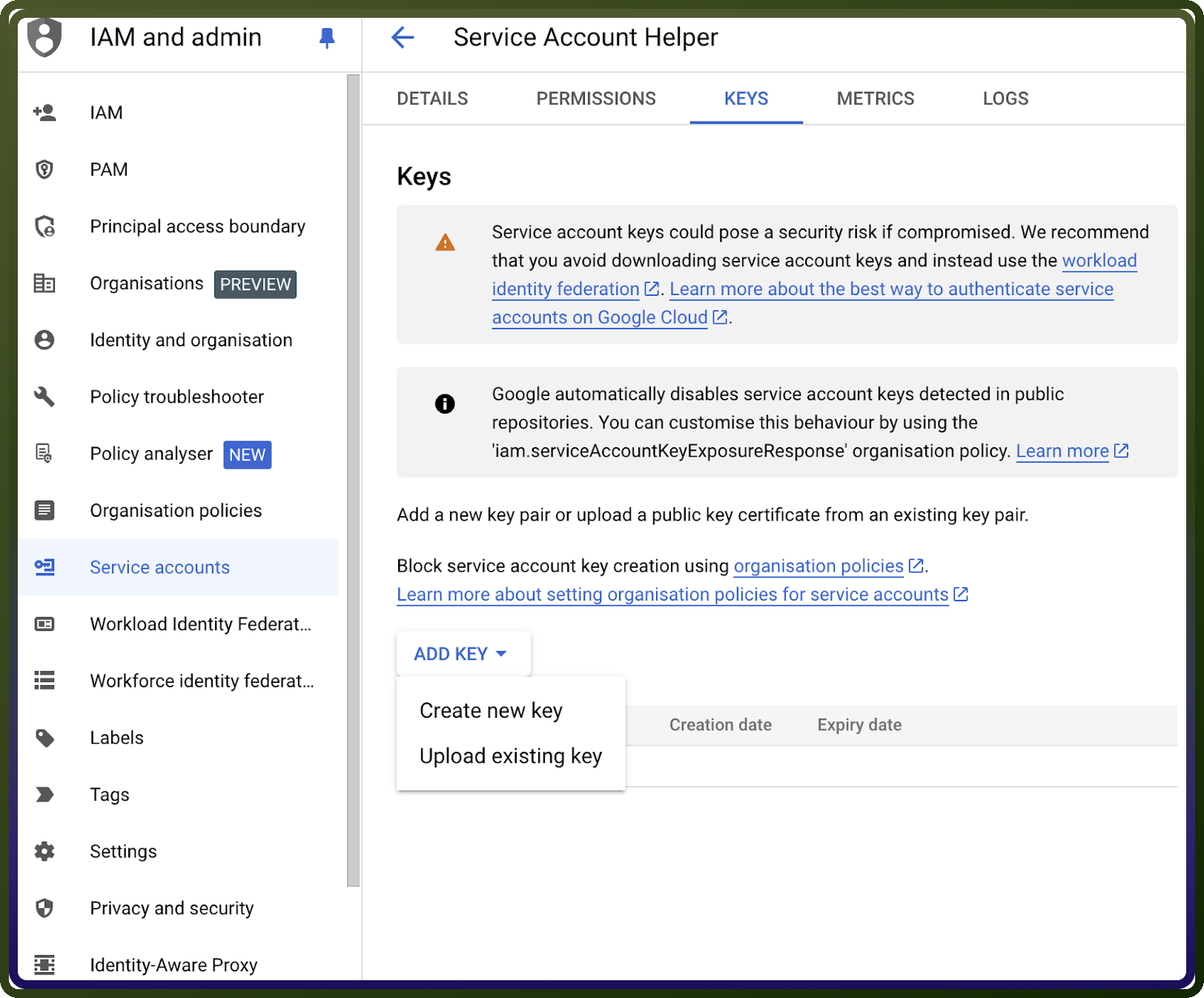
Go to the Keys tab → Add key → Create new key, choose JSON and click Create. The downloaded file holds the
client_emailandprivate_key. Store it securely.

Step 2: Give the service account domain-wide access
A Google Workspace super administrator opens the Admin console → Security → Access and data control → API controls.
Click Manage Domain Wide Delegation → Add new.
Enter the service account's client ID, add the scopes
https://www.googleapis.com/auth/bigquery,https://www.googleapis.com/auth/bigquery.insertdataandhttps://www.googleapis.com/auth/cloud-platform, separated by commas, and click Authorize. See Control API access with domain-wide delegation for details.
Note: the connection acts as the user you enter in User email, so that user must belong to the Workspace domain where domain-wide delegation was granted and needs the BigQuery IAM roles described above. Google says delegation changes can take up to 24 hours to apply.
Step 3: Create the connection in UnifyApps
Open Connections → New Connection → Google Big Query and enter a Connection name.
Select Service Account as the Authentication type.
Enter the Project ID and Dataset ID.
Enter the GCP project service account email (the
client_emailfrom the JSON key file).Paste the Private key (the
private_keyfrom the JSON key file).Enter the User email of the Workspace user the service account acts as.
Click Test Connection to validate the credentials, then click Create.
2. OAUTH
Use this when you want to connect with your own Google account and do not need to create a Google Cloud app.
Enter a Connection name.
Select OAUTH as the Authentication type.
Enter the Project ID and Dataset ID.
Select the Scopes you need, for example
https://www.googleapis.com/auth/bigquery.Click Authorize. You are redirected to the Google sign-in page.
Sign in with a Google account that has the BigQuery IAM roles described above.
Review the permissions on the consent screen and click Allow.
You are redirected back to UnifyApps with a confirmation that the account is connected.
3. OAuth with Client Credentials
Use this when your organization wants the connection to use its own Google Cloud OAuth client, while actions still run as the Google user who signs in.
Step 1: Create an OAuth client in Google Cloud
In the Google Cloud Console, select or create a project, and enable the BigQuery API under APIs & Services → Library.
Go to Google Auth platform → Branding. If you see Google Auth platform not configured yet, click Get Started, enter an App name, User support email, Audience (Internal or External) and contact email, and click Create.
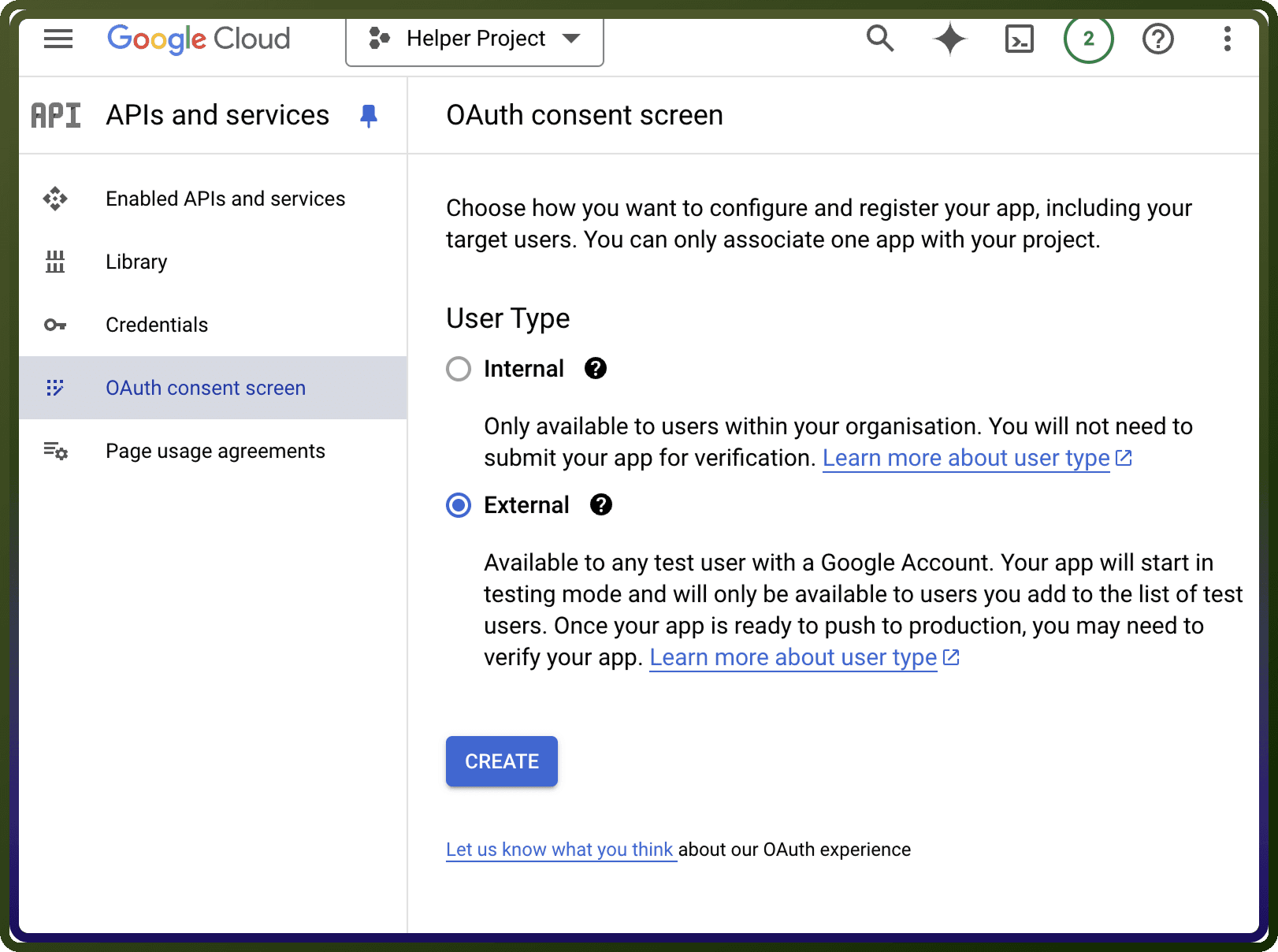
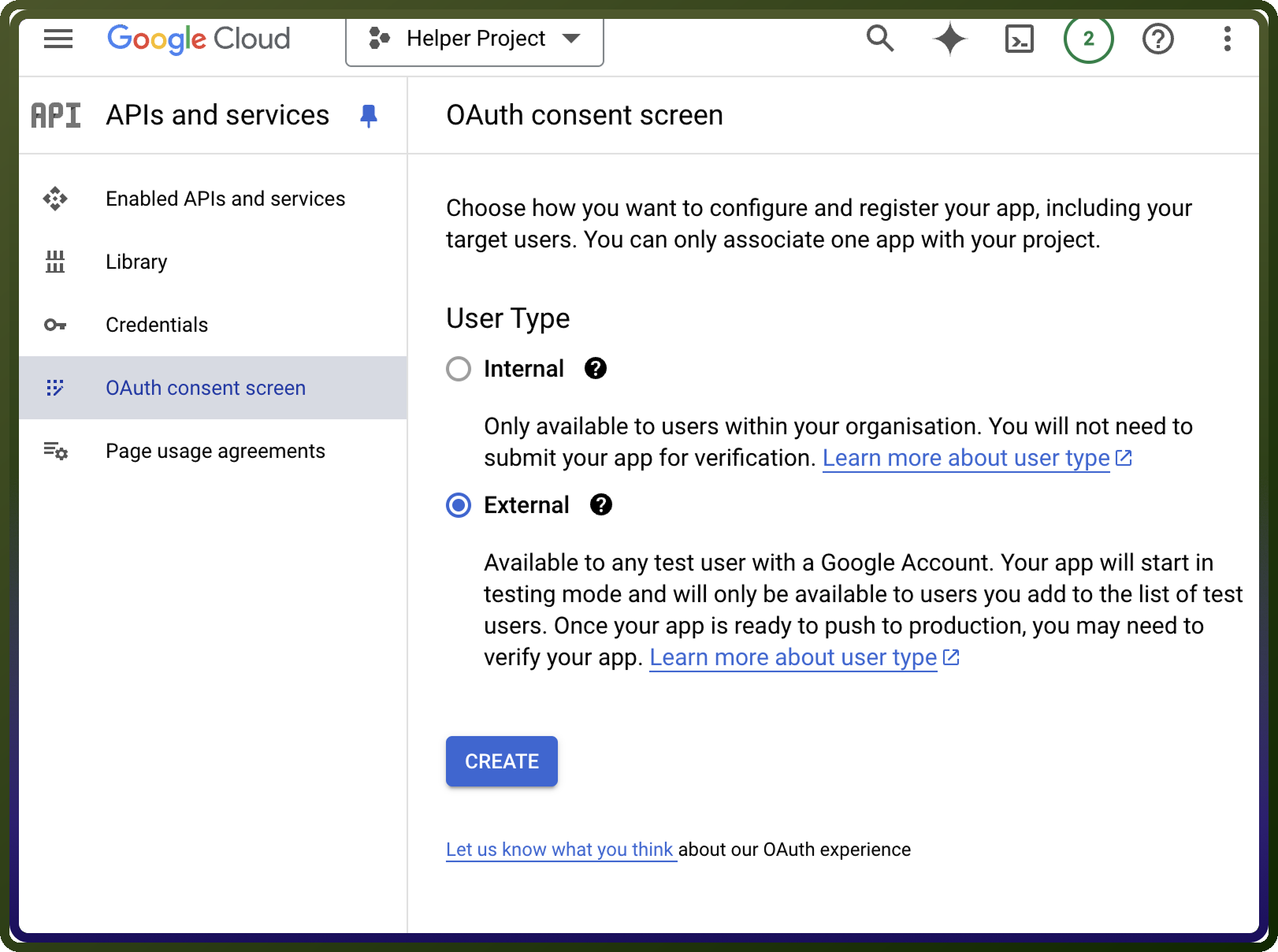
Go to Data Access, click Add or Remove Scopes, select the BigQuery scopes the connection will use, and click Save. If the audience is External, add the users who will sign in under Audience → Test users.
Go to Google Auth platform → Clients and click Create Client. Choose Web application as the Application type and enter a name.
Under Authorized redirect URIs, click Add URI and paste the Callback URL shown on the UnifyApps connection form (it is copyable and differs per environment).
Click Create, then copy the Client ID and Client secret. Copy the secret immediately: Google shows it only once.
Step 2: Connection setup in UnifyApps
Open Connections → New Connection → Google Big Query and enter a Connection name.
Select OAuth with Client Credentials as the Authentication type.
Enter the Project ID and Dataset ID.
Enter the Client ID and Client secret copied from Google Cloud.
Select the same Scopes you added to the consent screen.
Click Authorize, sign in with Google and click Allow on the consent screen.
Confirm the success message after the redirect back to UnifyApps.
Actions
Scopes are shown in short form: bigquery means https://www.googleapis.com/auth/bigquery. cloud-platform covers every action. Actions that read from or write to Google Cloud Storage also need a Cloud Storage IAM role on the bucket, as noted.
Actions | Description | Scopes Required |
|---|---|---|
| Checks the status of an export job in Google BigQuery. | bigquery (or cloud-platform) |
| Creates a table in Google BigQuery. | bigquery (or cloud-platform) |
| Runs a SQL query in Google BigQuery. | bigquery (or cloud-platform) |
| Exports table data from Google BigQuery to Google Cloud Storage. | bigquery (or cloud-platform); the account also needs Storage Object Admin on the destination bucket |
| Gets the schema of a table in Google BigQuery. | bigquery (or cloud-platform) |
| Inserts multiple rows into a table in Google BigQuery. | bigquery.insertdata (or bigquery) |
| Inserts a row into a table in Google BigQuery. | bigquery.insertdata (or bigquery) |
| Lists the tables in a Google BigQuery dataset. | bigquery (or cloud-platform) |
| Loads data from Google Cloud Storage files into a table in Google BigQuery. | bigquery (or cloud-platform); the account also needs read access to the source bucket |
| Deletes all rows from a table in Google BigQuery. | bigquery (or cloud-platform) |
| Creates an Iceberg table in Google BigQuery. | bigquery (or cloud-platform) |
| Deletes rows from an Iceberg table in Google BigQuery. | bigquery (or cloud-platform) |
| Exports metadata from an Iceberg table in Google BigQuery. | bigquery (or cloud-platform) |
| Gets information about a dataset in Google BigQuery. | bigquery (or cloud-platform) |
| Gets results from a completed SQL query in Google BigQuery. | bigquery (or cloud-platform) |
| Inserts JSON-formatted rows into a table in Google BigQuery. | bigquery (or cloud-platform) |
| Lists the datasets in a Google BigQuery project. | bigquery (or cloud-platform) |
| Lists the jobs in a Google BigQuery project. | bigquery (or cloud-platform) |
| Lists the Google Cloud projects accessible to the service account. | bigquery (or cloud-platform) |
| Lists rows from a table in Google BigQuery. | bigquery (or cloud-platform) |
| Loads data from Google Cloud Storage into an Iceberg table in Google BigQuery. | bigquery (or cloud-platform); the account also needs read access to the source bucket |
| Merges data into an Iceberg table in Google BigQuery. | bigquery (or cloud-platform) |
| Triggers when new rows are detected in a BigQuery table (polling). | bigquery (or cloud-platform) |