


Use the Audienceful connector to create and automate email campaigns.
Integrating your application with Audienceful lets you use these operations in an automation. It exposes 2 actions and 1 trigger, listed below. Add the connector from the Connections area, authenticate, then select its operations in the automation builder. Capabilities: actions, triggers.
Authentication
Before you begin, make sure you have the following information:
Connection Name: Choose a meaningful name for your connection. This name helps you identify the connection within your application or integration settings.
Authentication Type: Audienceful uses API key authentication (shown as TOKEN in the Authentication type field). The connection asks for one value, your Audienceful API Key.
Authentication & setup
Generate an API key in Audienceful and paste it into the UnifyApps connection. UnifyApps sends the key with each request for you.
Getting Credentials
Log in to Audienceful.
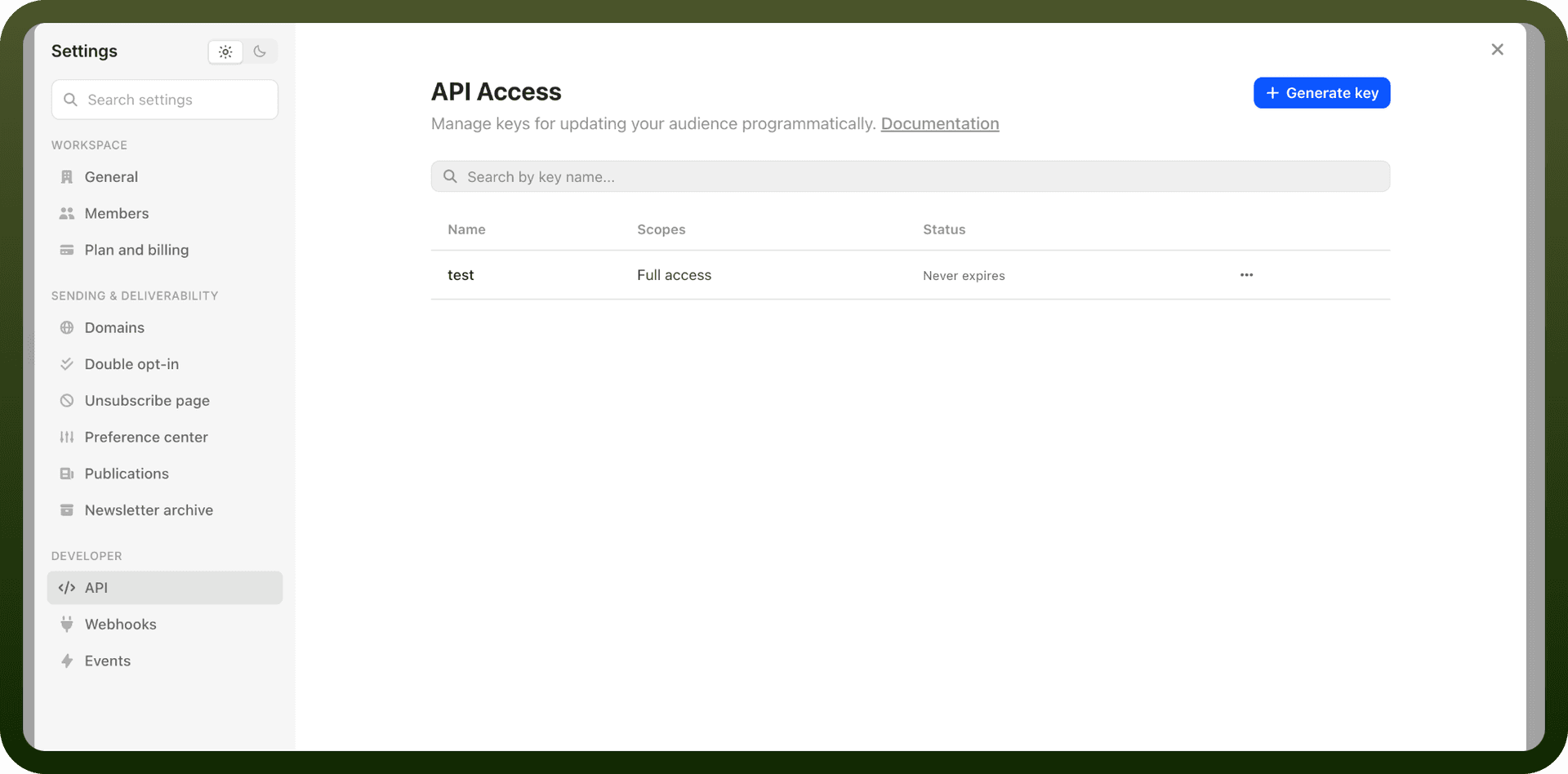
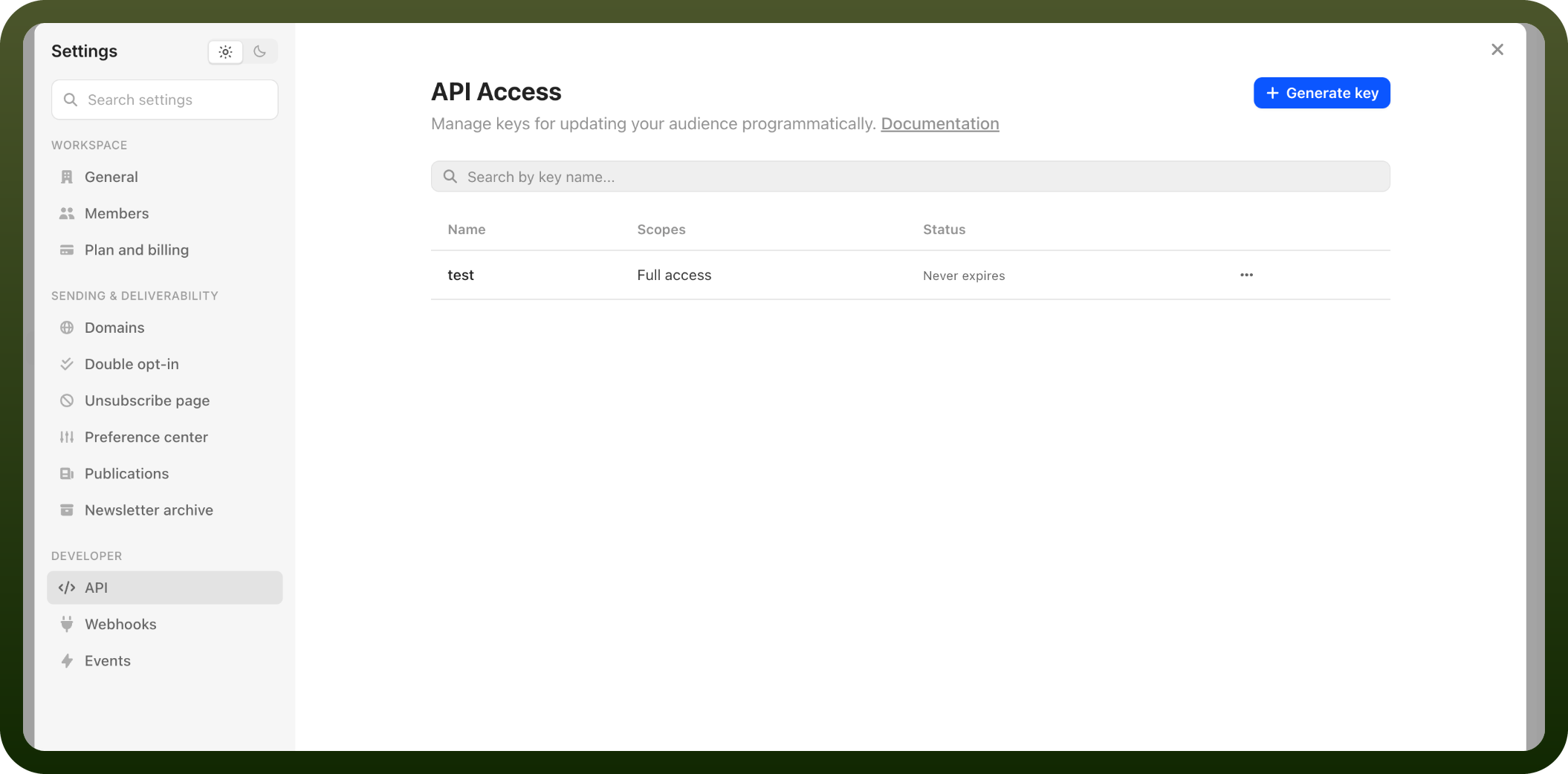
Go to Settings > API keys.
Click Generate Key, then enter a key name and an optional expiration date.
Copy the key right away. It is only displayed once.
In UnifyApps, paste the key into the API Key field of the Audienceful connection.
Key Management
Keys can be revoked anytime through the Settings page
You can optionally set an expiration date for keys
After the expiration interval, the key can no longer authenticate requests
Keep keys secure—they provide access to all APIs listed in the documentation
Actions
Action Name | Description |
|---|---|
Delete person | Deletes a person in Audienceful |
Upsert person | Upserts a person in Audienceful |
Triggers
Trigger Name | Description |
|---|---|
Person created | Triggers when a new person is created in Audienceful |
About the API
Audienceful provides APIs for audience management and engagement, supporting data discovery and audience-based operations. For a complete overview of available endpoints and features, consult the full documentation at https://developer.audienceful.com/llms.txt