


Use the DeepL connector to translate text using AI.
Integrating your application with DeepL lets you use these operations in an automation. It exposes 5 actions, listed below. Add the connector from the Connections area, authenticate, then select its operations in the automation builder. Capabilities: actions.
Authentication
Before you begin, make sure you have the following information:
Connection Name: Choose a meaningful name for your connection. This name helps you identify the connection within your application or integration settings.
API key: Paste your DeepL authentication key into the API key field of the connection form.
API plan: Select the plan your key belongs to: DeepL API Pro (the default) or DeepL API Free. If your key ends in ":fx", it's a Free key, so select DeepL API Free.
Obtaining Your API Key
Go to the DeepL API plans page (deepl.com/pro-api), choose a Free or Pro API plan, and sign up. This creates a dedicated DeepL API account — if you already have a DeepL Translator account, log out first and register a new one for the API.
Enter your email address and complete the registration form to finish creating the account.
Log into your new DeepL account.
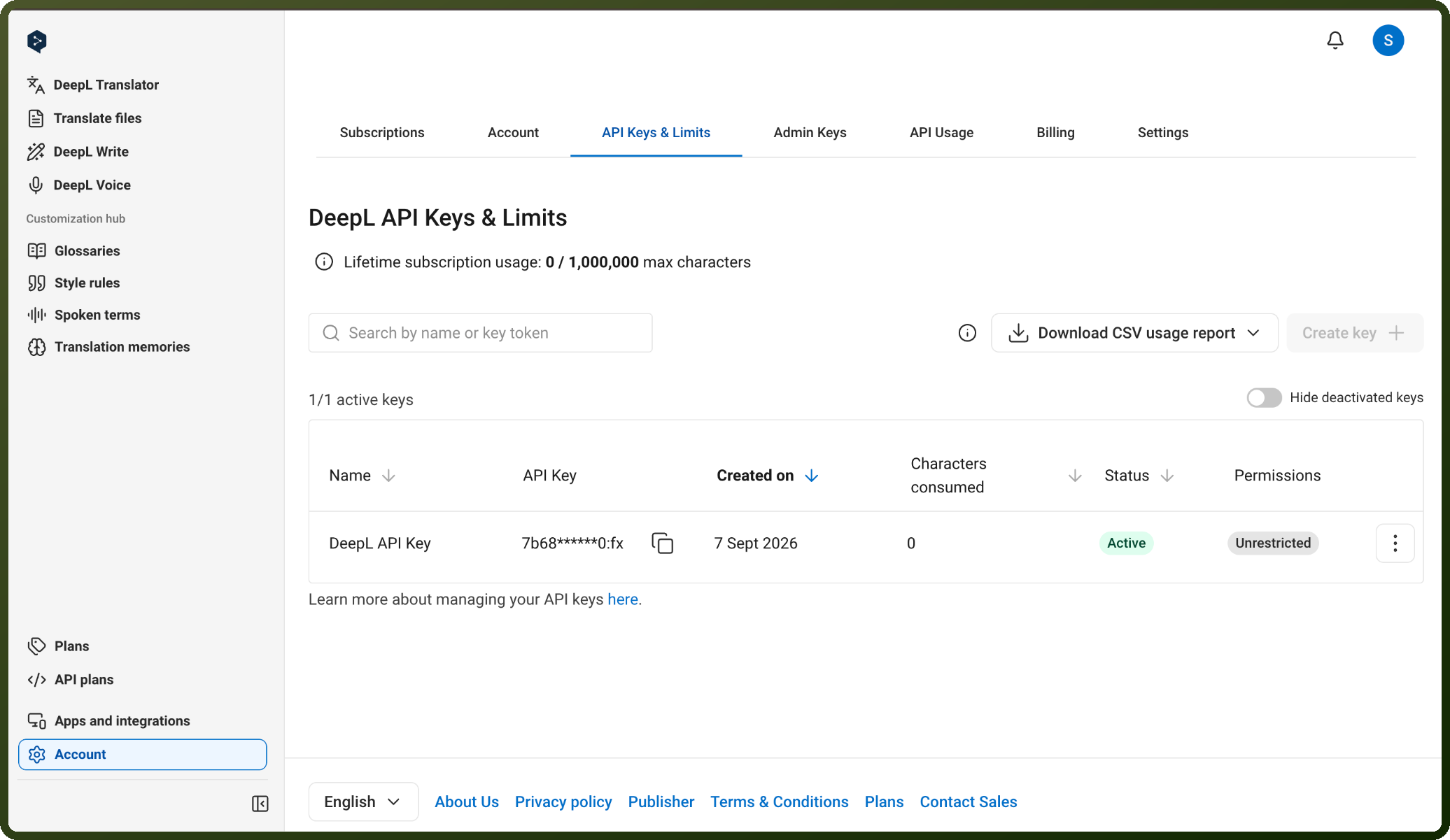
Go to Account, then open the API Keys tab.
Copy your authentication key from this page and store it securely (Free plan keys end in ":fx", which lets you tell them apart from Pro keys).

Authentication
Finding Your Key
Locate your authentication key in the "API Keys" tab in your account.
Free tier keys are identifiable by the ":fx" suffix.
Security Best Practices
"Keep your API key secure at all times. Do not use it in client-side code."
Never include keys in publicly-distributed code
If compromised, deactivate and create a new key via the account dashboard
Actions
Action Name | Description |
|---|---|
Check document status | Checks the document status in DeepL |
Download translated document | Download a translated document from DeepL |
Improve text | Improves a text using DeepL |
Translate text | Translates a text using DeepL |
Upload and translate a document | Uploads and translates a document in DeepL |
Overview
The DeepL API is accessible via HTTP interface and programming language-specific client libraries. It accepts form-encoded and JSON-encoded request bodies, returning JSON responses.
Exception: The /document endpoint requires multipart/form-data for file uploads and should not be used with other endpoints like /translate.
There is a header size limit of 16 KiB for all requests.