


Using Amazon Bedrock makes it easier to build and deploy generative AI applications at scale. It allows you to access and integrate powerful foundation models from leading AI providers, customize them for specific use cases, and optimize your AI workloads with minimal effort. Amazon Bedrock ensures your AI applications are scalable, reliable, and secure with robust data privacy controls and AWS's enterprise-grade security features.
Connecting your application to Amazon Bedrock lets you call foundation models and Bedrock agents, and run batch inference jobs, from your automations.
Authentication
Before you begin, make sure you have the following information:
Connection name: a name that identifies this connection in UnifyApps, such as "MyAppAmazonBedrockIntegration".
Region (required): the AWS region of your resources, such as us-east-1. If your AWS console URL starts with https://us-east-1.console.aws.amazon.com, enter us-east-1.
Authentication type: Access Key, IAM Role, Instance Role or API Key.
Request timeout duration (optional): how long, in seconds, a request can run before it times out.
Inference profile ID or ARN (optional): a Bedrock inference profile to send model calls through, such as a cross-region system profile ID or an application inference profile ARN.
The fields you fill in depend on the authentication type:
Access Key: enter the Access key ID and Secret access key of an IAM user (both required).
IAM Role: enter the ARN of an IAM role in the IAM Role field (required), and in External Id the external ID set on the role's trust relationship.
Instance Role: no keys are entered; the connection uses the IAM role of the environment that UnifyApps runs in. Use it only when UnifyApps runs inside your own AWS account.
API Key: enter an Amazon Bedrock API key in the API Key field (required).
Access Key Based Authentication
Sign in to the AWS Management Console.
Search for Users in the search bar at the top of the console and open Users in IAM (Identity and Access Management).
Click Create user and enter a user name.
Choose Attach policies directly and attach the AmazonBedrockFullAccess policy (or a policy that grants the Bedrock permissions you need). Click Create user.
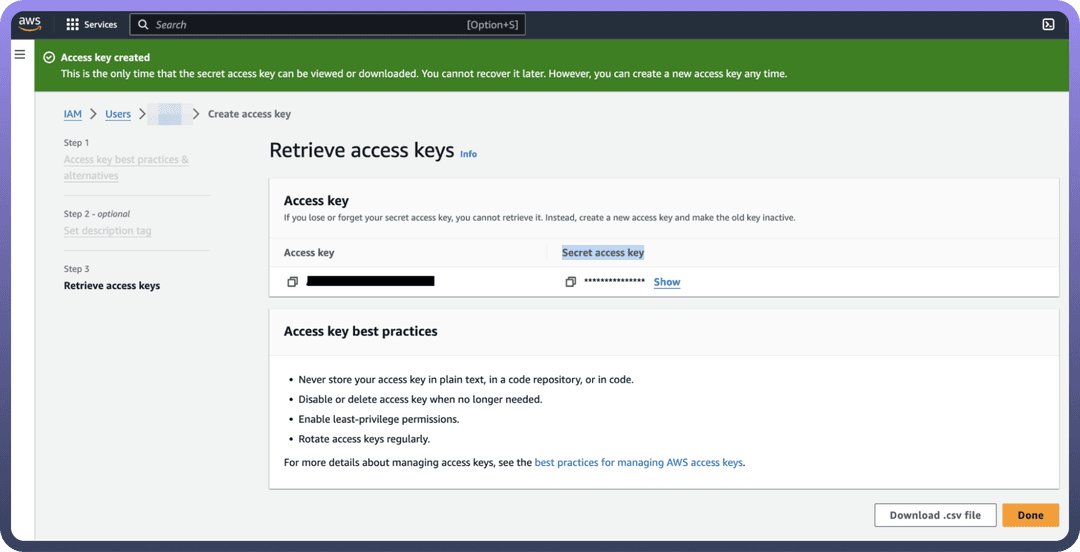
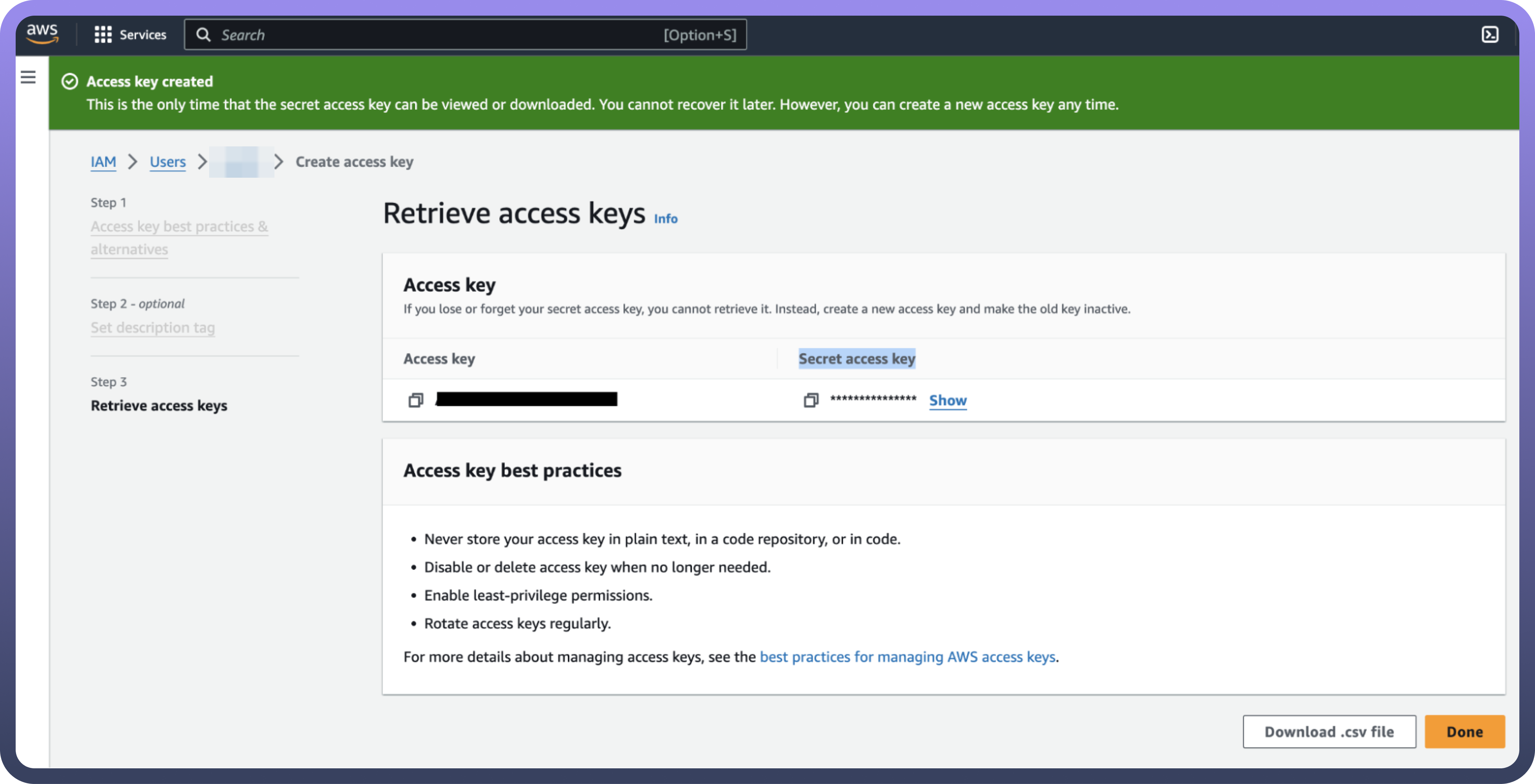
Open the new user, go to Security credentials and click Create access key.
Choose Command Line Interface as the use case, add a description tag and click Create access key.
Copy the access key ID and secret access key into the connection form. Store them securely; anyone with them can access your AWS account.
IAM Role Based Authentication
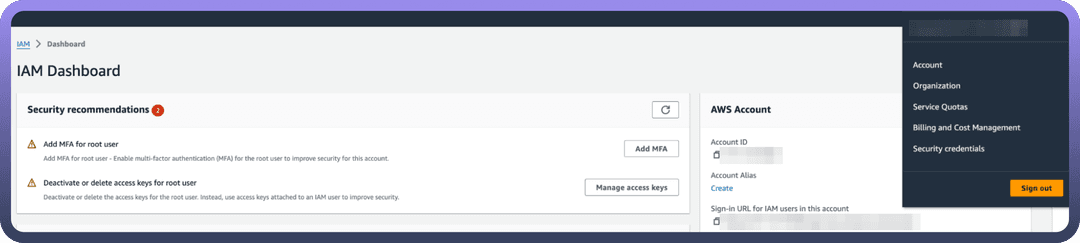
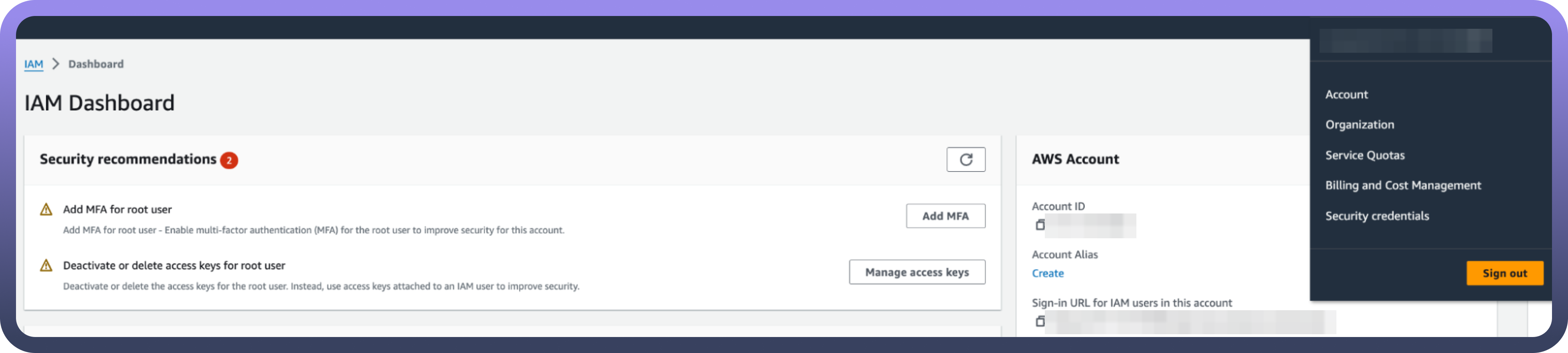
Sign in to AWS Management Console (https://console.aws.amazon.com/) and select security credentials.
Navigate to the IAM dashboard and click "
Roles" > "Create role". (https://docs.aws.amazon.com/IAM/latest/UserGuide/id_roles.html)Under "
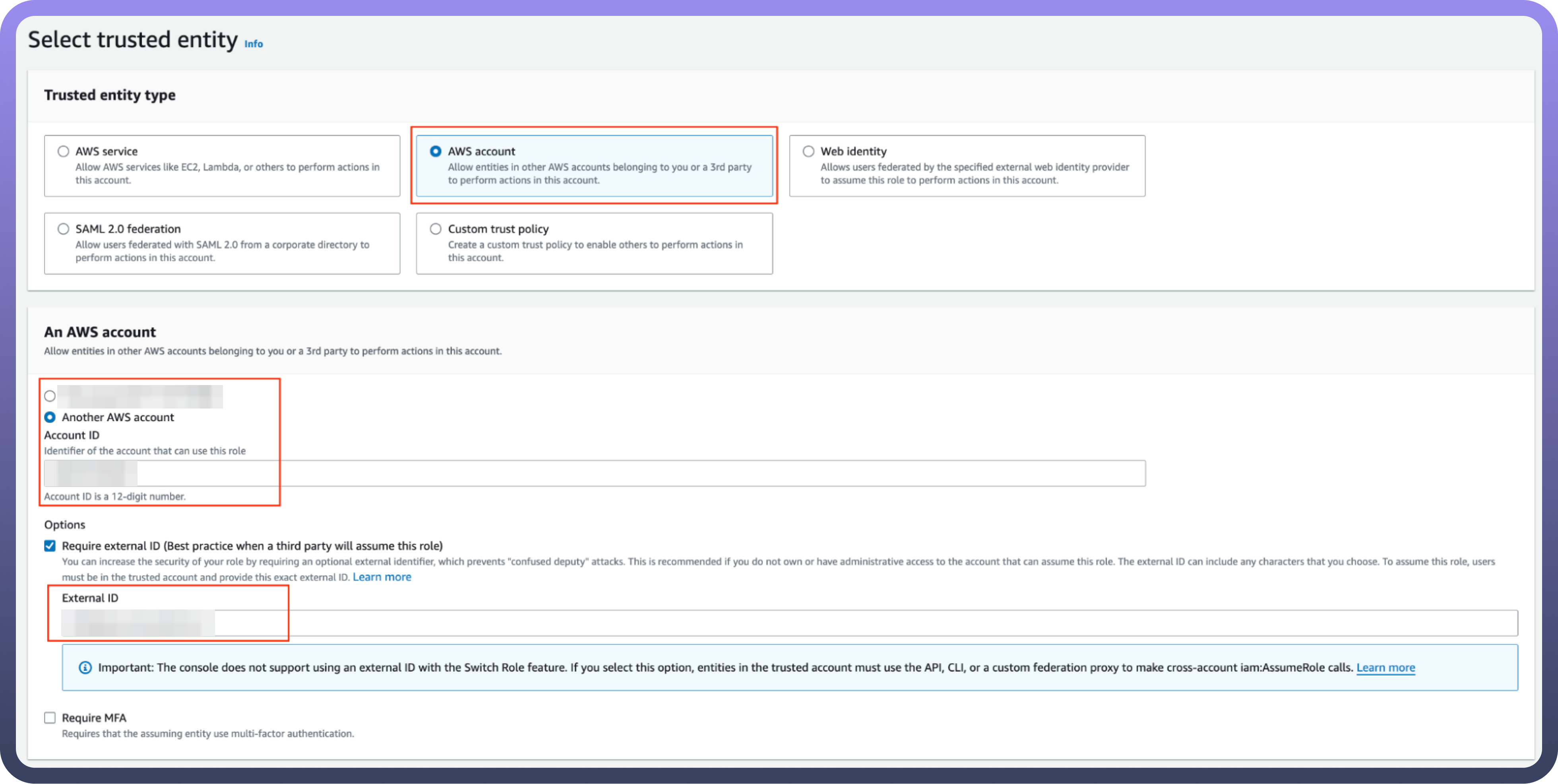
Trusted entity type", choose the AWS account option.Select "
Another AWS account" and input the UnifyApps AWS account ID (contact support to obtain this).Check the "
Require external ID" box and enter the External ID provided by UnifyApps.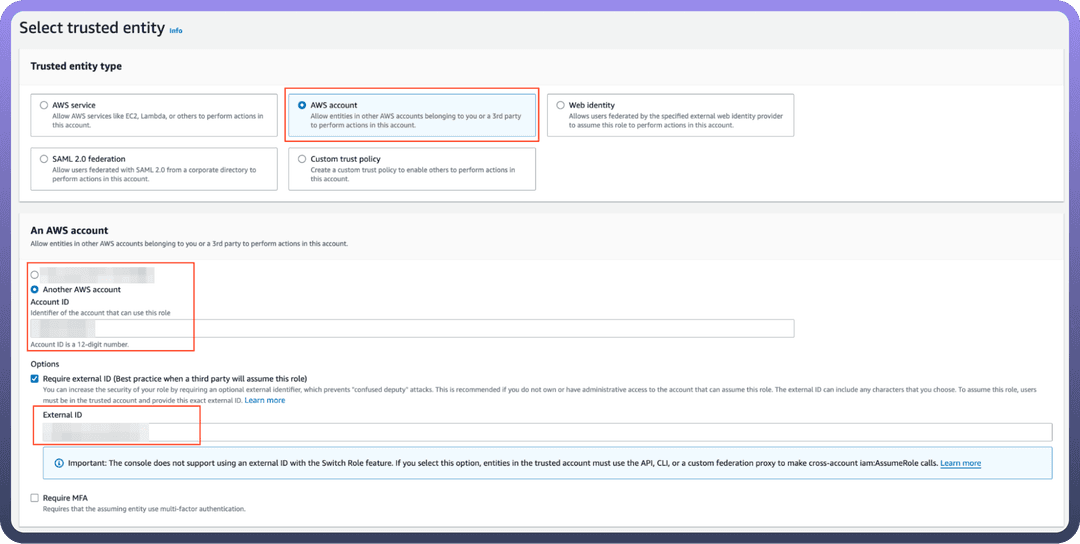
Assign the necessary permissions for UnifyApps to operate automated workflows within your account.
Give the IAM role a name and description.
Click the "
Select trusted entities" Edit button to modify trusted entity policies if needed. (Optional)Click the "
Add permissions" Edit button to adjust permissions. (Optional)If using object tags, select an appropriate tag for the IAM role. (Optional)
Click on Create Role to finalize the process.
Create an IAM permissions policy
Go to the AWS Console and open the IAM console- https://console.aws.amazon.com/iam
Navigate to Access management and select Policies.
Choose Create Policy.
Locate and choose the AWS service that UnifyApps will access.
Select the required permissions under the Actions field.
Define the resources that the role will have access to.
Continue clicking Next until you reach the Review policy page.
Provide a Name for the policy.
Click Create policy once done.
Retrieve IAM role ARN
Open the AWS Console and go to My Security Credentials > Roles.
Search for the IAM role you need for the connection.
Select the role to view its details.
Copy the Role ARN for use in the UnifyApps connection setup.
API Key Based Authentication
Sign in to the AWS Management Console and open Amazon Bedrock.
Generate an Amazon Bedrock API key from the API keys page.
In the connection form, choose API Key as the authentication type and paste the key into the API Key field. Store the key securely.
Actions
The following actions are supported in Amazon Bedrock, grouped by area.
Models
Action | Description |
|---|---|
| Analyse text to answer user-provided questions in Amazon Bedrock. |
| Classify text based on user-defined categories in Amazon Bedrock. |
| Generate an email based on user description in Amazon Bedrock. |
| Generate or modify images using prompts or other images in Amazon Bedrock. |
| Generates text embedding for the input text using Amazon Bedrock. |
| Reranks documents based on their relevance to queries using Amazon Bedrock. |
| Send a message to models in Amazon Bedrock. |
| Send a message to models using custom payload in Amazon Bedrock. |
| Get a summary of the input text in configurable length using Amazon Bedrock. |
| Translate text between languages using Amazon Bedrock. |
Agents
Action | Description |
|---|---|
| Creates agent aliases in Amazon Bedrock. |
| Creates session for agent in Amazon Bedrock. |
| Gets agent details in Amazon Bedrock. |
| Invokes an agent in Amazon Bedrock. |
| Invokes an agent in Amazon Bedrock with streaming response. Returns chunks as they arrive. |
| Lists agent aliases in Amazon Bedrock. |
| Lists agent knowledge bases in Amazon Bedrock. |
| Lists agents in Amazon Bedrock. |
| Prepares an agent in Amazon Bedrock. |
Batch inference
Action | Description |
|---|---|
| Creates a model invocation job in Amazon Bedrock. |
| Retrieves model invocation job execution details. |
| Lists available batch inference jobs in Amazon Bedrock. |
| Lists available model invocation jobs in Bedrock. |
| Stops an active model invocation job execution. |
Responses
Action | Description |
|---|---|
| Cancels an in-progress model response in Amazon Bedrock. |
| Compacts a model response in Amazon Bedrock. |
| Creates a model response in Amazon Bedrock. |
| Create a response stream in Amazon Bedrock. |
| Create a response stream using custom payload in Amazon Bedrock. |
| Deletes a model response in Amazon Bedrock. |
| Gets input token counts for a model response in Amazon Bedrock. |
| Retrieves an existing model response in Amazon Bedrock. |
| Lists input items for a model response in Amazon Bedrock. |