


Use the Breakcold connector to combine social selling and CRM activities.
Integrating your application with Breakcold lets you use these operations in an automation. It exposes 7 actions, listed below. Add the connector from the Connections area, authenticate, then select its operations in the automation builder. Capabilities: actions.
Authentication
Before you begin, make sure you have the following information:
Connection Name: Choose a meaningful name for your connection. This name helps you identify the connection within your application or integration settings.
Authentication Type: Breakcold uses API key authentication. The connection form asks for a Connection name and an API Key.
Obtaining Your API Key
Sign in to your Breakcold account.
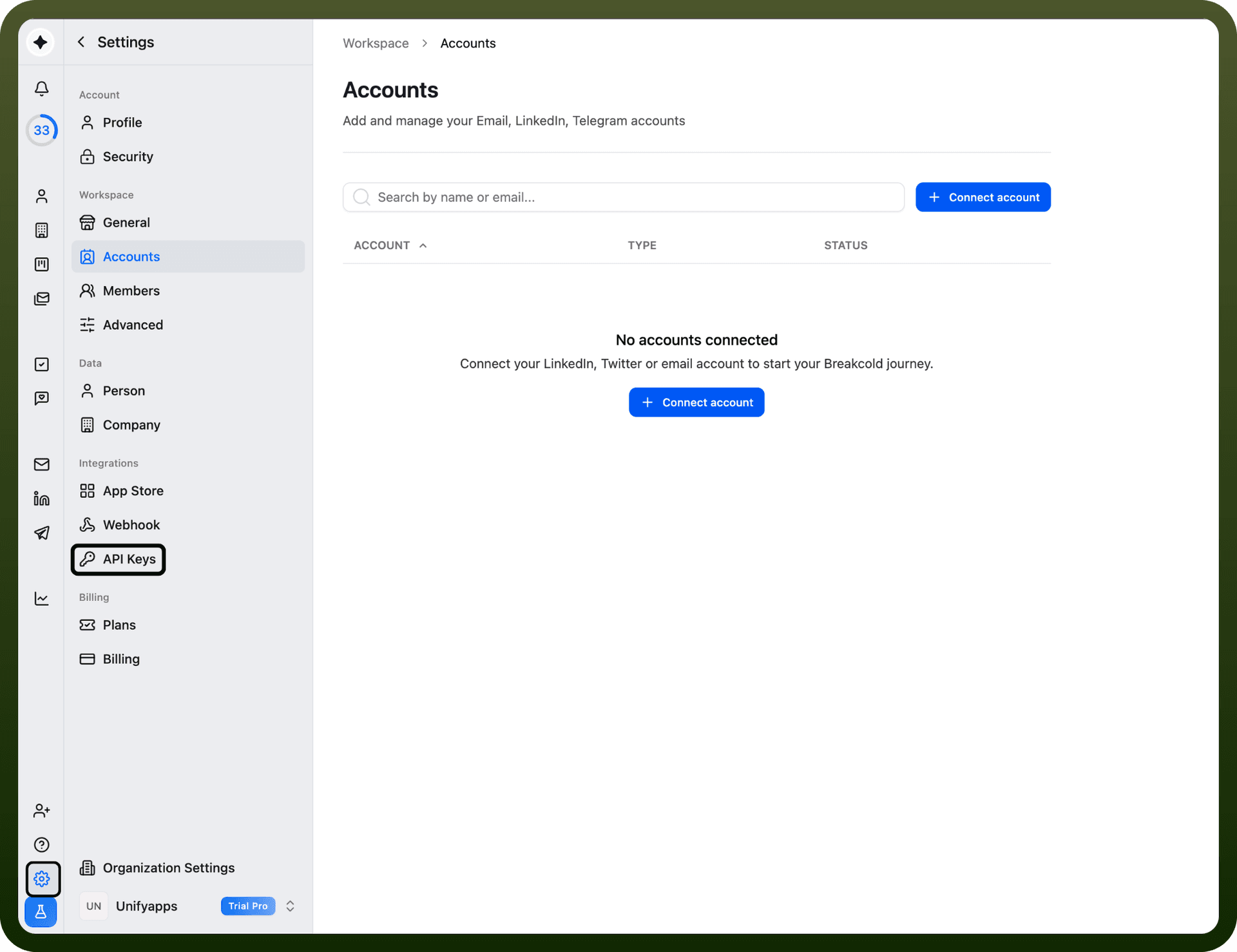
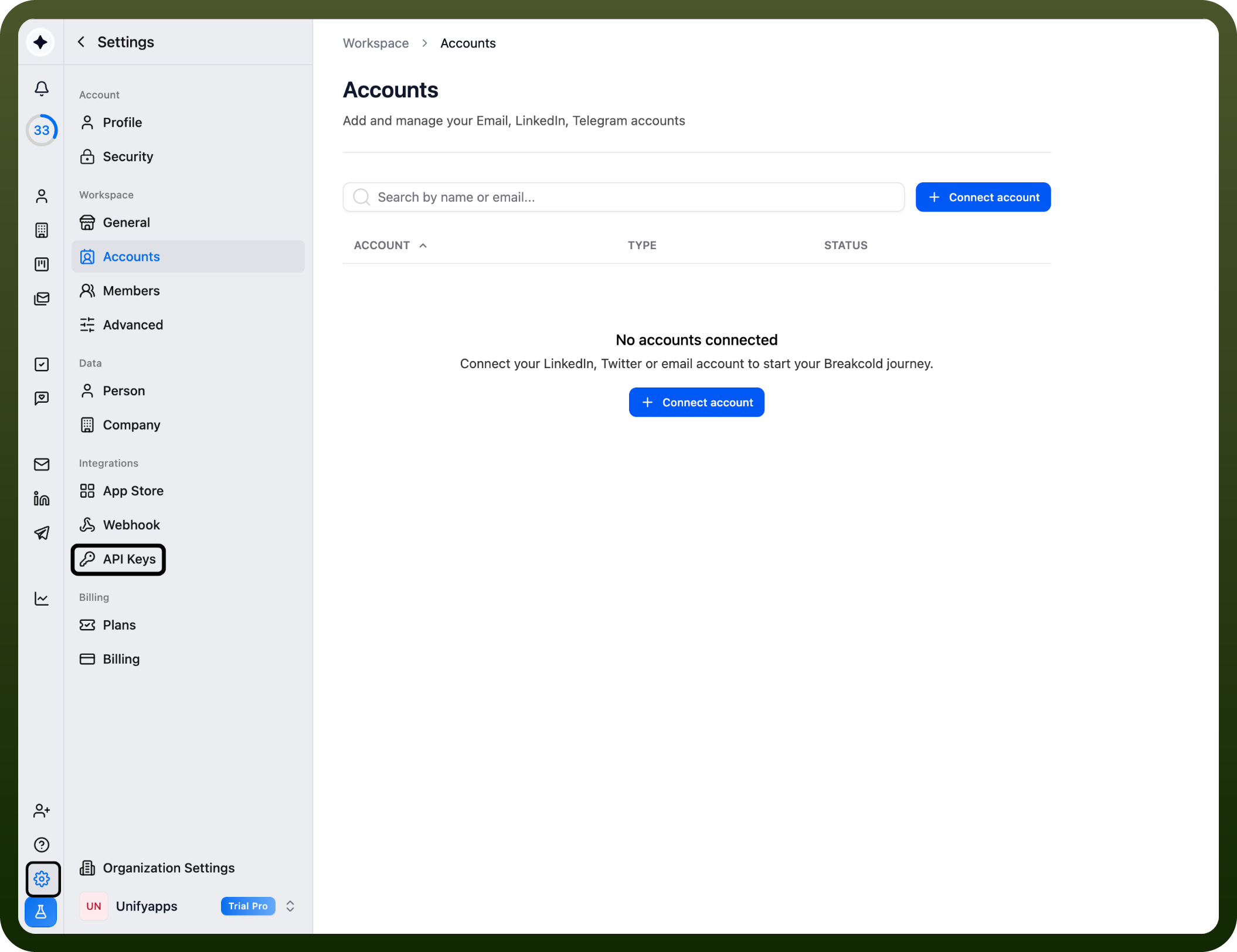
In the dashboard, click Settings in the left panel.
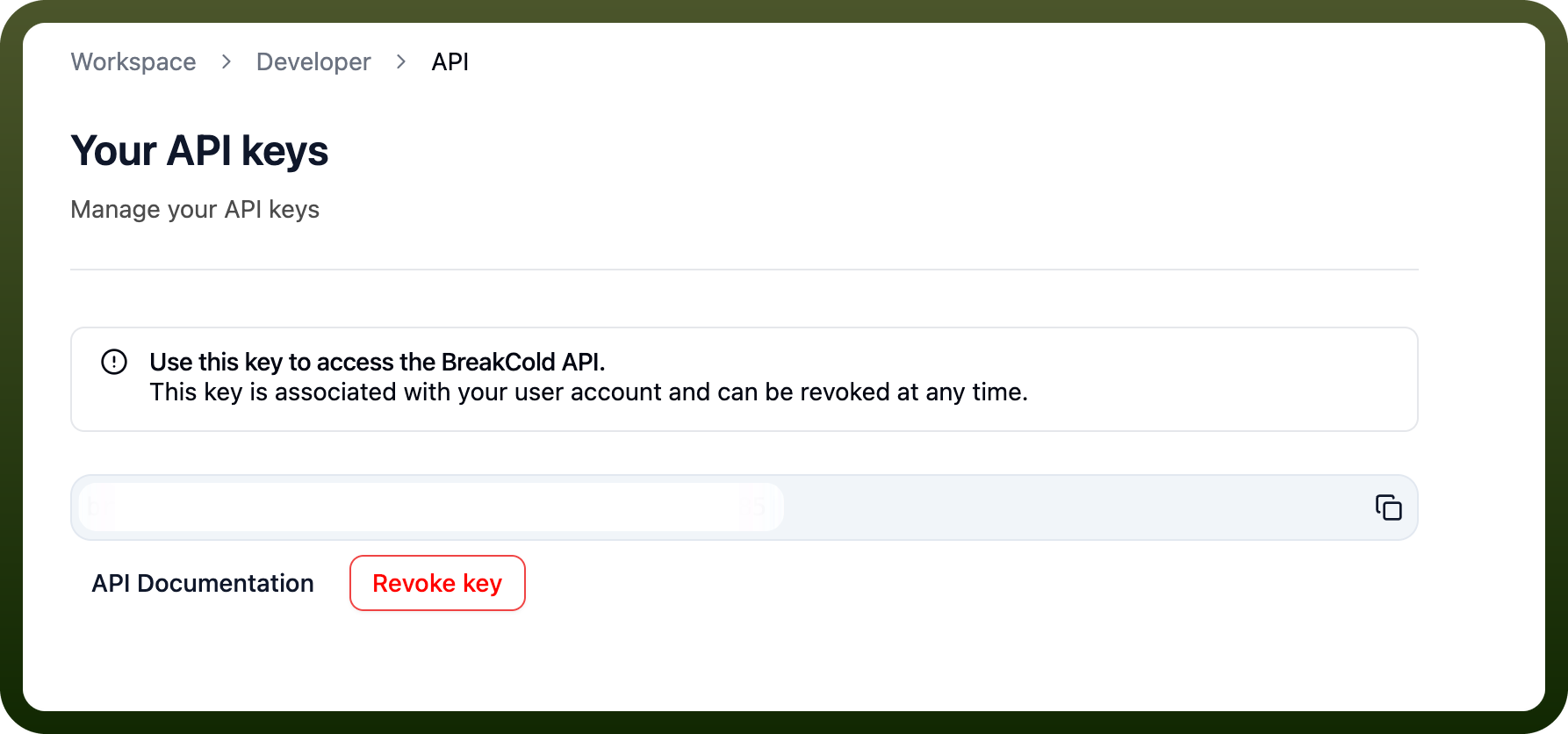
Select the API Key option, then generate an API key under the API Key section.
Copy the API key and paste it into the API Key field of the connection form.

Actions
Action Name | Description |
|---|---|
Create lead | Creates a lead in Breakcold |
Create list | Creates a list in Breakcold |
Create note | Creates a note in Breakcold |
Create reminder | Creates a reminder in Breakcold |
Create status | Creates a status in Breakcold |
Create tag | Creates a tag in Breakcold |
Get lead by ID | Get a lead by ID in Breakcold |