

Azure Blob Storage enables teams and applications to store and manage unstructured data such as documents, images, videos, backups, and logs at massive scale within the Microsoft cloud. By integrating your application with Azure Blob Storage, you can securely upload, download, and organize data using containers and blobs, while supporting high availability and durable storage for enterprise workloads.
Authentication
Integrating your application with Azure Blob Storage enables efficient and scalable storage solutions for unstructured data, such as images, videos, and documents. Ensure you have the following information ready for a seamless integration process:
Connection name: A meaningful name that helps you identify the connection, for example "MyAppAzureBlobIntegration".
Authentication type: Choose Credentials (an app registration in Microsoft Entra ID) or SAS Token.
Storage account (required for both types): the name of your storage account. In the Azure Portal, open your storage account to see its name.
Container (optional): the container in the storage account. Required for ETL pipelines.
Storage Account Key (optional): an access key for the storage account.
Credentials
Sign in to the Microsoft Azure Portal.
Search for App registrations and click New registration.
Enter a name, choose the supported account types, and register the app. If Azure asks for a redirect URI, copy the Callback URL shown in the UnifyApps connection form and use it.
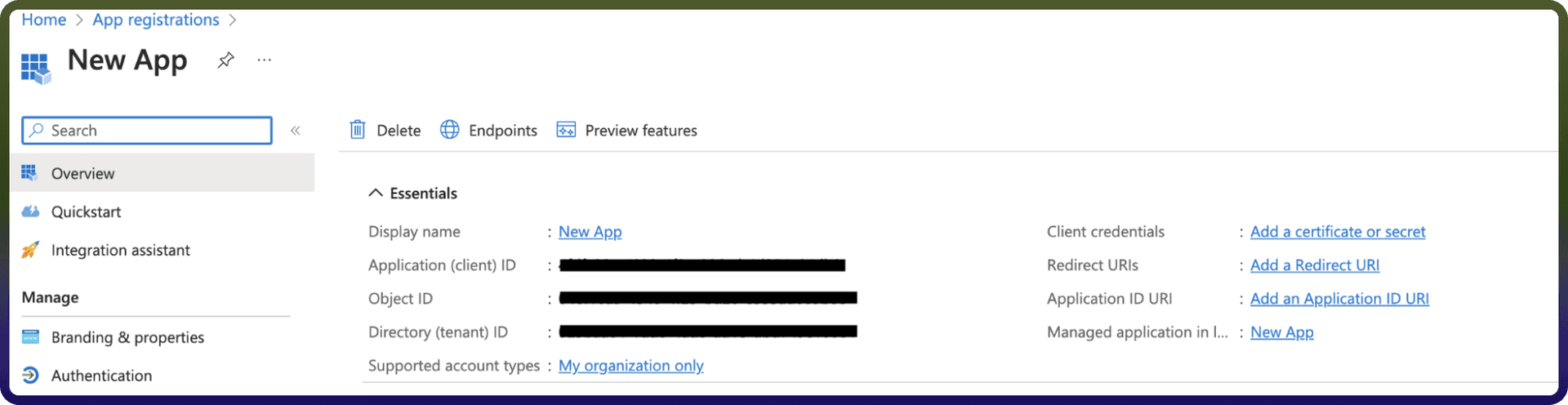
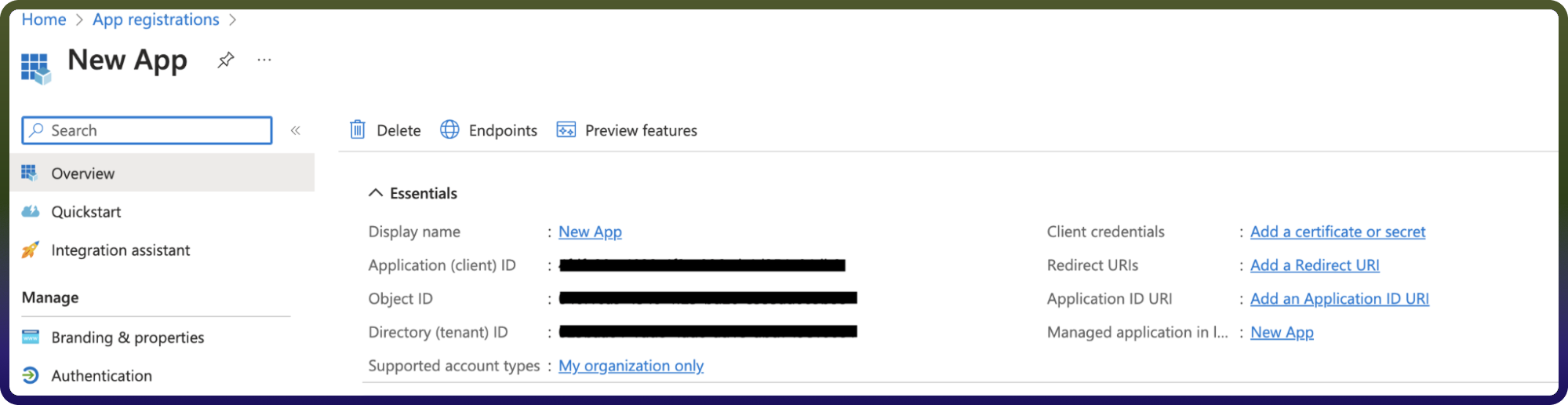
On the app's Overview page, copy the Application (client) ID and the Directory (tenant) ID.
Open Certificates & secrets and create a new client secret. Copy its value.
Give the app access to your storage account (for example, a Storage Blob Data role on the account).
In UnifyApps, select Credentials and enter the Client ID, Client secret and Tenant ID, plus the Storage account.
SAS Token
In the Azure Portal, open your storage account.
Go to Shared access signature (under Security + networking).
Choose the allowed services, resource types, permissions and expiry, then click Generate SAS and connection string.
Copy the SAS token.
In UnifyApps, select SAS Token, paste the token into the SAS Token field, and enter the Storage account.
Actions
Action Name | Description |
|---|---|
| Copies a blob in Azure Blob |
| Creates a container to store blobs in Azure Blob |
| Deletes a blob in Azure Blob |
| Downloads the contents of a blob from Azure Blob |
| Retrieves a blob from Azure Blob |
| Retrieves all properties of a blob, including metadata, from Azure Blob |
| Gets container properties in storage account from Azure Blob |
| Lists blobs in a container in Azure Blob |
| Uploads a blob to Azure Blob |
Triggers
Trigger Name | Description |
|---|---|
| Triggers when a new Azure Blob Storage event is received |