


Use the Claid AI connector to enhance product images using AI.
Integrating your application with Claid AI lets you use these operations in an automation. It exposes 6 actions, listed below. Add the connector from the Connections area, authenticate, then select its operations in the automation builder. Capabilities: actions.
Authentication
Before you begin, make sure you have the following information:
Connection Name: Choose a meaningful name for your connection. This name helps you identify the connection within your application or integration settings.
Authentication Type: Claid AI uses API key authentication. The connection form asks for a Connection name and your API key.
Obtaining Your API Key
Log in to your Claid account at the Claid dashboard (claid.ai/account/overview), or sign up if you don't have an account yet.
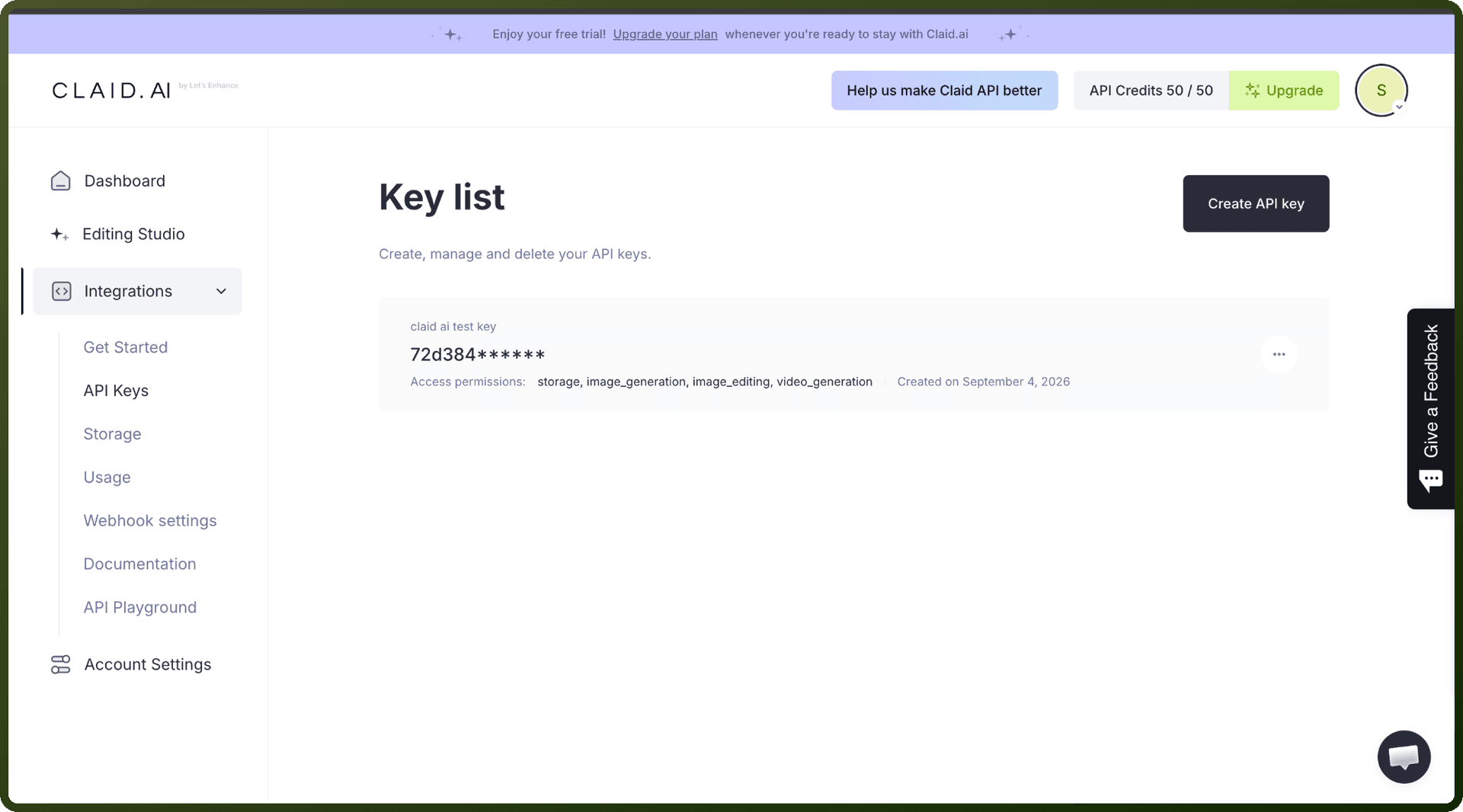
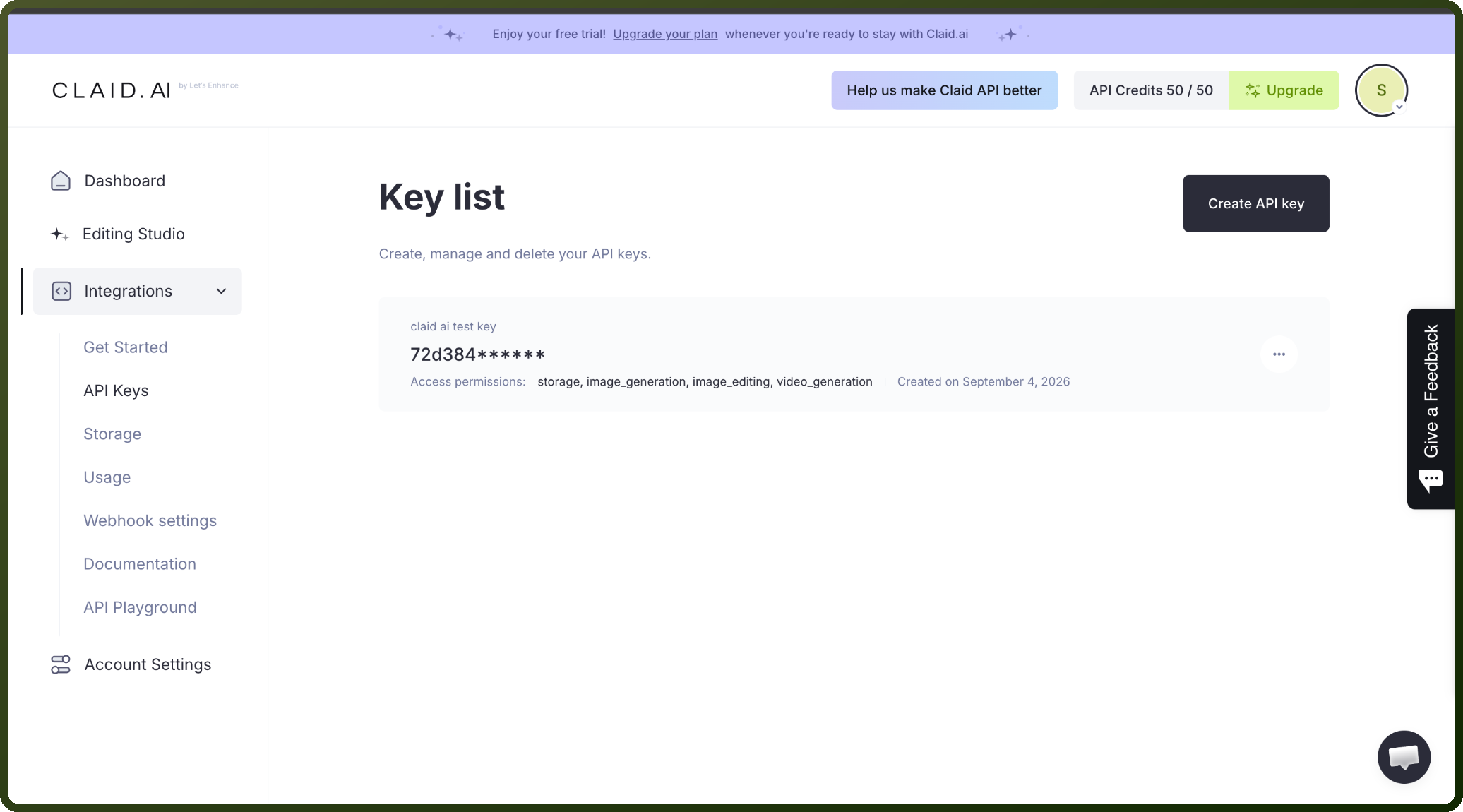
Go to the Overview page or the API keys page in your dashboard.
Click Create API key.
Choose the access permissions for the key. All of this connector's actions manage storage connections, so include the storage permission.
Copy the generated key, or download it as a text file, and paste it into the API key field of the connection form. Store it securely — it is shown only once, at the time of creation.
Actions
Action Name | Description |
|---|---|
Create storage | Create a new storage connection in Claid AI |
Delete storage | Delete a storage connection in Claid AI |
Get storage | Retrieve a specific storage by its ID in Claid AI |
List connected storages | Retrieve all connected storages in Claid AI |
List storage types | Retrieve all available storage types in Claid AI |
Update storage | Update an existing storage connection in Claid AI |