


Microsoft Graph API is a unified RESTful endpoint that allows developers to access data and intelligence across Microsoft 365 services like Outlook, Teams, OneDrive, and Azure Active Directory. It enables secure, granular, and real-time interactions with user and organizational data.
Integrating Microsoft Graph API provides a single access point to build powerful, cross-platform Microsoft 365 applications with real-time insights and seamless data flow.
Authentication
Ensure you have the following information ready for a seamless integration process:
Connection Name: Select a descriptive name for your connection, like "MyAppMicrosoftGraphAPIIntegration". This helps in easily identifying the connection within your application or integration settings.Authentication Type: Select one of the following: OAuth, OAuth with Client credentials or Client credentials.
OAuth
Select OAuth as the Authentication type.
(Optional) Enter your Tenant ID.
Select the required Scopes.
Click Authorize, then sign in to your Microsoft account and approve the requested scopes.
OAuth with Client credentials and Client credentials
Both options use your own Azure app registration.
Sign in to the Microsoft Azure Portal.
In the search bar, search for
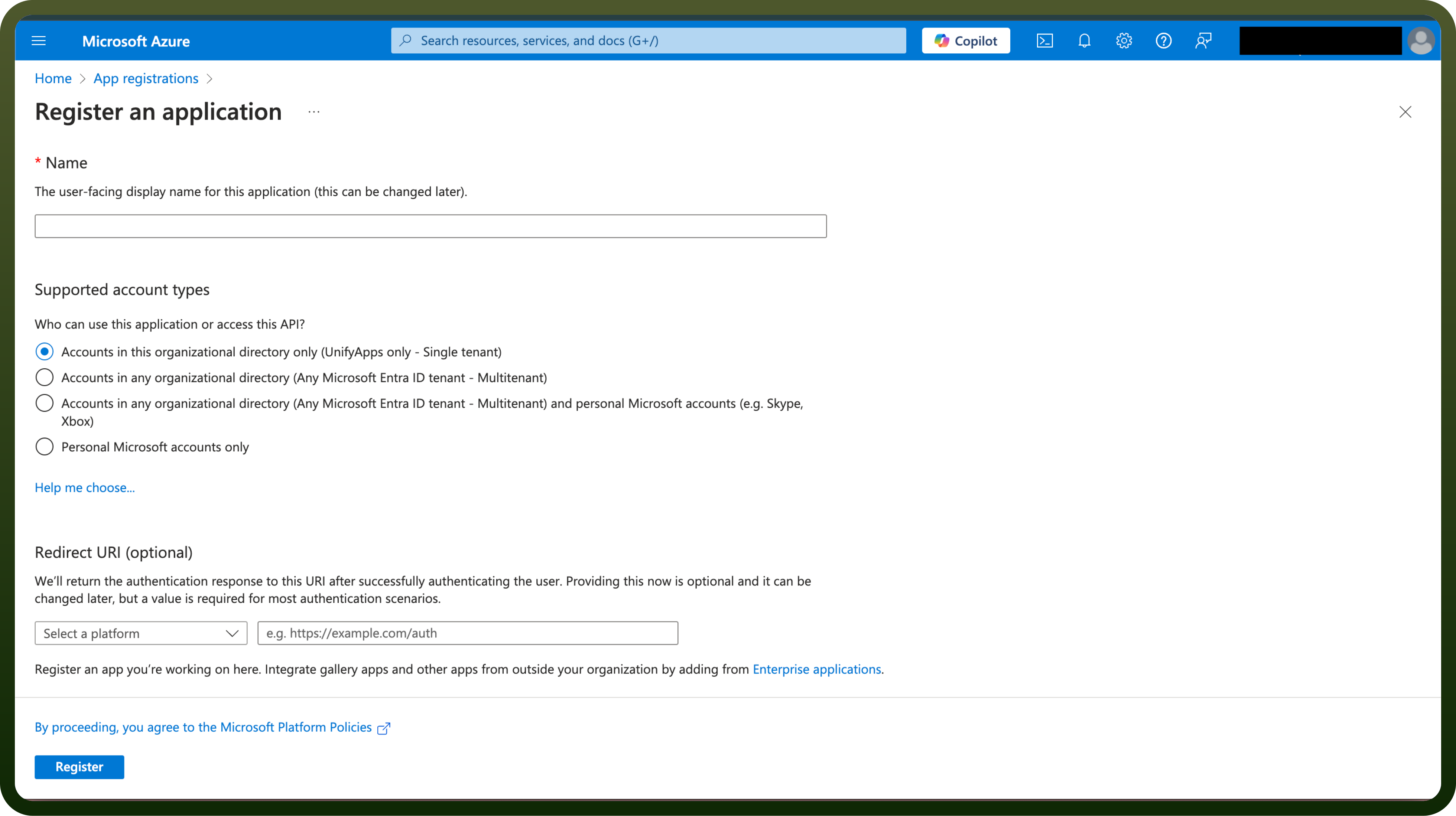
App registrationsand clickNew registration.Enter the name and supported account types and register your app. For OAuth with Client credentials, copy the Callback URL shown in the UnifyApps connection form and add it as a Redirect URI.

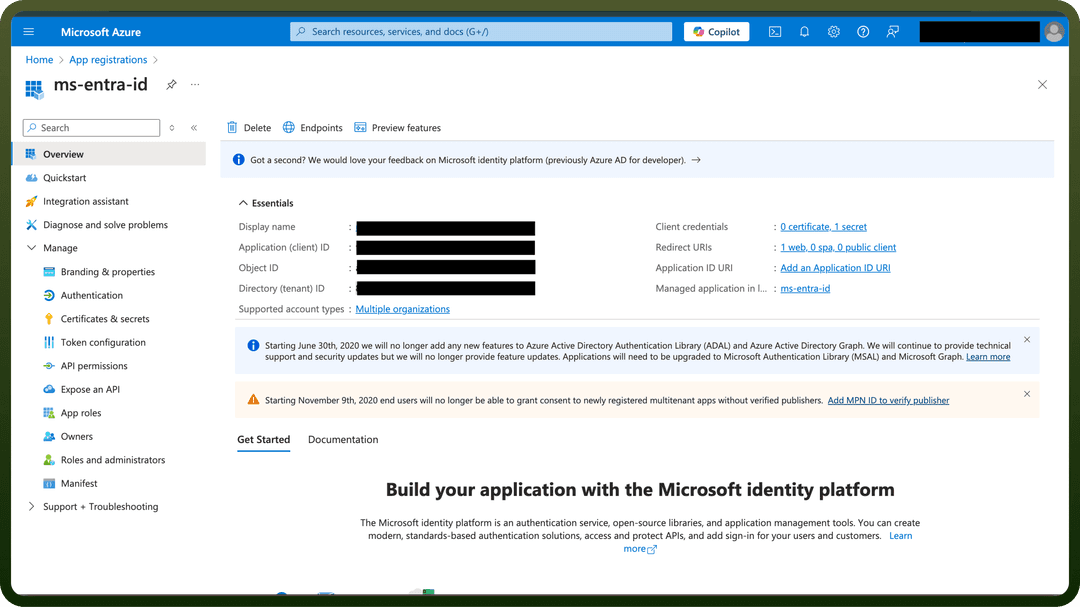
In the Overview tab, you can find the Client ID and Tenant ID. Required permissions can be granted in the API Permissions tab
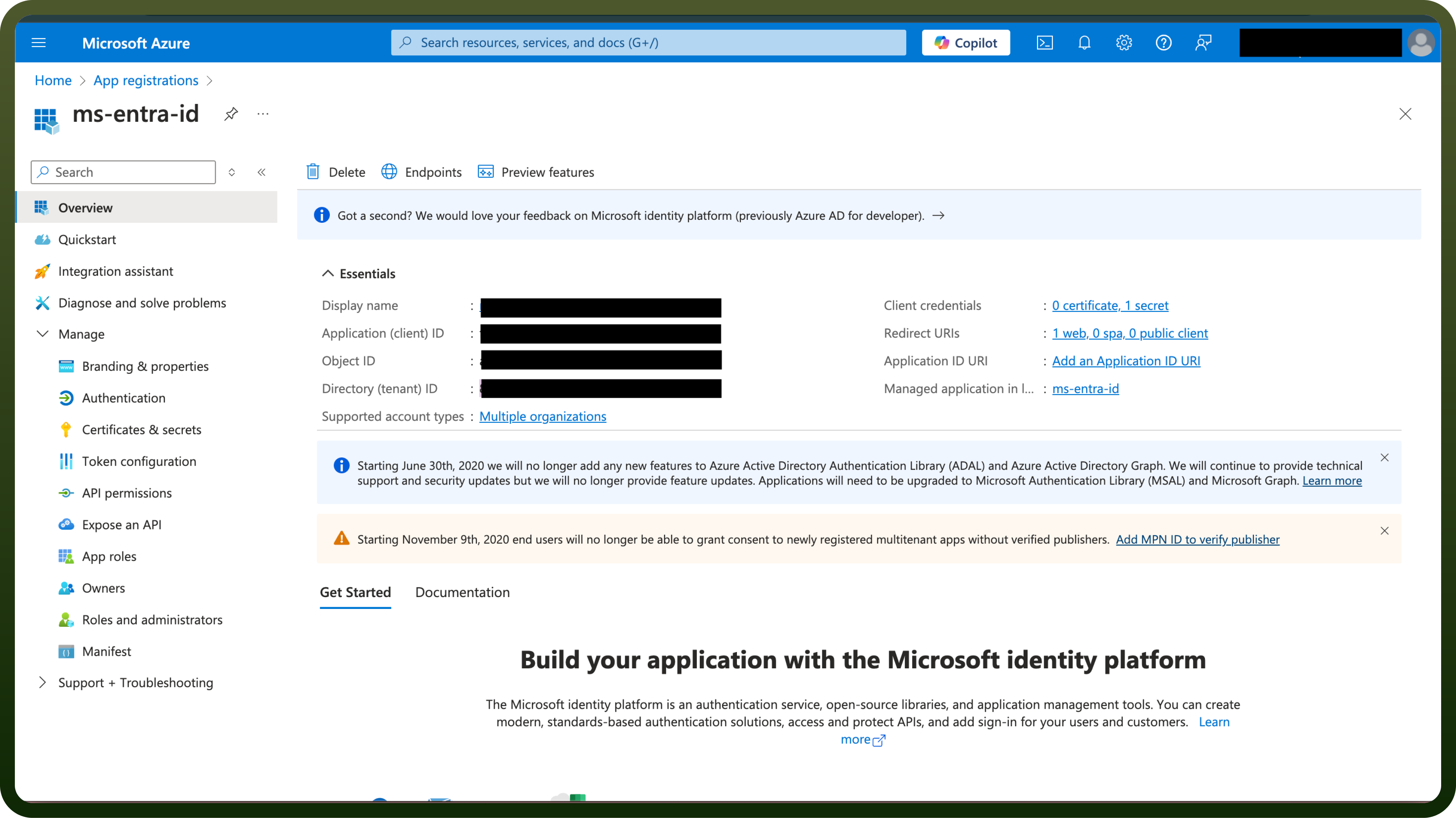
To create a client secret, click on the Certificates and Secrets tab and click on New client secret. Copy the “
Value” as the Client secret and store it securely to prevent unauthorized access.

In the connection form:
OAuth with Client credentials: enter the Client ID, Client Secret and (optional) Tenant ID, select the Scopes you added to the app, then click Authorize and sign in.
Client credentials: enter the Client ID, Client Secret and Tenant ID. No user sign-in is needed; grant the app's permissions with admin consent in the API Permissions tab.
Permissions
| Scope Code | Description |
offline_access | Maintain access to data you have given it access to, even when you are offline. |
files.readwrite | Read and write user files and files shared with the user. |
files.readwrite.all | Read and write all files that the signed-in user can access. |
Sites.ReadWrite.All | Grants an application broad access to SharePoint and OneDrive resources |
Sensitive Permissions
Admin permissions are required for the following scopes:
Scope Code | Description |
|---|---|
| Read all users' full profiles. |
| Read the profiles of all users in the directory. |
| Read and write all users' full profiles. Allows creating, updating, and deleting user accounts. |
Actions
| Action Name | Description |
Create list | Creates a new list via Microsoft Graph API |
Create mail | Creates a new message via Microsoft Graph API |
Create user | Creates a new user via Microsoft Graph API |
Delete list | Deletes a list via Microsoft Graph API |
Delete mail | Deletes a mail via Microsoft Graph API |
Delete mail attachment | Deletes a mail attachment via Microsoft Graph API |
Delete user | Deletes a user via Microsoft Graph API |
Get list | Gets a list via Microsoft Graph API |
Get mail | Gets a mail via Microsoft Graph API |
Get mail attachment | Gets mail attachment via Microsoft Graph API |
Get user | Gets a user via Microsoft Graph API |
List license | Lists license details of a user via Microsoft Graph API |
List lists | Lists lists via Microsoft Graph API |
List mail | Lists mails via Microsoft Graph API |
List user | Lists users via Microsoft Graph API |
Move mail | Moves mail via Microsoft Graph API |
Send mail | Sends a mail message via Microsoft Graph API |
Update license | Updates license via Microsoft Graph API |
Update mail | Updates a mail via Microsoft Graph API |
Update user | Updates a user via Microsoft Graph API |