


Automated backups of your platform configuration into your own Git repository.
Overview
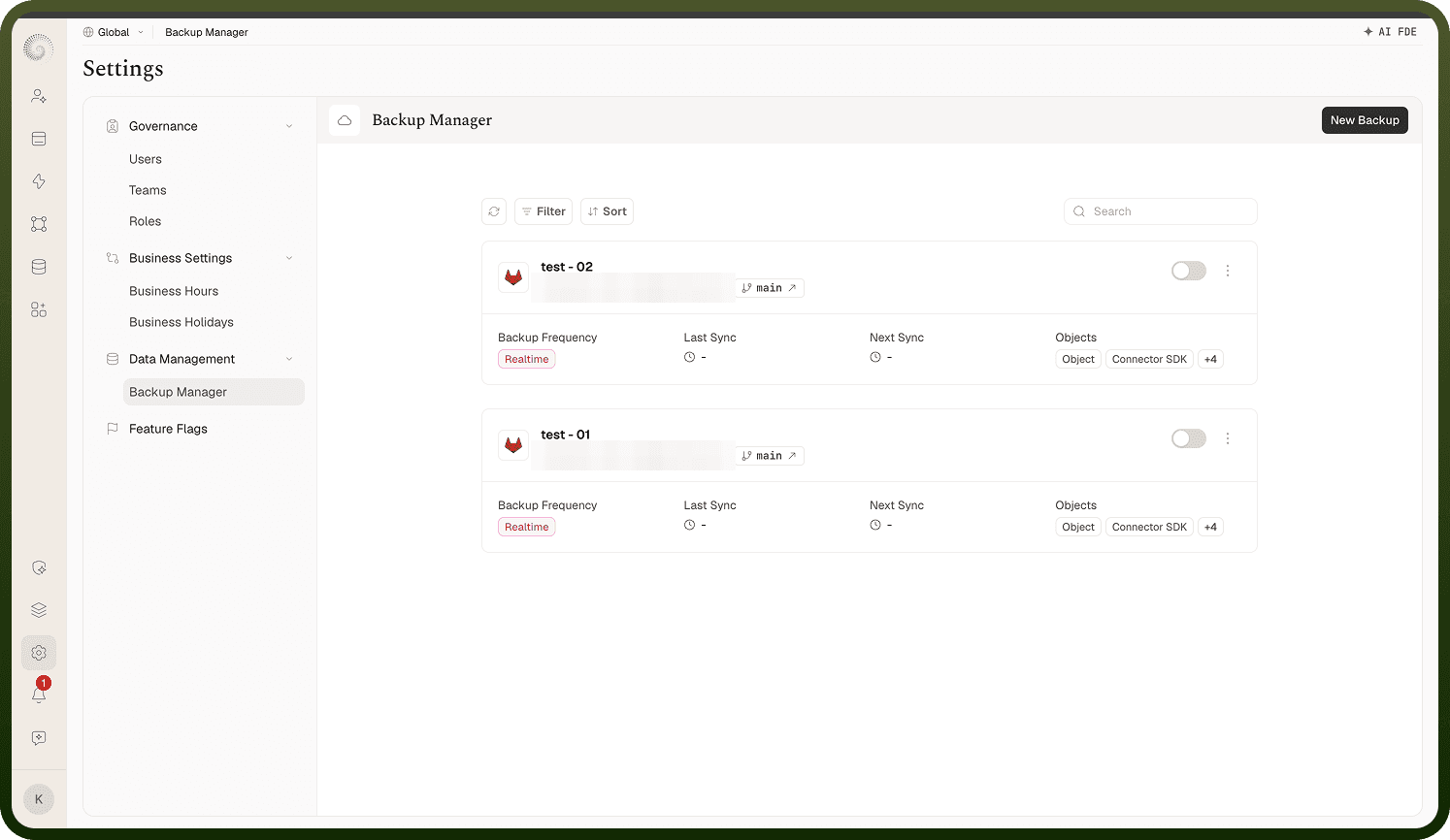
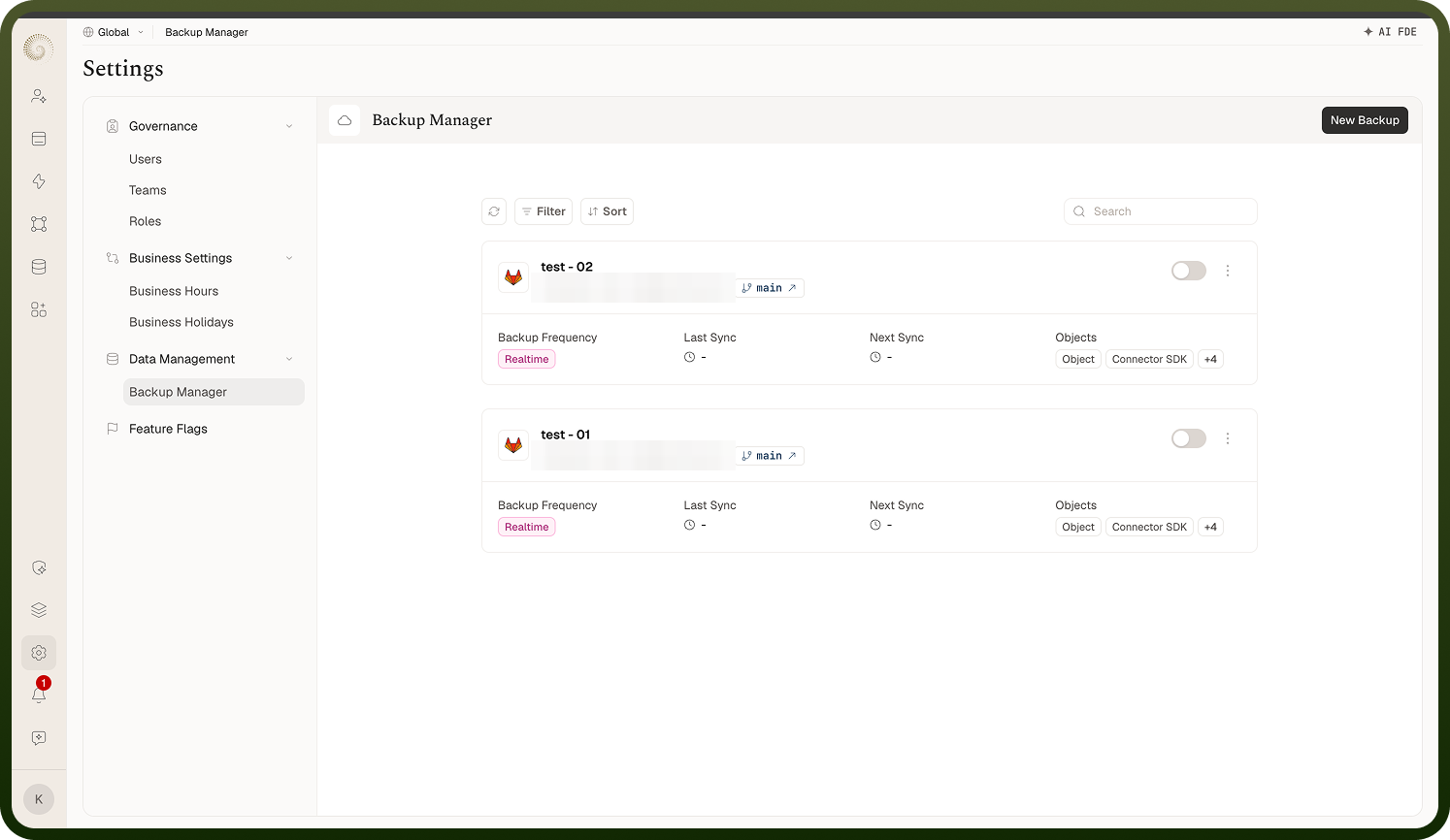
Under Settings › Data Management › Backup Manager you configure automated backups that push your platform objects' configurations to a Git repository you own. Before any exist you'll see "Configure Automated Backups — Configure automated backups for your production environment. Select a Git platform to enable scheduled backups of configurations and data." Each configuration is a card showing the provider, the repository and branch (the branch pill opens it on the Git host), an on/off toggle, and its Backup Frequency, Last Sync, Next Sync, and Objects summary. The card menu offers Clone and Delete; clicking a card opens it for editing.
Prerequisites
An active Git connection for your provider (GitHub, GitLab or Bitbucket). Only active connections for the chosen provider appear in the wizard.
The organisation or workspace must be on your environment's list of approved backup namespaces. Only approved namespaces are listed in the wizard, and the backup can create a repository only in one of them.
Creating a backup configuration
New Backup opens a four-step wizard:
Details ("Add basic details about the backup configuration") — Name, Backup Provider (Github, Gitlab or Bitbucket), and the Connection to use (only active connections for that provider). For GitHub you also set the committer User Name and Email used on backup commits.
Select Repository ("Select the repository & branch") — provider-specific: pick your organisation and an existing repository/branch, or have the backup create a new one. For Bitbucket, first pick a Workspace, then either an existing Repository and Branch, or create a new repository (name it and optionally set a Project key; it starts on the
masterbranch).Platform Objects ("Select individual platform objects or choose from a predefined group to include in the backup.") — pick objects one by one or via Groups: Automation, AI Agent, Applications, API Platform (the APIs you build in API Manager). A counter shows how many objects are selected.
Define Frequency ("Configure real-time or scheduled backup frequency") — see below.
Finishing shows "Backup created successfully."
Choosing the backup frequency
In the Define Frequency step, set Backup Frequency to one of:
Scheduled (default) — "Runs on a recurring cadence".
Real time — "Runs only when triggered". The trigger is a save: each time one of the selected objects is saved, it is committed to your repository.
For a Scheduled backup, choose the Schedule type:
Interval (default) — "Repeat on a fixed time interval". Enter a whole-number Duration and pick the unit: Minutes, Hours or Days. Known issue: the unit list also shows Week and Months, but they don't create a working schedule. For a weekly or monthly backup, use a cron expression.
Cron expression — "Define a cron expression for timing". Enter a Cron Expression (UTC/GMT); the default
0 0 * * *runs daily at midnight.
The card's Next Sync shows when the next scheduled run lands.
Running, pausing, cloning, or deleting a backup
Sync Now runs a backup immediately ("Backup synced successfully"). Open the backup (click its card) and use Sync Now in the header. The button appears only for Scheduled backups and is disabled while the backup is turned off; hover it to see "Only active backup can be synced."
The toggle on each card enables or disables the configuration without deleting it.
Clone (card menu) duplicates the configuration as "<name> (Copy)" so you can tweak a variant (say, a different branch or object set) without rebuilding it.
Delete (card menu) asks "Delete this backup? Are you sure you want to delete this backup?" and removes the configuration — your Git history stays untouched.