


Relationships connect the entities in your ontology model, describing how their records relate to one another. Once defined, they let you traverse from one record to its related records anywhere in the platform — on record detail pages, and in automations that query the ontology graph.
Overview
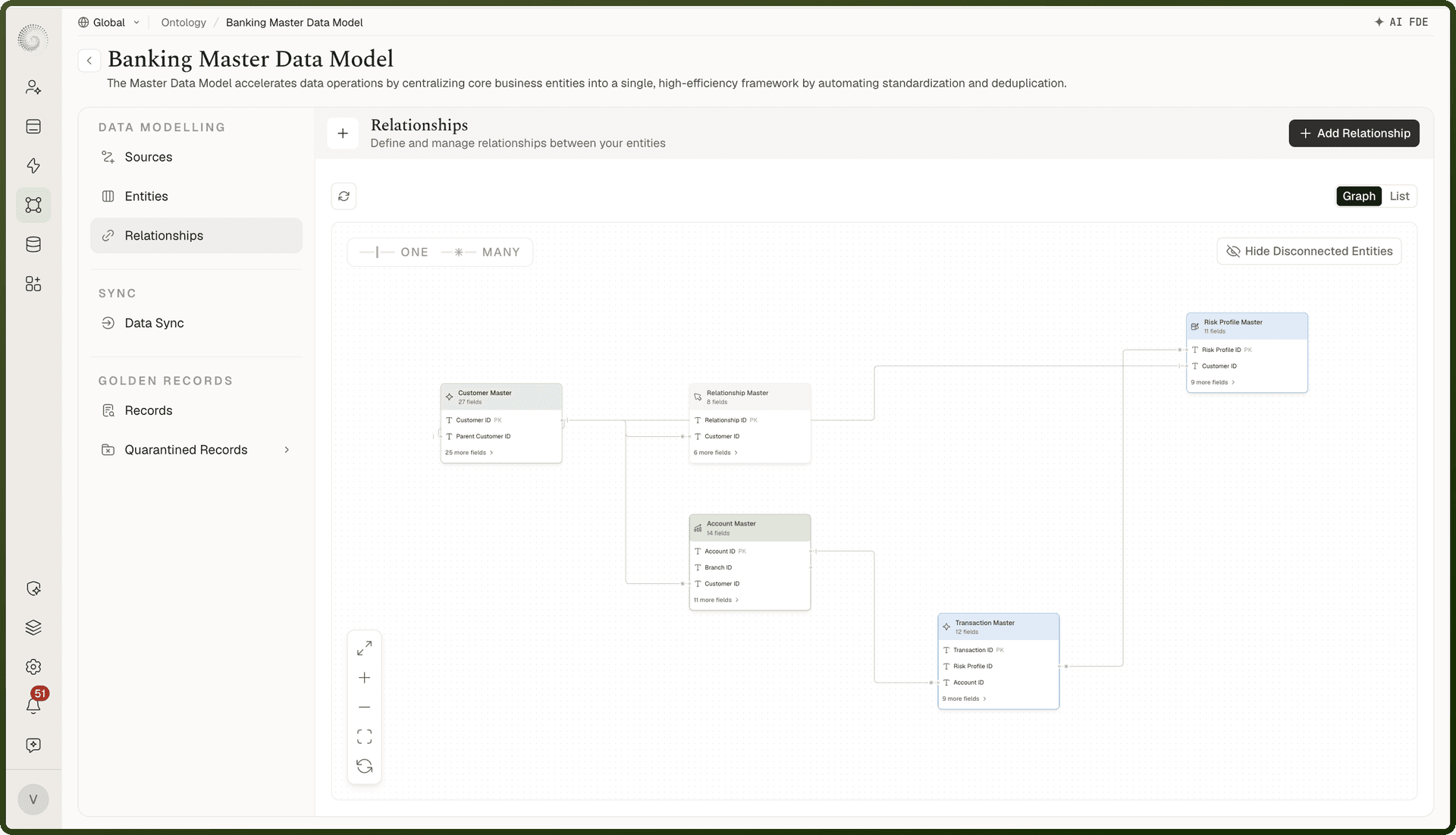
A relationship links two entities — for example, connecting a Customer entity to its Orders. Every relationship has a direction (a source entity and a target entity), a name, and a cardinality on each side that describes how many records can be linked. Together, cardinalities let you express one-to-one, one-to-many, and many-to-many relationships. Relationships live inside a model's Relationships tab, where you can view them as an interactive diagram or as a plain list, and create, edit, or delete them as your model evolves.
Creating a Relationship
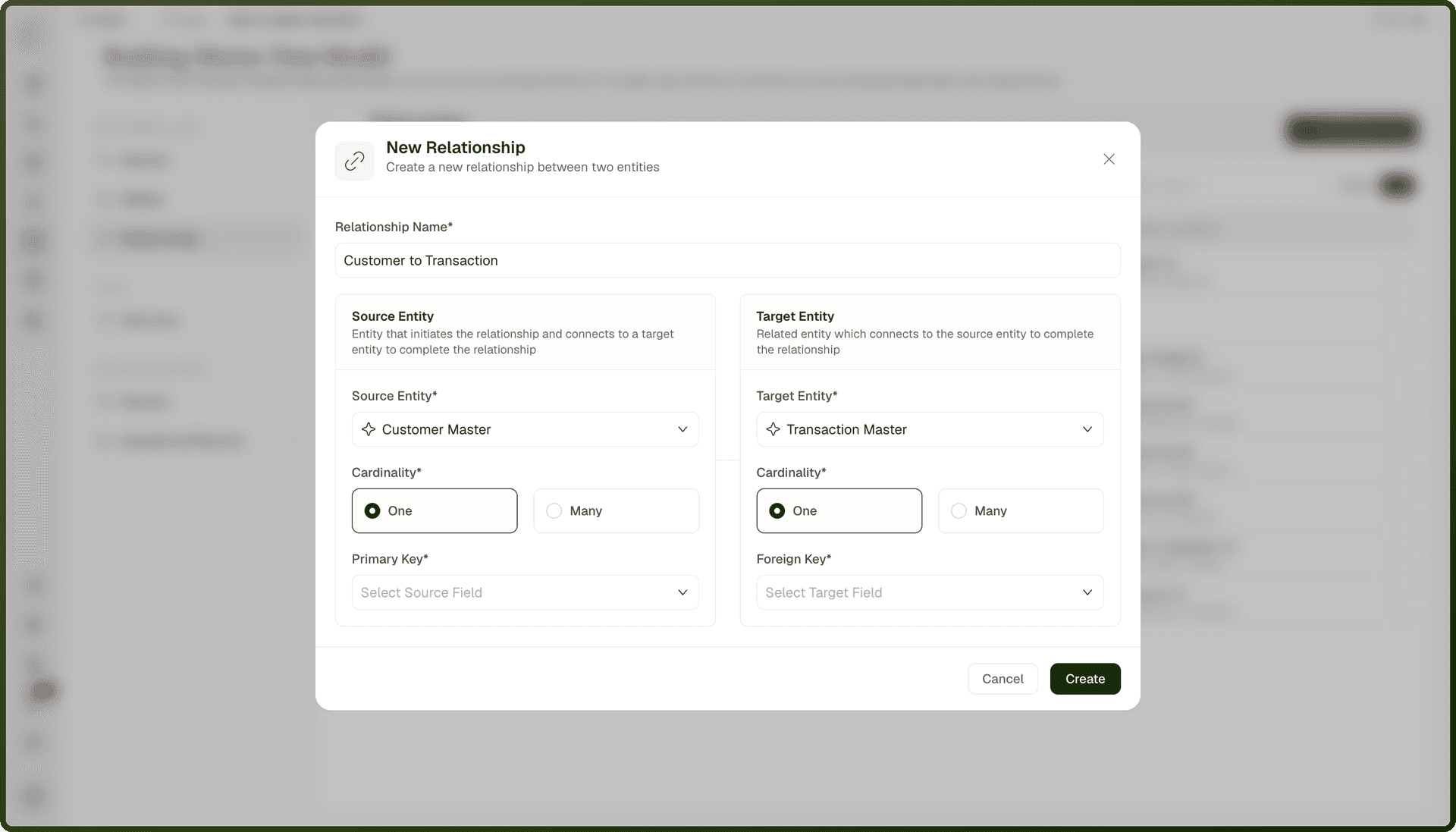
Open a model's Relationships tab and click Add Relationship. This button appears in the tab header, or in the empty state if no relationships exist yet — but only if you have Edit access to the model. Without edit access, the button doesn't appear at all.
You'll also need at least two entities defined in the model before you can create a relationship. If the model has no entities yet, the tab shows a No Entities Defined message with a Create New Entity button instead.
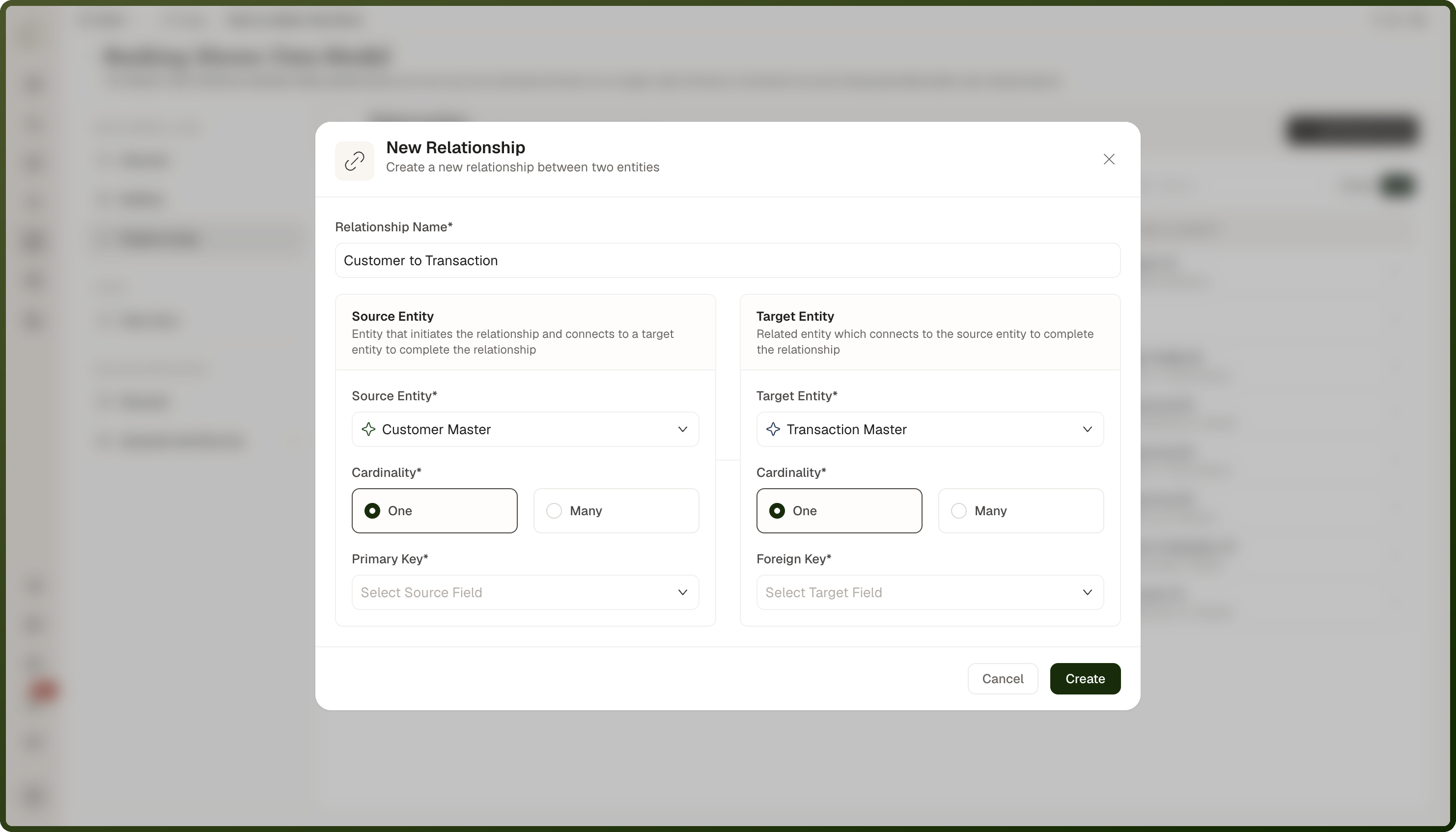
To define the relationship, choose a Source Entity (the entity that initiates the relationship) and a Target Entity, then give it a Relationship Name. Set the Cardinality — One or Many — independently on each side. Finally, tell UnifyApps how the two entities join: pick the Primary Key field on the source entity and the matching Foreign Key field on the target entity.
Graph vs. List View
A toggle at the top of the Relationships tab switches between two views of the same data.
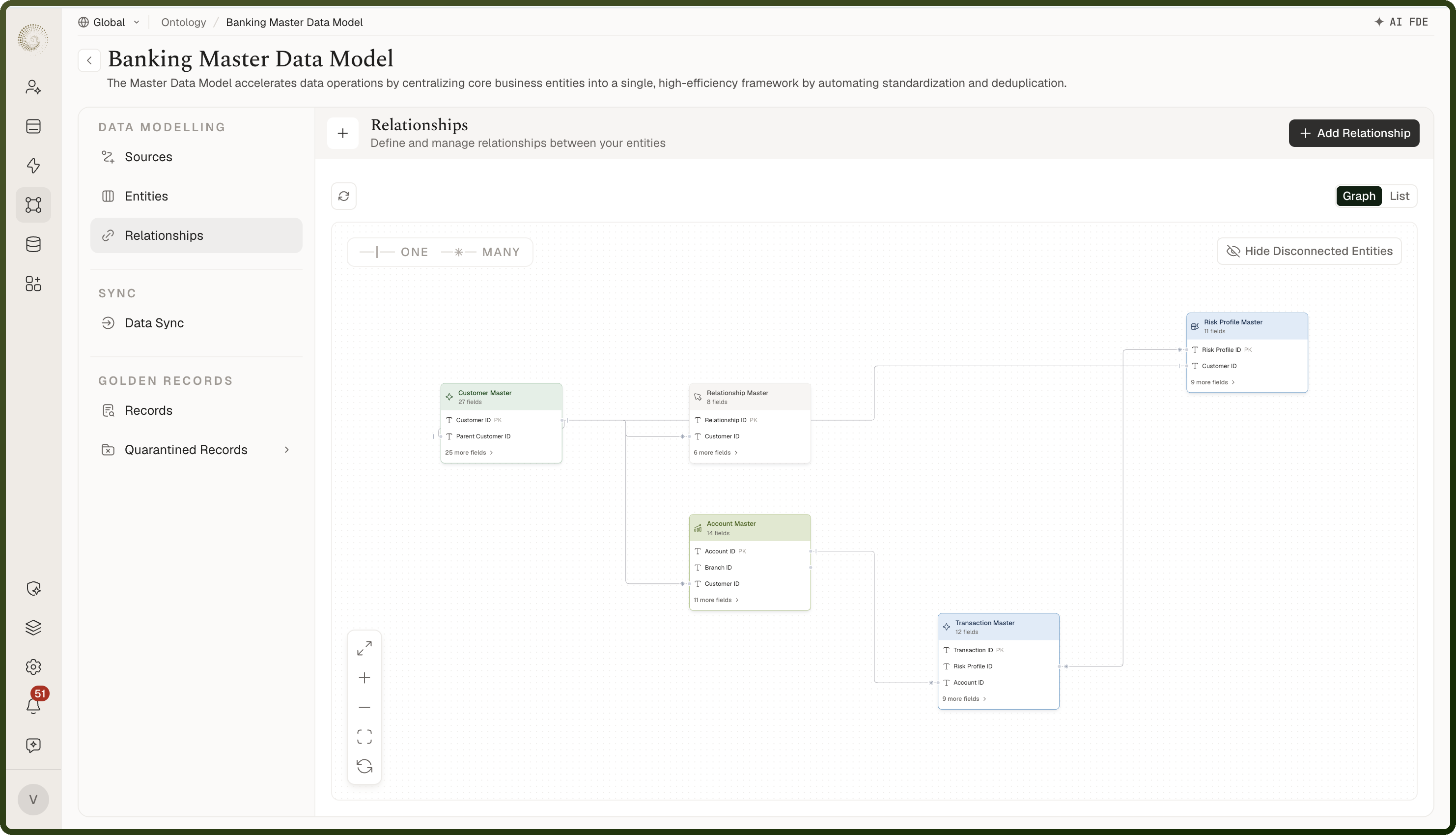
Graph — an interactive ER Diagram of the model. Each entity appears as a node showing its fields, with relationships drawn as connecting edges. You can hide or show entities that aren't connected to anything, and clicking any entity opens a details panel with its description, fields, relationships, and the data sources feeding it.
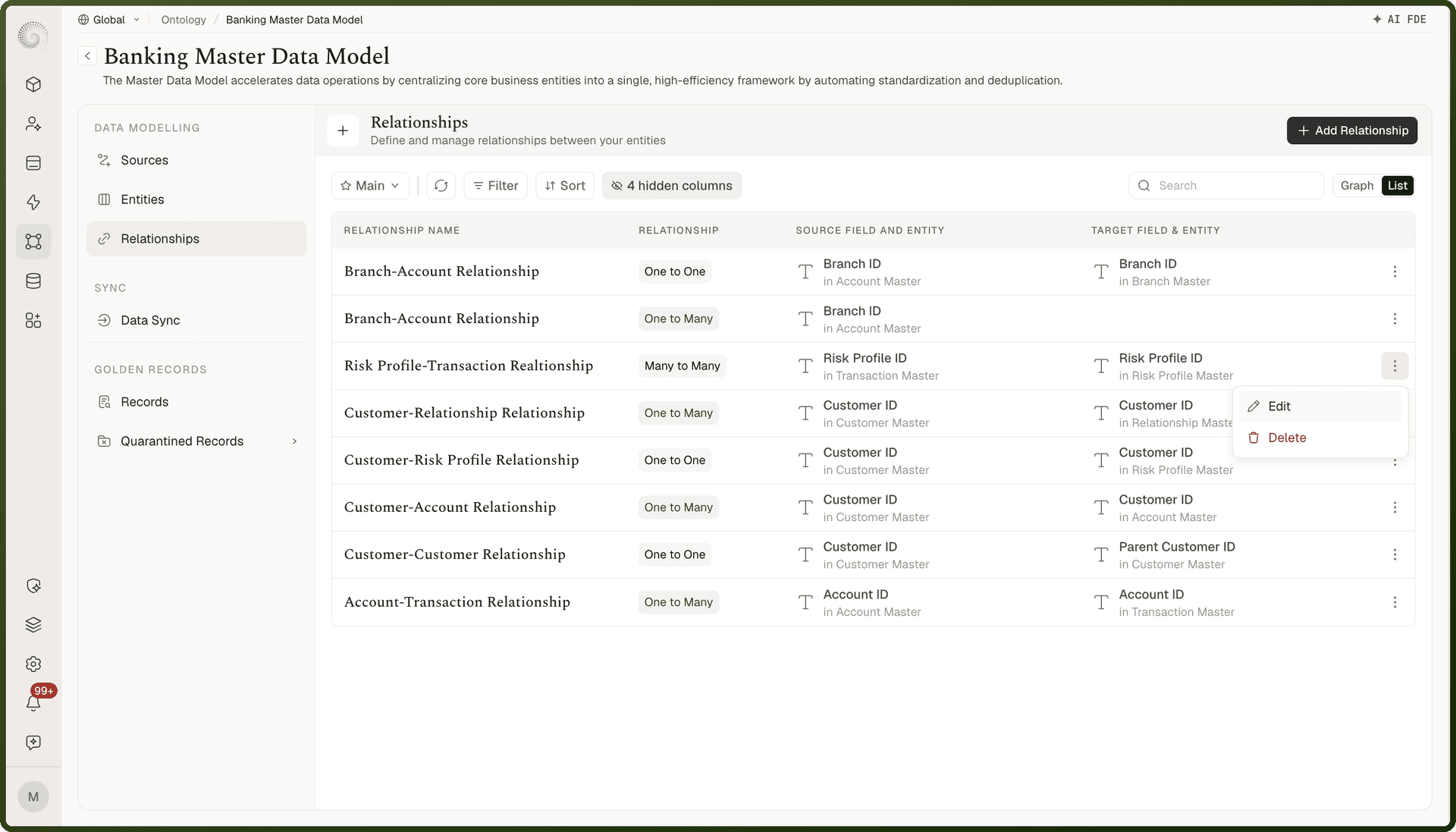
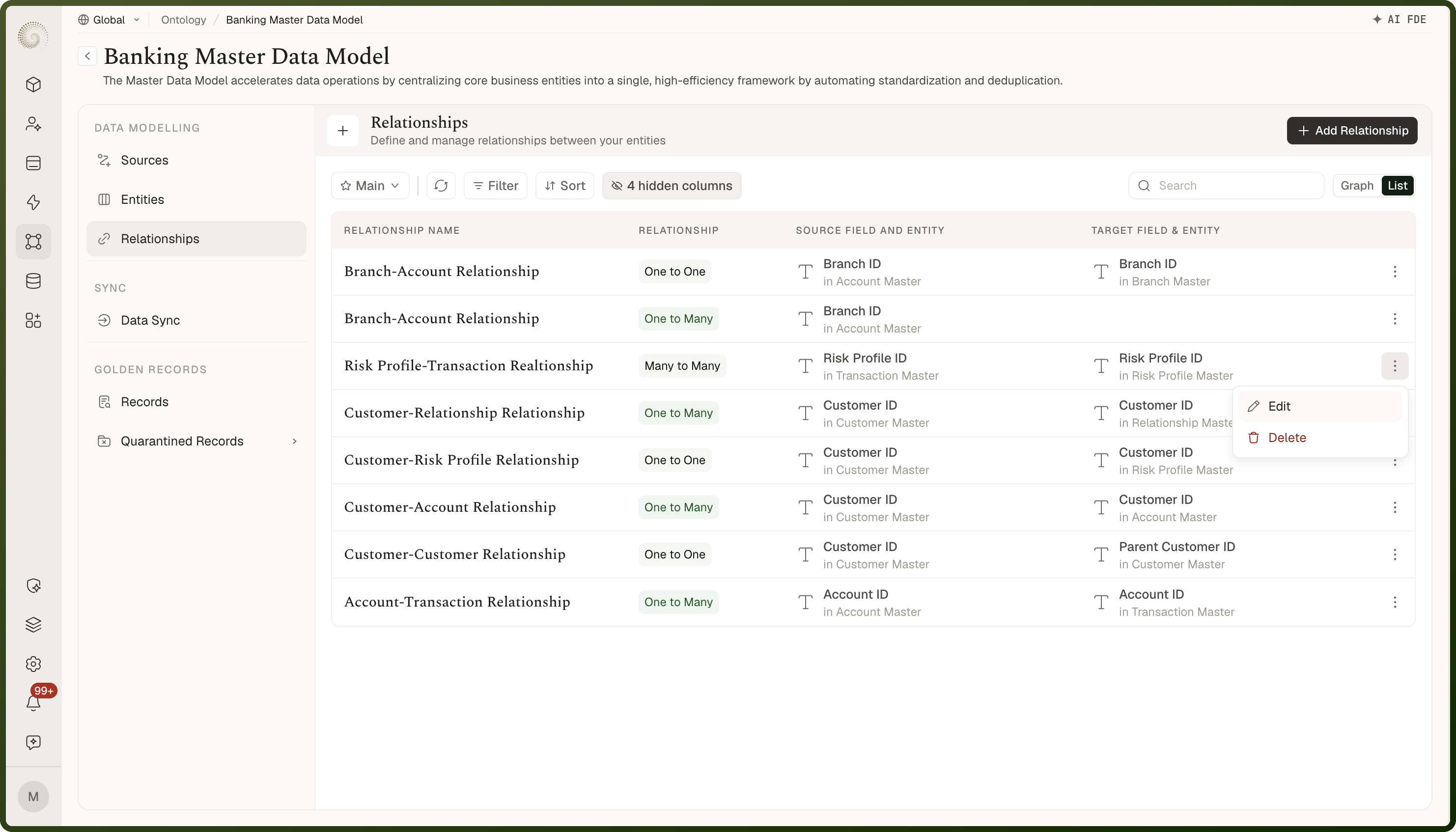
List — a table of relationships that's faster for scanning, editing, or deleting entries one at a time.
You can also open the diagram centered on a single entity by choosing View ER Diagram from that entity's own page.
Editing and Deleting Relationships
From List view, each row offers edit and delete actions. Deleting a relationship asks you to confirm, since the action can't be undone. Deleting only removes the connection itself — the entities on either side, and their underlying records, are left untouched.
Querying Relationships from Automations
Relationships you define here live in a shared graph, so related records can be traversed anywhere the platform supports it — including the Relationships view on a record's detail page, and graph-query steps inside automations, such as the Ontology node.
Every graph-query step in an automation asks you to Select model. The platform checks that you can view the model you select (or edit it, for steps that change data) and scopes the query to just that model. Query steps return 100 rows by default, up to 1,000 rows at most. Execute opencypher query also takes an Offset, so you can page through larger results.
Note: Execute gremlin query scopes reads to the selected model, but a Gremlin query that changes data (one that uses steps such as addV, addE, mergeV, mergeE, drop or property) runs exactly as written against the shared graph. It still needs Edit access to the selected model. When you write one, add your own model filter so it doesn't change records that belong to other models. On Execute opencypher query, the Skip RBAC option skips the permission check on the query, so leave it off unless the automation must read records regardless of who runs it.
Notes
You need Edit access to a model to see or use Add Relationship.
A model needs at least two entities before you can create a relationship between them.
Deleting a relationship removes only the connection — the entities and their data stay intact.
Graph-query steps return at most 1,000 rows at a time; you may need to fetch more than one page for bigger graphs.
Gremlin queries that change data aren't scoped to the selected model, so add your own model filter when you write them.