


When inline editing is enabled on a Table block, the changeset system tracks every cell edit before anything is saved — giving users (and your app) a chance to review, batch-save, or discard all changes at once. This page walks you through a bulk-edit example. For the full reference, see Inline Editing & Changesets.
Overview
Cell edits aren't saved when the user leaves the cell. Every edit is held in a client-side buffer — the changeset — and a floating bar at the bottom of the table shows how many changes are pending, with Cancel and Save. Nothing is written until Save runs your On Save handler. This makes bulk editing safer: users review their edits, then save or discard them all at once.
Note: There's no separate changeset mode and no setting that saves each cell immediately. Edits always collect in the changeset. Configure an On Save handler on the table's Save Action add-on to give users the Save bar. Without one, no bar appears and the changeset grows as a log of every edit — see Inline Editing & Changesets.
Before You Start
The changeset state keys (changesetList, changesetMap, rowOrderChangesetList), the shape of each entry, the Save Action properties, the Clear Changeset methods and the Save/Cancel bar are all covered in Inline Editing & Changesets. The example below uses the table's Save Action add-on, shown here.

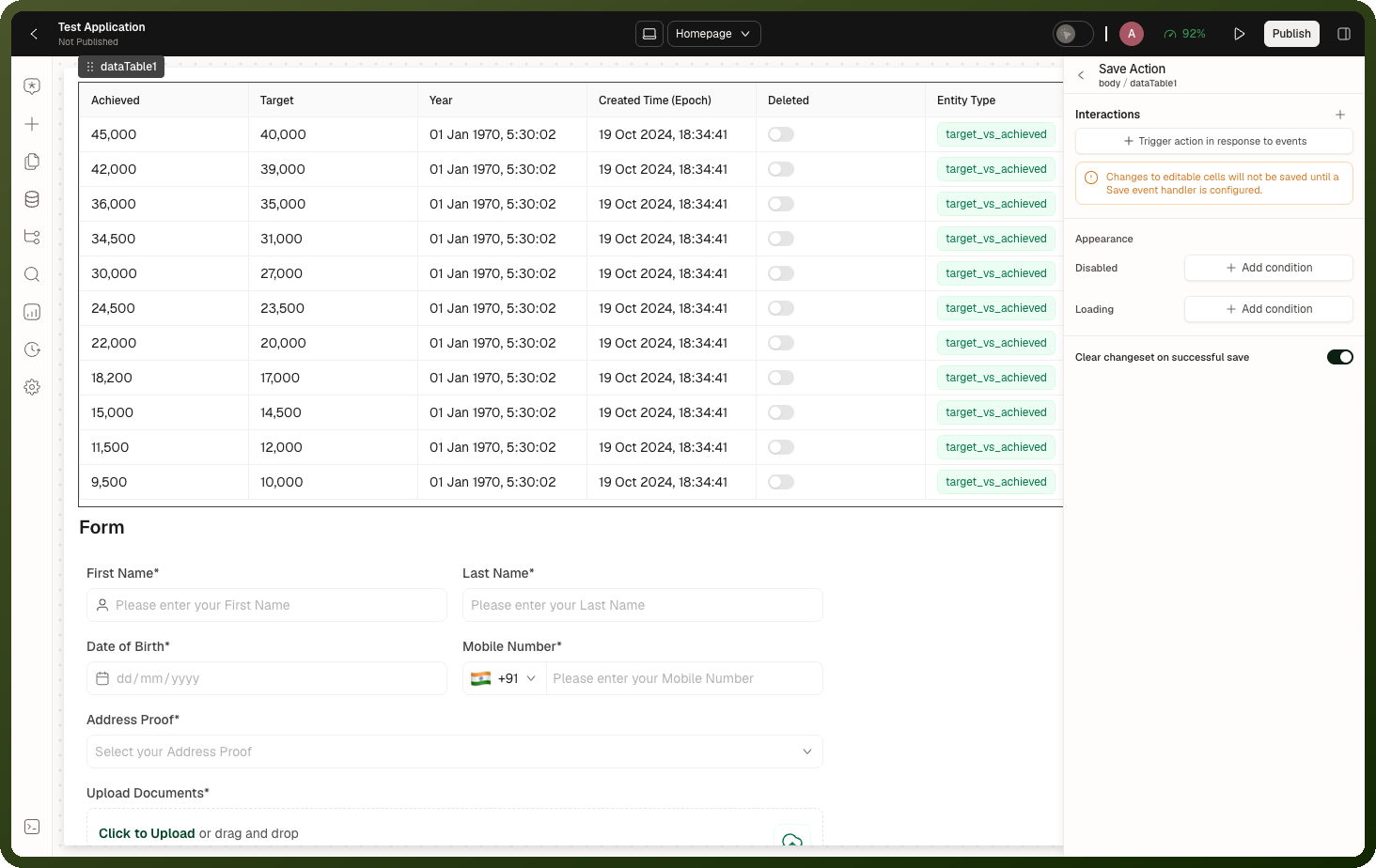
Example: Bulk Price Editor
A products table where users edit prices in bulk and save them in one go.
Set the table's Primary Key (for example
id). On the Price column, set the Field Key topriceand turn on Editable.Under Inspector → Content → Add-ons → Save Action → Interactions, add an On Save event.
In On Save, add a Trigger Data Source action for the data source that updates your records, with its input bound to
{{ products_table.changesetList }}. Bind it in this step — once the table refreshes, the changeset is empty.End On Save with Trigger Component Method →
products_table→ Refetch Data to reload the grid.Leave Clear changeset on successful save on. The pending changes clear once the refresh completes.
Related Pages
Page | Relationship |
|---|---|
The full reference for the Editable toggle, the Save Action add-on, changeset state and gotchas | |
Every state key the table exposes, including the changeset |