


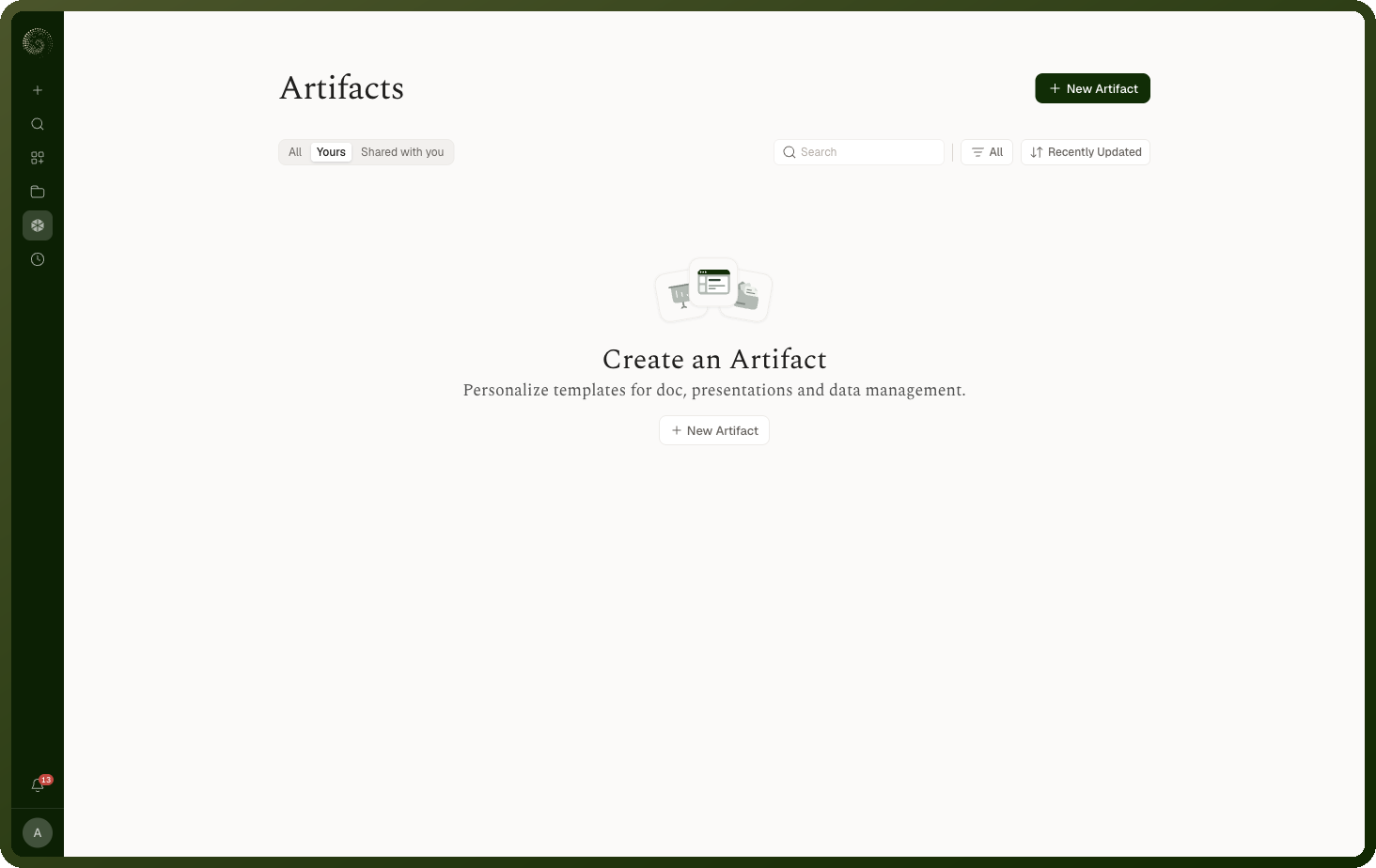
Artifacts is the library of documents and files the AI has produced for you — reports, decks, spreadsheets, and other generated output — kept separate from the conversations that created them.

What Artifacts Are
When a chat produces a substantial piece of output — a document, a spreadsheet, a slide deck, a PDF — it's created as an artifact: it opens in a canvas beside the chat and is kept in your Artifacts library rather than left buried in the chat transcript. Open Artifacts from the sidebar to see everything produced this way, each card showing the file type, title, who created it, and when.
Browsing Artifacts
Three tabs scope the list: All, Yours, and Shared with you. Use Yours to find something you generated yourself, and Shared with you to find artifacts colleagues have shared into your view.
Filtering and Sorting
A search box filters by name, a type filter narrows to a specific format, and the sort control defaults to Recently Updated so the newest output surfaces first.
Creating an Artifact
Use New Artifact to open a new chat for one, or ask for a document, report, or file in any chat. Either way, the artifact joins your Artifacts library once the chat has made it, ready for later reference, sharing, or reuse. Larger outputs, such as presentations, can take several minutes to generate.
Artifacts made inside a project also appear on that project's Artifacts tab — see Projects.
Sharing and Managing an Artifact
To share an artifact, open it and select Publish. Only the artifact's owner sees Publish. Under Who can view this?, choose who gets access:
Everyone at your organization — anyone signed in to your workspace. This option appears only when your workspace has it set up.
Restricted — only you and the people you choose. Use Add people to give someone access.
Use Copy link to share the artifact's URL. Only people who can view the artifact — everyone at your organization, or the people you added under Restricted — can open the link; anyone else sees that they don't have permission.
An artifact you haven't published before usually starts on Restricted, unless the app is set up with a different default. After you publish, later edits don't change the published copy until you open Publish again and select Publish Changes.
Artifacts that others share with you appear under Shared with you. Opening someone else's artifact shows it in a stand-alone viewer, where you can view it and clone it but can't publish or rename it. Opening your own opens its chat with the canvas, where you can keep editing it.
You can also manage an artifact:
Versions — switch to an earlier version. Each change you ask for in the chat creates a new version; the list shows them newest first (v1, v2, …, with the newest tagged Latest). Opening an older version doesn't restore it or change anything.
Clone — make your own copy to work on.
Rename — change the artifact's name.
Download — save the file.
Delete — permanently removes the artifact and all its versions. This can't be undone.