


Memory lets Enterprise Chat carry facts and preferences forward between conversations, so you don't have to repeat context every time you open a new chat.
What Memory Does
With memory on, the AI can recall things you've told it before — your role, a preference, a recurring detail — and use them in later conversations automatically. The homepage's Enable memory prompt puts it simply: "Unify remembers your preferences and past context — every conversation gets sharper."
Turning It On
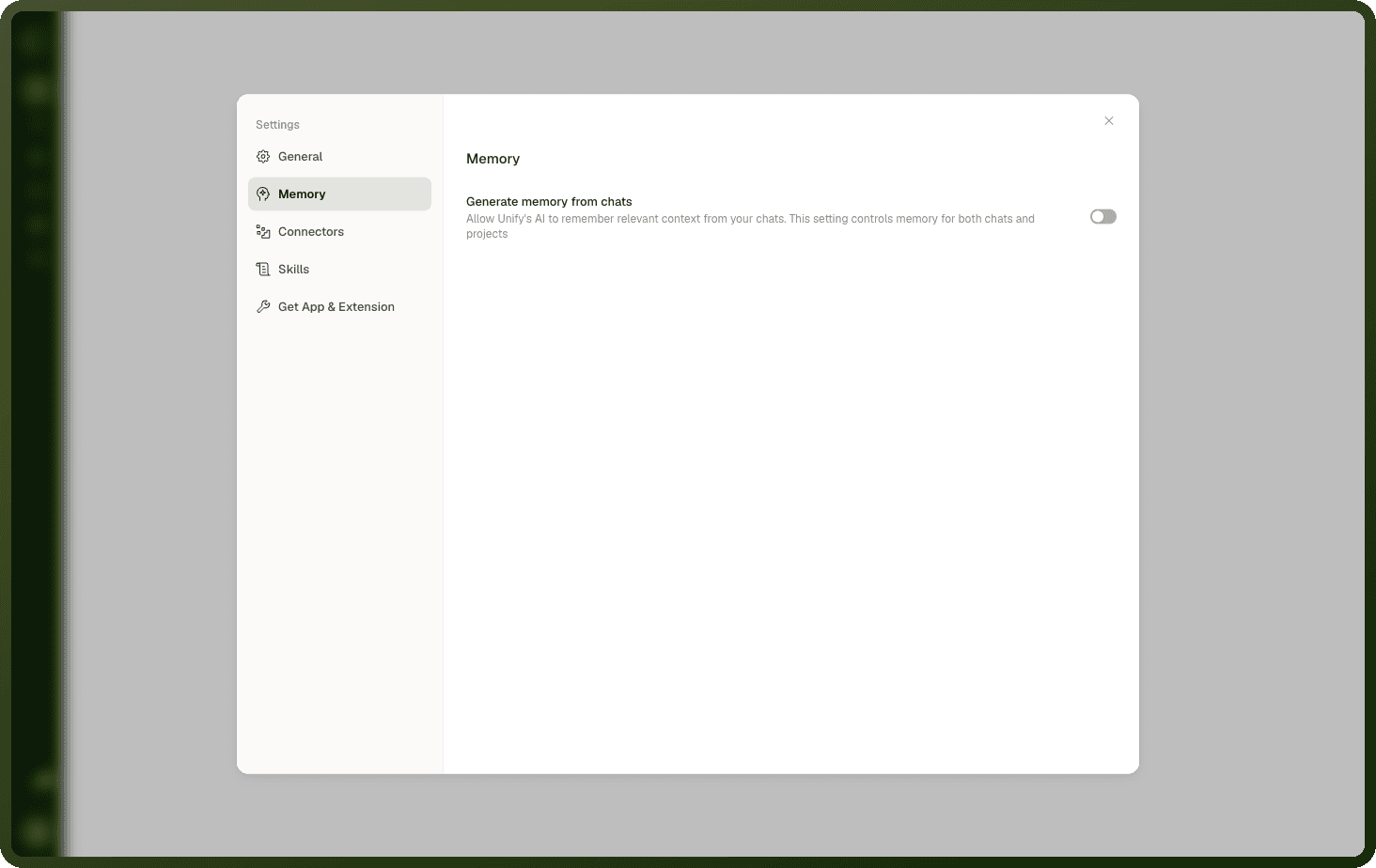
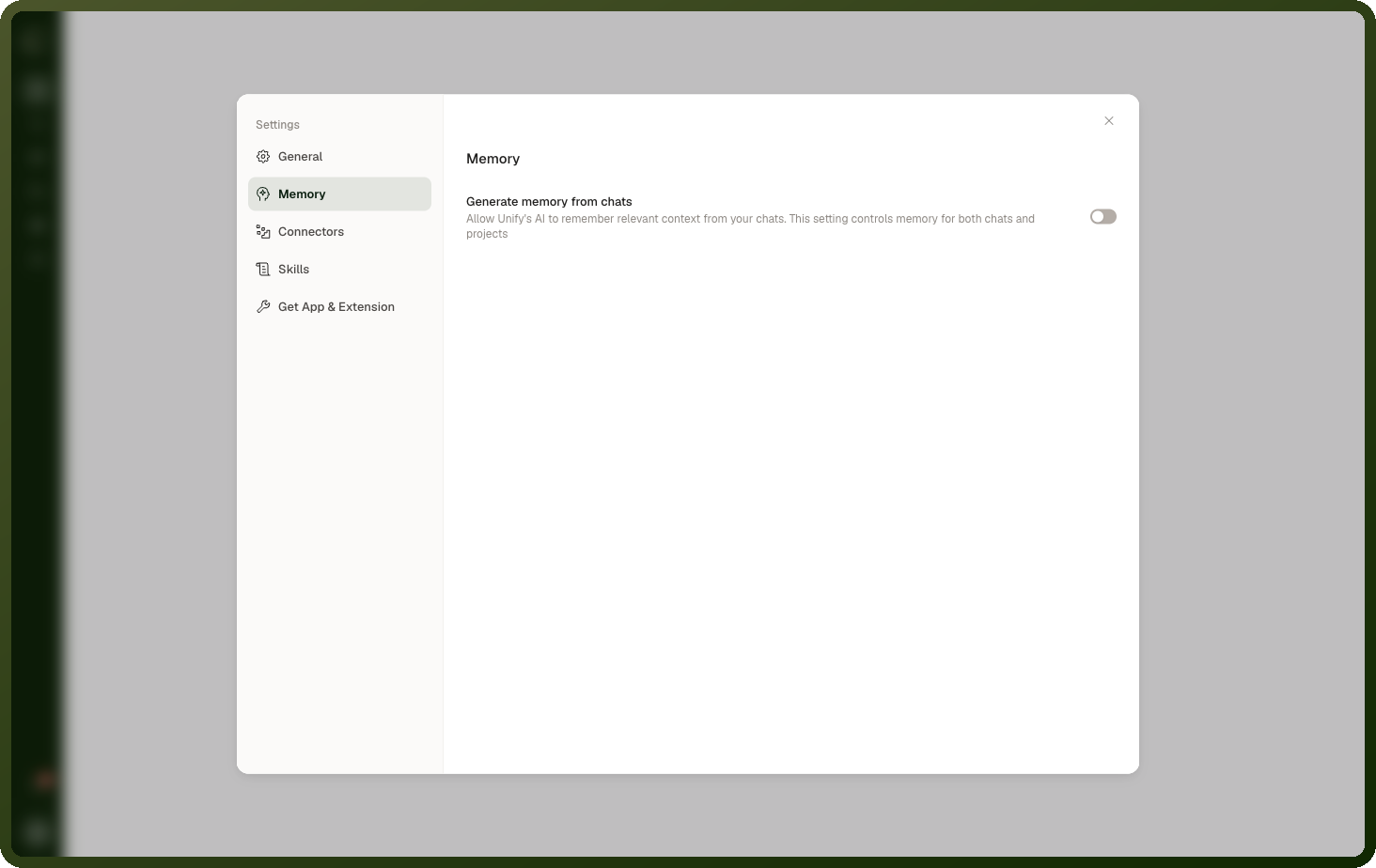
Open Settings › Memory and switch on Generate memory from chats. As its description says, it lets the AI remember relevant context from your chats, and it controls memory for both chats and projects. Memory works only when your admin has turned it on for Enterprise Search; while it's off there, this switch has no effect. With memory on, switching this off opts you out: your chats aren't used to build memories, and stored memories aren't used in your answers. Memory extraction runs on a scheduled background sync rather than immediately after each message, so a new fact may take up to one refresh interval to appear; until it does, or before enough chats have happened, the panel reads No memories yet.
Viewing and Editing Memories
Your saved memories are listed by category, with a separate group for each project's memories. Select a memory to open its summary and details.
To change a memory, type what to change or remove in the Tell the AI what to change or remove box and send it. The AI updates the memory, or tells you that no changes were made.
To delete a memory, use its delete option and confirm Delete this memory? The note is removed from AI memory. This can't be undone.
How memory is stored for Enterprise Search, including how long memories are kept, is set up by your admin (see Memory under Enterprise Search).