


Observability lets you watch the agent that powers Enterprise Search at run time — its conversations, cost, and quality.
Overview
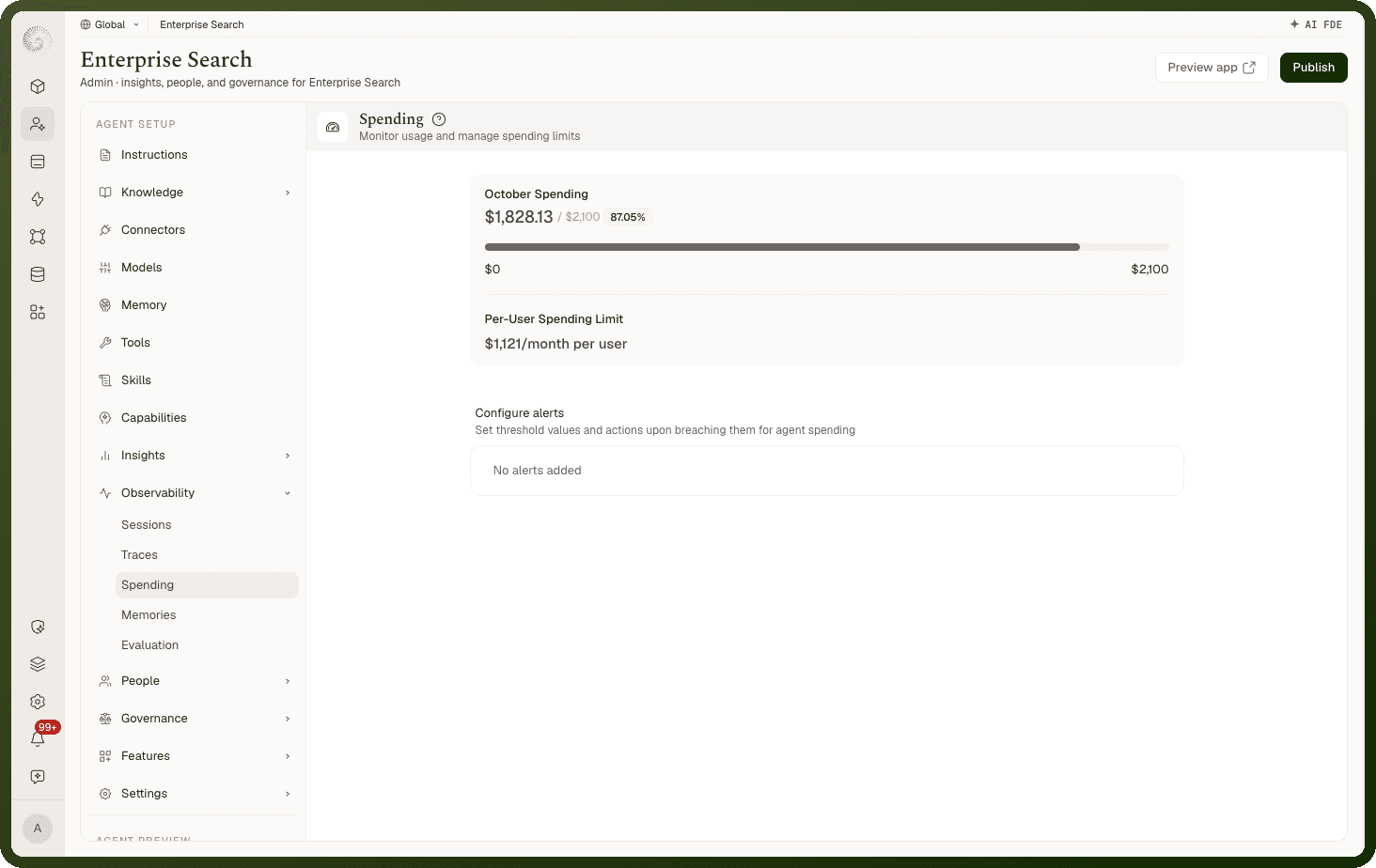
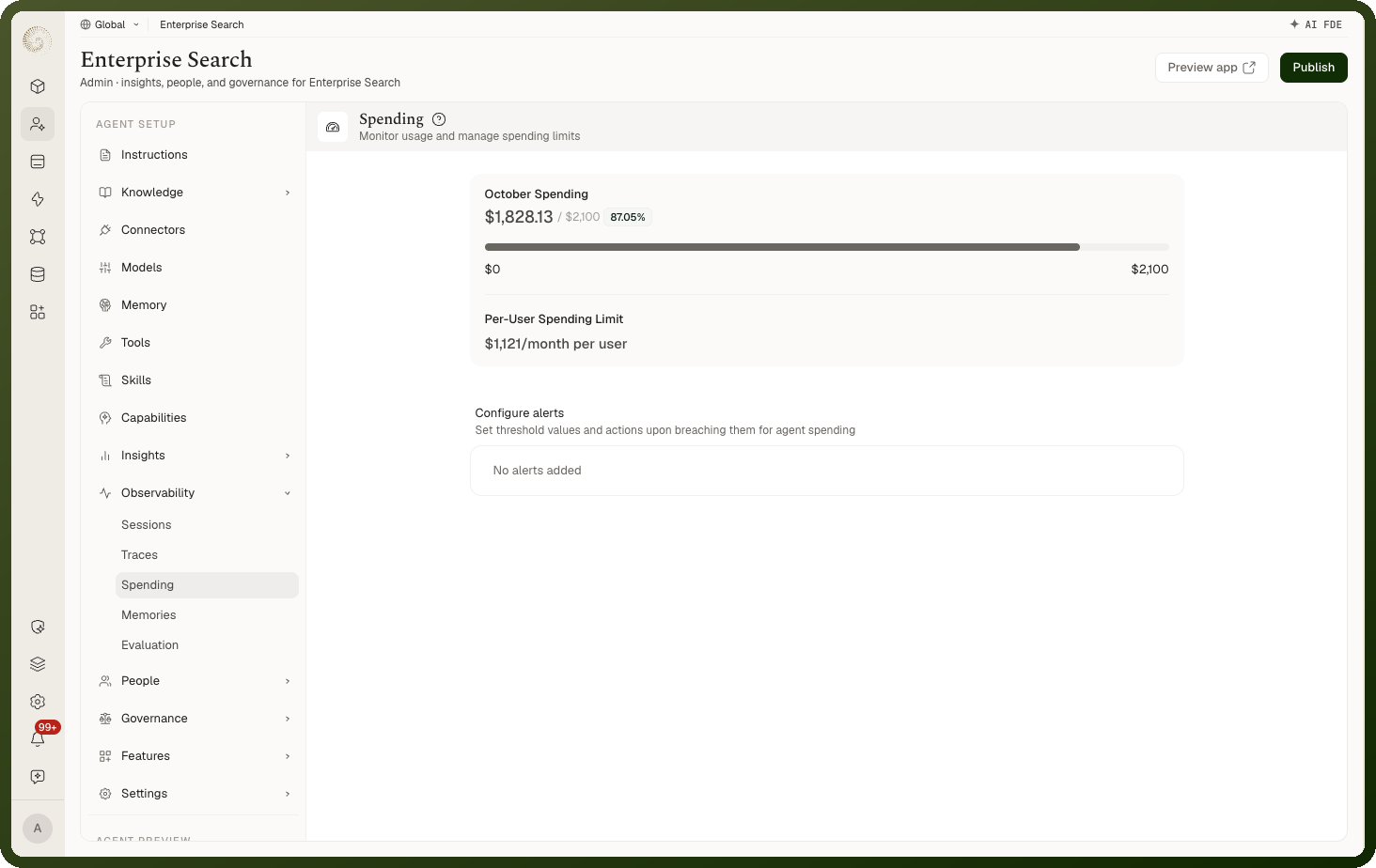
Observability groups five tabs: Sessions, Traces, Spending, Memories, and Evaluation. These are the same monitoring screens an AI agent has, all pointed at the single Enterprise Search agent — so there's no agent picker to work through first. One difference from a standalone AI agent: usage analytics live under Insights, not here.
Observability is a group in the Enterprise Search admin side menu, between Insights and People — expand it to reach the five tabs. Like the rest of the Enterprise Search admin, it is available to anyone with View permission on Enterprise Search.
Two pages are called Spending. Observability › Spending is where you set monthly caps and spending alerts; Insights › Spending is the read-only breakdown of cost By User and By Model.
What's in This Section
| Topic | Covers |
| Sessions | Real conversations people have had with Enterprise Search. |
| Traces | The step-by-step execution behind a request — retrieval, tool calls, and model steps. |
| Spending | Cost tracking, monthly caps, and spending alerts for the Enterprise Search agent. |
| Memories | What the agent has remembered from past conversations. |
| Evaluation | Continuous scoring of the live agent's real sessions. |