


Routines are automations that run a saved instruction on a schedule or on demand, without you having to re-type the request every time.
What is a routine?
A routine bundles a description of the job, the tools it's allowed to use, and a trigger that decides when it runs. Once set up, it runs unattended and logs each run so you can check what it found.
The Routines List
Open Routines from the sidebar to see every routine you have, with columns for Trigger, Cost (last 30 days), and Status (Active, Paused, Error, or Disabled). Sort with Latest First, or search by name; New Routine starts a new one.
What each status means:
Active — the routine is on and runs on its trigger.
Paused — the routine is turned off, and Run is unavailable. Turn it back on with Resume in the routine's Routine actions menu, or with its on/off toggle.
Error — the routine is on, but its last run didn't complete its work and may need your attention: it Failed, hit Budget exceeded, was Blocked, or had Access revoked. Open the routine and check that run in the Sessions table. If the editor shows Reconnect next to an app, reconnect it (see Connectors).
Disabled — the routine was turned off by the system rather than by you. Hover over the status to see the reason.
Triggers
A routine runs on one of three trigger types:
Schedule — Once, Hourly, Daily, Weekly, Monthly, Yearly, or Custom with a cron expression, for example Everyday · 7:00 AM or Every weekday · 8:30 AM.
App event — when something happens in Google Calendar, Teams, Confluence, Salesforce, or Slack. An app event needs that app connected — see Connectors.
Manual — with no trigger, a routine runs only when you click Run.
Inside a Routine: Sessions
Opening a routine shows its description, the Tools it uses (for example Gmail and Google Calendar), its Trigger, an on/off toggle, and a Run button to trigger it immediately. Run is unavailable while the routine is paused. Turn it back on first. Below that, a Sessions table logs every run with its time, output, cost, and status — including Running, Skipped, or completed runs — so you can confirm a scheduled routine is actually firing and see what it produced.
A Skipped run is normal, not an error: an earlier run was still going when this one was due, or the scheduler missed that run's window. Other run statuses include Failed, Cancelled, Budget exceeded, Blocked, and Access revoked.
Creating a Routine
Click New Routine and choose how to start:
Create with AI: say what you need and it drafts the routine with you. Its reply summarizes the routine — what it does, when it runs, and the apps it uses — asks you to connect any apps it needs, and offers to run it now as a test. The routine is created and active after this first reply.
Create manually: set the trigger, the instructions and the tools yourself.
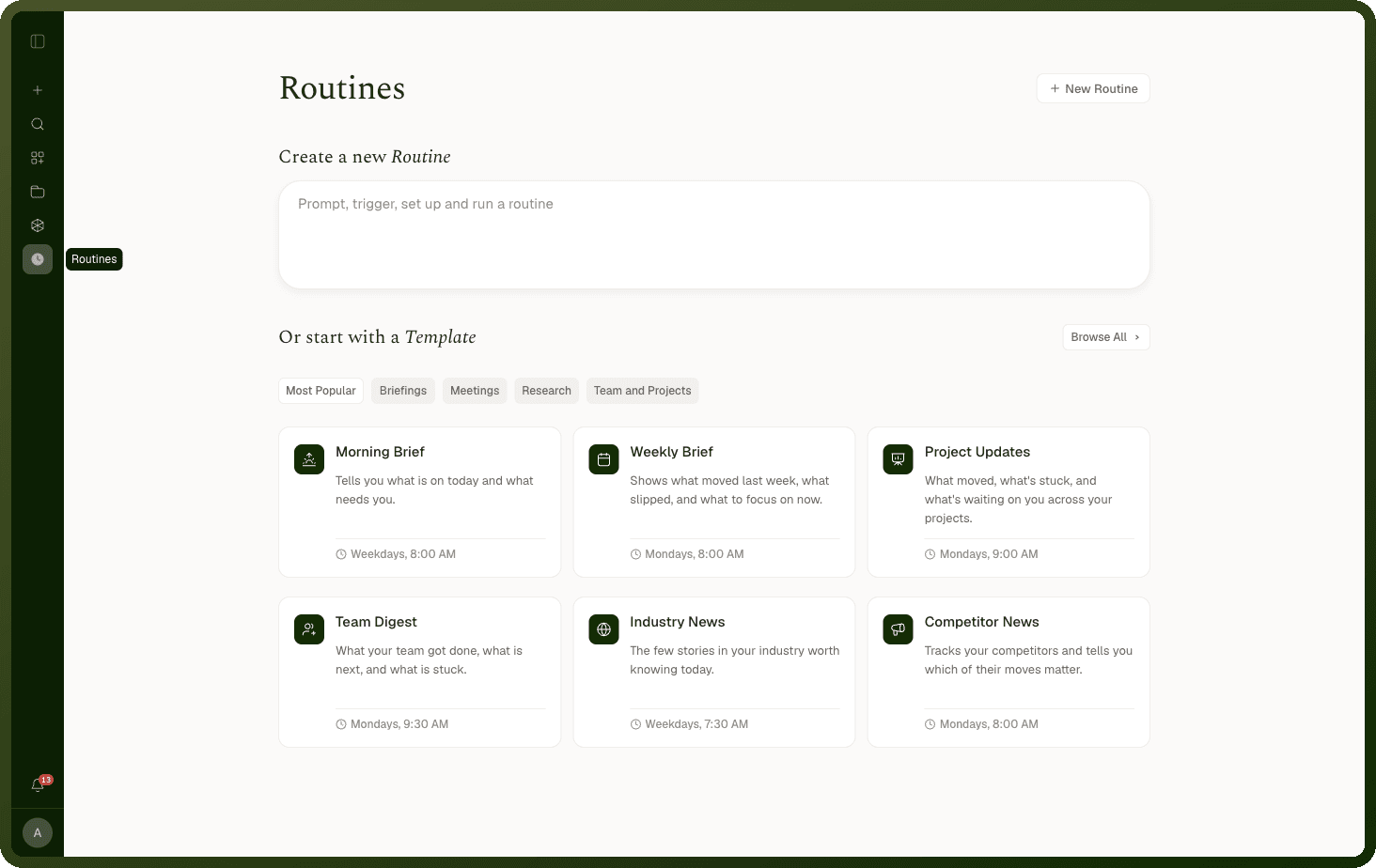
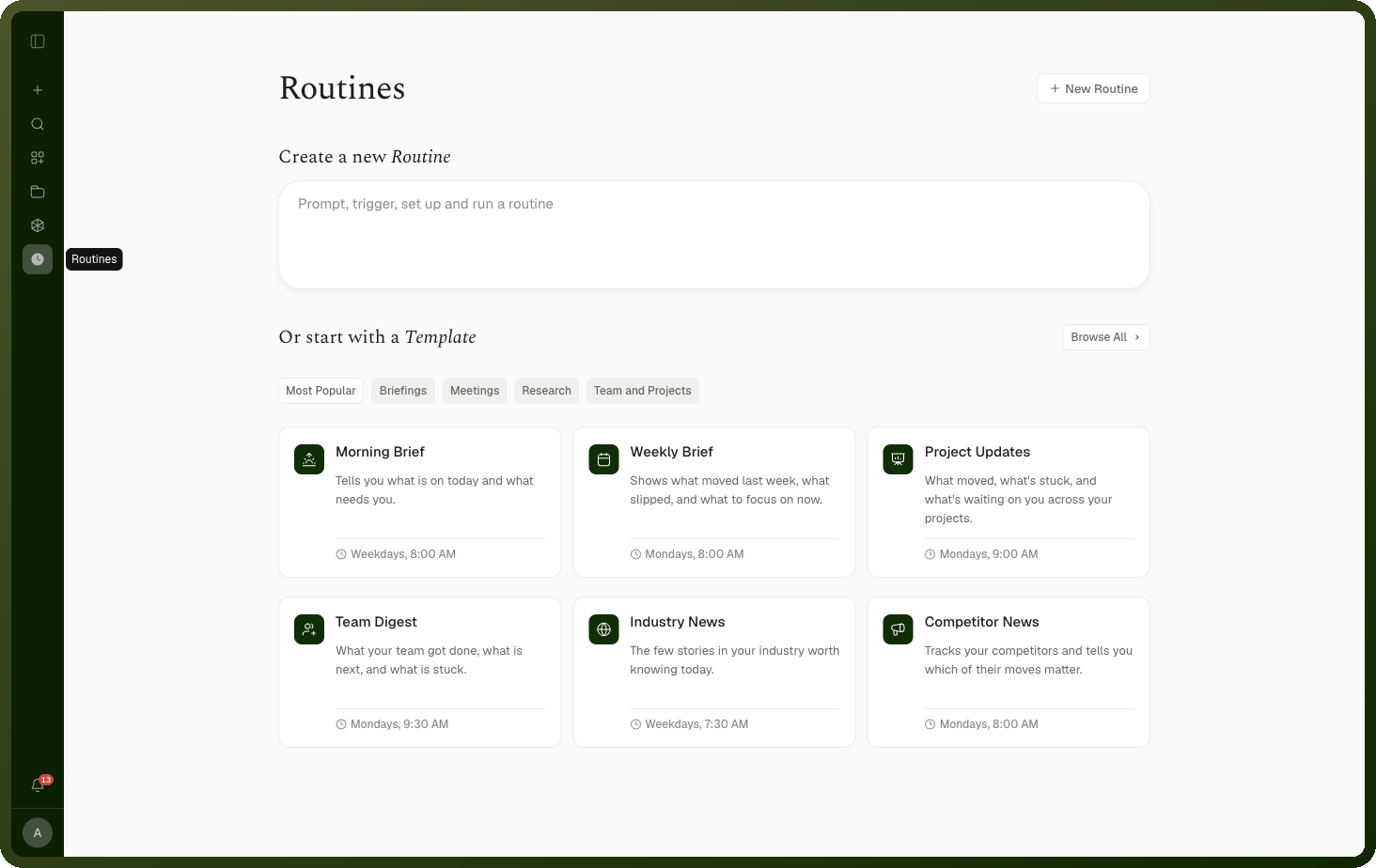
Choose from templates: start from one of the most popular routines and make it yours. The gallery groups templates by category; preview one, then select Customize Routine to continue in a Create with AI chat that starts from that template.
In the editor, give the routine a name and fill in:
Instructions: what the routine should do, with a clear objective.
Trigger: when it runs.
Tools: the apps and capabilities it can use.
Skills: reusable skills it can call on, so it follows the same process every time it runs — see Skills.
Notify: how you hear about runs (Email + App, Email only, App only, or Off).
Project (optional): the project the routine belongs to.
Create stays unavailable until the routine has a name and instructions. Select Create to save it; you return to the Routines list. To test it, open the routine and select Run: a Run started message appears, and a new row in Sessions moves to Completed with its cost. If Run is unavailable, the routine is paused — turn it on first.
For example, set up a daily inbox-and-calendar briefing or a weekly digest of Slack commitments.