


Connectors is where you link the apps Enterprise Chat should be able to read from and act on — email, chat, storage, and the other tools your work runs on.

What Connectors Do
Every question the AI can answer from your own data, and every action it can take on your behalf — checking your calendar, drafting a Slack message, reading a spreadsheet — depends on an app being connected first. Without a connector, the AI generally works only from what you type or attach directly.
Connecting an App
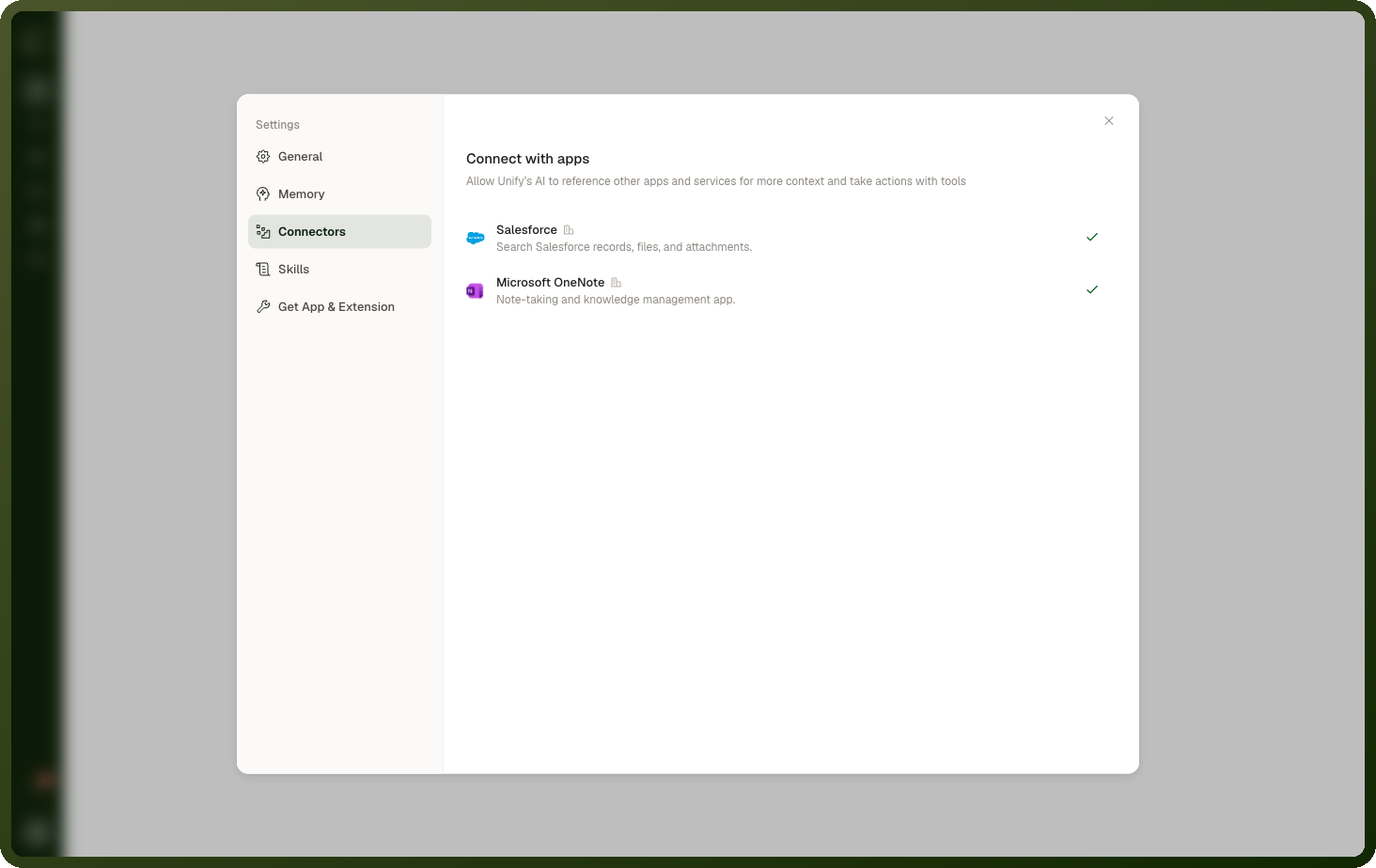
Open Settings › Connectors to see Connect with apps. It lists the apps your admin has made available (see Connectors under Enterprise Search). If there are none, it reads "Your admin hasn't added any apps to connect." Select Connect to sign in to an app with your own account. A sign-in window for the app opens; when you finish, you'll see Connected to followed by the app's name, and the app's row shows a green check. Apps marked Managed by your admin already use an organization connection — these are the apps your admin set up with an Organizational Account connection — so you can't connect, disconnect, or delete them.
Once connected, the app's data and actions become available to any chat, routine, or project without reconnecting each time — the same connected apps power the suggestions in the homepage's Connect apps prompt (Slack, Teams, SharePoint, and others).
Managing a Connected App
Select a connected app to open its page. From there you can:
Disconnect it. You can still continue earlier chats that reference its content, but the AI can't access new content or perform new tasks with it.
Reconnect it if the connection has expired. An expired app shows a warning icon and a Reconnect button in the Connect with apps list.
Delete it from the ⋮ menu. This removes your connection to the app and the data synced through it, and its tools stop working. You can connect again anytime.
Set Tool Permissions for each connected tool. Approve Always lets the agent run the tool without asking, Needs Approval pauses for your approval before running it, and Disabled prevents the agent from using it. The list shows the tools your admin has turned on for that app, grouped into Interactive Tools and Read Only Tools; tools your admin disabled don't appear. Until you change a tool, it follows your admin's setting, and your changes save automatically. Apps marked Managed by your admin have Tool Permissions too. When a tool needs approval, the assistant pauses in the chat until you approve or deny it, and the step then shows as Approved or Denied.