


Projects are folders that keep every chat, shared conversation, routine, and reference file for one topic in one place, instead of scattered across your general chat history.
What a Project Is
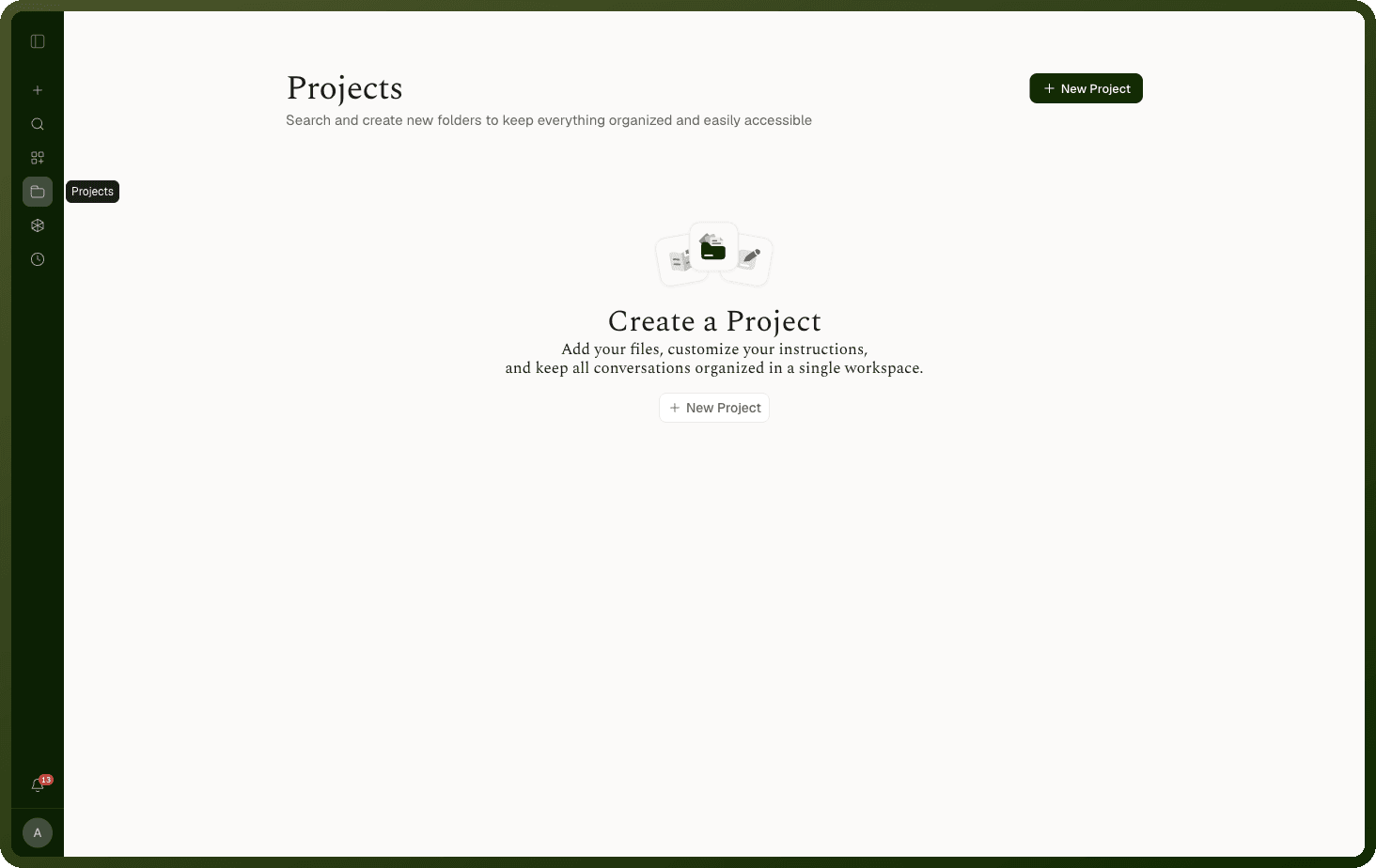
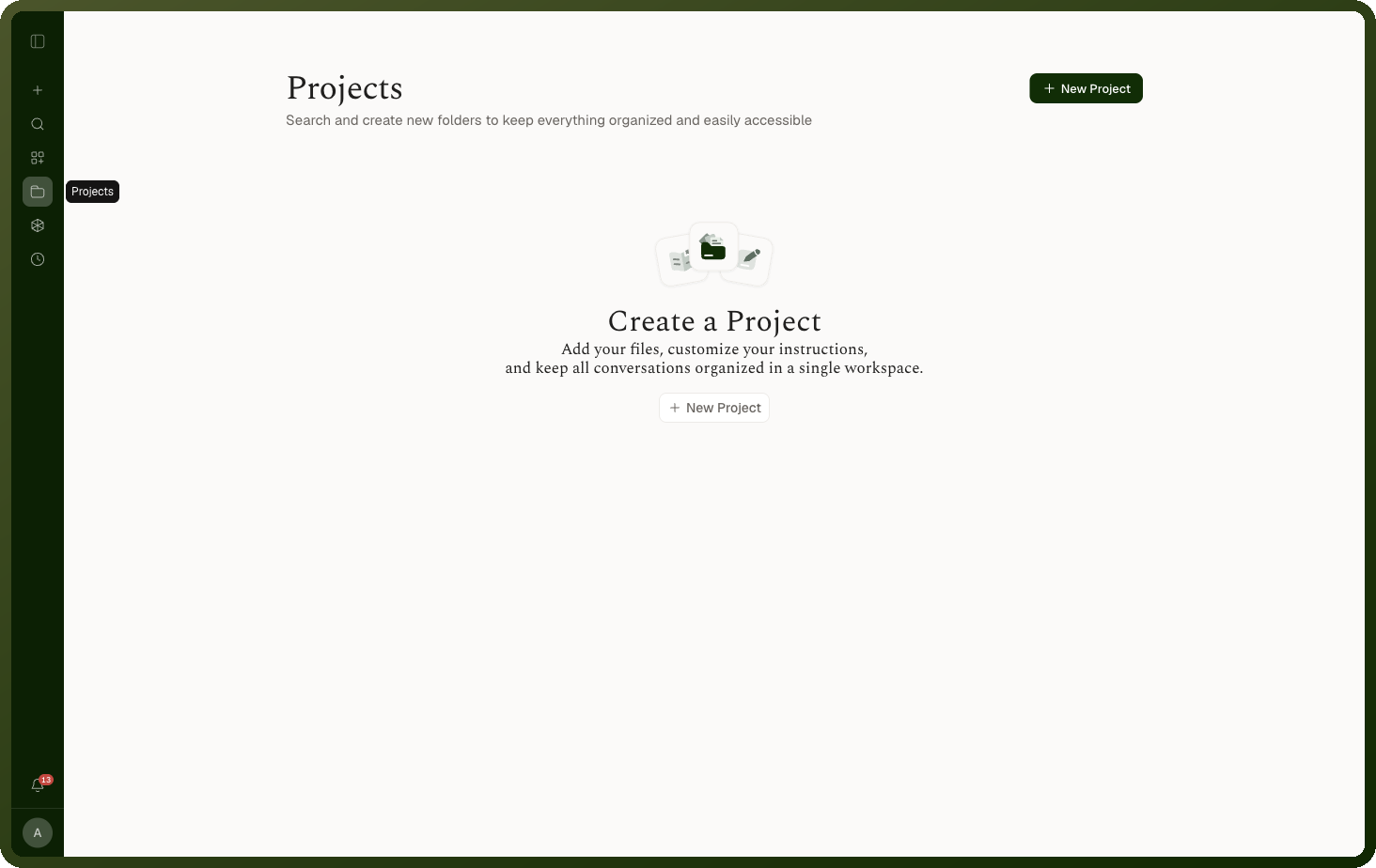
Open Projects from the sidebar to see every project you have access to, each showing when it was last updated and whether it's Private or shared. Search finds a project by name; New Project creates one.
Creating a Project
Use New Project and give it a name — for example, a client, a recurring workstream, or a single tool like "Gmail." Anything you do inside the project — a chat, a file, a routine — stays scoped to it rather than mixing into your general chat history.
The Create New Project dialog asks for a Project name and, under What are you trying to achieve?, a description of the project's goals or subject.
Inside a Project: Chats, Shared Chats, Routines, Artifacts
Opening a project gives you the same Ask anything… box as the homepage, plus these tabs:
Tab | What it shows |
|---|---|
Chats | Every conversation started inside this project, with its cost and the time it happened. |
Shared Chats | Conversations from this project that have been shared with others. |
Routines | Automations scoped to this project. A routine joins a project through the Project field in the routine editor — see Routines. |
Artifacts | Artifacts made in this project. Create, open, download, or delete them here — see Artifacts. |
Settings | The project's own Memory, Instructions, and Files — see below. |
A new chat started from inside a project's Ask anything… box automatically belongs to that project and shows up under its Chats tab.
Project Settings: Memory, Instructions, Files
Each project's Settings tab holds three things scoped only to that project:
Memory — project-specific memory, which shows up "after a few chats" rather than being written immediately. Project memories also appear as their own group on the Memory page.
Instructions — free-text guidance to tailor how the AI responds inside this project specifically.
Files — PDFs, documents, or other text you upload so the project's chats can reference them without re-attaching every time.
Use Instructions and Files when a project has its own conventions or reference material — a client's terminology, a team's style guide — that every chat in the project should know about automatically.
Managing a Project
Use a project's menu in the sidebar to manage it:
Edit Project — opens Edit Project Details, where you can change the project's name and goal.
Pin — keep the project in the sidebar's Pinned section. Unpin removes it.
Delete — deletes the project after you confirm (see below).
The same Edit and Delete options are on the project's card menu on the Projects page, and in the breadcrumb menu at the top of an open project.
To move an existing chat, open the chat's menu and choose Add to project, Change project, or Remove from Project.
Delete opens a Delete Project confirmation: deleting a project permanently deletes all project files and chats. To save chats, move them to your chat list or another project before deleting.
Sharing a Project
To share a project, select Share on its card menu on the Projects page, or Share inside the open project. The sharing dialog lets you invite people, see who has access, and copy a link to the project. A project shared with you appears in your Projects list; if your access doesn't let you edit it, its edit controls are disabled.
To share a single chat, use Share in the chat's header. The project's Shared Chats tab lists the conversations from the project that have been shared with others.