


Named holiday calendars that mark whole days as non-working.
Overview
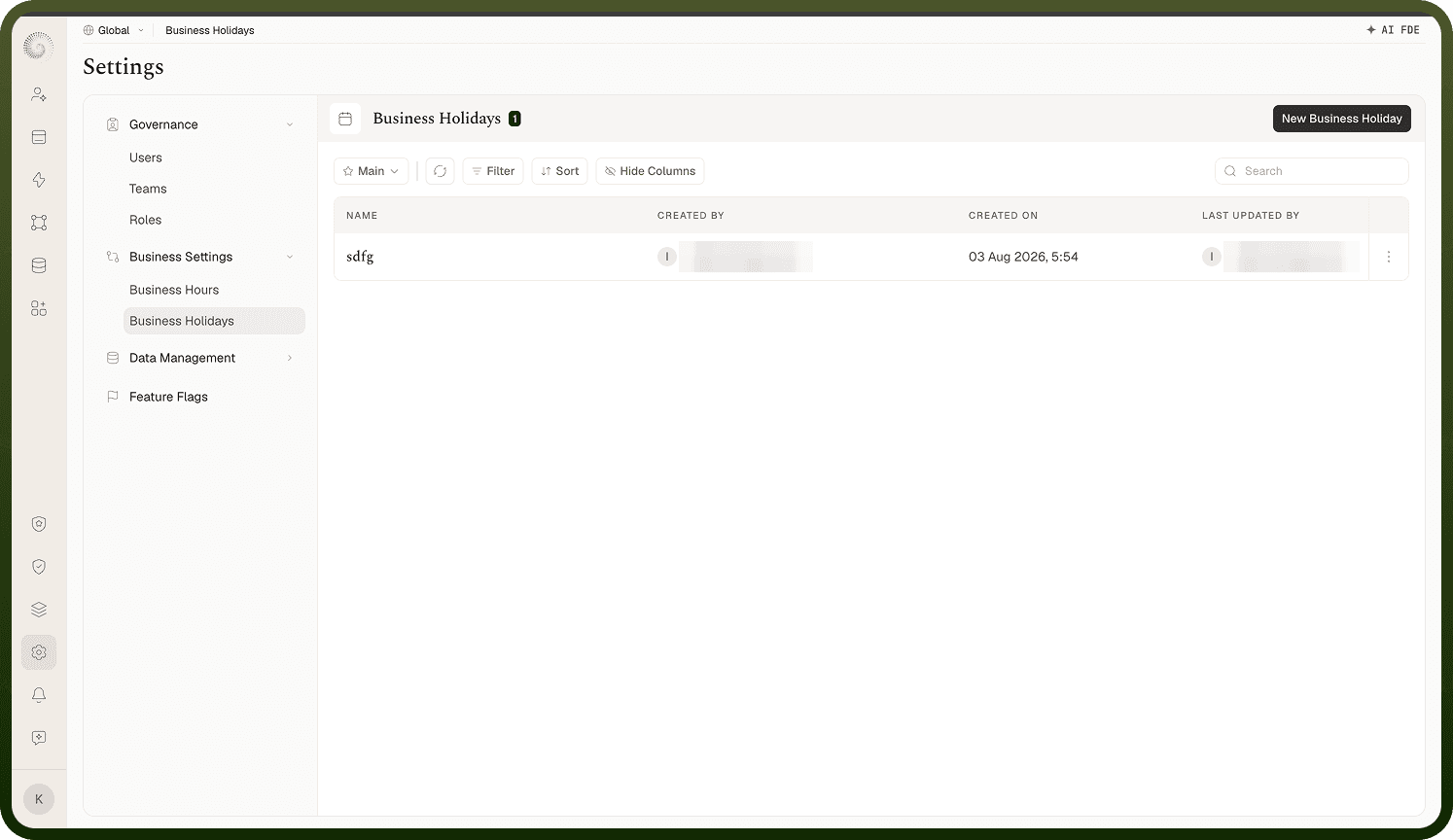
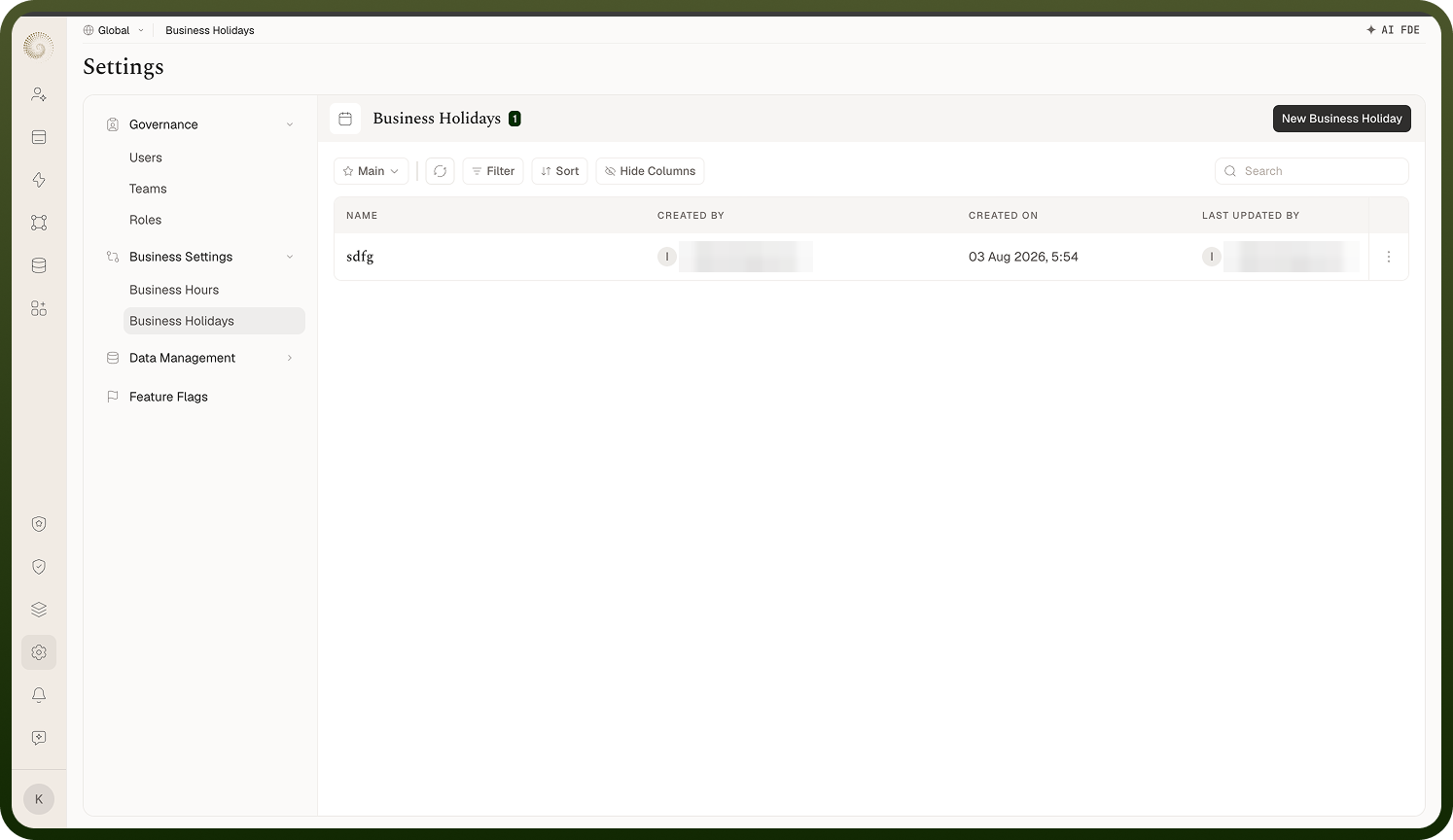
A Business Holidays entity is a reusable list of dated holidays. On its own it does nothing — it takes effect when a Business Hours schedule links to it: every listed date then counts as a full non-working day for that schedule, on top of the weekly working hours. The manager under Settings › Business Settings › Business Holidays lists your calendars with Name, Created By/On, and Last Updated By/On (the Last Updated On column carries a hover audit tooltip); rows offer Edit, Share and Delete (each shown per your permissions), and New Business Holiday creates one.
Creating a holiday calendar
The Setup your new business holidays entity form asks for a Name ("Name your Business Holiday") and the Holiday List ("Define the list of holidays") — a set of rows, each with a date ("Select Date") and a title ("Enter Holiday Title"). Both are required on every row, and the calendar needs at least one entry. Add a row per holiday (New Year's Day, company offsites, regional holidays) and save; edit later as Edit Business Holidays to add next year's dates.
How holidays affect automations
When an automation node is gated by business hours (see the Business Hours doc) and the linked schedule references a holiday calendar, the runtime compares today's date — in the schedule's time zone — against the holiday list before even looking at the day's working hours. A match means the entire day is outside business hours: the node either waits for the next working window or fails, per its Wait for next window setting. Note the match is by exact date, so recurring holidays need a fresh entry each year.