


Linking environments so change sets can move between them automatically.
Overview
A connected environment is a secure link from this environment to another UnifyApps environment (for example UAT linked to Production). Once two environments are connected, a Move change set can be pushed directly from one to the other — it shows up as an inbound change set on the far side with no files to carry around — and the sending side can see the receiving side's progress. You set up connections once under Settings › Change Set › Connected Environments, then reuse them every time you promote. Without a connection you can still move work, but only via the manual Export file route.
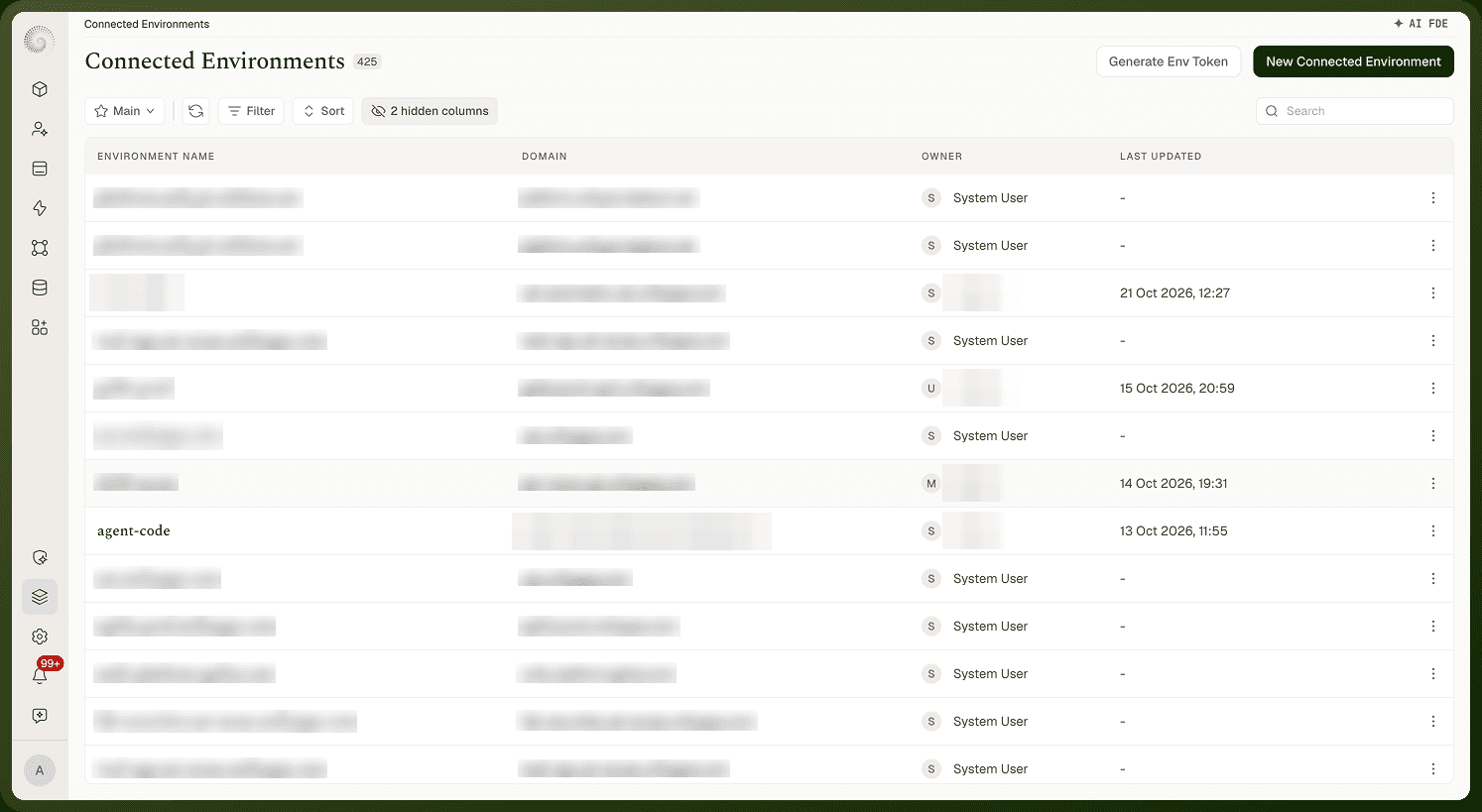
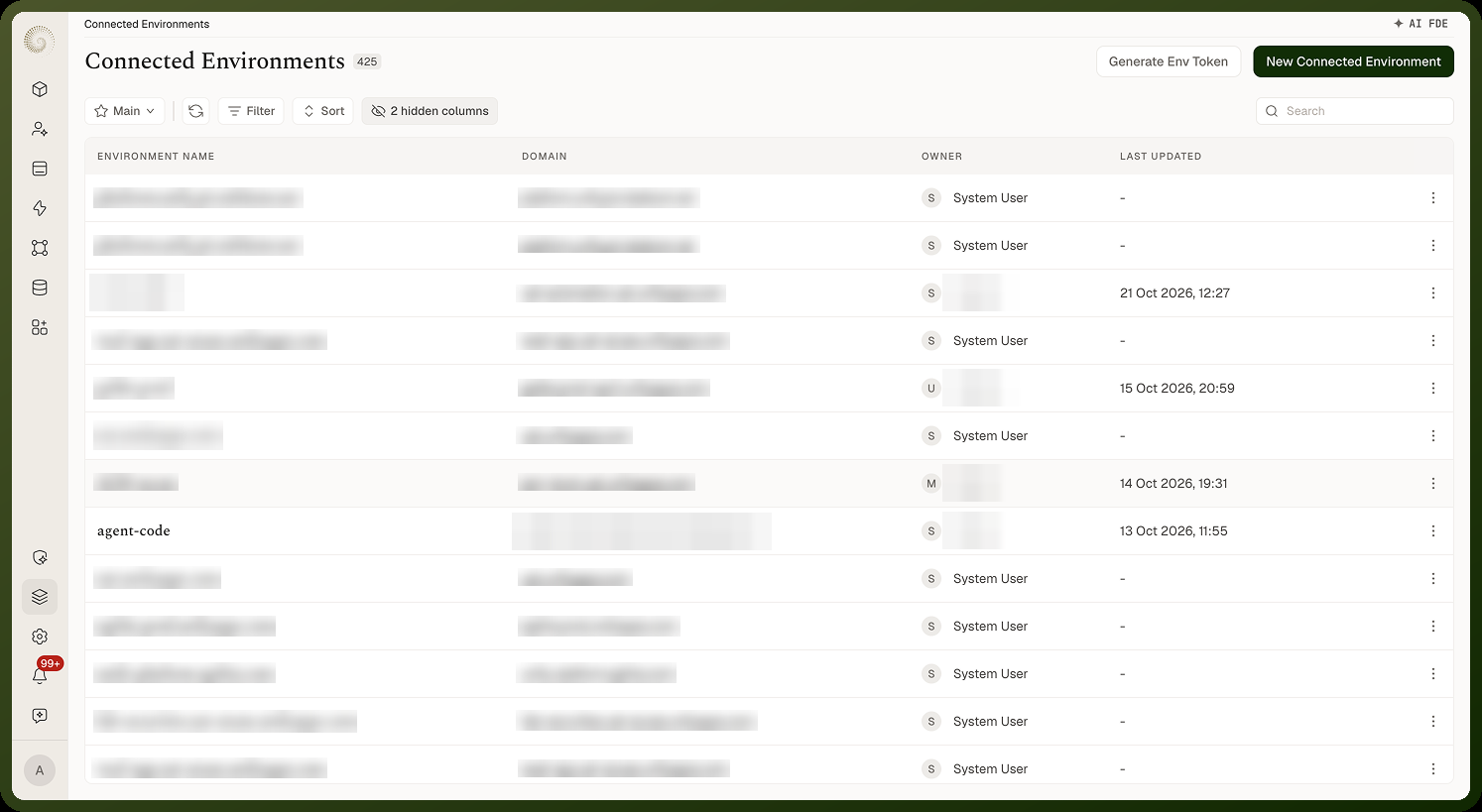
Connecting two environments
Connecting is a quick pairing handshake between the two environments:
In the environment you want to connect to, open Generate Token. An Environment Credentials dialog shows that environment's Domain and a short-lived pairing Token — the token is valid for 10 minutes and shown only once, so copy both right away.
In the environment you're connecting from, use New Connected Environment and fill in an Environment Name, the Domain, and the Environment Token you copied, then click Connect.
The two environments then exchange long-lived credentials automatically and record a link to each other, so the connection works both ways.
Because the pairing token expires quickly, complete the paste promptly. After this, the connection is established and you can target it from a Move change set.
How environments authenticate to each other
After pairing, each environment holds a secure token for the other and uses it to authenticate every request between them — that's how the receiving environment trusts that an incoming change set really came from the connected source. These tokens are stored securely and are never shown back in the interface, and the connection is over standard secure (HTTPS) channels. The short pairing token only exists to bootstrap the link; the long-lived credentials exchanged during pairing are what actually carry change sets afterward. To sever the trust, delete the connected environment in both environments, since each side keeps its own record of the link.
Tracking a change set across environments
When you push a Move change set, the source environment keeps a per-destination status for it: for each connected environment you sent it to, you can see whether it was received, approved, deployed, or rolled back, along with how many assets imported and any errors. The two sides stay in sync — when the destination approves, deploys, or rolls back, that status flows back to the source automatically. This is what lets you drive a promotion from where you submitted it and confirm it actually landed in UAT or production, without logging into the other environment to check.