


On/off switches for platform capabilities, backed by System environment variables.
Overview
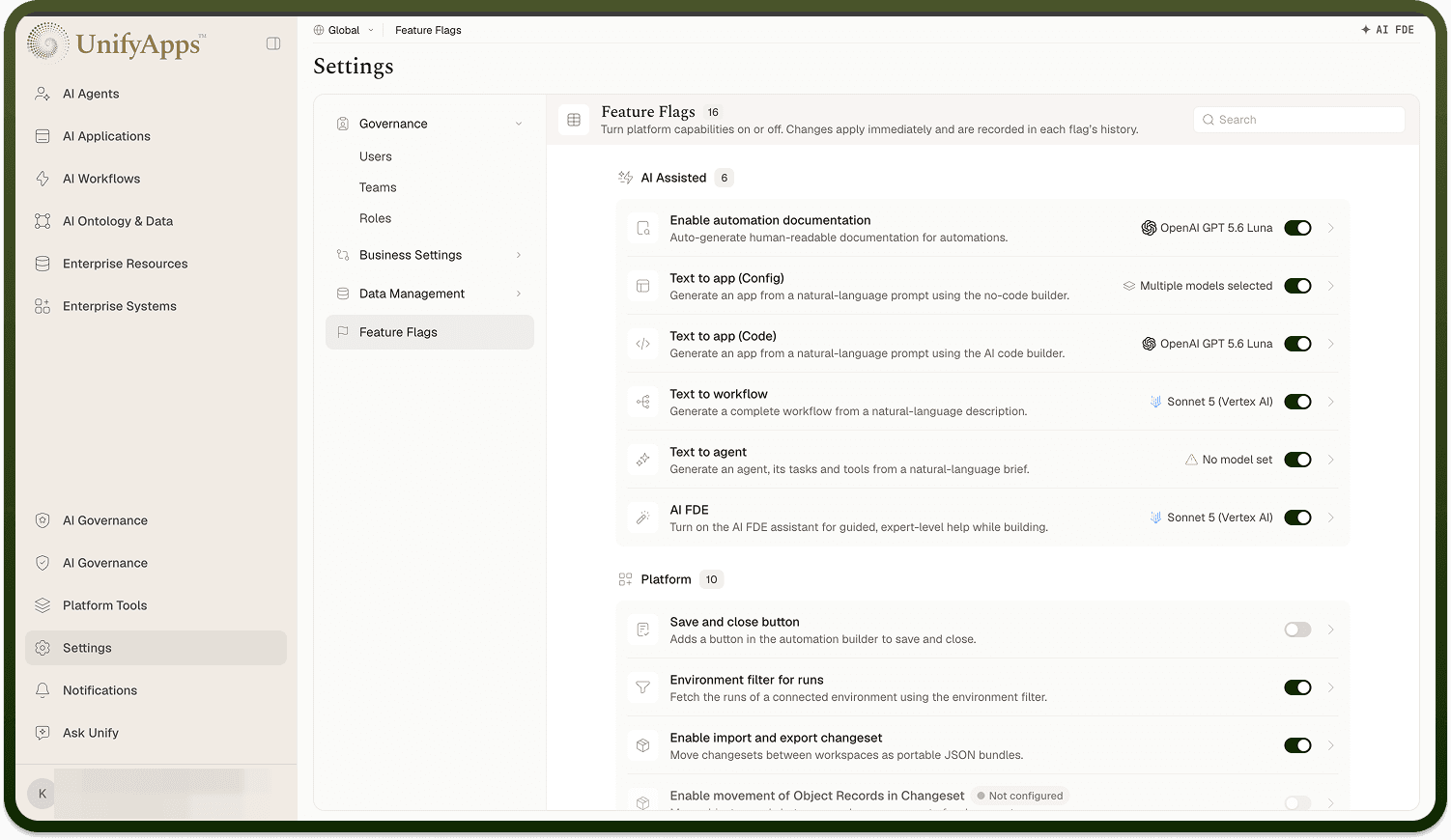
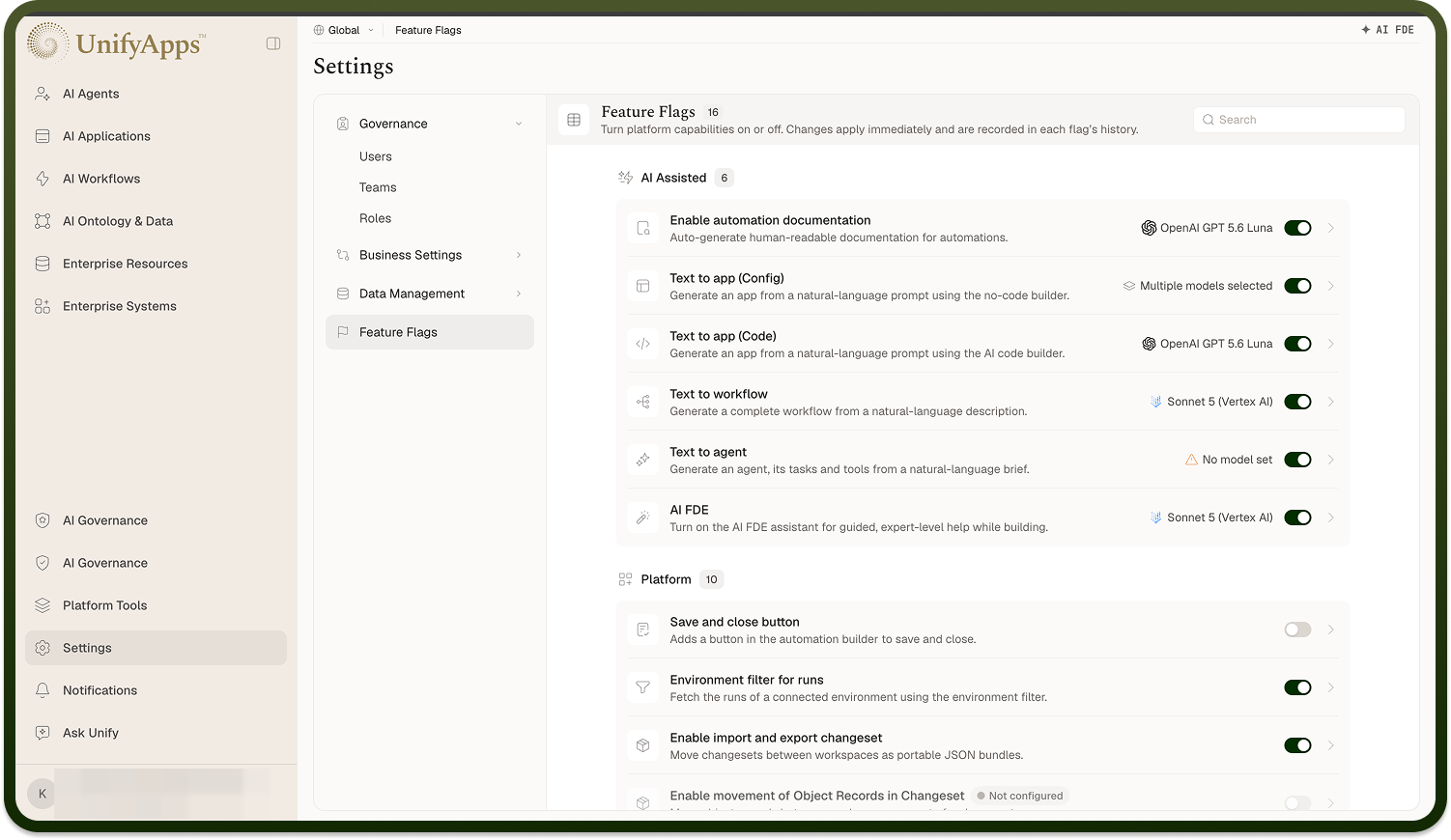
Feature Flags is a settings screen that lets you turn platform capabilities on or off from one place. Its subtitle sums it up: "Turn platform capabilities on or off. Changes apply immediately and are recorded in each flag's history." Each flag is a labeled row with an icon, a short description of what it does, and a toggle. The screen is a friendlier view over a curated set of System (standard) environment variables — the boolean switches the platform reads to enable or disable features — so you don't have to find and edit those variables by hand. A search box (Search) filters the list, and a count pill shows how many flags there are.
Turning a feature on or off
Flip the flag's toggle. Changes apply immediately — there's no separate save step and no confirmation message. If the save fails, the toggle quietly flips back to its previous state, so check the toggle's state if nothing seems to change. Because a flag maps to a System environment variable that platform features read, turning it on or off changes how the platform behaves for everyone on this tenant right away (for example, enabling an AI generation capability or interface collaboration).
Opening a flag
Click a flag's row (the chevron on the right) to open its drawer. The drawer holds:
Enable this capability — the on/off toggle ("Turns on immediately for everyone on the platform.").
Model — for AI flags, the model this capability answers with. Some AI flags also let you set the Reasoning effort (Low, Medium or High).
Activity — the flag's change history (see below).
In the list, an AI flag's row shows its current model, No model set, or Multiple models selected when the agents behind it use different models.
How the flags are organized
Flags are grouped by area:
AI Assisted — capabilities powered by AI, such as generating an application, workflow, or agent from a natural-language prompt (e.g. Text to app (Config) — "Generate an app from a natural-language prompt using the no-code builder.").
Platform — general platform behaviors, such as change-set import/export, interface collaboration, and Default sensitive value ("Treat new values as sensitive by default so they are masked") — the flag that decides whether new environment variables start out sensitive.
Use search to jump straight to a flag by name.
Flag's change history
Click a flag's row to open its drawer. The Activity section ("Logs the events that occurred in this setting") shows a day-grouped timeline of changes. Entries are labeled Created, Updated, Turned on, or Turned off, each with who made the change — a specific user or System. If there's nothing yet it reads "No changes recorded yet."; a load failure shows "Couldn't load change history." This history is the audit trail for the flag's underlying environment variable, so it's also the place to see the change log for that variable.
How Feature Flags relate to environment variables
A feature flag is a System environment variable — a boolean one the platform ships and reads to switch a capability. Feature Flags simply presents the important ones as labeled toggles with descriptions and history, while the same variables also appear on the System tab of Environment Variables. Reaching this screen needs the same permission that unlocks that System tab. Flip a flag here or change the System variable's value there — it's the same underlying setting.