


Shipping a code app to its URL, and moving backwards and forwards through the versions it saved along the way.
Overview
On the Preview tab of the builder, click Publish in the header. The popover asks for:
Tag this version — an optional label for this release (placeholder "V1"). Three rules are listed under the field and turn red if you break them: "Starts with a letter", "Should not contain spaces. Use “_” instead", and "Special characters (@, &, *) not allowed except “_”".
Version Notes — placeholder "Add notes for the release".
Application URL — the public address the app will be served from, with a copy button.
Below those, a line tells you when it was last published. Pressing Publish first builds a fresh deployable bundle and only then releases it, so a published app can never point at a stale or missing build; if the build fails, nothing is deployed. Each published version is recorded against the exact source snapshot it was built from, so you can always trace a live release back to the code behind it.

Published versions
The Versions tab on the app's pages lists every published version with the same filtering and sorting as other applications. Opening a row takes you to that version's detail page, which shows a read-only preview built from that version's own source snapshot — so you can look at exactly what a past release rendered.
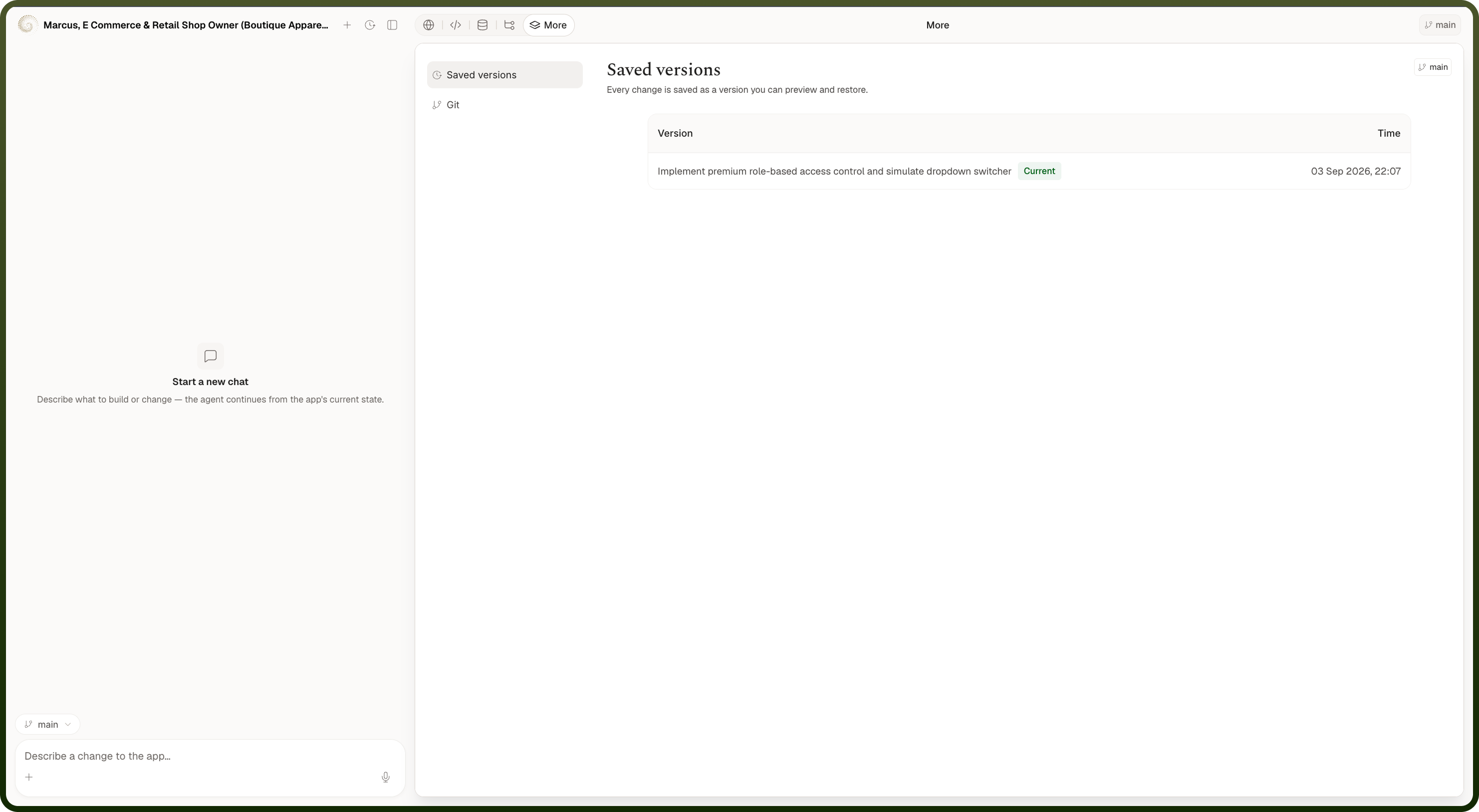
Saved versions
Publishing is deliberate; saving is automatic. Every change the agent makes is captured as a saved version, listed under Saved versions in the builder's More tab — "Every change is saved as a version you can preview and restore." The list has three columns: Version (the description of the change), Author and Time. The newest entry is tagged Current because it is what the builder is running right now, and any entry that was also published carries its published version tag. Before the app has produced anything you'll see No saved versions yet — "As you build, each change is saved here and can be previewed or restored." When the app is linked to a repository, a chip names the branch these saved versions belong to, because the list is that branch's history.
Going back to an earlier version
Click any row in Saved versions. A large preview opens showing that version running, with Restore this version in its header (hidden for the current version, since restoring it would do nothing) and Close. Restoring doesn't erase history — it adds the old snapshot on top as a new change and rebuilds the live preview, so you carry on editing and publishing from there. On success you'll see "Version restored on …", naming the branch it landed on.