

The conversation panel: asking for changes, reviewing the plan, attaching files, and stopping a run.
Overview
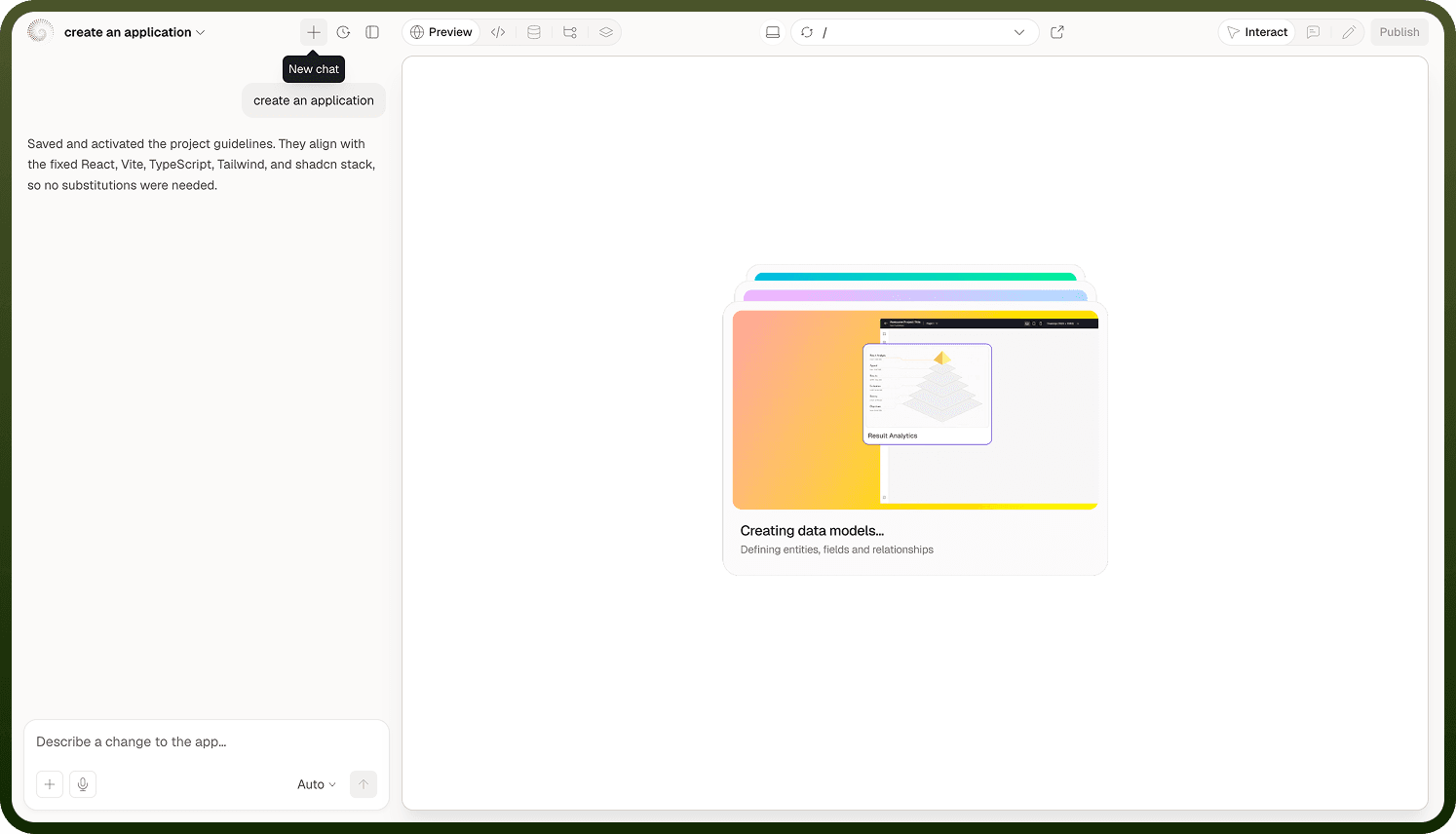
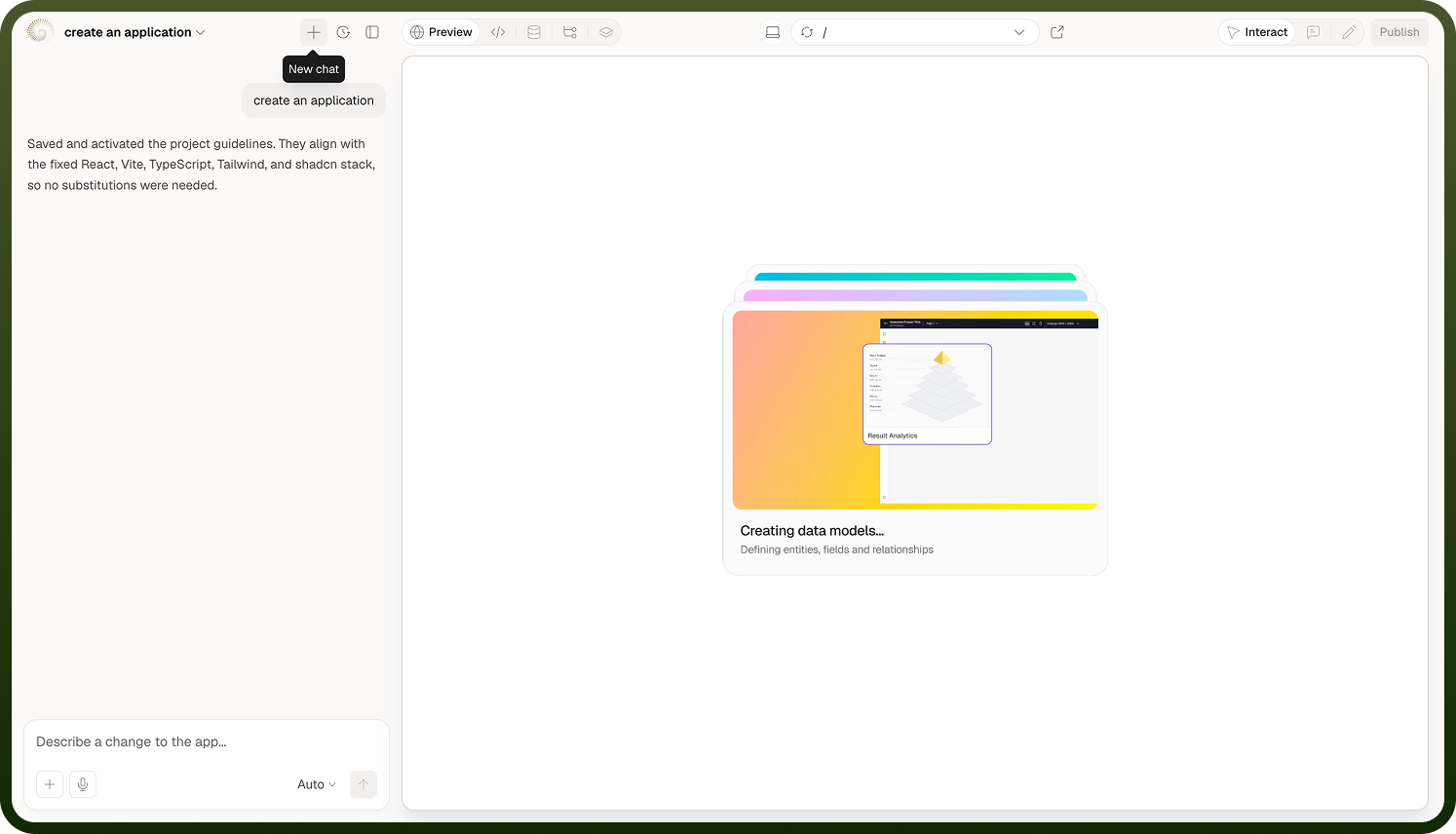
Type in the composer at the bottom of the chat panel — "Describe a change to the app…" — and send. The agent works on the app's files and the preview updates as it goes. You don't need to describe the whole app again each time, as the empty-chat prompt says: Start a new chat — "Describe what to build or change — the agent continues from the app's current state."
Clarifying questions
Sometimes the agent asks before it builds. Those appear as Clarifying questions. On the very first turn — when there's no preview to interrupt — they take over the whole preview area and the builder switches you to that tab, so you can't miss them. On later turns they appear just above the composer instead. Answering them sends your reply as a message; they also survive a page reload, so a refreshed turn can still be answered.
Choosing Auto or Plan
The composer has a small Auto / Plan switcher. Auto ("Let the agent decide") is the default — the agent may still plan on its own before building something substantial. Choosing Plan ("Discuss before building") forces a plan review before your next message builds or changes anything. Your choice is remembered separately for each app.
Reviewing and approving a plan
While a plan is waiting on you, a "Waiting for your approval" pill sits in the conversation and a card above the composer offers Review, Skip and Approve. On a brand-new app the plan opens itself over the preview area; on an app you are already editing, it stays collapsed until you click Review.
Approve builds the plan and switches the composer back to Auto. Skip declines it — the conversation shows "Skipped the plan" — and leaves the composer on Plan, so say what you want changed in your next message. Once a plan has been decided, Review plan opens it again, and Hide plan closes it.
Choosing a model
A model picker sits in the composer's action row. Open it and type to filter the list by name. The list is curated for your environment, so you may see fewer models than the full catalogue.
Dictating a message
On a browser that supports speech recognition, a microphone button sits in the composer next to Attach files. Press it and speak; what it hears replaces whatever is in the box. On a browser without speech recognition, the button isn't there.
Attaching files to a message
Three ways: the Attach files button, dragging files anywhere over the conversation ("Add anything" — "Drop any file here to add it to the conversation"), or pasting an image straight into the chat. Attached files appear as removable chips before you send.
Limits, enforced in this order:
Any file type is accepted.
At most 20 files are attached to one message, counting anything already pending. A batch that would go over is rejected whole rather than trimmed — "Maximum number of files exceeded, allowed only 20 files".
At most 1 GB per file, and 1 GB in total for one message. A file over the limit is refused with a message that names it, such as "name is 1.1 GB, over the 1 GB limit. Choose a smaller file.", and it stays in the attachment strip as Too large to send. If the total is over the limit, the whole batch is rejected.
Password-protected documents (PDF, XLSX, DOCX) are rejected and named back to you.
Folders can't be attached — dropping one contributes nothing. Attachments are also cleared when you switch to another chat, since they belong to the conversation that collected them.
Pointing the agent at a specific file or element
Two ways:
Mention a file — type @ in the composer and a list of the app's files appears (up to eight suggestions, ranked by how well the file name matches what you've typed; "No matches found" if nothing does). Pick one and it's inserted as a chip.
Point at an element — pick an element in the preview and a 1 selection pill attaches to your next message, naming the line and file it came from. Remove selection drops it, and sending the message consumes it.
Knowing the agent is working
A pulsing indicator sits at the end of the conversation, cycling through "Thinking…", "Writing code…", "Crafting the interface…", "Running checks…" and "Polishing details…". It only appears for work happening in this chat — when you're simply waiting for someone else who holds the branch, you get a presence card naming them instead.
Stopping a run
While a turn is running the send button becomes a stop control — press it and the agent halts the current turn. The conversation immediately shows "Response was interrupted." and the composer frees up. Anything already written to the files stays; send another message to carry on from there. Anyone viewing that chat can stop its run, not only the person who started it. If the stop itself fails, the run is put back as it was.
One caveat: the chat frees up the instant you press stop, but the agent takes a moment to actually unwind. A message sent in that gap can be rejected without any visible sign — if a follow-up seems to have vanished right after a stop, send it again.