


Seeing what a change set will do before you deploy it, and resolving clashes with existing assets.
Overview
The Review Change Set step shows what applying the change set will do in this environment, asset by asset ("Review assets included in the change set before deploying them"). Each asset is classified so you know the effect:
New — it doesn't exist here yet and will be created.
Existing — it already exists here (matched by identity) and will be updated.
Replaced — it will be mapped to a different existing asset here instead of created (you choose which — see below).
Reviewing this before deploying is how you avoid surprises: you can see exactly what's added, what's overwritten, and what's mapped, and catch anything you didn't intend.
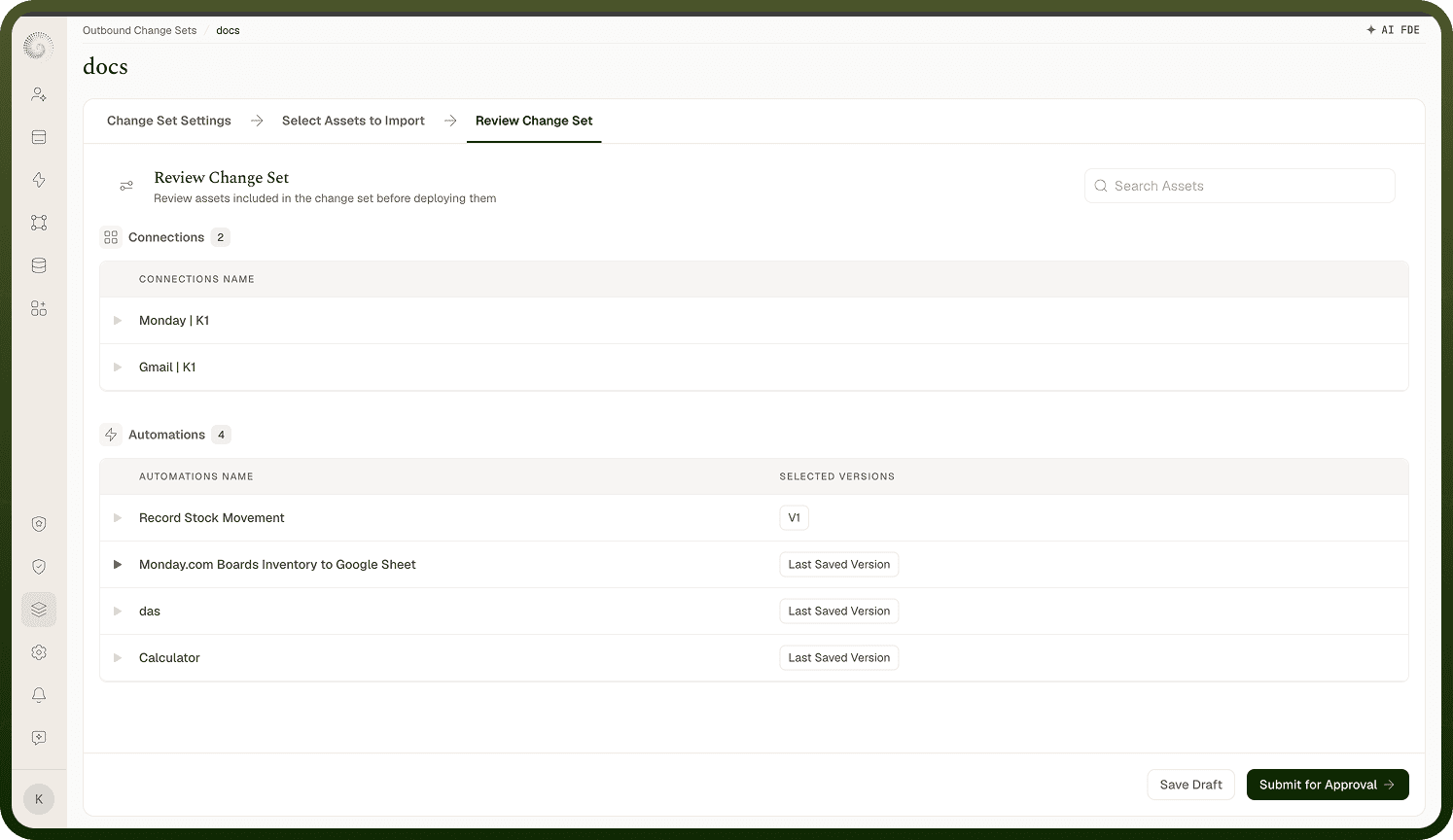
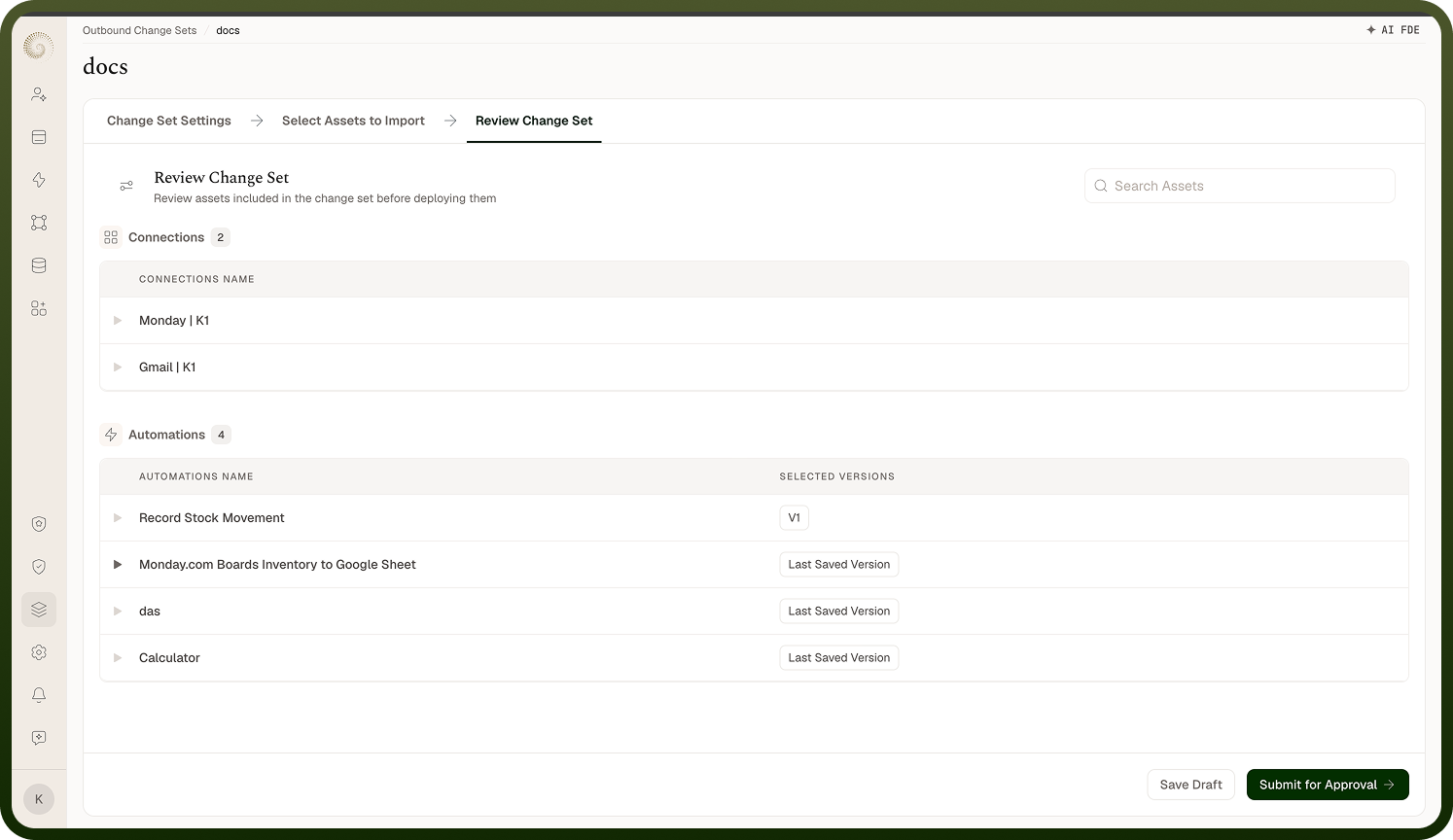
How conflicts with existing assets are handled
A "conflict" is really just an Existing asset — something in the change set that already exists in the destination. By default an existing asset is updated to match the incoming version (when deploying you can choose Skip Records instead, which leaves existing assets untouched). For two asset types where you usually don't want a duplicate — connections and AI/LLM models — you can instead replace: map the incoming asset to an existing one in this environment, so everything that referenced it now points at your destination asset. For example, an automation built against a dev connection can be mapped to use the equivalent production connection on import. This is what keeps environment-specific things (credentials, endpoints) correct after promotion.
Mapping (replace) an asset to an existing one
The review step calls out what needs your attention before proceeding:
Connections ("Please verify the required connections") — for each incoming connection, pick an existing connection here to replace it with, or add a new one. Existing connections remain unchanged.
AI models ("Please verify the required models") — likewise, map an incoming model to an existing one or add a new model.
Environment variables ("Please verify the required Environment variables") — variable values are never exported with a change set, so you enter the value each new variable should have in this environment.
Once mapped, the imported assets that depended on the original use your chosen destination asset instead, and the incoming one is marked Replaced rather than created. Use this for anything that should stay environment-specific (a database connection, an API credential, a model deployment) so the promoted automations connect to the right resources in each environment.
Comparing incoming and existing versions
For an Existing asset, you can check exactly what will change before you deploy. Open the asset in the inbound change set and turn on Show Diff to compare the incoming version with the one already in this environment. For objects, fields and records are counted as Added, Removed and Modified, and you can step through each change. For automations, you see which steps and settings were added, removed or changed.