


Automated backups of your platform configuration into your own Git repository.
Overview
Under Settings › Data Management › Backup Manager you configure automated backups that push the configuration of your platform objects (automations, AI agents, applications, API Platform assets) to a Git repository you own. Each run commits a snapshot, giving you version history, an off-platform copy, and a way to review or recover earlier configurations.
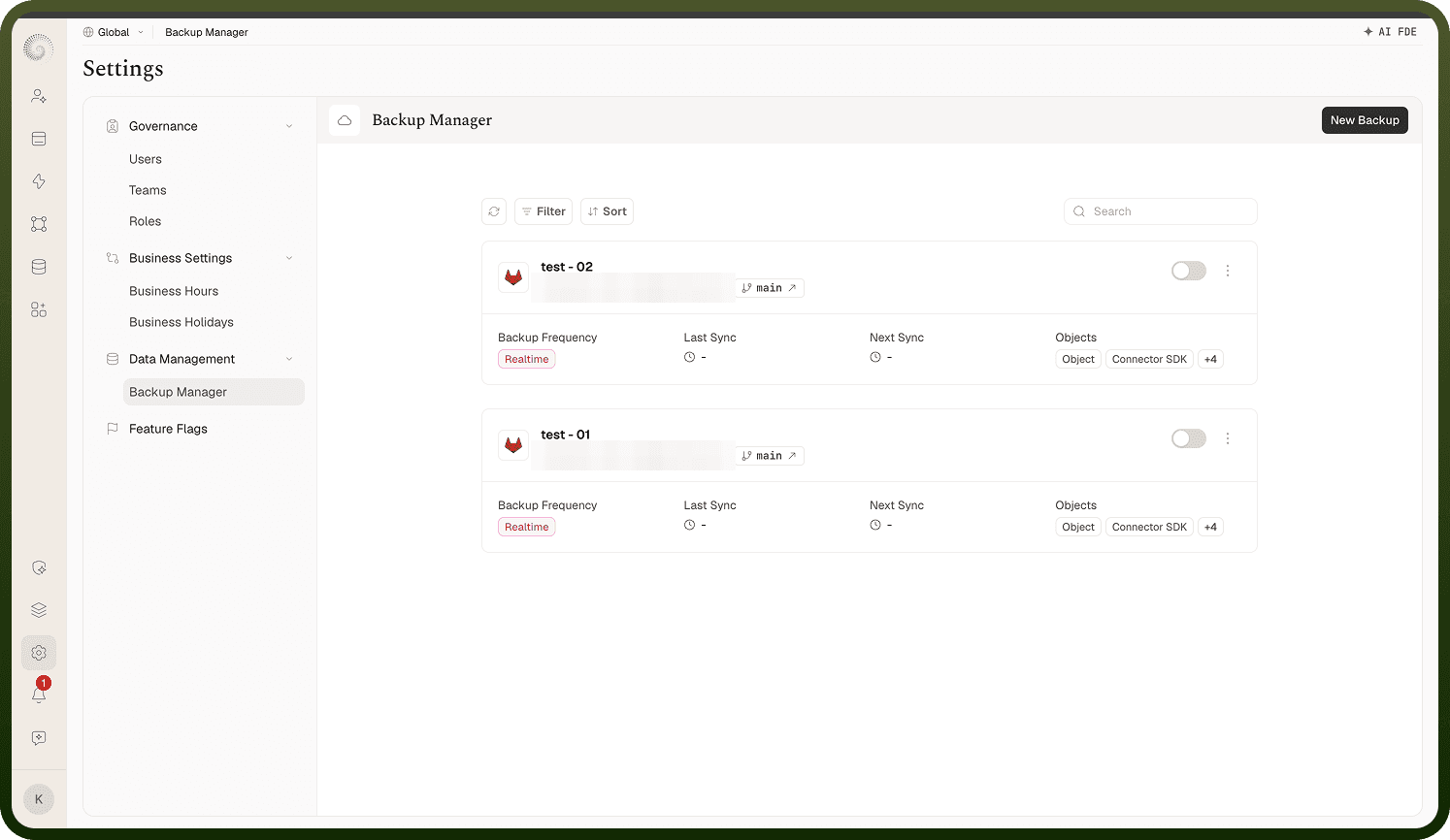
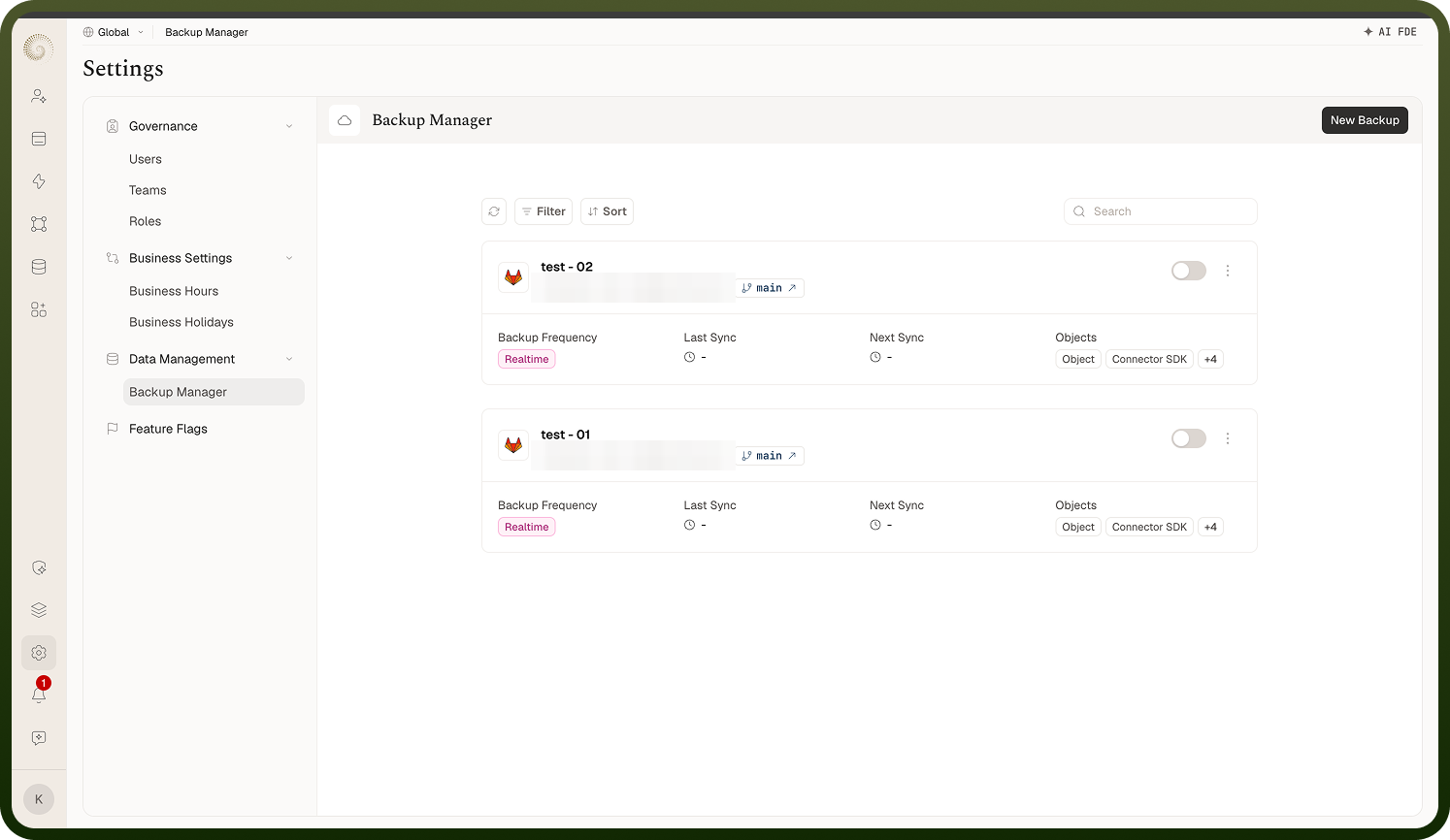
Before any exist you’ll see “Configure Automated Backups — Configure automated backups for your production environment. Select a Git platform to enable scheduled backups of configurations and data.” Each configuration is a card showing the provider, repository and branch (the branch pill opens it on the Git host), an on/off toggle, and its Backup Frequency, Last Sync, Next Sync, and Objects summary. The card menu offers Clone and Delete. Clicking a card opens it for editing.
Prerequisites
An active Git connection (GitHub, GitLab or Bitbucket) in Connection Manager. Only active connections for the chosen provider appear in the wizard.
The connected account needs read access to the organisation or workspace and write access to the target repository, plus permission to create repositories if you want the backup to create one.
The organisation or workspace must be on your environment's list of approved backup namespaces. Only approved namespaces are listed in the wizard, and the backup can create a repository only in one of them.
The target repository must be private. Public repositories cannot be selected.
For GitHub, a committer User Name and Email. Use a shared service identity so commit history stays readable.
What gets backed up
Backups contain the configuration of selected objects, not records, run logs or user data. Connection credentials and secrets are excluded. Objects are written as files grouped by type (Automation, AI Agent, Applications, API Platform), one commit per run, so Git history shows only real changes.
Creating a backup configuration
New Backup opens a four-step wizard:
Details — Name, Backup Provider (GitHub, GitLab or Bitbucket), and the Connection to use. For GitHub, also the committer User Name and Email.
Select Repository — pick your organisation or workspace and an existing private repository and branch, or have the backup create a new one. Only approved namespaces are listed, and only private repositories can be selected. A repository created from Backup Manager is always created as private. For Bitbucket, pick a Workspace first, then a repository and branch, or create a new repository with an optional Project. Avoid branches with protection rules that block direct pushes.
Platform Objects — pick objects one by one or via Groups: Automation, AI Agent, Applications, API Platform. A counter shows how many are selected. Selecting a group includes new objects of that type automatically.
Define Frequency — Real time runs whenever a selected object is saved, best for a few critical objects. Scheduled runs on a fixed cadence, best for broad backups.
Finishing shows "Backup created successfully."
Running, pausing, cloning, or deleting a backup
Toggle enables or disables the configuration without deleting it. Disabled configurations skip all runs but keep their settings.
Sync Now starts a backup immediately. It works only while the configuration's toggle is on; otherwise it shows "Only active backup can be synced".
Clone duplicates the configuration as “<name> (Copy)” so you can tweak a variant, such as a different branch or object set.
Delete asks “Delete this backup? Are you sure you want to delete this backup?” and removes the configuration. Your Git history stays untouched.