


How a change set lists the dependencies of what you pick, and how versions are chosen.
Overview
Most assets don't work alone — an automation needs the connections it calls, the templates it uses, and the environment variables it reads; an app needs the objects behind it. These are its dependencies. When you add an asset to a change set, the platform finds and lists those dependencies for you, so you can include them and the bundle will actually work in the destination. This is the whole point of a change set: you select what changed, and the platform shows you everything that change relies on so it can travel with it, rather than you discovering a missing connection only after the import fails.
Including dependencies
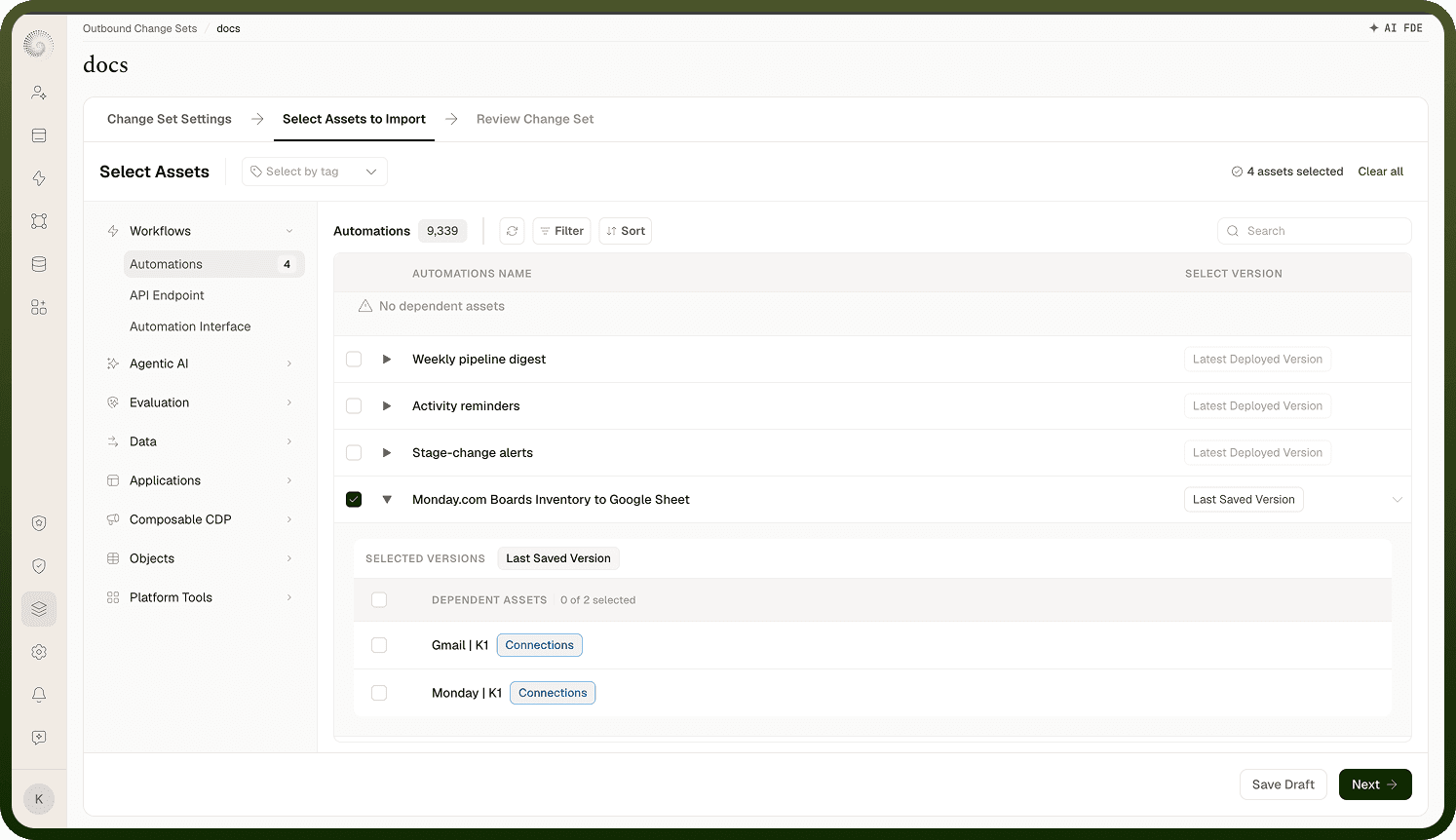
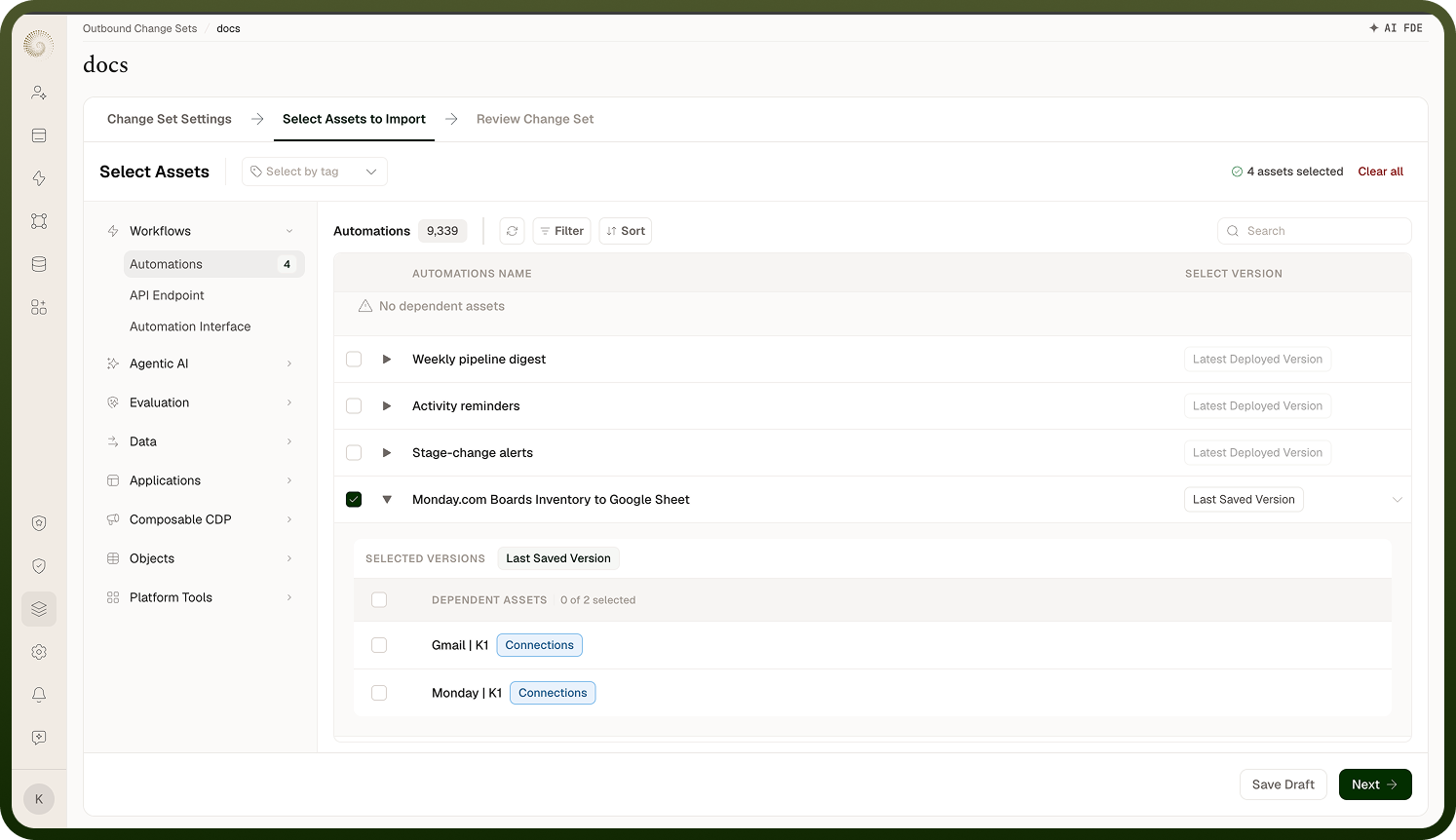
On the Select Assets to Import step, tick an asset and expand it to see its Dependent Assets and how many of them are selected (for example, 0 of 2 selected). Ticking an asset doesn't tick its dependencies: tick each dependency you want to send. Only ticked assets are packaged into the change set.
A dependency you leave unticked doesn't travel. The destination then needs its own copy of it, or the asset that relies on it can fail to deploy there. A dependency shared by several assets is one entry, so ticking it under one asset ticks it everywhere it appears. An asset that needs nothing else shows No dependent assets.
How deep resolution goes
The Dependent Assets list shows an asset's direct dependencies. When a dependency has dependencies of its own, you can open them level by level (deeper levels open in a side panel with breadcrumbs) and tick what you need there too. Nothing at a deeper level is added unless you tick it.
Choosing versions
Only automations have versions; every other asset travels as its one saved copy. Once you tick an automation, its Select Version control offers:
Latest Deployed Version — the version most recently deployed in this environment.
Last Saved Version — the automation as last saved, including changes that aren't deployed yet.
A specific deployed version, such as V2.
You can select more than one version. If you don't pick one, an automation that has been deployed travels as its Latest Deployed Version, and one that was never deployed travels as its Last Saved Version. Choosing Latest Deployed Version for an automation that was never deployed also falls back to Last Saved Version.
Different versions can need different assets, so the dependencies listed are those of one version at a time. When several versions are selected, use the Selected Versions row to switch between them. An automation that appears as a dependency, for example one called from another automation's step, comes at the version that step pins, or otherwise at its Latest Deployed Version (Last Saved Version if it was never deployed). You can't change a dependency's version from the dependency list.
Environment variable values
An environment variable can be a dependency, but its value isn't imported by default. When the change set is reviewed in the destination, you set the value of each new variable there. Reviewing a change set and handling conflicts covers that step, and how to map connections to ones that already exist in the destination.
Related pages
Creating an outbound change set — the full flow for building and submitting a change set, including picking assets.
Reviewing a change set and handling conflicts — mapping connections and setting environment variable values in the destination.
Environment Variables — what environment variables are and how their values are kept per environment.