


Picking an element in the live preview and changing its text, its sample data, or its appearance without asking the agent.
Overview
On the Preview tab, the header has an Interact / Comment / Edit switch that sets what a click on the preview does: use the app, leave a comment on it, or edit it. Choose Edit. The preview becomes pickable and an Edit panel opens on the right. Click anything in the running app — or pick a row in the panel's layers tree — and the panel fills with what that element exposes. Choose Interact to leave edit mode. The switch is unavailable until the app has been built at least once.
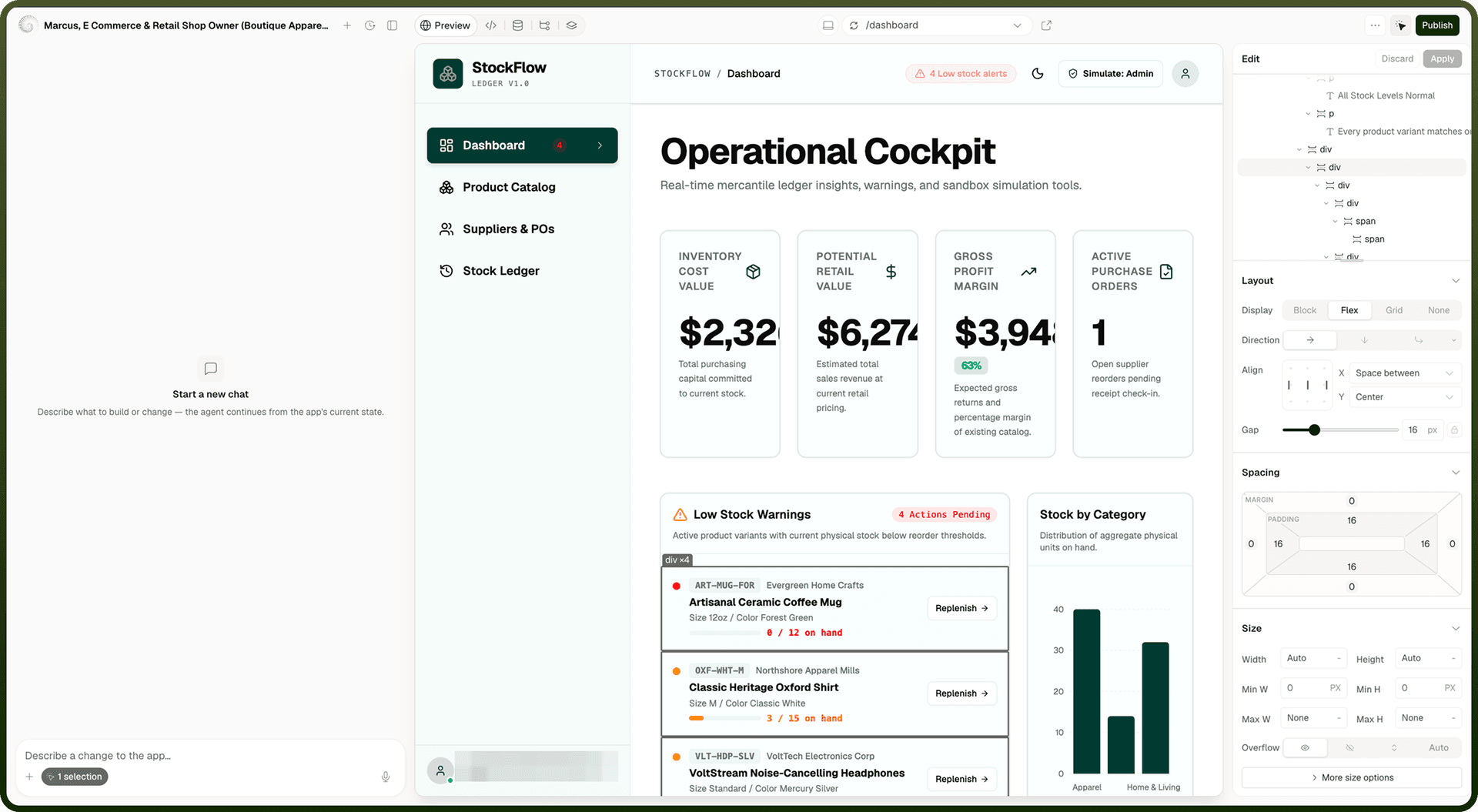
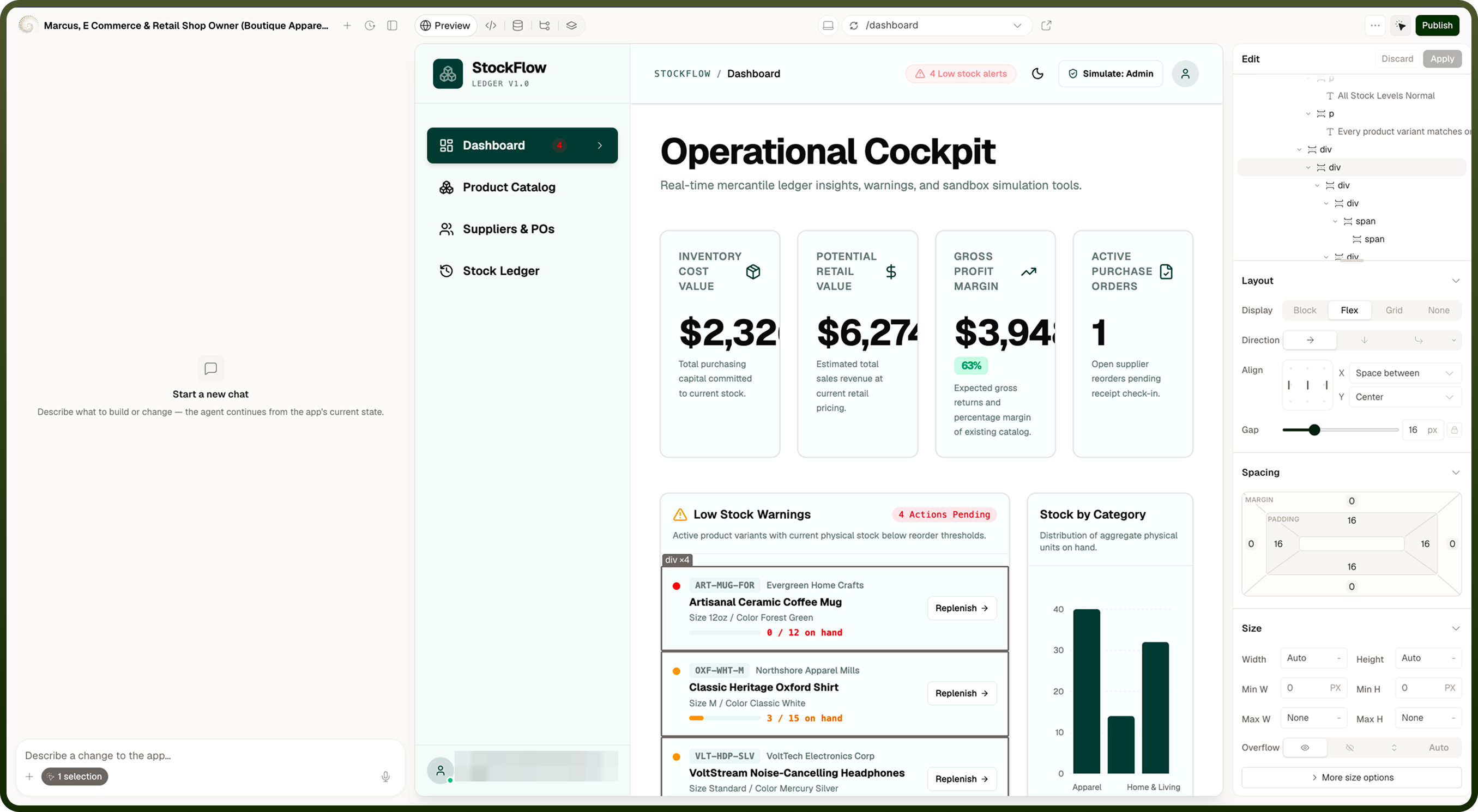
Edit panel
The panel has two tabs:
Components — Data sources and the layers tree. Data sources lists the app's standalone data bindings, each tagged list or scalar with a few of its field names; only bindings that aren't already shown in the tree appear here. The layers tree shows the element hierarchy of the page the preview is currently showing, not every page in the app. Rows expand and collapse, and clicking one selects that element in the preview too.
Design — the editor for whatever is selected: its text and/or its data, plus its style when you picked it in the preview. Until you pick something it reads Nothing selected — "Click on any element in the canvas to edit its design."
The panel header carries Discard and Apply, both inactive until you actually change something. Apply sends everything you've changed — text edits, seed data, and style edits — as one batch; both buttons lock with a spinner while it runs. If part of the batch fails you'll see the first reason "(and N more)"; if the app takes too long you'll see "The app took too long to respond. Your changes are still pending — press Apply to try again." — your drafts are kept on anything other than a clean success. If the data behind the panel can't be loaded you'll see the reason and a Retry button; if the app simply has none, No data.
Changing a piece of text
Select the element and edit its text in the panel. The change appears in the running preview as you type, without reloading it — so scroll position, form input and the current page all survive. Press Apply to keep it, which writes the new text into the app's source so it also shows up in the published app; Discard puts everything back. Text that comes from data rather than being written into the page is shown read-only — change it at its data source instead.
Restyling an element
When you pick an element by clicking it in the preview, the panel also shows style controls for it. Press Apply to keep your style edits: the preview updates straight away, and the styling is written into the app's source so it also shows up in the published app. Discard drops any style edits you haven't applied. Pending edits are kept per element, so you can select something else and come back without losing them.