Who's using the workspace and what they did — login analytics and the user audit timeline.
Overview
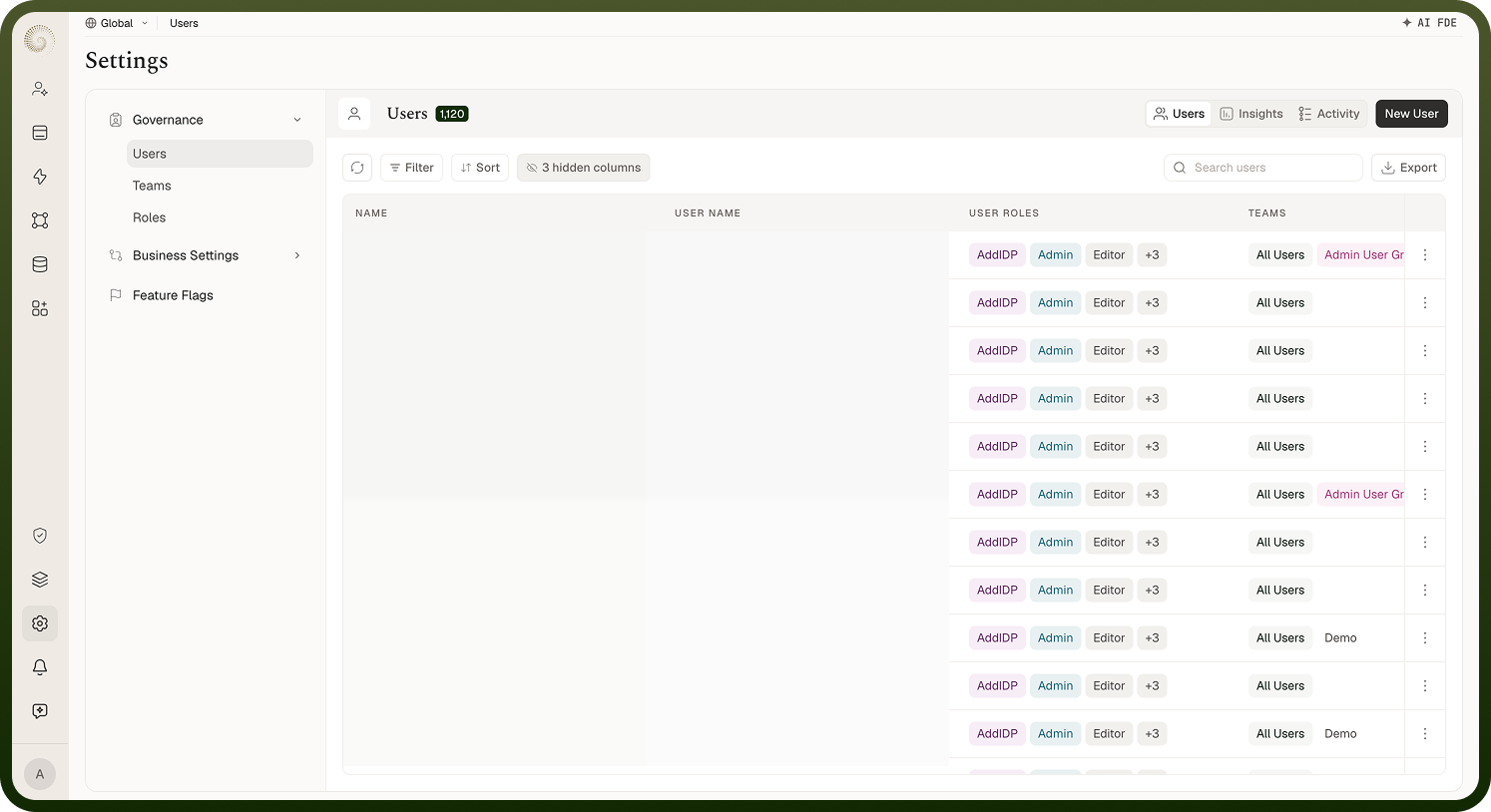
The Users manager under Settings has three tabs — Users, Insights, and Activity. Insights is the login-analytics dashboard; Activity is the audit timeline of actions users take across the workspace, from account events such as logins to changes on assets such as automations and tags. Both tabs appear only if you have permission to view users.
Users Insights
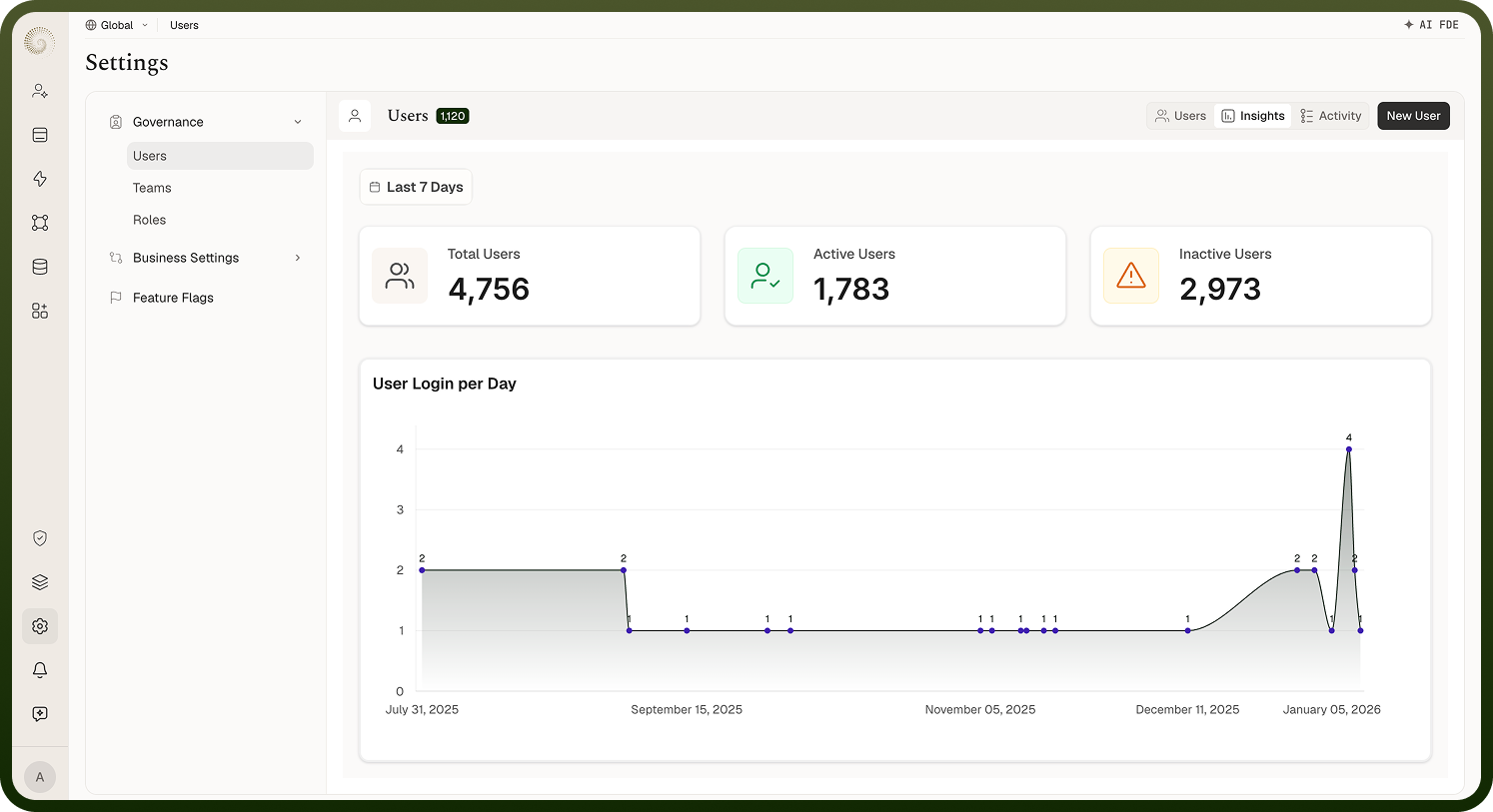
Three stat cards and a chart, scoped by a Date Filter (default last 7 days):
Total Users — everyone in the workspace.
Active Users — the number of users who have at least one login session with no recorded logout.
Inactive Users — Total Users minus Active Users.
User Login per Day — a line chart of logins over the selected range.
Below them, a table lists individual logins with Username and Login Time. Use it to see adoption at a glance and spot who's actually signing in.
Activity tab
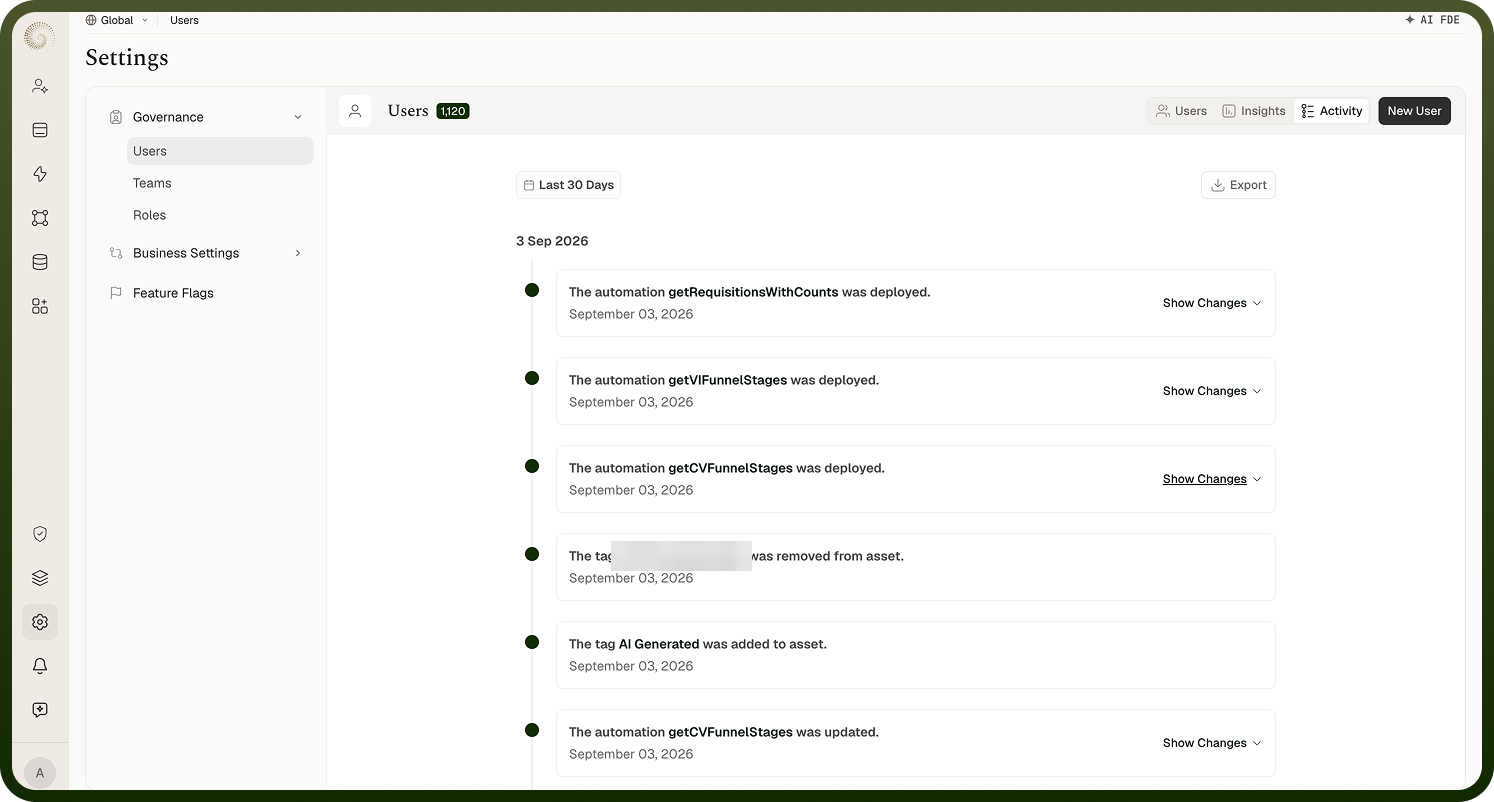
A timeline of user actions across the workspace, including account events and changes to assets such as automations and tags, filterable by Type and User on top of a date range (default last 30 days). You can export the filtered activity as CSV or XLSX. If your filters match nothing you'll see No data found — "Reset the filter options to see data here."
FAQs
What user events are recorded?
Account events are recorded alongside actions on assets. Account events include logged in, logged out, failed login attempt, user locked, password updated, and updates to a user's group and role memberships. Actions on assets, such as deploying an automation or adding a tag, appear in the same timeline (see the asset activity question below). This makes the Activity tab the place to answer security questions like "who failed to log in last night?" or "when did this account get locked?".
Can I see one user's activity?
Yes — open a user from the Users list and switch to their Activity view. It's the same timeline, pre-scoped to that user, with the same Type filter and date range. Teams and roles have equivalent activity views showing changes to them.
What about activity on apps, automations, and other assets?
Assets keep their own audit trails with change types like Created, Updated, Deleted, Shared, Restored, Deployed, Archived, Unarchived, and Imported (automations add lifecycle events such as Paused, Unpaused, and Rolled back). These surface on each asset's own Activity view in its module. The Users Activity tab also lists actions users took on assets, such as deploying an automation or adding a tag, so you can see who changed what across the workspace. Note that an application's Activity tab is not currently shown in the app detail tabs.