


Overview
Caches by UnifyApps provides cache management capabilities that complement the node-level caching available on individual automation steps. While node-level caching is configured directly on a step, the Caches node gives explicit programmatic control — allowing automations to update cached values mid-run or evict stale entries to force fresh data retrieval on the next execution.
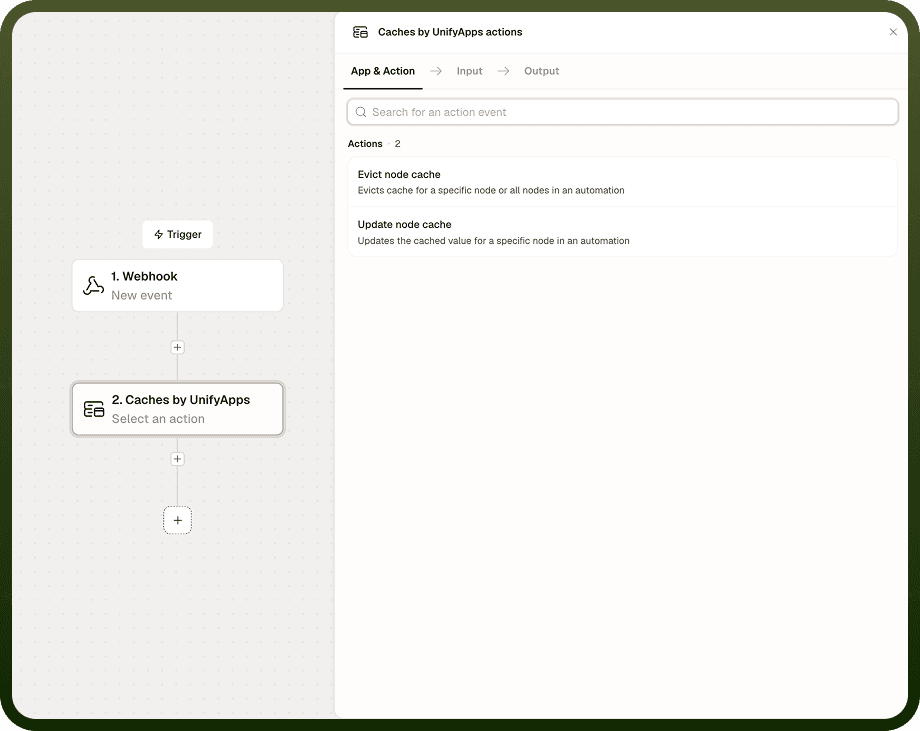
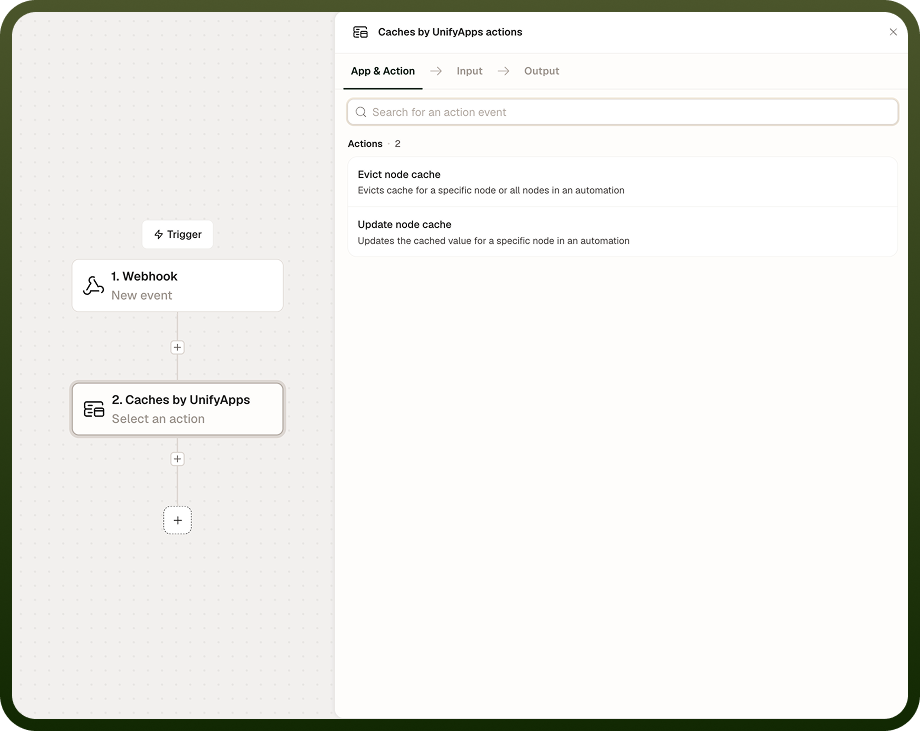
Update Node Cache
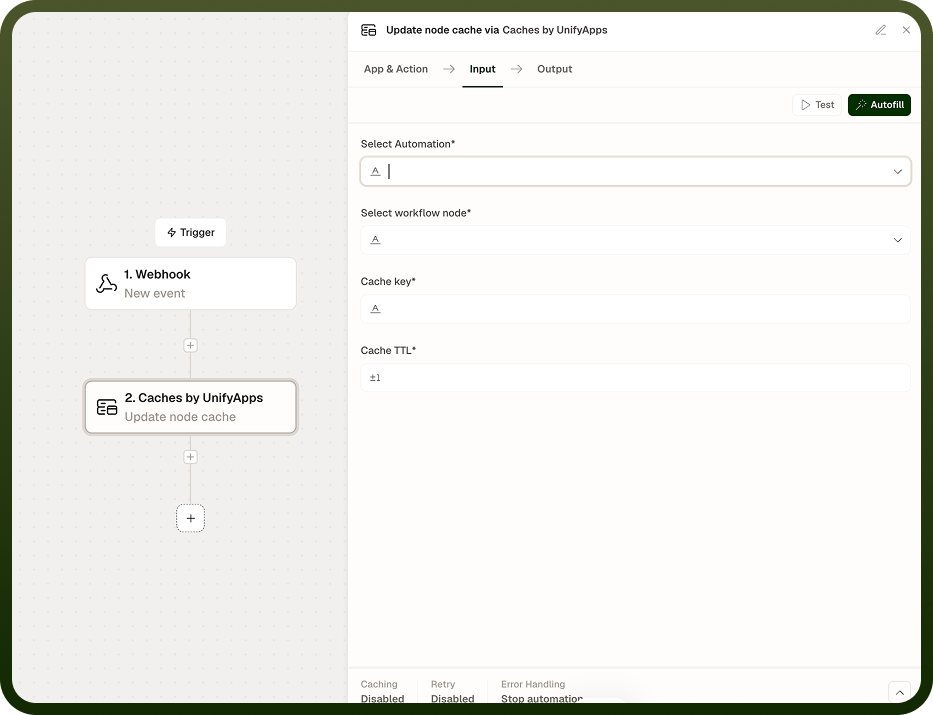
Writes or overwrites a cached value for a specific workflow node, allowing an automation to pre-populate or refresh cache entries programmatically rather than waiting for the next natural execution cycle.
Key Input Fields:
Select Automation — The automation that owns the cached node. The automation must be deployed; the action writes against its deployed version.
Select workflow node — The specific node within that automation whose cache to update. Only nodes with caching enabled appear in the list.
Cache key — The key identifying which cache entry to write. Must match the Cache Key configured on the target node's caching settings.
Cache TTL — Time-to-live for the new cache entry, in seconds. Overrides the TTL configured on the target node for this specific write.
Output of cached node — The value to store, in the shape of the target node's output. It is returned as that node's output on the next cache hit.
Output: Success — true when the cache was written. It is false if the automation or node isn't found in the deployed version.

Evict Node Cache
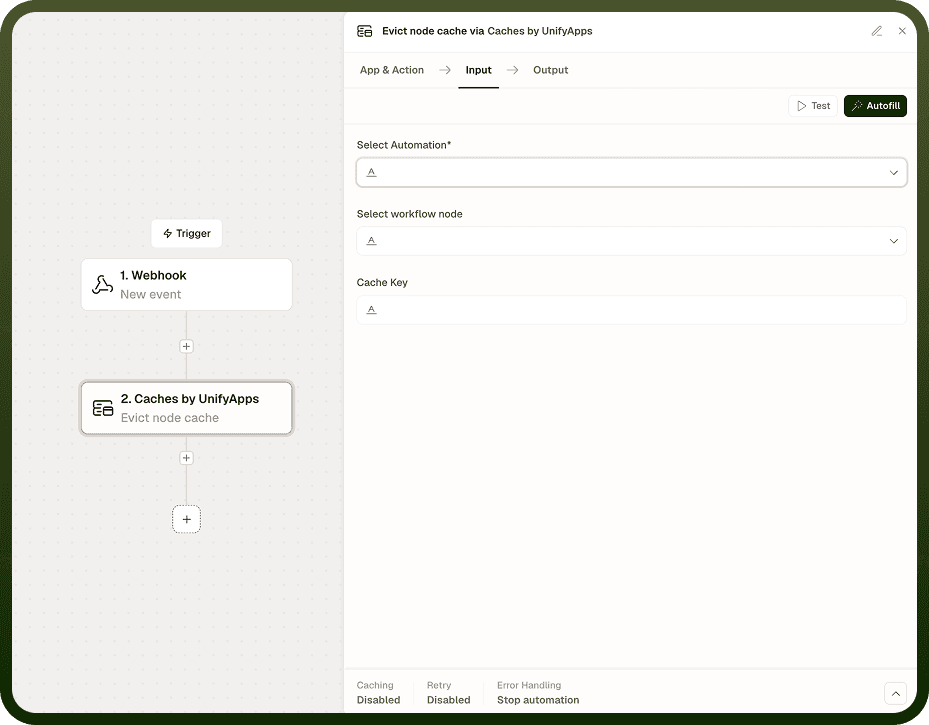
Removes one or all cache entries for a specific workflow node, ensuring the next execution of that node fetches fresh data. Useful for invalidation after data changes.
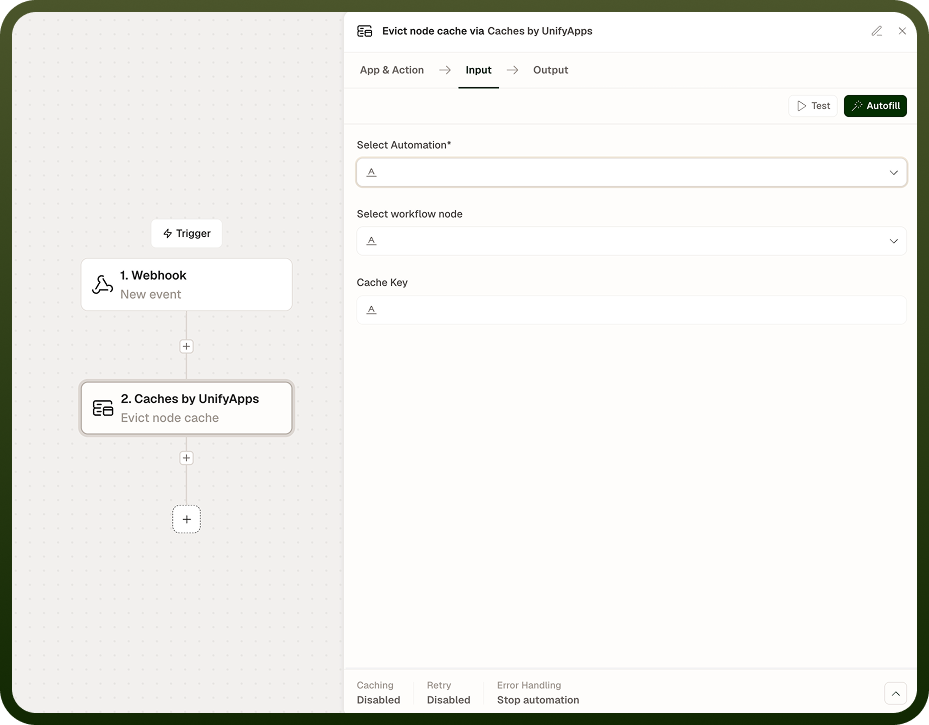
Key Input Fields:
Select Automation — The automation that owns the cached node
Select workflow node (optional) — The specific node to evict cache from. Only nodes with caching enabled appear in the list.
Cache key (optional) — The specific cache key to evict.
Evict all (optional) — To clear every key, leave Cache key empty and turn on Evict all. This clears all keys for the selected node, or for all nodes of the automation if no node is selected.
With neither a Cache key nor Evict all, nothing is evicted.
Output: Success — true when the cache was evicted.
Best Practices
Invalidate on write — When an automation updates a record that another automation caches, trigger an Evict Node Cache action immediately after the write to prevent stale reads.
Use consistent cache keys — Ensure the Cache Key used in the Caches node exactly matches the key pattern used in the target node's cache configuration. Mismatched keys result in cache misses rather than updates or evictions.
Set appropriate TTLs — Shorter TTLs reduce the risk of stale data but increase compute cost. Match TTL to the natural refresh frequency of the underlying data.
Evict selectively — Prefer key-specific eviction over full-automation eviction to avoid unnecessary cache rebuilding across unrelated nodes.
Note: The Caches node manages caches for other nodes; it does not cache its own actions. Cache Key must match the target node's cache key pattern exactly — the match is case-sensitive.
Notes
Keep the following in mind when using Caches by UnifyApps:
Evict the cache before running tests that require fresh data; a cached result from a previous run may mask errors in the live system.
Update Node Cache is most useful when a node’s output changes infrequently; avoid caching data that changes faster than the cache TTL.
Cache keys are node-specific by default; two nodes querying the same resource with the same inputs will not share a cache entry unless configured to do so.
Set TTL values based on the actual freshness requirements of the cached data; too-short TTLs add overhead, while too-long TTLs return stale data.
Combine cache eviction with a webhook trigger to invalidate the cache immediately when the underlying source data changes.