


The On-Prem Files node lets an automation list directories, read files and their metadata, upload, update, and delete files on an on-prem agent's host, and watch for file-system changes in real time.
Overview
On-Prem Files reaches file systems inside your own network through an on-prem agent you install on a host inside your environment. The agent opens an outbound connection to the UnifyApps platform and keeps it live; when an automation reaches the On-Prem Files node, the platform routes the file operation down to the connected agent, which executes it locally and returns the result. Because the agent initiates the connection — outbound only — no inbound firewall openings are required, and your internal file systems are never exposed to the internet.
You select the agent — or an agent group for redundancy or load distribution — via the Connection setting on the node. Multiple automations can share the same agent.
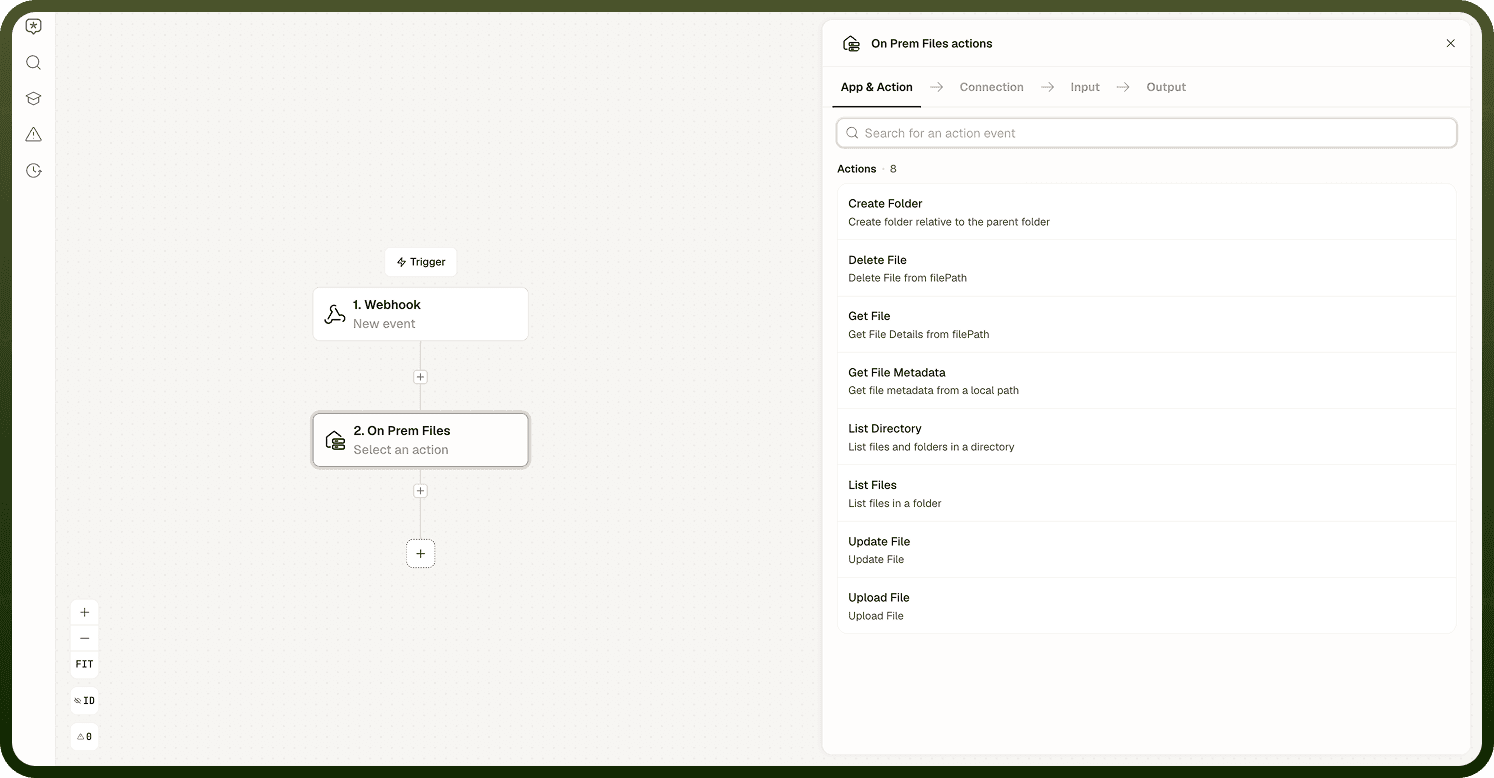
File Operations
On-Prem Files supports eight operations against the agent's host file system. Every path you specify must fall within the agent's configured allowed-paths list — an automation can only touch the directories you have approved on the agent itself.
Operation | Inputs | Output |
|---|---|---|
List Directory | Path (required). Choose whether to list files, folders, or both, optionally only entries modified after a given time, and set a batch size (default 100) to page through large directories. | The matching items, plus a cursor and a flag for whether more results remain. |
List Files | Folder path (required). Optionally include files in subfolders. | The list of files found. |
Get File | File path (required). | A file object (name, source, and file type) that downstream nodes can consume as a data pill — not the raw file content inline, and not size or modification time; use Get File Metadata for those. |
Get File Metadata | File path (required). | The file's filesystem attributes (size, created/modified time, permissions, and similar) plus owner and access-control details, without reading the file's content. |
Upload File | Folder path and file name (both required), the source option (URL or Base64 Content) and the corresponding value, and whether to overwrite an existing file of the same name. | The uploaded file's name, path, size, created/modified time, and whether a file of that name already existed. |
Update File | Folder path and file name (both required), the source option (URL or Base64 Content) and the corresponding value. | The updated file's name, path, size, created/modified time, and whether the file existed before the update. |
Delete File | File path (required). | Whether the file was deleted. |
Create Folder | Parent folder path (required) and the new folder's path (required) — the folder path is relative to the parent folder you select, not an absolute path; any missing folders along it are created automatically. | The full path of the folder that was created. |
File Triggers
On-Prem Files provides two real-time triggers that fire when the agent detects a change on the host file system. Add one or more directories or files under Paths to watch when setting up the trigger.
Each watched path is an absolute directory or file path on the agent's host, with its own Include subdirectories toggle (default off, directories only — ignored for file paths). A file path fires only on an exact match. If a watched path isn't in the agent's allowed-paths list, the workflow deploy fails rather than failing silently at runtime.
Both triggers return Path (the file or folder that changed), Timestamp (epoch milliseconds), Change kind, and Agent ID (which agent reported it). On File Change also returns Old path, populated only when the change kind is a rename.
Trigger | Fires when |
|---|---|
On File Change | A file is added, deleted, or renamed within a watched directory. |
On File Permission Change | The permissions of a watched file are modified. |
Notes
Configure the agent's allowed-paths list restrictively — grant access only to the directories your automations actually need to touch.
The On File Change trigger fires on file added, deleted, or renamed. It does not fire on in-place content edits. Design automations around the events that actually fire.
To reliably detect content changes, use an atomic write pattern: write to a temporary file, then rename it into place. The trigger fires on the rename.
The agent's OS user account determines what file operations are possible. Restrict it to the minimum necessary access.
When you need multiple on-prem agents for redundancy or load distribution, target an agent group as the Connection — the platform routes to any available member of the group.
Limits and Errors
A path outside the agent's allowed-paths list fails the workflow deploy, not just the run — fix the agent's allow-list before the automation can be deployed.
A path that doesn't exist on the host, or a file/folder operation the agent's OS user account isn't permitted to perform, returns an error for that step.
If the on-prem agent (or every agent in a targeted agent group) is offline or unreachable, the call fails rather than queuing — build retry or alerting logic around that case if it matters to your automation.