


The Utility node is a large toolbox of atomic, reusable actions that transform data and files in flight. You pick one operation per node and combine nodes to build document processing, data reshaping, and integration workflows. This page covers all 11 action groups and their constituent actions.
1. File Format Conversion
These nine actions convert files and content between formats. They are the building blocks for document automations — convert an attachment from its source format before handing it to a downstream step.
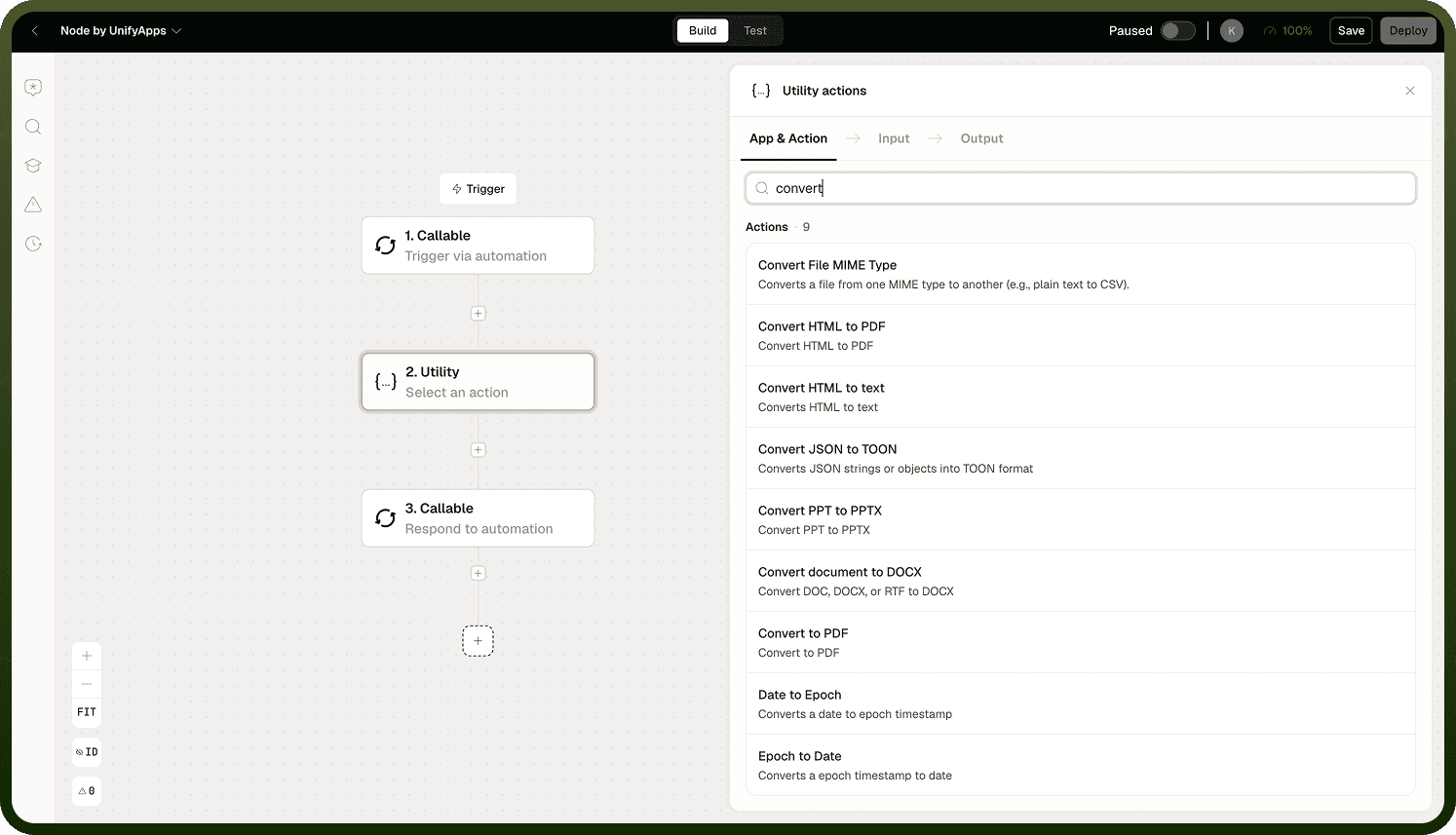
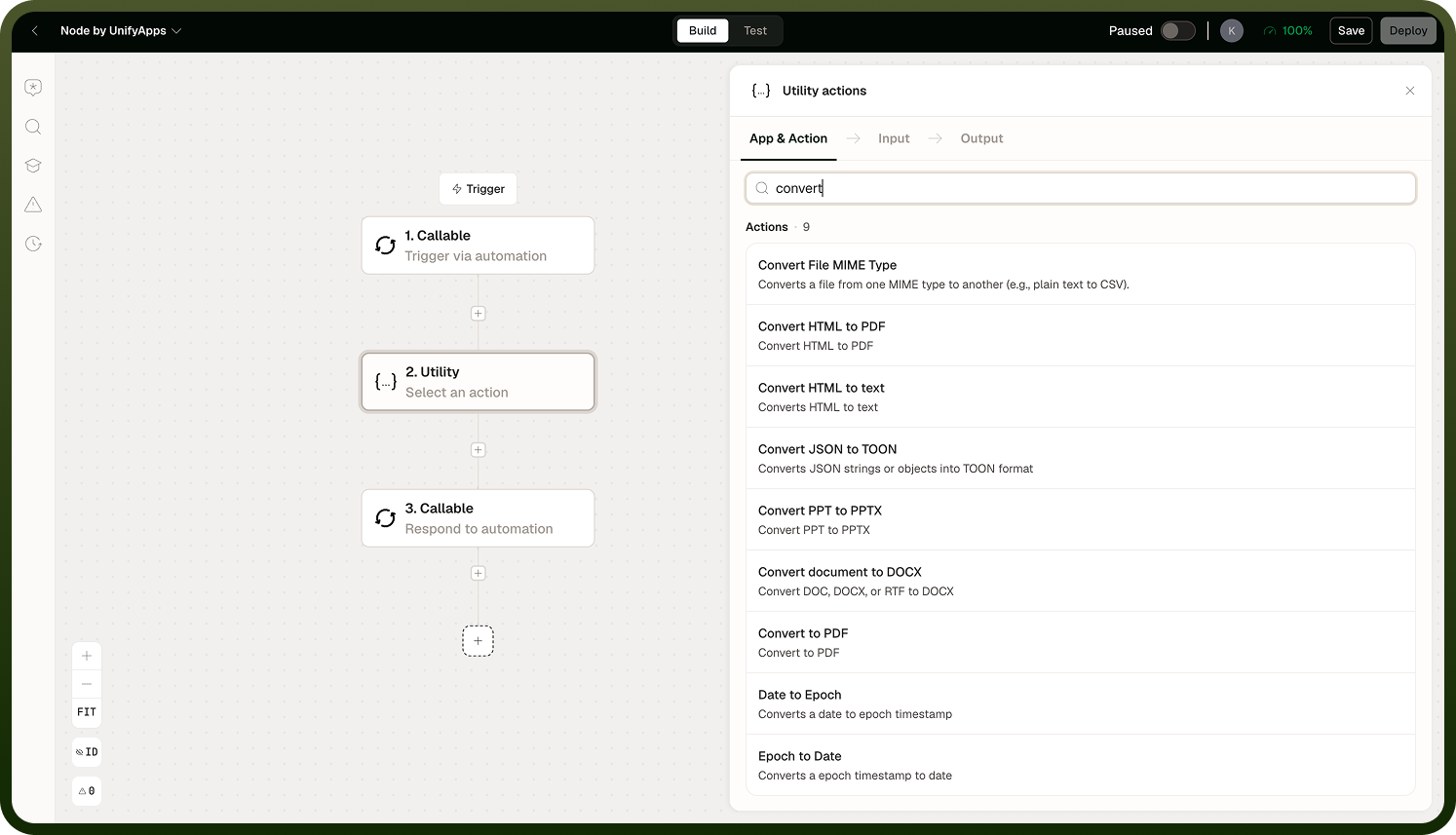
Convert to PDF
Converts Office documents (Word, Excel, PowerPoint), plain text files, and images to PDF. Office documents are rendered through an office engine; images are placed on a PDF page. The operation retries automatically on transient failure.
Input Field | Description |
|---|---|
File | The source file to convert. Supported types include Word, Excel, PowerPoint, plain text, and common image formats. |
Output: The converted PDF file.
Convert HTML to PDF
Transforms an HTML string into a PDF document while preserving structure and formatting. Turn on Use Playwright for conversion when you need higher-quality rendering; this is slower. Turn on MultiLingual Content when the HTML contains non-English characters.
Input Field | Description |
|---|---|
HTML string | The HTML string to convert to PDF. |
MultiLingual Content | Turn on when the HTML contains non-English characters. |
Use Playwright for conversion | Formats the HTML with higher-quality rendering. This may take more time. Off by default. |
Use Custom Fonts | Shown when Use Playwright for conversion is on. Uses custom fonts for consistent font rendering in the PDF. |
Timeout (seconds) | Shown when Use Playwright for conversion is on. Maximum time for each Playwright action. Defaults to 30 seconds. |
File Name | Optional. Used as a prefix in the generated PDF file name. If empty, a system-generated name is used. |
Keep exact file name | When on, the file is saved with the exact name in File Name. When off, a timestamp is appended. |
Output: The resulting PDF file.
Convert to Markdown
Converts a document file to a Markdown file. Supported input types are DOCX, DOC, PPTX, PPT, XLSX, PDF, ODT, ODS, ODP, RTF, EPUB and HTML. To convert an HTML string instead of a file, use Convert HTML to Text with Conversion Type set to HTML to Markdown.
Input Field | Description |
|---|---|
Input File | The file to convert to Markdown. |
File Type | The format of the input file. Defaults to Word Document (DOCX). |
Conversion Engine | Pandoc or Anydoc. Pandoc is the only engine that reads HTML; Anydoc is the only one that reads legacy Office formats, spreadsheets, PDF, OpenDocument, RTF and EPUB. For DOCX and PPTX either works — Anydoc renders tables with merged cells as Markdown tables instead of raw HTML. |
Output: A Markdown file.
Convert HTML to Text
Converts an HTML string to plain text or to Markdown. With HTML to Plain Text, all HTML tags are removed so you get raw readable text. Common uses include email processing, web scraping, and content extraction where you need text without markup.
Input Field | Description |
|---|---|
HTML String | The HTML string to convert. |
Conversion Type | HTML to Plain Text or HTML to Markdown. |
Timeout | Optional. The timeout duration in seconds. |
Output: The converted text, as plain text or Markdown depending on the Conversion Type.
Convert Document to DOCX
Converts a document from a legacy or alternative Office format to the modern DOCX format. Use this when downstream steps or systems require DOCX but the source document arrived in an older format.
Input Field | Description |
|---|---|
File | The source document to convert to DOCX. |
Output: The converted DOCX file.
Convert HTML to DOCX
Converts HTML to a Word (DOCX) file.
Input Field | Description |
|---|---|
Option | Where the HTML comes from: HTML String (default), HTML File, or Base64 Content. |
HTML String / HTML File / Base64 Content | The HTML to convert, in the form you selected in Option. |
File Name | Optional. Used as a prefix in the generated file name. If empty, a system-generated name is used. |
Keep exact file name | When on, the file is saved with the exact name in File Name. When off, a timestamp is appended. |
Output: The converted DOCX file.
Convert PPT to PPTX
Upgrades a legacy PowerPoint PPT file to the modern PPTX format. This is useful when integrating with systems that require the Open XML format or when applying further PPTX-specific operations downstream.
Input Field | Description |
|---|---|
File | The PPT file to convert to PPTX. |
Output: The converted PPTX file.
Convert File MIME Type
Changes the declared MIME type of a file. Use this when a file's MIME type metadata must match a specific value expected by a downstream system, without altering the file's binary content.
Input Field | Description |
|---|---|
Source MIME Type | The MIME type of the input file. Options: Plain Text (default), CSV, JSON. |
Target MIME Type | The MIME type for the output file. Options: Plain Text, CSV (default), JSON. |
Input File | The file to convert. |
Output: The file with its MIME type updated to the specified value.
Convert JSON to TOON
Converts a JSON object or string into the TOON format. Use this action when a target system or integration requires TOON-formatted output from JSON source data.
Input Field | Description |
|---|---|
JSON Input | The JSON object or JSON-formatted string to convert. |
Output: The TOON-formatted representation of the input data.
2. Encoding, Hashing & Security
These seven actions handle text encoding, file encoding and decoding, input sanitization, JWT decoding, and cryptographic hashing. They are the security and encoding utilities you reach for when normalizing data, verifying integrity, or protecting inputs from injection.
Change Text Encoding
Re-encodes a text string from one character encoding to another. Supported encodings include Base64, UTF-8, UTF-16, and ASCII. Use this when integrating with legacy systems that produce or require a specific encoding, or when normalizing international text data.
Input Field | Description |
|---|---|
Text | The text string to re-encode. |
Source encoding | The current encoding of the text. Options: Base64, UTF-8, UTF-16, ASCII. |
Target encoding | The encoding to convert the text into. Options: Base64, UTF-8, UTF-16, ASCII. |
Output: The text string re-encoded in the target encoding.
Clean XSS
Sanitizes input text by removing potentially harmful scripts and cross-site scripting (XSS) payloads. Use this action before rendering user-supplied content in a web context to protect against injection attacks.
Input Field | Description |
|---|---|
Input text | The raw string to sanitize. Scripts and dangerous markup are stripped from the output. |
Output: The sanitized string with XSS payloads removed.
Encode File Content
Encodes a file's binary content as a Base64 string. The action streams the file in chunks, so it handles large files without loading everything into memory at once.
Input Field | Description |
|---|---|
File | The file whose content you want to Base64-encode. |
Output: A Base64-encoded string representing the file's binary content.
Decode File Content
Decodes a file from Base64 format. Like the encode action, this streams in chunks to handle large inputs. To turn a Base64 string into a file, use Upload Base64 Content instead.
Input Field | Description |
|---|---|
File Details | The Base64-encoded file to decode. |
File has Base64 encoded string | Select this when the file content is a Base64-encoded string. Off by default. |
Output: The decoded file.
Decode Base64 Text
Decodes a Base64-encoded text string into plain text. Use this when a payload or field arrives Base64-encoded and you need the human-readable string before passing it downstream.
Input Field | Description |
|---|---|
Base64 text | The Base64-encoded string to decode to plain text. |
Output: The decoded plain-text string.
Decode JWT Token
Base64-decodes a JWT's header and payload and returns them as structured objects.
Note: This action does not verify the JWT signature. It only decodes the token's contents. Anyone can craft a JWT with arbitrary claims, and this action will decode it without error. Never treat decoded JWT claims as authenticated; verify the signature through a dedicated auth layer before trusting any claim.
Input Field | Description |
|---|---|
JWT Token | The JSON Web Token string to decode. |
Output: An object containing the decoded header and payload from the JWT.
Perform Hashing
Generates a cryptographic or checksum hash of a string or file. Available algorithms are MD5, SHA-256, and CRC32. Use SHA-256 for data integrity; use MD5 and CRC32 for checksums where security is not a requirement.
Input Field | Description |
|---|---|
Input | The string or file to hash. |
Algorithm | The hashing algorithm to apply. Options: MD5, SHA-256 (SHA-2), CRC32. |
Output: A hash string produced by the selected algorithm.
3. Identifiers & Sequences
These two actions generate unique identifiers and ordered numeric sequences for use as record keys, batch labels, or invoice numbers.
Generate UUID of Different Versions
Produces a Universally Unique Identifier (UUID) in one of several supported versions. Choose the version that matches the uniqueness guarantees required by your system or target API.
Input Field | Description |
|---|---|
UUID version | The UUID version to generate: Version 1 - Time-based, Version 3 - Name-based (MD5), Version 4 - Random (default), or Version 5 - Name-based (SHA-1). |
No. of UUIDs | How many UUIDs to generate. Defaults to 1. |
Namespace | For name-based versions: the name (text) used to generate the UUIDs. |
Output: A list of UUID strings (uuids).
Sequence Generator
Returns the next number from a named sequence. Each run advances the counter, and the counter persists across runs, so you can use it for invoice numbers, batch identifiers, or any context that requires a predictable, ordered series.
Input Field | Description |
|---|---|
Sequence Name | The name of the counter to advance. Use the same name wherever you want to continue the same sequence. |
Output: The next integer in the sequence (result).
4. UnifyApps File Management
These seven actions manage files within the UnifyApps storage layer — importing, organizing, inspecting, deleting, and sharing stored files. Use them to keep automation-generated files accessible and well-organized.
Create UnifyApps Asset from File
Registers an existing file as a UnifyApps asset, making it available for use in other automations and applications within the platform.
Input Field | Description |
|---|---|
Name | A name for the UnifyApps asset. |
File | The file to create the asset from. |
Application Id | The application the asset belongs to. |
Access Scope | Who can reach the asset: User, Application, All users, or Public. |
Is Builder Asset? | Select this to create the asset as a builder asset. Off by default. |
Output: The asset URL (assetUrl).
Create UnifyApps File from URL
Imports a file directly from a specified URL into UnifyApps storage. This eliminates the need to download the file manually and re-upload it. Common uses include file organization, temporary file management, and batch processing of remote resources.
Input Field | Description |
|---|---|
URL | The publicly accessible URL of the file to import into UnifyApps. |
Output: A UnifyApps file object referencing the imported file.
Create UnifyApps Path for File
Generates a structured storage path for a file within UnifyApps. Use this action before uploading or organizing files to ensure consistent naming conventions and predictable path structures across your automation.
Input Field | Description |
|---|---|
File | The file for which to generate an organized storage path. |
Output: The generated file path string within UnifyApps storage.
Delete UnifyApps File
Permanently removes a specified file from UnifyApps storage. Use this action as part of cleanup routines after a file has been processed or is no longer needed.
Note: Deletion is permanent. Confirm that you no longer need the file before running this action — there is no recovery step.
Input Field | Description |
|---|---|
File | The UnifyApps file object or file reference to delete. |
Output: A confirmation that the file was deleted.
Generate Public File URL
Issues a signed, time-limited public link to a file stored in UnifyApps. The link expires after approximately one hour by default. Use this action to share a file with an external system or user for a short period without granting permanent access.
Input Field | Description |
|---|---|
File | The UnifyApps-stored file for which to generate a public URL. |
Expiry | How long the public URL remains valid. Defaults to approximately one hour. |
Output: A signed, time-limited public URL string for the file.
Upload Base64 Content
Converts Base64-encoded content into a file and uploads it to UnifyApps storage. Use this when an API response or upstream step returns file data as a Base64 string rather than as a binary file object.
Input Field | Description |
|---|---|
Base64 content | The Base64-encoded string representing the file's binary content. |
File name | The name to assign to the uploaded file in UnifyApps storage. |
Output: A UnifyApps file object for the uploaded file.
Get UnifyApps File Metadata
Checks whether a file is present on cloud storage, and returns its size in bytes and last modified time when the storage backend reports them.
Input Field | Description |
|---|---|
File Input Type | How you identify the file: File Path/URL (default) or File details object. |
File path / File details object | The UnifyApps file path, or the file details object, of the file to inspect. |
Output: Whether the file exists, its size in bytes, and its last modified time.
5. Date & Time
These three actions handle date arithmetic and conversions between human-readable dates and epoch timestamps. All operations work in UTC — convert to your local timezone separately if you need wall-clock time.
Date Difference Calculator
Computes the difference between two dates and returns the gap in a selected unit. Both dates are required: if either one is blank or can't be parsed, the action fails with "Unable to parse date". Year-based differences are approximate.
Input Field | Description |
|---|---|
First Date | The first date, as epoch milliseconds or a formatted date. Required. |
Second Date | The second date, as epoch milliseconds or a formatted date. Required. |
Output Unit | The unit in which to express the difference. Options: years (approximate), days (default), hours, minutes, seconds, milliseconds. |
Output: A numeric value representing the difference between the two dates in the selected unit.
Date to Epoch
Converts a date and time value into an epoch timestamp. All conversions are in UTC. Choosing the wrong unit is the most common cause of dates appearing in 1970 or the far future — confirm the unit your downstream system expects before configuring this action.
Input Field | Description |
|---|---|
Date | The date and time to convert. Leave blank to use the current time. |
Unit | The epoch unit to output. Options: milliseconds (default), seconds, nanoseconds. |
Output: The epoch timestamp as a numeric value in the specified unit.
Epoch to Date
Converts an epoch timestamp back into a human-readable date and time. All output is in UTC. Select the unit that matches how your epoch value was produced to avoid incorrect results.
Input Field | Description |
|---|---|
Epoch value | The numeric epoch timestamp to convert. Leave blank to use the current time. |
Unit | The unit of the input epoch value. Options: milliseconds (default), seconds, nanoseconds. |
Output: A UTC date-time string corresponding to the input epoch value.
6. Document Extraction & Editing
These seven actions extract content from documents or read and write structured data within them. They are the core of document automation workflows where you need to read, inspect, or modify document content programmatically.
Extract Text from DOCX
Reads and returns the text content of a DOCX file. Use this when you need the plain text of a Word document for downstream processing such as analysis, comparison, or routing.
Input Field | Description |
|---|---|
File | The DOCX file from which to extract text. |
Output: A string containing the extracted text content of the DOCX file.
Extract Text from DOC/PPT
Reads and returns the text content from a legacy DOC or PPT file. Use this when source documents arrive in older Office formats and you need their text before converting or processing them further.
Input Field | Description |
|---|---|
File | The DOC or PPT file from which to extract text. |
Output: A string containing the extracted text content of the document.
Extract Thumbnail from PDF
Generates a thumbnail image from the page of a PDF file you choose. Use this for document previews, visual indexes, or anywhere a small representative image of the document is needed.
Input Field | Description |
|---|---|
File Details | The PDF file from which to extract a thumbnail. |
PDF Base64 | Optional. The PDF as a Base64 string. If you provide both, File Details is used. |
Page Number | The page to use. Page numbers are 0-based: 0 is the first page. Defaults to 0. |
Width / Height | Optional custom size for the thumbnail. |
Use Dynamic DPI, Use High Quality Scaling, Use Resilient Rendering, Use Subsampling | Optional rendering settings for sharper resizing, imperfect PDFs, and image-heavy PDFs. All off by default. |
Output: The thumbnail as a file and as a Base64 string.
Get PDF Dimensions
Returns the page dimensions of a PDF file. Use this when you need to know the width and height of PDF pages — for example, before placing content precisely or validating document format compliance.
Input Field | Description |
|---|---|
File | The PDF file whose page dimensions you want to retrieve. |
Output: The width and height dimensions of the PDF pages.
Retrieve Text from File
Reads the embedded text layer from a file and returns its content. The action auto-detects the file format and works across PDF, Word, and other Office formats, extracting page by page for PDFs.
Note: This action reads the embedded text layer — it does not perform OCR. Scanned or image-only documents have no text layer and return little or nothing. Encrypted or password-protected files return an error rather than garbled text. Output is capped at approximately 250,000 characters; content beyond that limit is truncated or written to disk automatically. Very large files may take longer as the action spills to disk to avoid exhausting memory.
Input Field | Description |
|---|---|
File | The file from which to extract text. Format is auto-detected. |
Output: The extracted text content, up to approximately 250,000 characters. Very large documents are handled asynchronously and output may be written to a file rather than returned inline.
Read Changes to DOCX File
Reads tracked changes or revision marks within a DOCX file. Use this when you need to inspect what edits have been made to a document — for example, in review and approval workflows.
Input Field | Description |
|---|---|
File | The DOCX file whose tracked changes you want to read. |
Output: The tracked changes or revision data present in the DOCX file.
Write Data to DOCX File
Writes text, Markdown, or an image into a DOCX file as part of a document generation workflow.
Input Field | Description |
|---|---|
File Details | The DOCX file to write to. |
Data Type | The kind of content to write: TEXT, MARKDOWN, or IMAGE. |
Content | For TEXT and MARKDOWN, the text to write. For IMAGE, the Base64 string of the image. |
File Name | Optional. Used as a prefix in the exported file name. If empty, a random UUID is used. |
Keep exact file name | When on, the file is saved with the exact name in File Name. When off, a timestamp is appended. |
Output: The updated DOCX file.
7. List & Data Utilities
These six actions operate on in-automation lists and data collections, or list the automations in your workspace. They are small, composable steps — reach for them instead of a Code node when one will do the job.
Filter List of Data
Applies a condition to each item in a list and returns only the records that match. You can express complex filtering logic to refine a list before passing it to a downstream step.
Input Field | Description |
|---|---|
List | The list of items to filter. |
Filter condition | The condition that each item must satisfy to be included in the output. |
Output: A filtered list containing only the items that matched the condition.
Get Value at Index from List
Returns the item at a specific position in a list. Positions are 1-based — position 1 returns the first item. You can also count from the end of the list when you need the last or second-to-last item.
Input Field | Description |
|---|---|
List | The list from which to retrieve a value. |
Position | The 1-based index of the item to retrieve. |
Count from end | When enabled, counts the position from the end of the list rather than the beginning. |
Output: The item at the specified position in the list.
Sort List of Objects
Sorts a list of objects by one or more fields. Specify the field name and sort direction for each sort key; multiple sort keys are applied in order to handle ties.
Input Field | Description |
|---|---|
List | The list of objects to sort. |
Sort fields | One or more field names and their sort direction (ascending or descending) to sort by. |
Output: The sorted list of objects.
Evaluate Filter
Evaluates a UI filter and returns a boolean result. The filter itself references the values it tests. Use this to check whether a condition is met before deciding how to route the workflow.
Input Field | Description |
|---|---|
Filter | The UI filter object to evaluate. |
Output: A boolean value (result) — true if the filter matches, false otherwise.
Run SQL Query on List
Executes a SQL query against in-automation list data. You can query a single list or join across multiple lists. The engine is DuckDB — use DuckDB SQL syntax, not your warehouse's dialect. This is the cleanest way to aggregate, join, or filter list data without writing manual loops.
Note: The SQL engine is DuckDB. Use DuckDB syntax. This action is designed for moderate datasets and ad-hoc shaping; it is not intended for querying large production tables directly.
Input Field | Description |
|---|---|
Data sources | One or more lists to query. Each list is treated as a named table. Joins across multiple lists are supported. |
SQL query | A DuckDB-compatible SELECT statement to run against the data sources. |
Output: A list of result rows returned by the SQL query.
List Automations
Lists the automations the current run may view, matching an optional filter. It uses the same permission-aware search as the automations list, so you don't need to pass an auth token. It supports field selection, sorting and paging.
Input Field | Description |
|---|---|
Filter | Optional. A filter that limits which automations are returned. |
Include fields / Exclude fields | Optional. The fields to return, or to strip from each returned automation. |
Sort | Optional sort criteria. By default, the most recently modified automations come first. |
Offset / Limit | Paging. Limit defaults to 20. |
Include total hits | Returns the total number of matching automations alongside the page. |
Output: The list of automations, whether more are available (hasMore), and the total count when requested.
8. XML/JSON Serialization
These five actions parse, serialize, and normalize structured data in XML and JSON formats, plus SQL-based querying of structured files. They are the connective tissue between steps when data arrives or departs in a format that differs from what the next step expects.
Deserialise XML String to JSON Object
Parses an XML-formatted string and converts it into a JSON object. Use this when an upstream system or API returns XML but downstream steps work with JSON.
Input Field | Description |
|---|---|
XML string | The XML-formatted string to parse and convert into a JSON object. |
Output: A JSON object representing the structure of the input XML.
Generate Canonical XML
Transforms an XML string or object into Canonical XML (C14N) form — a standardized representation that normalizes whitespace, attribute order, and namespace declarations. Use this before digitally signing XML or when exchanging XML with systems that require canonical form.
Input Field | Description |
|---|---|
XML input | The XML string or object to canonicalize. |
Output: The Canonical XML (C14N) string representation of the input.
Deserialise String to JSON Object
Parses a JSON-formatted string into a JSON object. The action includes validation and error handling, so it surfaces malformed JSON rather than silently producing an incorrect result.
Input Field | Description |
|---|---|
JSON string | The JSON-formatted string to parse into a JSON object. |
Output: The parsed JSON object, or an error if the input string is not valid JSON.
Serialise Object to JSON String
Converts a JSON object into a JSON-formatted string. Use this when a downstream system or API expects a string representation of a JSON payload rather than a native object.
Input Field | Description |
|---|---|
Object | The JSON object to serialize into a string. |
Output: A JSON-formatted string representation of the input object.
Run SQL Query on File
Executes a DuckDB SQL query against one or more structured files of the same type — CSV, JSON, TSV, Parquet or XLSX. Use this for ad-hoc reporting, data filtering, joining files, or file-based data analysis within your workflow, without loading the files into a separate database.
Note: The engine is DuckDB. Use DuckDB SQL syntax. With Single File, query the table FILE. With Multiple Files, each file in Files becomes a table named FILE_0, FILE_1 and so on, in list order, so you can join them in one query.
Input Field | Description |
|---|---|
Number of Files | Single File (default) or Multiple Files. |
File | With Single File: the file to query. Use FILE as the table name. |
Files | With Multiple Files: the list of files to query. Use FILE_0, FILE_1 and so on as table names, in list order. |
File Type | The type of every file: CSV (default), JSON, TSV, PARQUET or XLSX. |
SQL Query | A DuckDB-compatible SELECT statement to run against the file data. |
All Columns as String | CSV and XLSX only. Treats every column as a string. Off by default. |
Ignore Errors | CSV, TSV, JSON and XLSX only. Skips rows or records with parsing errors instead of failing. Off by default. |
Large Files | On by default. When on, the query runs asynchronously and the workflow continues once results are ready. |
Output: A file of the selected File Type containing the query results.
9. Media, Compression & Export
These eight actions transform, compress, archive, and export files and application content. They cover visual watermarking, media size reduction, ZIP archiving, barcode generation, and exporting UnifyApps pages and data sources.
Add Watermark to File
Stamps a diagonal text watermark on every page of a PDF file. You control the font, color, opacity, and rotation angle of the mark.
Note: Watermarking currently supports PDF files only. Passing any other file type returns an error.
Input Field | Description |
|---|---|
File | The PDF file to watermark. Must be a PDF. |
Watermark text | The text string to stamp on each page. |
Font | The typeface to use for the watermark text. |
Color | The color of the watermark text. |
Opacity | The transparency level of the watermark (0–100%). |
Rotation | The angle at which the watermark text is rendered across each page. |
Output: The watermarked PDF file with the mark applied to every page.
Compress Media Content
Reduces the file size of media content. Controls vary by media type — image quality for images, bitrate for video, image quality and DPI for PDF, and document-specific options for DOCX. For large files the compression can run asynchronously.
Input Field | Description |
|---|---|
File | The media file to compress. Type determines which compression controls apply. |
Image quality | For image and PDF files: the output quality level, trading file size against visual fidelity. |
Video bitrate | For video files: the target bitrate for the compressed output. |
PDF DPI | For PDF files: the resolution of embedded images in the compressed output. |
Output: The compressed media file.
Generate Barcode
Creates a barcode image in a common symbology from the input data. Use this for inventory labels, shipping labels, or any workflow that requires machine-readable barcode output.
Input Field | Description |
|---|---|
Value | The value to encode. Allowed characters depend on the barcode format. |
Barcode format | CODE_128 (default), CODE_39, EAN_13, EAN_8, UPC_A, UPC_E, or ITF. |
Width / Height / Margin | The image size and margin. Defaults: 300, 100 and 4. |
Image format | PNG (default) or JPG. |
Return as file | Returns the barcode as a file, with an optional File name. |
Output: A barcode image file containing the encoded data.
Unzip File
Extracts the contents of a compressed archive into individual files. Supports ZIP, TAR.GZ, and GZ formats — note that GZ extracts a single file only. Duplicate filenames within an archive are auto-renamed to prevent collisions. Mac system files such as .DS_Store are skipped automatically.
Input Field | Description |
|---|---|
File | The archive to extract. Supported formats: ZIP, TAR.GZ, GZ. |
Password | For password-protected ZIP archives, the password required to extract the contents. |
Output: A list of extracted files from the archive.
Zip List of Files
Compresses a list of files into a single archive. Use this to bundle output files before delivering them to a downstream system or making them available for download.
Input Field | Description |
|---|---|
File Details | The list of files to compress. Each item can include a relative path to place that file at an exact path inside the archive. |
Include directory path | Keeps the directory structure of the files inside the archive. |
Format | ZIP (default), TAR.GZ, or GZ. |
Output File Name | The name of the output file, without the extension. |
Skip invalid files / Skip missing files / Skip empty files | When on, files of that kind are skipped instead of failing the step. |
Output: The compressed file and a list of any skipped files.
Export UnifyApps Pages to PDF
Converts one or more UnifyApps application pages into a PDF document. You can set the page format, orientation, scale and margins to control how the pages are rendered. Common uses include report generation, document archiving, and print preparation.
Input Field | Description |
|---|---|
Export Type | ZIP (default) or PDF. |
PDF Pages | The pages to export. For each page, enter the Page URL and an optional File Name. Turn on External Page when the URL does not belong to UnifyApps. |
PDF Format | A4 (default) or Letter. |
PDF Layout | Portrait (default) or Landscape. |
Scale | Scale of the page rendering, from 0.1 to 2. Defaults to 1. |
Timeout Duration (in ms) | Maximum time to wait for the page to load. Defaults to 5000 milliseconds. |
Top Margin, Right Margin, Bottom Margin, Left Margin | Page margins in pixels. |
Use Custom Fonts | Uses custom fonts for consistent font rendering in the PDF. |
Precise Text Rendering | Gives even character spacing in the PDF, so narrow letters such as i, l and rn don't look cramped. |
Output: With Export Type ZIP, one ZIP file that holds a PDF for each page. With Export Type PDF, a separate PDF file for each page.
Export UnifyApps Pages to PNG
Renders one or more UnifyApps application pages as PNG image files. Use this when you need a visual snapshot of an application page — for example, for dashboards, reports, or sharing a view externally as an image.
Input Field | Description |
|---|---|
Pages | The UnifyApps application pages to export as PNG images. |
Output: One or more PNG image files of the exported application pages.
Export Application Datasource
Extracts data from a specified UnifyApps application datasource and exports it as a structured file. Supports CSV, XLS, and XLSX output formats. Use this for data backup, migration, or reporting workflows.
Input Field | Description |
|---|---|
Datasource | The UnifyApps application datasource to export. |
Format | The output file format. Options: CSV, XLS, XLSX. |
Output: A data file in the selected format containing the exported datasource records.
10. Download & Network
These four actions retrieve files and data from external sources over the network, and publish MQTT messages to an application topic. They are the right tools when data or files must be pulled into the automation from outside the platform.
Download File as String
Fetches a file's content and returns it as a text or Base64-encoded string. The action supports UTF-8 and Base64 encoding types.
Note: This action is capped at approximately 10 MB. Files larger than this limit return an error — do not use it to ingest large files into a variable. For large file downloads, use a file-based action instead.
Input Field | Description |
|---|---|
File | The file whose content to return as a string. |
Encoding | How to encode the returned content. Options: UTF-8 (plain text), Base64. |
Output: The file's content as a string in the selected encoding, up to approximately 10 MB.
Download File via Playwright
Fetches a file from a URL using a real headless browser that executes JavaScript. Use this for downloads behind bot-protection, JavaScript-gated pages, or sites that a plain HTTP request cannot reach. You can optionally route the browser through a proxy.
Input Field | Description |
|---|---|
URL | The URL from which to download the file using a headless browser. |
Proxy | Optional proxy configuration to route the headless browser's requests through. |
Output: The downloaded file as a UnifyApps file object.
Download Multiple Files from List of URLs
Downloads files from a list of URLs and returns them as UnifyApps file objects. Use this for bulk file collection from external sources in a single action rather than looping through URLs manually.
Input Field | Description |
|---|---|
URL list | A list of URLs from which to download files. |
Output: A list of UnifyApps file objects, one per successfully downloaded URL.
Send MQTT Request
Publishes a message to the platform's MQTT topic for an application. The topic is built from the Application Id and Topic Name; you can't point this action at an external broker.
Input Field | Description |
|---|---|
Application Id | The application whose topic receives the message. |
Topic Name | The topic name for the MQTT request. |
Parameters | The values to send as the message payload. |
Output: Whether the message was sent (sent).
11. Text & Messaging Utilities
These five actions parse, resolve, compare, and transform text and messaging data. They are general-purpose helpers for working with emails, dynamic values, templates, multilingual content, and text comparisons.
Parse Email
Extracts the MIME content of a raw email into a structured object, giving you easy programmatic access to the sender, subject, body, and attachments. Use this at the start of email-driven workflows to split an email into its constituent parts before routing or processing them.
Input Field | Description |
|---|---|
Raw email | The raw MIME email string to parse into a structured object. |
Output: A structured object containing the parsed email fields: sender, subject, body, and attachments.
Resolve Output Value
Evaluates a dynamic or formula-based input expression and returns the resolved final value. Use this when an upstream step produces a value that contains a formula, reference, or expression that needs to be computed before it can be used downstream.
Input Field | Description |
|---|---|
Input value | The dynamic or formula-based expression to evaluate and resolve. |
Output: The resolved final value after evaluating the input expression.
Template Resolver
Resolves the template variables in its input using the context values you provide. For example, put a template that refers to a customer name in Input data, and pass the customer record in Additional Context; the output contains the template with the name filled in.
Input Field | Description |
|---|---|
Input data | The data containing the template variables to resolve. |
Additional Context | Optional. The values the templates can reference. |
Output: The resolved data (output).
Text Difference Checker
Computes the difference between two text strings and returns the changes. You choose the granularity of comparison: character, word, or line. Use this in review workflows, audit trails, or anywhere you need to surface what changed between two versions of a text.
Input Field | Description |
|---|---|
Original text | The base text to compare from. |
Modified text | The updated text to compare against the original. |
Granularity | The level at which differences are identified. Options: character, word, line. |
Output: A diff result showing the additions, deletions, and unchanged segments between the two texts at the selected granularity.
Translate Text
Translates a text string from one language to another using the platform's built-in translation capability. Use this for multilingual workflows, content localization, or automated language normalization when processing text from multiple sources.
Input Field | Description |
|---|---|
Text | The text string to translate. |
Source language | The language of the input text. |
Target language | The language to translate the text into. |
Output: The translated text string in the target language.
Notes
Keep the following in mind when using Utility actions:
Each action is a separate operation on the Utility node; add a new node for each distinct operation rather than chaining multiple operations on one node.
For file format conversions, verify the input format matches what the action expects before mapping data; passing an unsupported format causes a runtime failure.
Date and Time actions interpret timestamps in UTC by default; apply timezone offsets explicitly when downstream systems expect local time.
Prefer the built-in encoding, hashing, and security utilities over inline code for standard transforms like Base64 or SHA — they require no code and produce consistent output.
When chaining multiple Utility steps, use intermediate Variables nodes to store results so each Utility action receives a clean, validated input.