


Version management tracks every deployed state of an automation, lets you see who deployed each version and when, and makes it possible to restore a previous version if a change causes problems.
Overview
Every time you deploy an automation, the platform creates a new version — V1, V2, V3, and so on. The currently deployed version is tagged "current". Each version is immutable: once created, its configuration is preserved exactly as it was at the time of deployment, giving you a complete audit trail and a reliable rollback point.
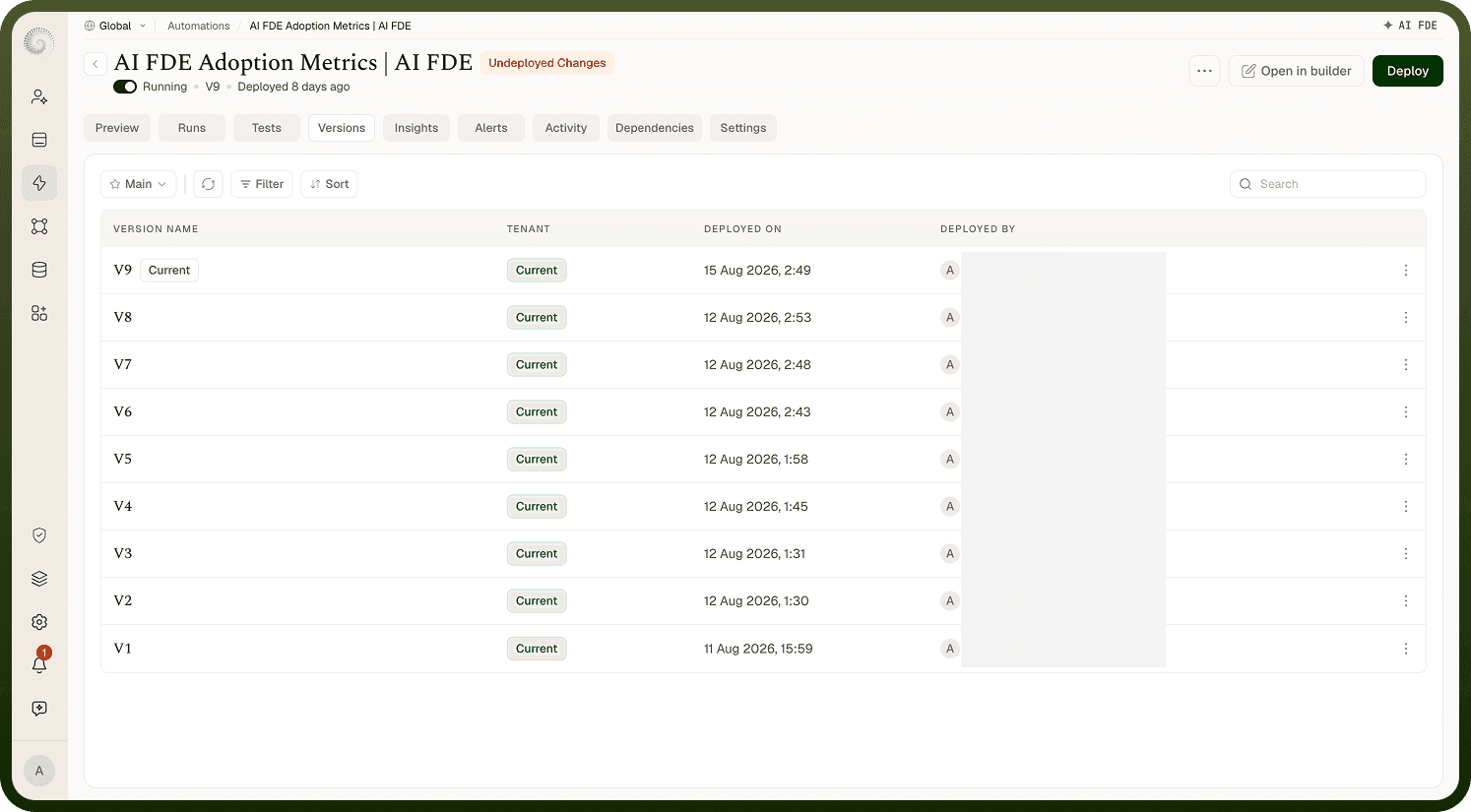
Version List
Each entry in the Versions tab shows:
Version number — V1, V2, V3, and so on, in chronological order
User — who deployed this version
Timestamp — the date and time of deployment
"current" tag — the version that is currently live
Restoring a Version
To restore a previous version:
Click the version you want to restore in the Versions tab.
Review the configuration summary to confirm it is the right version.
Click Restore this version in the top right corner of the version detail page.
In the Restore automation dialog, confirm. Any undeployed changes are overridden by the version you restore.
The builder opens with the restored version's flow as your working draft. Nothing changes in production yet: review the draft, then deploy it to make it live. Deploying creates a new version number (for example, restoring V2 on a V5 automation and deploying it creates V6).
Note: Restoring a version does not delete any existing versions. The full history is preserved after a restore.
Notes
Version management turns deployment into a reversible action. To use it well:
Check the version history before making significant changes — if someone else recently deployed, understand their changes first.
Use version numbers as reference points when discussing issues in a team context ("the problem started in V4").
If a deploy causes unexpected behavior, restore the last good version and deploy it. A restore takes effect only after you deploy.
Note that restoring a version restores the automation's configuration, not its run history; past runs are preserved in the Runs tab regardless of which version is active.
Knowing you can restore and redeploy a previous version makes it safe to deploy iteratively and improve automations continuously.