


The On-Prem Commands node runs shell commands and Playwright scripts on an on-prem agent's host, returning the exit code and output of each run.
Overview
On-Prem Commands routes execution requests through an on-prem agent installed inside your network. The agent opens an outbound connection to the UnifyApps platform and keeps it live; when an automation reaches this node, the platform sends the command to the agent, which runs it locally using the agent's own OS credentials and returns the result. Exit code, stdout, and stderr come back as separate output fields — check the exit code to determine success or failure, and use stderr for diagnostics when the exit code indicates a problem.
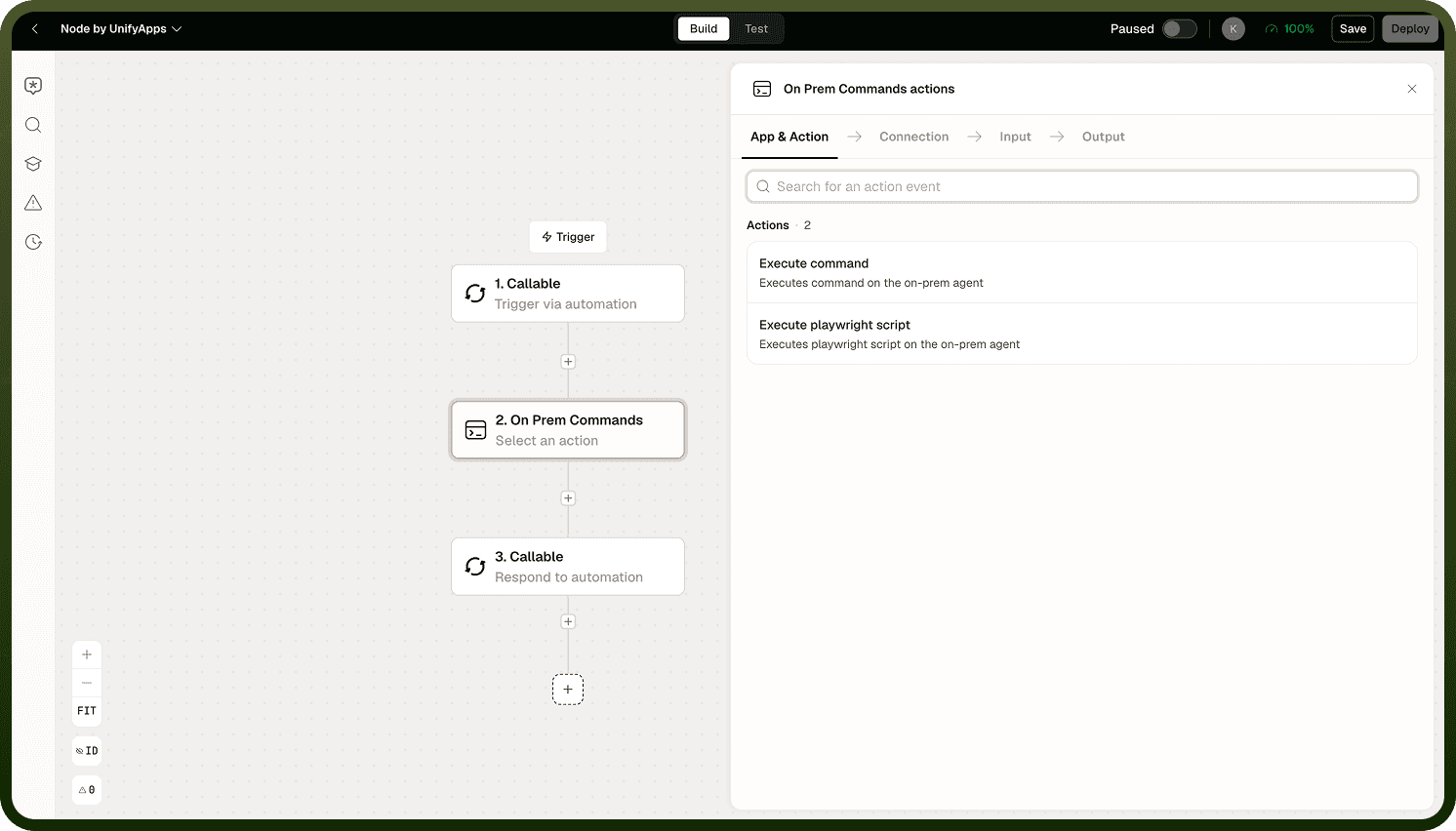
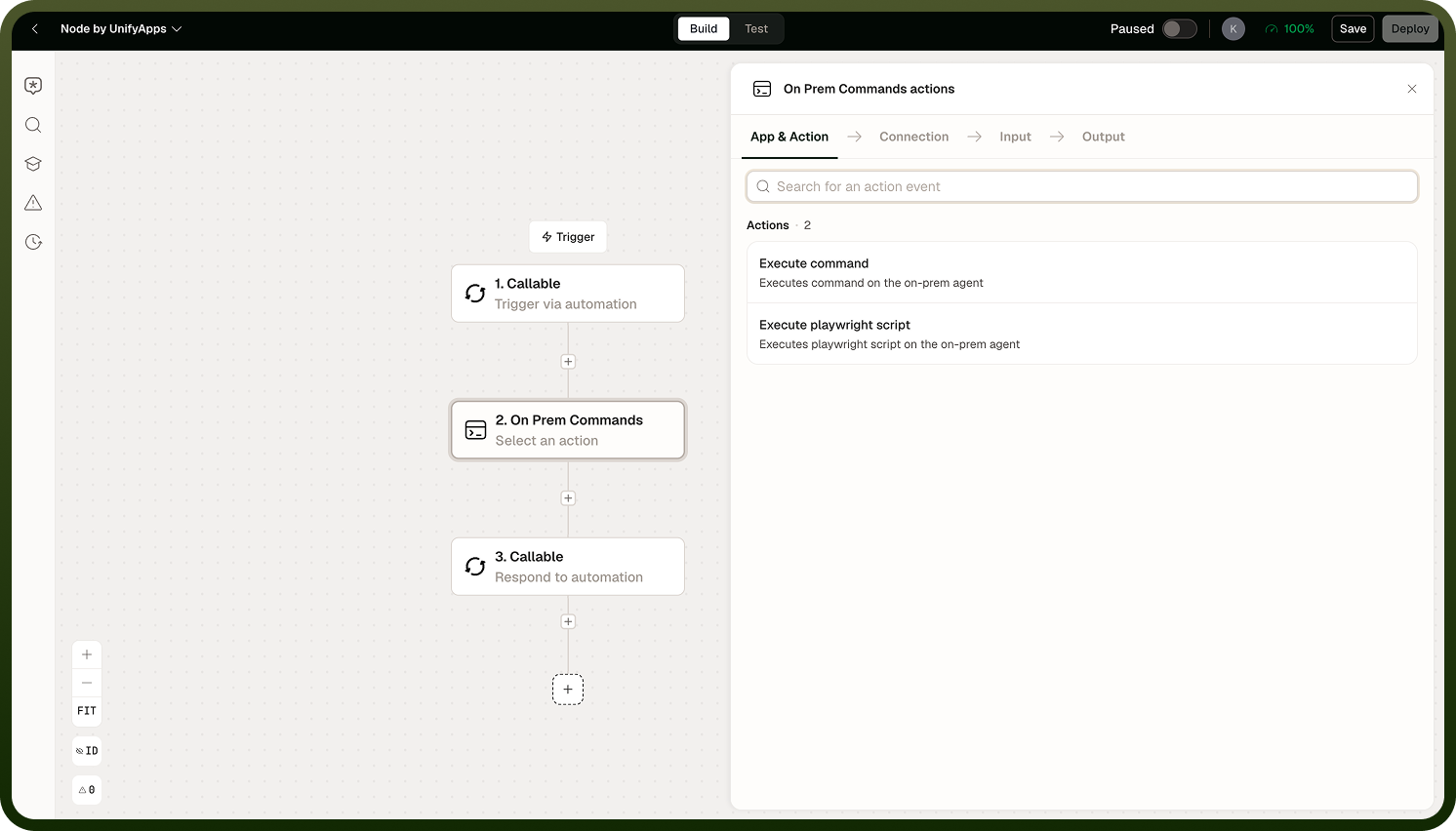
Because the agent initiates an outbound connection only, no inbound firewall openings are required. Use On-Prem Commands to execute scripts, invoke command-line tools, or automate browser interactions against internal systems without those systems being internet-reachable. You select the agent (or agent group) via the Connection setting on the node.
Execute Command
The Execute command action runs a shell command on the agent's host. Three settings govern how it runs.
Setting | Description |
|---|---|
Command | The shell command to execute on the agent's host. |
Process timeout | Maximum wait time for the command, in seconds. The default is 5 seconds — increase it explicitly for any job that takes longer. |
Maximum output | Maximum bytes captured from each of stdout and stderr. Defaults to 5,242,880 bytes (5 MB); extra output is truncated. |
Output: the process ID, the exit code, stdout, stderr, and an error message if the command failed to run.
Commands run with the agent's own OS user permissions. Scope the agent's account carefully — it can only do what its OS user is allowed to do. Apply the principle of least privilege: grant the agent account only the access your automations actually require.
Process timeout is short by default: The default is 5 seconds. Any job that takes longer will be cut off unless you explicitly increase the Process timeout setting. Set this value to something that covers the expected runtime of your command before deploying.
Execute Playwright Script
The Execute playwright script action is a separate action that runs a Playwright script on the agent's host using the locally installed Playwright runtime. Use it to automate browser interactions against internal web applications — filling forms, scraping internal portals, navigating internal tools — without those applications being reachable from the internet.
Setting | Description |
|---|---|
Define inputs to be used in the code | Optional input parameters for the script, each with a key and a type. |
Playwright script | The JavaScript Playwright script to execute. The result is taken from the script's console output. |
Use playwright test framework | Runs the script with the Playwright test framework. Turn it on if the script contains Playwright test functions. |
Output: the process ID, the exit code, the output, and the error. This action has no Process timeout or Maximum output setting.
The command runs inside the agent's shell environment, so the script has access to environment variables, the local file system (within the agent's permissions), and any other resources available to the agent's OS user.
Playwright prerequisites: Playwright and its required browser binaries must be installed on the agent host and accessible to the agent's OS user. Verify the Playwright version and browser dependencies before using Playwright scripts in production.
Notes
The default Process timeout is 5 seconds. Increase it explicitly for any command that takes longer — otherwise it will be cut off before it finishes.
stdout and stderr are each capped at 5 MB by default. If your command produces large output, raise Maximum output; otherwise the output is truncated and downstream nodes receive an incomplete result.
Commands run as the agent's OS user. Apply the principle of least privilege to the agent account — it can only do what that user is permitted to do on the host.
For Playwright scripts, the Playwright runtime and required browser binaries must be installed on the agent host before use.
Check the exit code output field to determine whether the command succeeded; a non-zero exit code typically indicates failure. Use stderr for detailed error information.
Piped commands, redirects, environment variables, and other shell constructs work as they would in a terminal session on the agent host.