


The Dependencies tab shows a map of everything an automation is connected to, so you can see what starts it, what it runs and what it relies on before you change or move it.
Overview
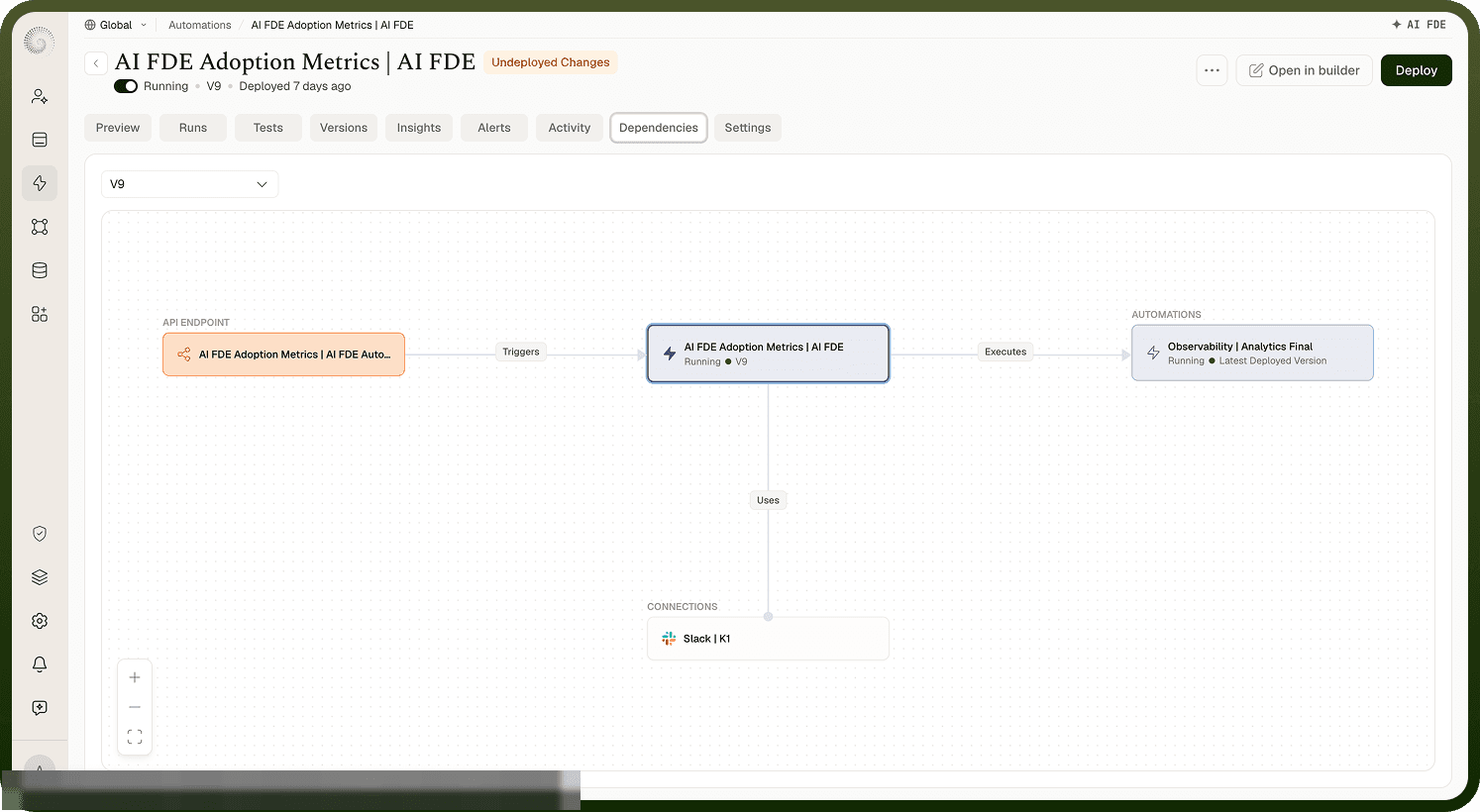
The Dependencies tab is an interactive map, not a list. Your automation sits in the centre, and the things it's connected to, such as API endpoints, other automations and connections, branch out around it as cards.
To open it, go to the automation's detail view and click the Dependencies tab. You can pan around the map and use the zoom controls to zoom in, zoom out or fit everything to the screen.
Relationship labels
The lines between your automation and each card are labelled by relationship:
Triggers: the item starts this automation.
Executes: this automation runs or calls the item.
Uses: this automation directly relies on the item.
Card status
Some cards show a deployment status under their name:
Running: the item is deployed and active.
Paused: the item is deployed but turned off.
Undeployed: the item has never been deployed.
Cards also show which version is deployed, where that applies.
Open a connected item
Click any card around the centre to open that item. The centre card is your current automation and isn't clickable. If a name is too long for its card, hover over it to see the full name.
View dependencies for a version
Use the version selector at the top of the map to choose which version's connections you see: Last Saved Version, Latest Deployed Version, or a numbered version such as V1 or V2. What an automation depends on can change between versions, so you can check what the deployed version relies on separately from your latest edits.
Notes
Check the map before you edit or remove a shared item, such as a connection or a callable automation. Changing it can break every automation connected to it.
Before you deploy or move an automation to another environment, use the cards and their statuses to see what needs to exist and be deployed there for the automation to keep working.