


The Git node brings a full Git workspace into an automation. Clone a repository, make changes using the file and code operations, commit and push — all from within an automation run. Use it to automate code changes, repository management tasks, or any workflow that needs to read from or write to a Git repository.
Overview
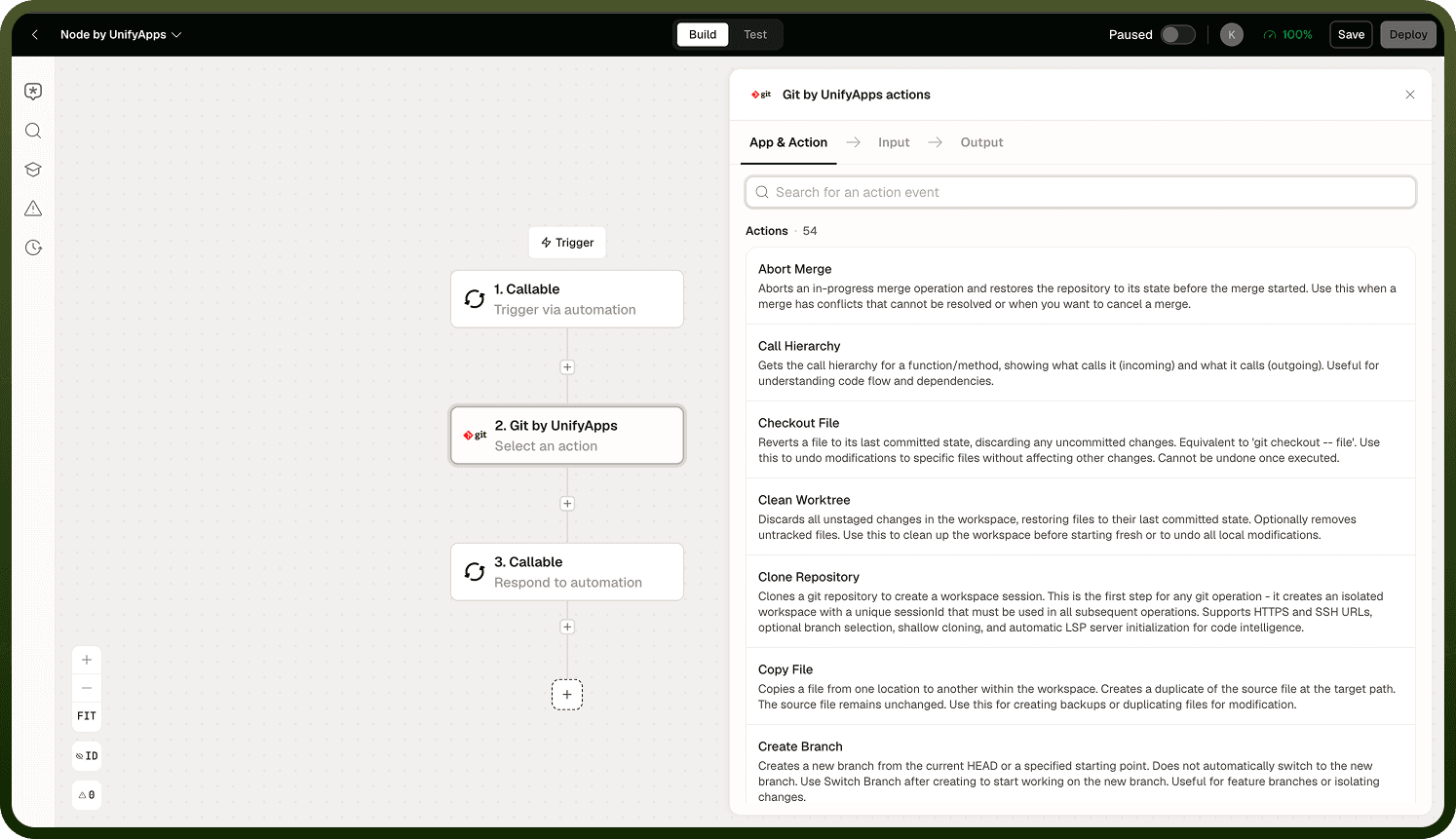
The Git node exposes two groups of operations: Version Control Operations (clone, branch, commit, push, pull, merge, and more) and Files and Code Operations (read, write, edit, search, and execute files in the workspace). Together they give an automation the same access to a repository that a developer has at the command line.
Getting Started
Every Git workflow starts with Clone Repository:
Connection — Optional. Select a GitHub connection. Required for private repositories.
Repository URL — The HTTPS or SSH URL of the repository to clone.
Branch — Optional. The branch to check out after cloning. Defaults to the default branch.
Clone Depth — Optional. Use 1 for a shallow clone with only the latest commit.
Clone Repository returns a Session ID. Pass this Session ID to every later Git step so they all work on the same cloned repository.
Session Workspace
Cloning a repository creates a session workspace — an ephemeral copy of the repository tied to the automation run. The workspace exists for the duration of the run; it is not persisted after the run completes.
To clean up explicitly, use the Delete Workspace operation, or use worktrees when you need isolated working copies within the same run. Worktrees are useful when an automation needs to work on two branches simultaneously without switching back and forth.
Note: Because the workspace is ephemeral, any changes that are not committed and pushed to the remote repository are lost when the run ends. Always push your changes before the run completes if you need them to persist.
Version Control Operations
The full set of standard Git operations is available:
Clone — download a repository into the session workspace. Supports shallow clone (no full history) — useful for speed, but breaks operations that depend on history such as log, diff across a range, or rebase.
Branch — create, switch or list branches (delete a branch with Git Command).
Stage — add files to the index before committing.
Commit — record staged changes. Commits use the Author Name and Author Email you set on Git Commit; if you leave them blank, they're credited to UnifyApps Agent.
Push / Pull / Fetch — synchronize with the remote repository.
Merge — merge one branch into another.
Stash / Reset — temporarily set aside changes or reset the working tree.
Log / Diff — inspect commit history and compare changes.
Pull Request — create a pull request on GitHub. GitHub is the only supported PR target; other Git hosts are not supported for PR creation.
Raw Git command — an escape hatch for any Git operation not exposed as a named action. Pass the full command string.
Files and Code Operations
Within the workspace, you can read, write, edit, search, and execute files. The available actions are:
Files — Read File, Write File, Edit File, Multi Edit File, Copy File, Move File, Delete File, Get File Info.
Directories — Create Directory, List Directory, Directory Tree.
Search — Grep Search, Glob Search, Find in Files.
Run commands — Execute Command runs a shell command in the workspace, for example to run builds or tests.
The code intelligence actions in the list (such as Go to Definition, Find References, Hover Information and Rename Symbol) aren't available yet.
Notes
The Git Node works best when you follow these practices:
Shallow clones are faster but break history-dependent operations (log ranges, rebase, annotated tags). Only use shallow clone when history is not needed.
Set Author Name and Author Email on Git Commit if commits should be credited to a specific person. If you leave them blank, commits are credited to "UnifyApps Agent".
Pull requests can only be created on GitHub repositories. For other hosts, push the branch and create the PR through the host's own API using a Custom HTTP step.
Push changes before the run ends — the session workspace is ephemeral and will not survive the run.