


The DuckDB node runs analytical SQL over your data inside an automation. Load data into a fast, in-process columnar database, then query it with full DuckDB SQL syntax. It's the right tool for real analytical work — aggregations, window functions, joins across sizeable files — when the simpler Utility node operations are not enough.
Overview
You upload data from a file (CSV, TSV, JSON, or Parquet) into a named table, then execute SQL against it. Excel files aren't supported directly — convert them to CSV first with Excel by UnifyApps › Convert Excel file to CSV. Results can be exported back as CSV, TSV, JSON, or Parquet. The node handles the engine lifecycle — you work with tables and SQL, not infrastructure.
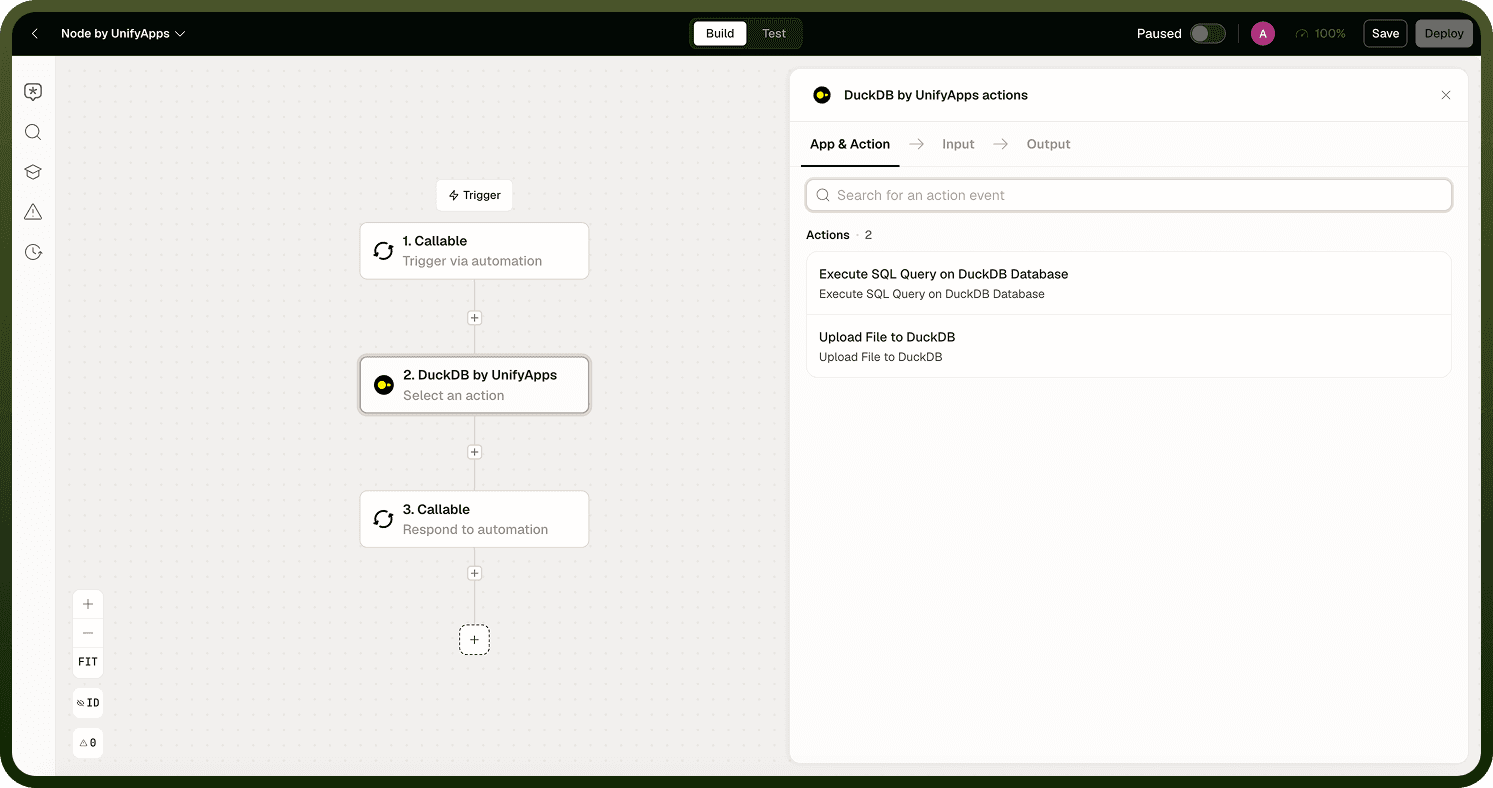
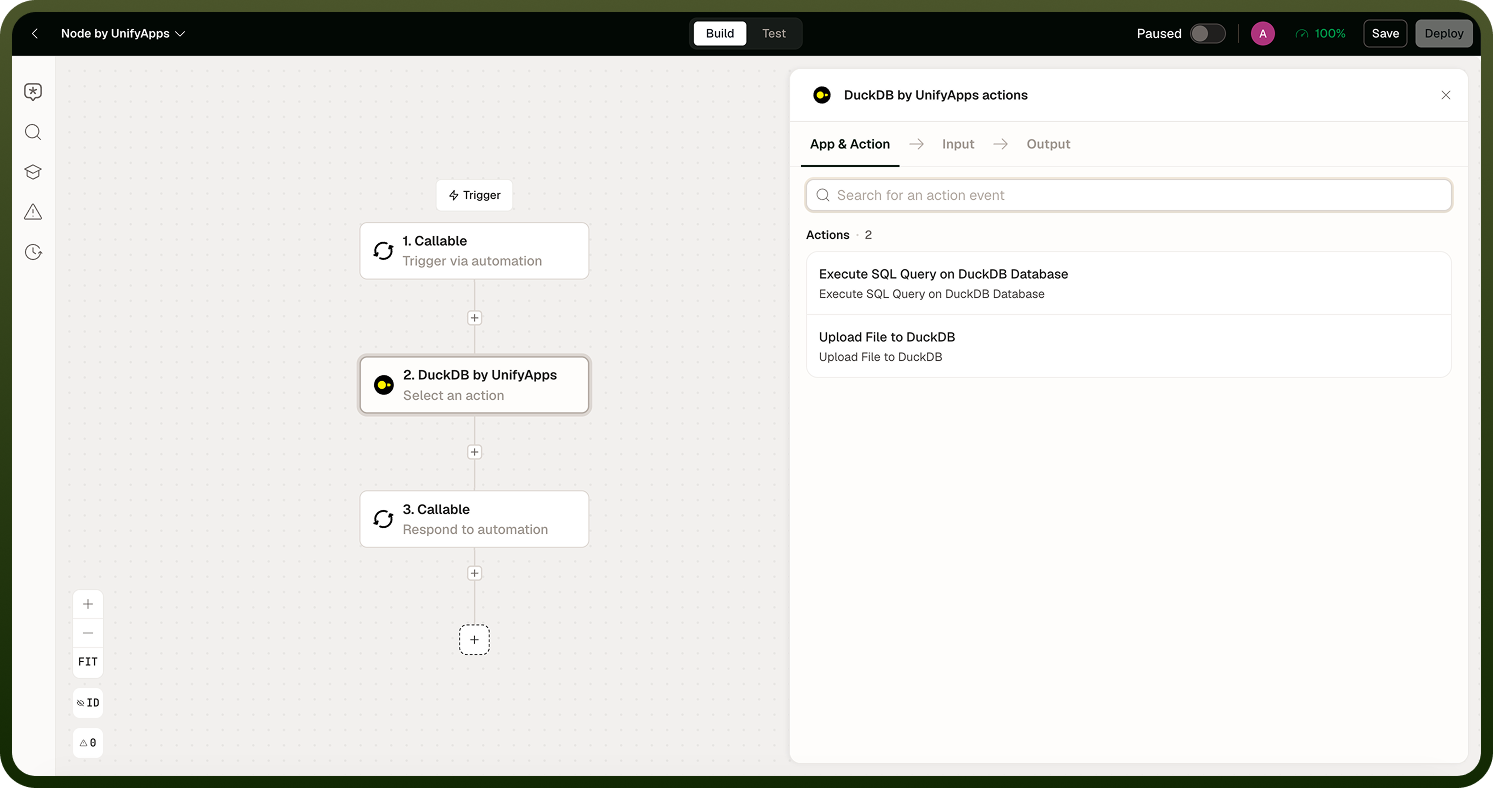
Operations
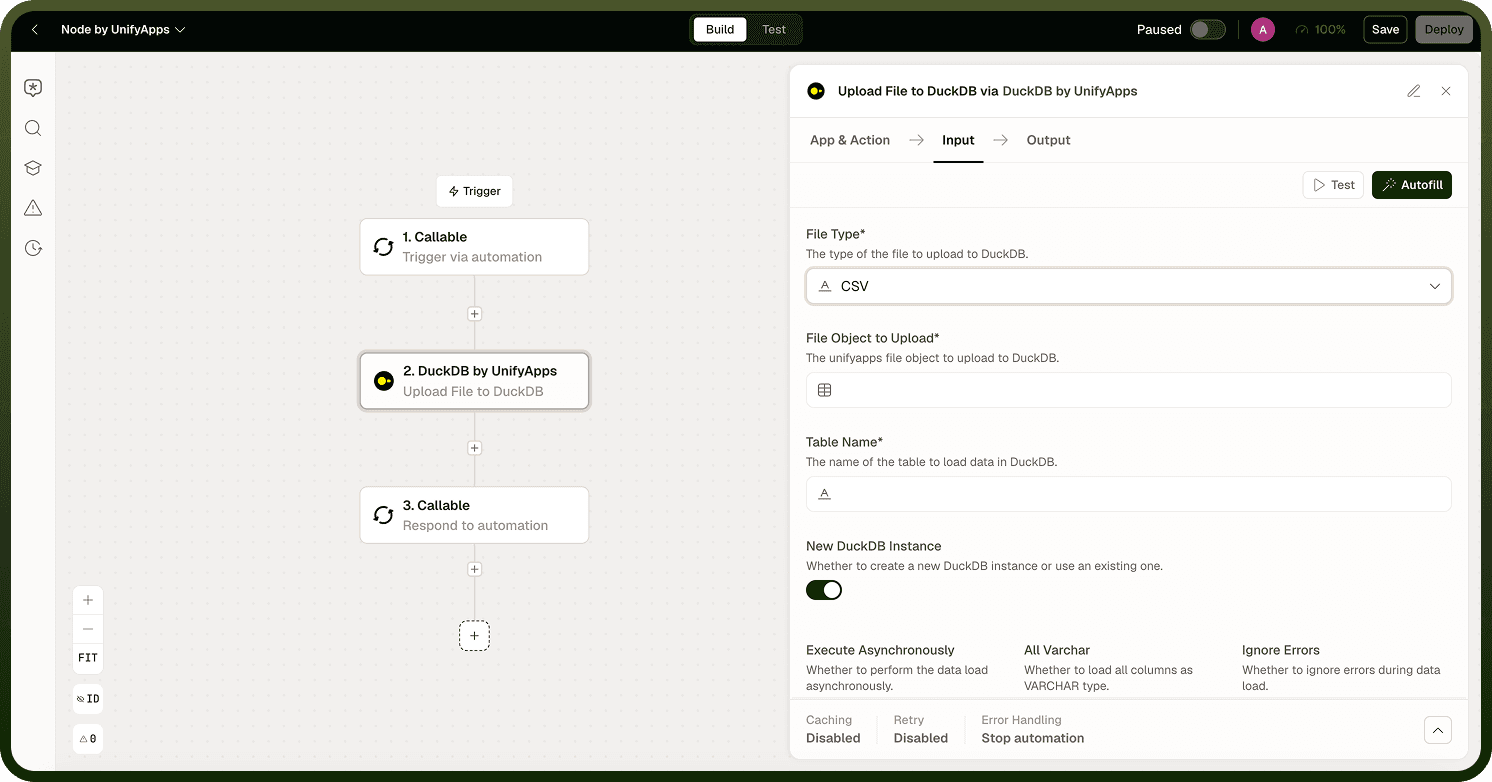
Upload File to DuckDB
Loads a file into a table in a DuckDB instance.
Input Field | Description |
|---|---|
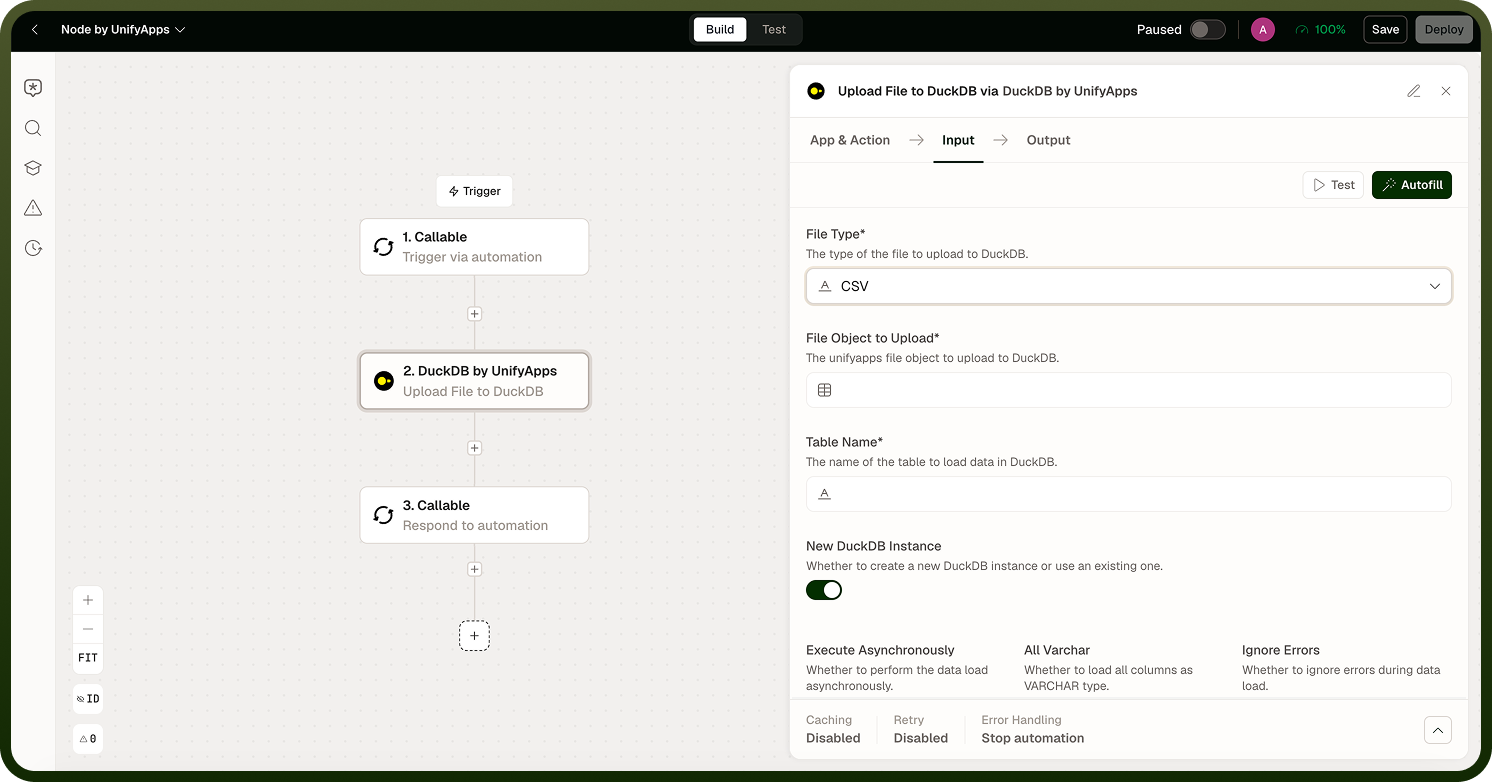
File Type (required) | The type of the file to upload: CSV (default), TSV, JSON or Parquet. |
File Object to Upload (required) | The file to load into DuckDB. |
Table Name (required) | The name of the table to load the data into. |
New DuckDB Instance | On by default: creates a new instance. Turn it off and enter an Instance ID to load into an existing instance created by this node. |
Execute Asynchronously | Whether to perform the data load asynchronously. |
All Varchar | Load all columns as VARCHAR (text). |
Ignore Errors | Ignore errors during the data load. |
Output: the Instance ID of the DuckDB instance and a reference to its stored database file.
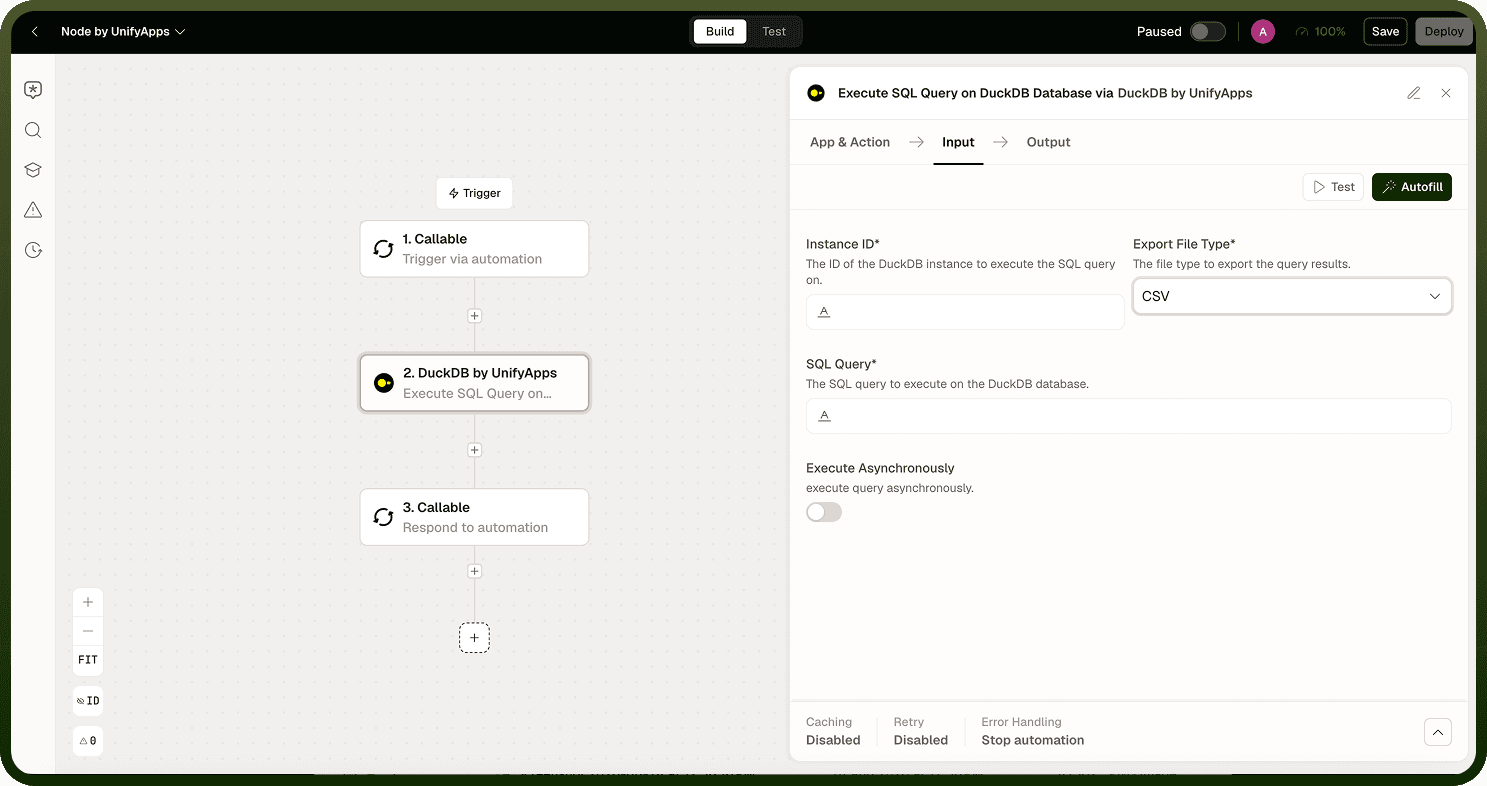
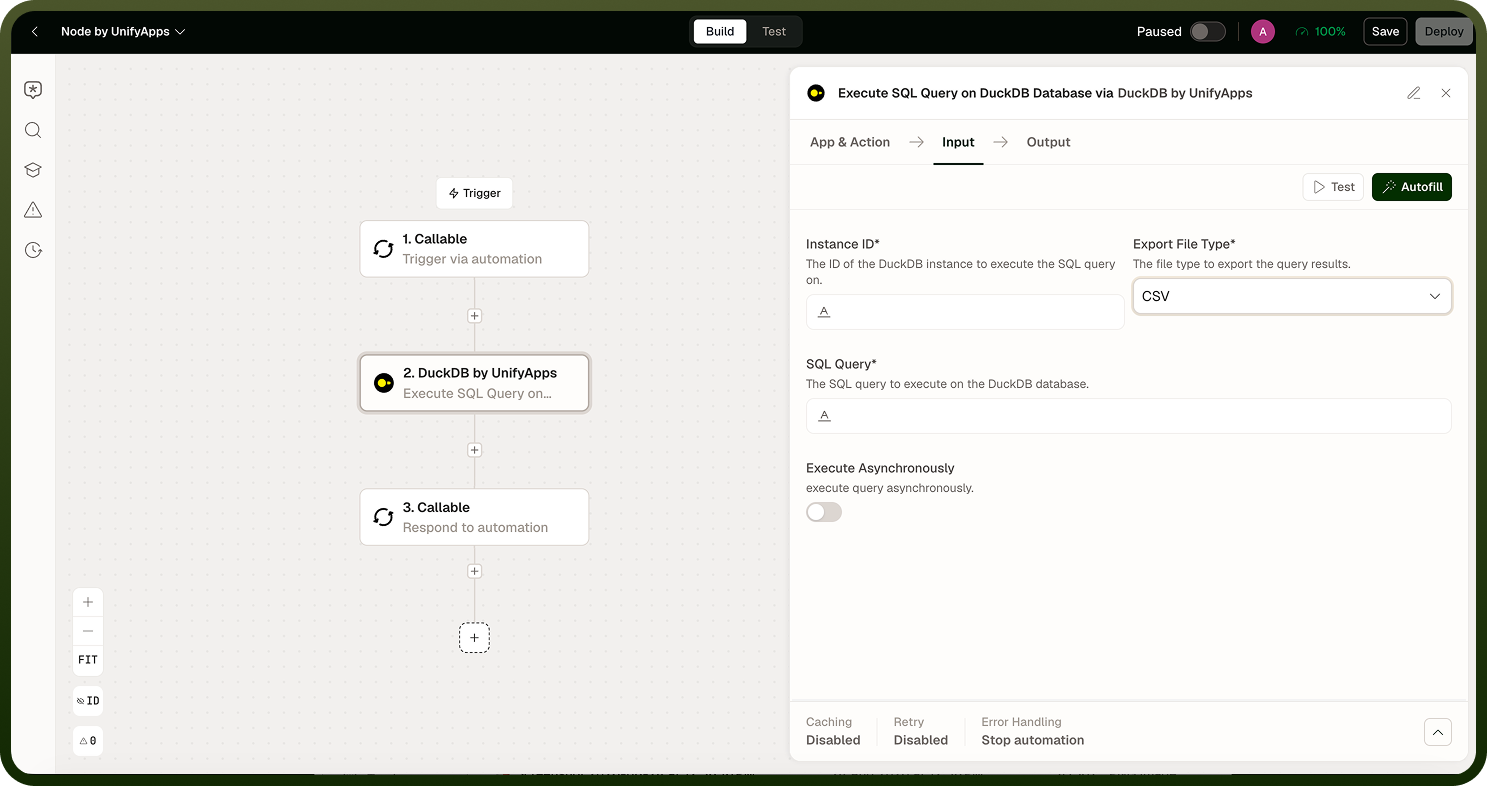
Execute SQL Query on DuckDB Database
Runs a SQL query on a DuckDB instance and exports the results to a file.
Input Field | Description |
|---|---|
Instance ID (required) | The ID of the DuckDB instance to query, as returned by Upload File to DuckDB. |
SQL Query (required) | The SQL query to run. |
Export File Type (required) | The file type for the query results: CSV (default), TSV, JSON or Parquet. |
Execute Asynchronously | Whether to run the query asynchronously. |
Output: a result file with the query results.
Instance Lifecycle
Each upload creates a new DuckDB instance unless you turn off New DuckDB Instance and pass an existing Instance ID. Queries always run against an existing instance: pass the Instance ID returned by an upload into Execute SQL Query on DuckDB Database. To load several files and query them together, upload the first file to a new instance, then upload the others into that same instance.
Behind the scenes, a reused instance is saved to and reloaded from storage, so the instance reference is effectively a stored-file handle you must manage. If queries come back empty against a table you thought you created, the common cause is an upload that created a new instance instead of loading into the instance you query.
Loading Data
Three behaviors matter when loading:
Type inference — by default DuckDB infers column types, so "123" becomes a number. If you need everything kept as text (to preserve leading zeros, codes, or mixed values), turn on All Varchar.
Create, not append — loading creates a table. There is no append operation. Model your flow around create-then-query rather than incremental inserts.
Malformed rows — turn on Ignore Errors so a single bad line does not fail the entire load.
Notes
The DuckDB Node works best when you follow these practices:
Use DuckDB for complex analytical queries; use the Utility node's list-to-SQL operations for simple filtering and aggregation on small lists.
Store the Instance ID from the upload step in a Variable if you need to reference it in multiple downstream steps.
DuckDB SQL syntax is supported in full — window functions, CTEs, lateral joins, and aggregations all work as expected.