

The JSON by UnifyApps node reads a JSON or JSONL file and yields each record to the loop body one at a time — and can also write a list of objects out as a JSON array or line-delimited JSONL file.
Overview
The JSON by UnifyApps node is an iterator node that steps through a JSON or JSONL (one-object-per-line) file record by record, delivering each to the steps inside the loop body rather than loading the entire file upfront. It also supports a write operation so you can produce or append to a JSON or JSONL file as part of the same automation. Use it to walk API exports, database dumps, or data pipeline outputs stored as JSON — transforming or routing each record as it flows through.
JSONL (JSON Lines) format is particularly well-suited to streaming because each line is a self-contained object, making it straightforward to read or write incrementally. If you control the format of your input files, prefer JSONL for large datasets over a single large JSON array.
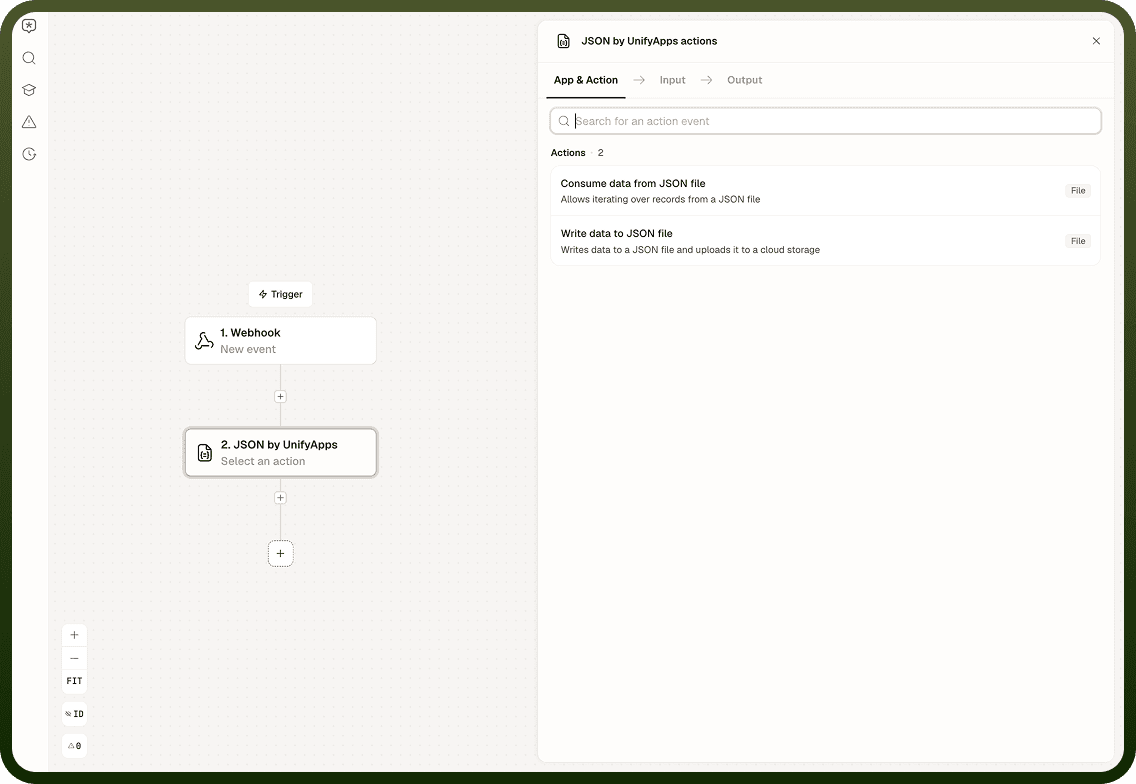
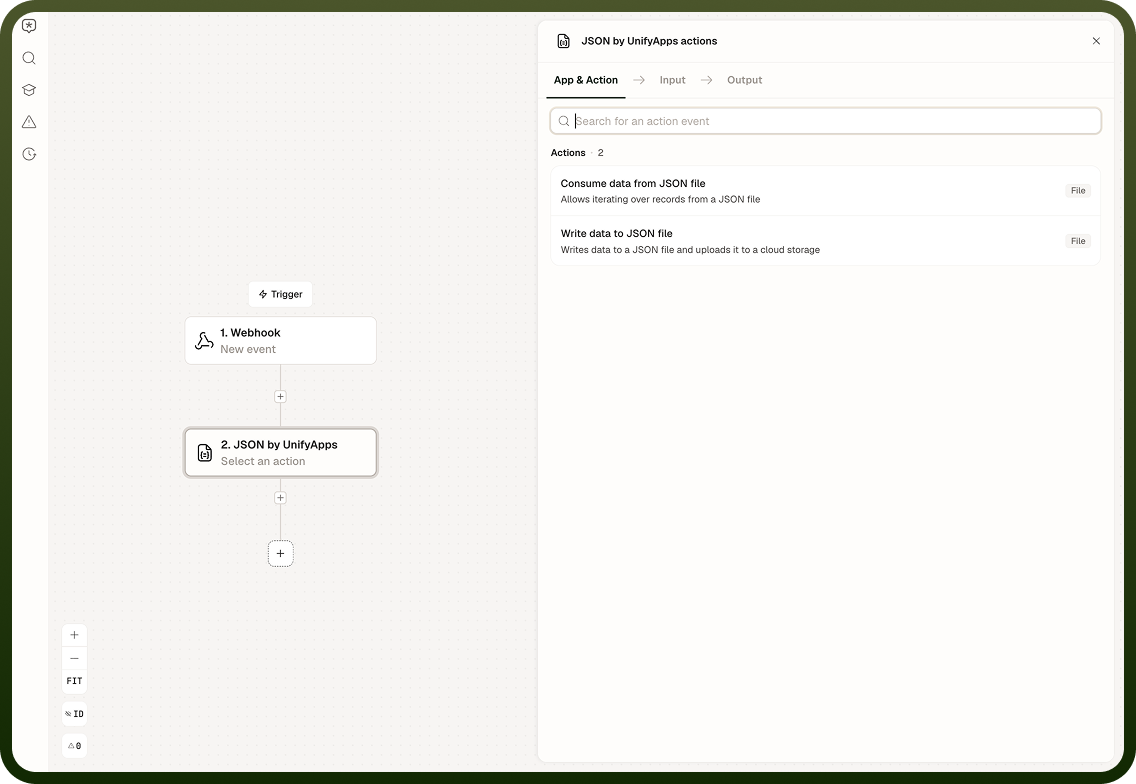
Consume data from JSON file
The read operation iterates a JSON or JSONL file and yields records — one at a time or in batches — to everything inside the loop body. Each pass through the loop receives the current record along with metadata about its position in the file.
Inputs
Field | Description |
|---|---|
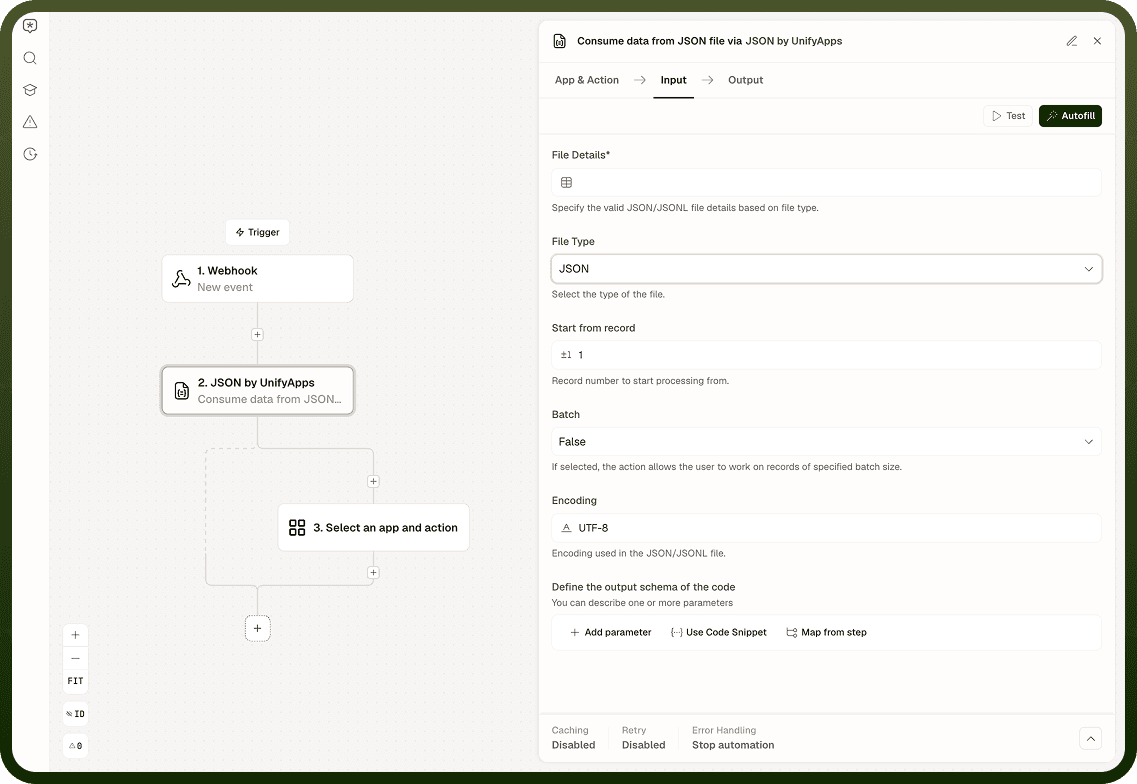
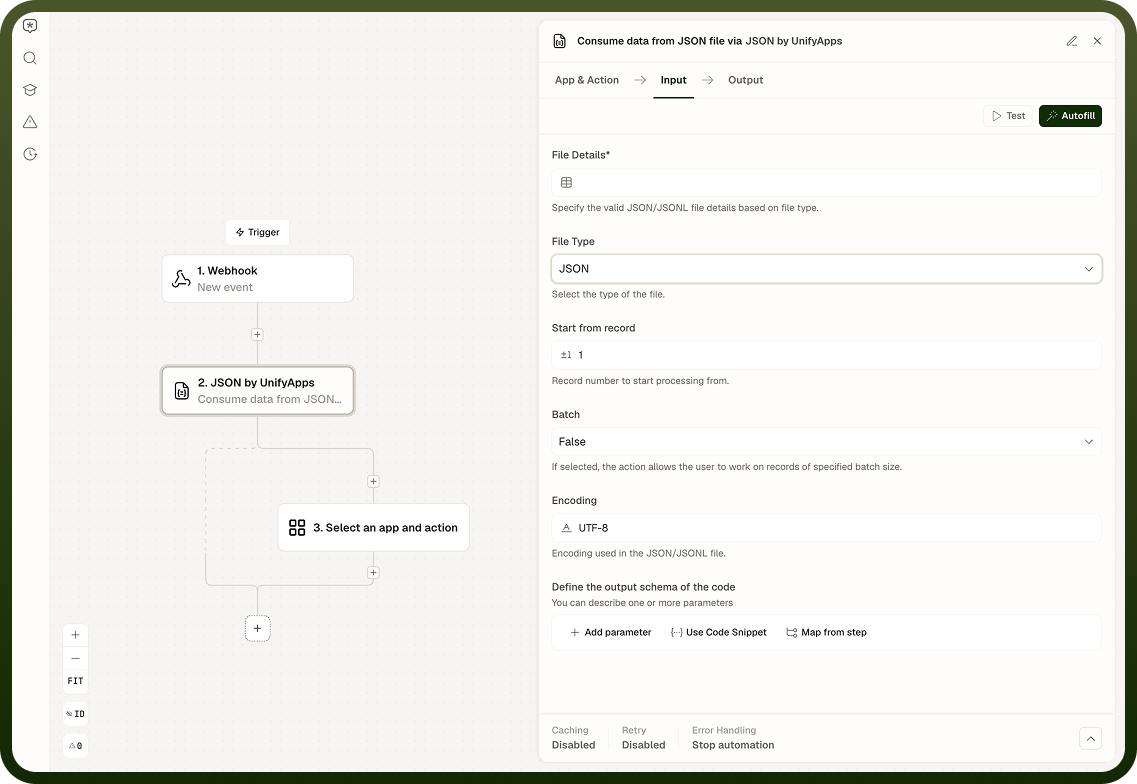
File Details | Required. The JSON or JSONL file to iterate. |
File Type | JSON or JSONL. Defaults to JSON. |
Start from record | The record number to start processing from. Counted from 1 — record 1 is the first record in the file. Use this to resume from a checkpoint or skip a known number of already-processed records. |
Encoding | The encoding used in the file. Defaults to UTF-8. |
Batch | Set to True to work on records in batches instead of one at a time. Defaults to False. |
Batch size | Appears when Batch is set to True. The number of records to process in each batch. Defaults to 100. Batching reduces per-record overhead on large files. |
Loop Outputs
The following values are available inside the loop body on each pass:
Output | Description |
|---|---|
Item | The current record (or batch of records, when batch size is set) from the file. |
Index | The zero-based position of the current item within the iteration. |
Is First | True on the first iteration pass. Use this to run setup logic — opening a target file, initialising a counter — without adding a conditional branch to every pass. |
Is Last | True on the final iteration pass. Use this to flush a buffer or close a resource after the last record has been processed. |
Batch mode: When Batch is set to True, Item contains a list of records rather than a single record. Your loop body steps should be written to handle a list. For most high-volume files, a batch size around 100 strikes a good balance between overhead and memory use — tune it based on the complexity of your loop body.
Write data to JSON file
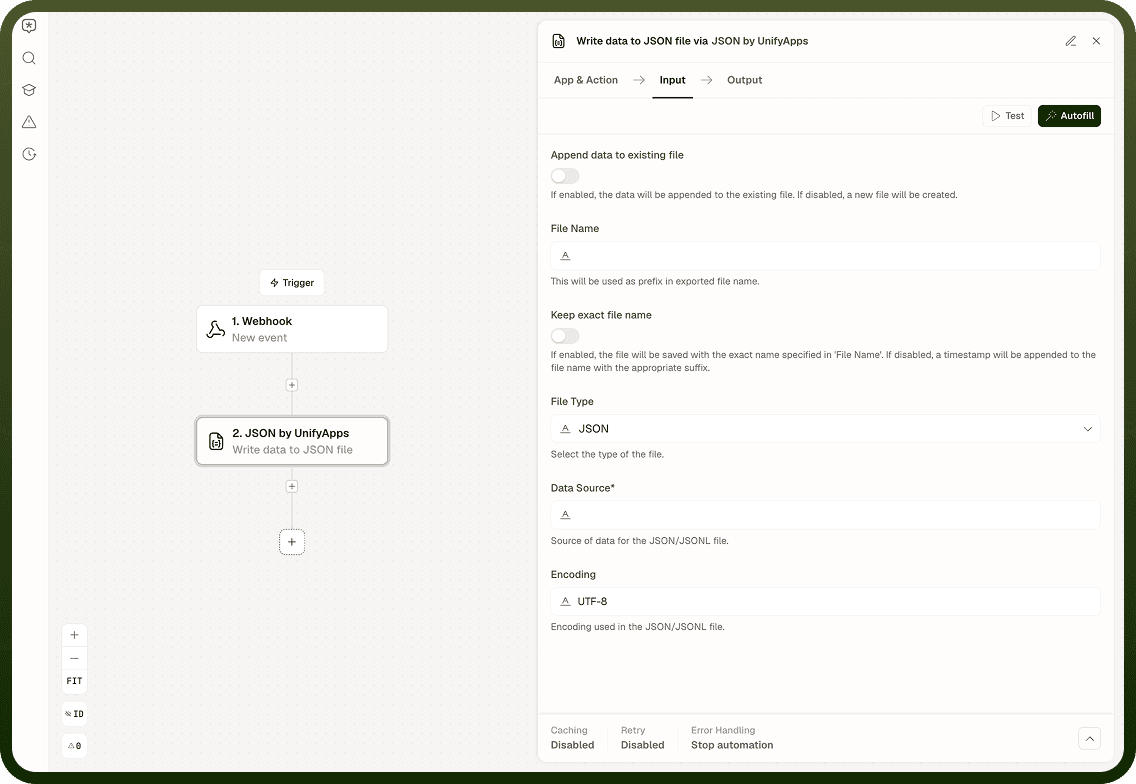
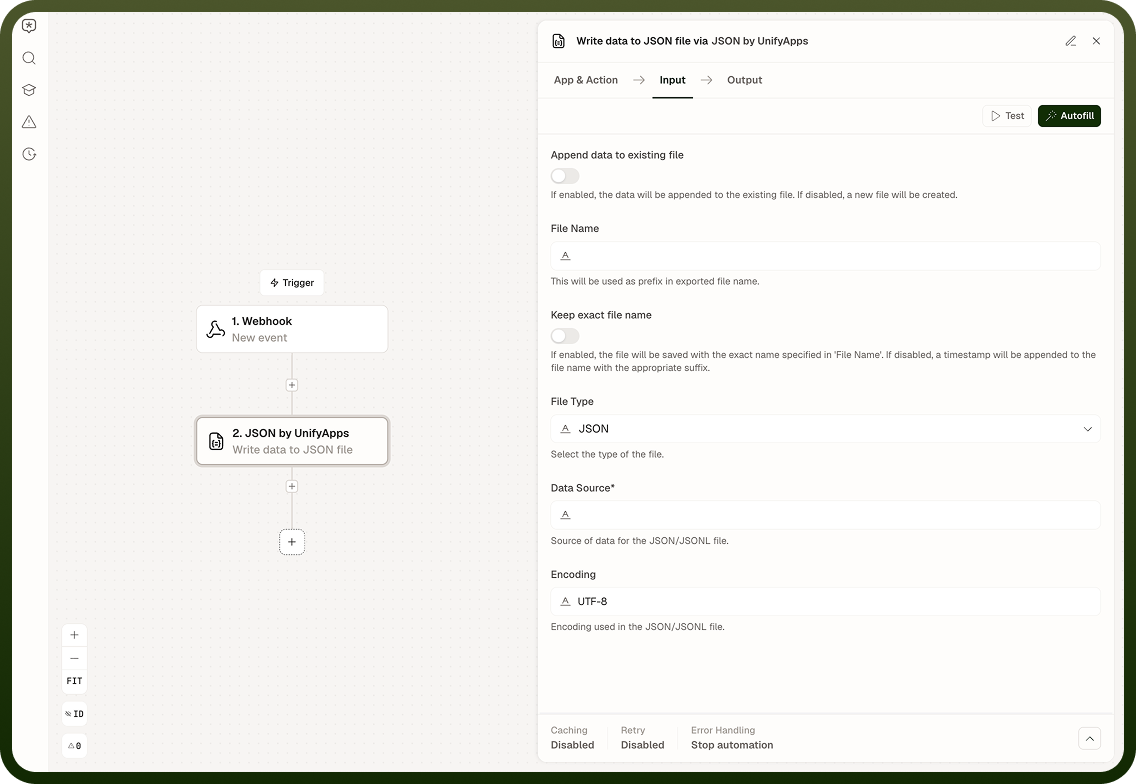
The write operation writes data to a file as either JSON or JSONL (one object per line) and uploads it to cloud storage. Use it at the end of a processing loop to materialise results, or as a standalone step to produce a structured output file. The output is a fileDetails pill you can pass to later steps.
Inputs
Field | Description |
|---|---|
Append data to existing file | If enabled, the data is appended to an existing file. If disabled, a new file is created. |
File Name | Shown when appending is off. Used as the prefix of the exported file name. |
Keep exact file name | If enabled, the file is saved with the exact name in File Name. If disabled, a timestamp is appended to the file name. |
File Details | Shown when appending is on. The JSON or JSONL file to append to. |
File Type | JSON or JSONL. Defaults to JSON. |
Data Source | Required. The data to write to the file. |
Encoding | The encoding used in the file. Defaults to UTF-8. |
Append mode gotcha: Append data to existing file edits the existing file's structure in place. Use it only when you are deliberately accumulating records across runs or loop passes into a single file. For a fresh, predictable output each time, write without append.
Notes
Keep the following in mind when using the JSON by UnifyApps node.
Prefer JSONL format for large datasets — its line-delimited structure makes streaming and partial reads more reliable than a single large JSON array.
Start from record is counted from 1. Record 1 is the first record in the file.
Files are read as UTF-8 by default.
Use batch mode for high-volume files to trade per-record overhead for per-batch overhead. Tune the batch size based on the complexity of your loop body steps.
Use the Is First and Is Last flags to run setup or teardown logic once without adding conditional branches to every loop pass.
When writing with Append data to existing file enabled, ensure the target file is always well-formed before the automation runs — a corrupted file will cause the append operation to fail.
For a fresh, predictable output file on each run, write without appending and leave Keep exact file name off so each file gets a timestamp.