


The CSV by UnifyApps node lets you read, create, write, transform and convert CSV files and pass their data to downstream automation steps.
Overview
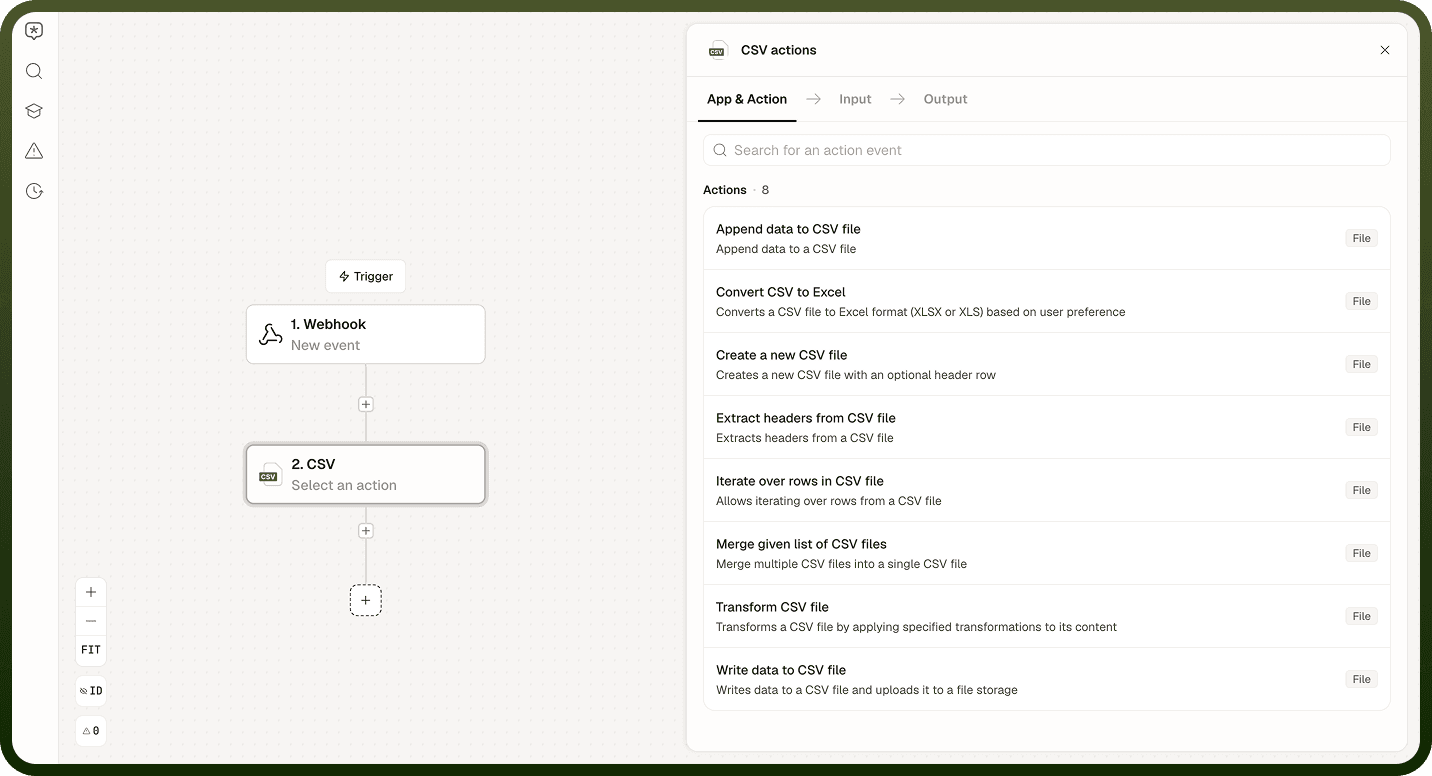
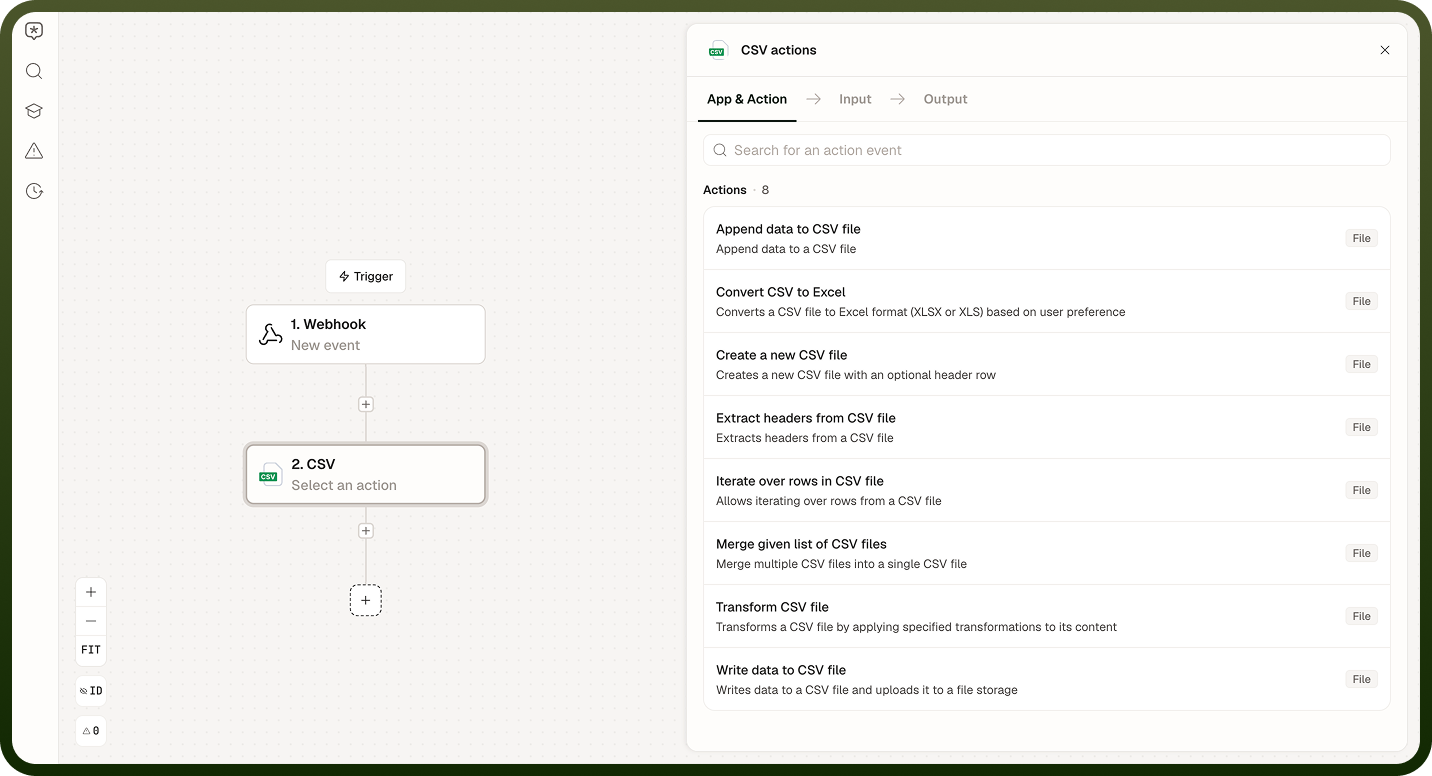
The CSV by UnifyApps node lets you work with CSV files in an automation. Use Iterate over rows in CSV file to read a file row by row (or in batches) and pass each row to downstream steps as an object. Other actions create, write, append, merge, transform and convert CSV files.
Use Case
A practical application involves processing client details from a CSV file containing Name, Company, Phone Number, Service, and Account ID. The workflow uses Iterate over rows in CSV file to read the file and pass each row to subsequent automation steps, such as generating invoices via Razorpay.
Use case example workflow for Iterate over rows in CSV file
How to Parse a CSV File
Add the CSV by UnifyApps node and select "Iterate over rows in CSV file."
Configure required inputs:
File — Provide the CSV file URL or a data pill
Header Row — Set to True if the file has headers; False otherwise
Columns — List desired column names
Batch — Default is False for individual row reading; True enables batch processing
Encoding — Select the file's character encoding: UTF-8 (default), UTF-16, UTF-16 BE, UTF-16 LE, US-ASCII, ISO-8859-1 (Latin-1) or Windows-1252
Delimiter — Specify the parsing character (typically a comma)
Quote character — Define the quote style used in the file
Add an app action inside the iteration (for example, Variable by UnifyApps).
Note: A step must be added inside the iteration; an automation cannot be deployed without a downstream step inside it.
Review the output format, which varies based on the Batch setting:
Batch = False — Returns a single object with a "Row" key
Batch = True — Returns an array of objects with a "Rows" key
The action also has these optional inputs:
Start from row — The row to start reading from (default 1)
Batch size — Shown when Batch is True; the number of rows in each batch (default 100)
Escape character — The character used to escape special characters, such as a quote inside a quoted field
Other CSV Actions
Append data to CSV file — Appends data to a CSV file. Inputs: File Details, Data Source, headers, Skip Header Row, Delimiter.
Convert CSV to Excel — Converts a CSV file to Excel format. Inputs: File Details, Output File Type (XLSX or XLS), Sheet Name (default Sheet1).
Create a new CSV file — Creates a new CSV file with an optional header row. Inputs: File Name, Write header row, Headers, Delimiter.
Extract headers from CSV file — Returns the list of headers in a CSV file. Inputs: File Details, Delimiter.
Merge given list of CSV files — Merges multiple CSV files into a single CSV file. Inputs: Files, Source files have header, Header columns.
Transform CSV file — Transforms a CSV file, for example changing its delimiter, encoding or quote character. Inputs: File Details, Reader Settings, Writer Settings.
Write data to CSV file — Writes data to a CSV file and uploads it to file storage. Inputs: Data Source, Headers, Skip Header Row, Delimiter.
Notes
Keep the following in mind when using CSV by UnifyApps:
Specify the delimiter explicitly when the CSV uses a non-standard character (semicolon, tab, or pipe); the default comma delimiter will misparse the file if the separator differs.
Iterate over rows in CSV file is already a loop — add the steps that handle each row (or batch) inside it.
Large CSV files increase run time; for files with thousands of rows, consider breaking the file into smaller chunks before processing.
Validate the CSV column names and data types in a test run before deploying so type mismatches are caught early.